> ## Documentation Index
> Fetch the complete documentation index at: https://support.affinity.co/llms.txt
> Use this file to discover all available pages before exploring further.
# How to Integrate Affinity with Databricks
> Connect Affinity to your Databricks workspace with Affinity Data Share.
## Overview
Affinity Data Share gives your team **read-only access to your Affinity data inside your own Databricks workspace**, using **Delta Sharing** (Unity Catalog). Instead of building an export or a pipeline, Affinity shares your CRM data directly into Databricks — where you can query it and connect it to your BI tools and dashboards.
**Direction of sync:** Affinity → your Databricks, read-only. The share never writes back to Affinity.
**Enterprise add-on (Beta) — contact us to enable.** The Databricks integration is available on **Advanced and Enterprise** plans as a **paid add-on that Affinity turns on for your account** — it isn't self-serve, and it's currently in **Beta**. Contact your Affinity account manager (or [support@affinity.co](mailto:support@affinity.co)) for pricing and to have it enabled.
## Prerequisites
* **Data Share enabled** for your Affinity organization (see above).
* **Admin access** in Affinity — you set up the connection in Settings.
* A Databricks workspace **enabled for Unity Catalog**.
* Your **Databricks sharing identifier**, and the rights to mount a share — **metastore admin**, or the **`CREATE CATALOG`** and **`USE PROVIDER`** privileges.
## Step 1: Find your Databricks sharing identifier
1. In Databricks, open the **Catalog** icon in the left sidebar.
2. Click the **gear icon** and open your **metastore settings**.
3. Copy the **sharing identifier** — it's in the format `::` (for example, `aws:us-west-2:xxxxxxxx-xxxx-xxxx-xxxx-xxxxxxxxxxxx`).
## Step 2: Connect Databricks in Affinity
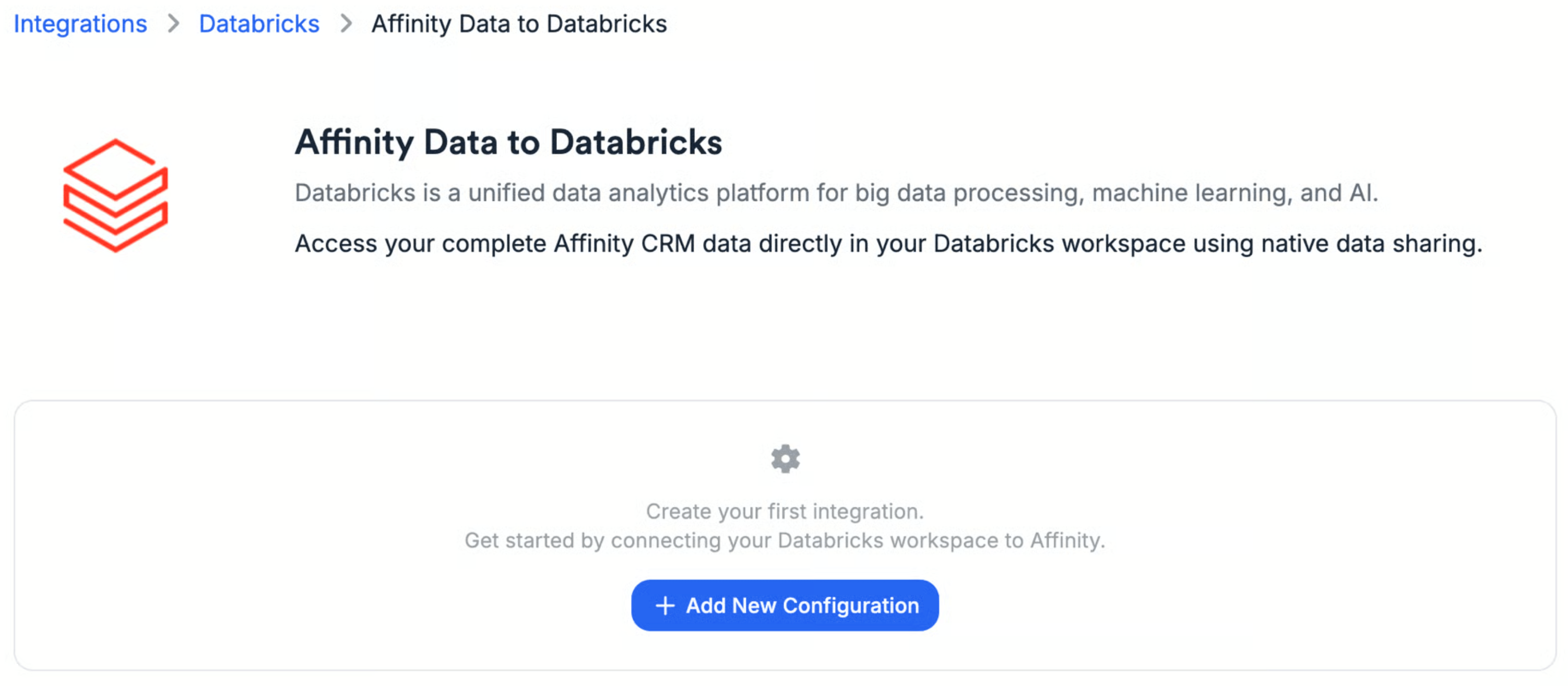
1. In Affinity, go to **Settings → Integrations → Databricks → "Affinity Data to Databricks."**
2. Click **"Add New Configuration."**
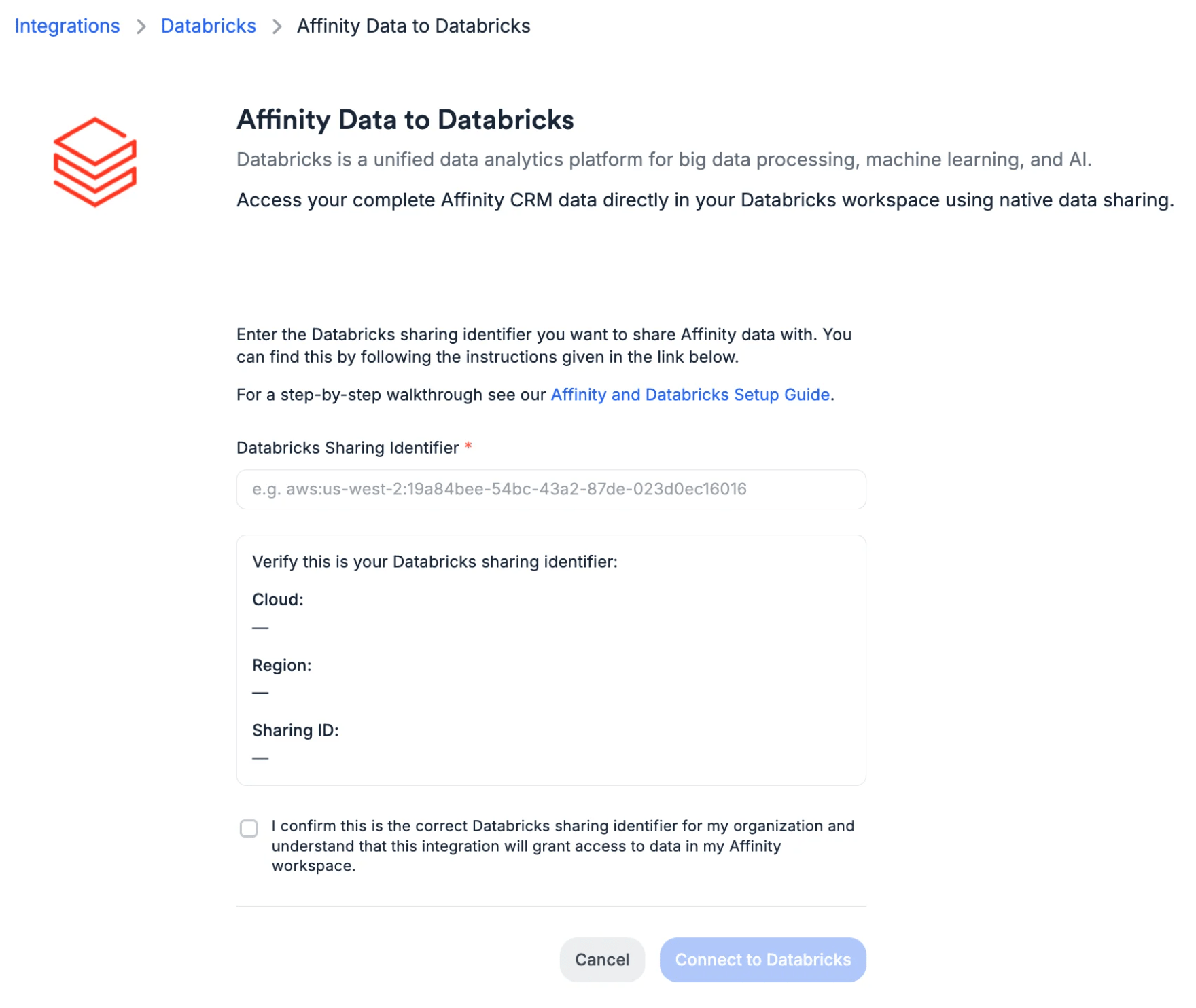
 3. Paste your identifier into the **Databricks Sharing Identifier** field.
4. Check the confirmation box, then click **"Connect to Databricks."**
3. Paste your identifier into the **Databricks Sharing Identifier** field.
4. Check the confirmation box, then click **"Connect to Databricks."**
 Affinity then initiates the Delta Share to your workspace, which usually finishes within a few minutes.
## Step 3: Mount and use your data
Once Affinity has shared the data, mount it in Databricks:
1. Go to **Catalog → gear icon → Delta Sharing**.
2. Open the **"Shared with me"** tab and find the **Affinity** provider and share.
3. Click **"Mount to catalog,"** give the catalog a name, and click **"Create."**
Your Affinity data is now available as a catalog in Databricks to query and connect to your BI tools. For the exact tables and columns, plus example queries, see the [Data Share developer docs](https://developer.affinity.co/pages/data-share/setup).
## What's included
The share includes your core Affinity data, such as:
* **Companies, people, and opportunities**
* **Lists and list entries**
* **Interactions** — emails, meetings, calls, and chat messages (plus meeting transcripts)
* **Notes**
* **Relationship strengths** and your **custom fields**
New and updated records flow through automatically. For the full table-by-table breakdown, see the [Data Share reference](https://developer.affinity.co/pages/data-share/overview).
## How often it updates
Data refreshes **about every 2 hours** — so it's close to current, but not live.
## Good to know
* **Beta.** The Databricks integration is in Beta — expect it to keep improving, and share feedback with your account manager.
* **Access is org-wide.** The share includes all of your organization's Affinity data and doesn't apply Affinity's in-app permissions — grant access only to people who should see everything, and use your Databricks (Unity Catalog) access controls to limit it further.
* **Read-only** — the share never changes anything in Affinity.
* **Deleted records** stay in the share for about **7 days** (marked as deleted) before they drop off.
* **Plans:** Advanced and Enterprise only, and enabled by Affinity.
## Troubleshooting
**I don't see Databricks under Settings → Integrations.** Data Share may not be enabled for your org, or you may not be an admin. Contact your account manager or [support@affinity.co](mailto:support@affinity.co).
**The share hasn't appeared in Databricks.** It usually arrives within a few minutes; then look under **Catalog → gear icon → Delta Sharing → "Shared with me."** Double-check the sharing identifier you entered, and that your workspace is Unity Catalog-enabled.
**I can't mount the share.** Mounting needs **metastore admin**, or the **`CREATE CATALOG`** and **`USE PROVIDER`** privileges — ask your Databricks admin if you don't have them.
**The data looks out of date.** The share refreshes about every 2 hours, so very recent changes may not have synced yet.
**Still stuck?** See the [Data Share developer docs](https://developer.affinity.co/pages/data-share/setup), or contact [support@affinity.co](mailto:support@affinity.co).
Affinity then initiates the Delta Share to your workspace, which usually finishes within a few minutes.
## Step 3: Mount and use your data
Once Affinity has shared the data, mount it in Databricks:
1. Go to **Catalog → gear icon → Delta Sharing**.
2. Open the **"Shared with me"** tab and find the **Affinity** provider and share.
3. Click **"Mount to catalog,"** give the catalog a name, and click **"Create."**
Your Affinity data is now available as a catalog in Databricks to query and connect to your BI tools. For the exact tables and columns, plus example queries, see the [Data Share developer docs](https://developer.affinity.co/pages/data-share/setup).
## What's included
The share includes your core Affinity data, such as:
* **Companies, people, and opportunities**
* **Lists and list entries**
* **Interactions** — emails, meetings, calls, and chat messages (plus meeting transcripts)
* **Notes**
* **Relationship strengths** and your **custom fields**
New and updated records flow through automatically. For the full table-by-table breakdown, see the [Data Share reference](https://developer.affinity.co/pages/data-share/overview).
## How often it updates
Data refreshes **about every 2 hours** — so it's close to current, but not live.
## Good to know
* **Beta.** The Databricks integration is in Beta — expect it to keep improving, and share feedback with your account manager.
* **Access is org-wide.** The share includes all of your organization's Affinity data and doesn't apply Affinity's in-app permissions — grant access only to people who should see everything, and use your Databricks (Unity Catalog) access controls to limit it further.
* **Read-only** — the share never changes anything in Affinity.
* **Deleted records** stay in the share for about **7 days** (marked as deleted) before they drop off.
* **Plans:** Advanced and Enterprise only, and enabled by Affinity.
## Troubleshooting
**I don't see Databricks under Settings → Integrations.** Data Share may not be enabled for your org, or you may not be an admin. Contact your account manager or [support@affinity.co](mailto:support@affinity.co).
**The share hasn't appeared in Databricks.** It usually arrives within a few minutes; then look under **Catalog → gear icon → Delta Sharing → "Shared with me."** Double-check the sharing identifier you entered, and that your workspace is Unity Catalog-enabled.
**I can't mount the share.** Mounting needs **metastore admin**, or the **`CREATE CATALOG`** and **`USE PROVIDER`** privileges — ask your Databricks admin if you don't have them.
**The data looks out of date.** The share refreshes about every 2 hours, so very recent changes may not have synced yet.
**Still stuck?** See the [Data Share developer docs](https://developer.affinity.co/pages/data-share/setup), or contact [support@affinity.co](mailto:support@affinity.co).