> ## Documentation Index
> Fetch the complete documentation index at: https://support.affinity.co/llms.txt
> Use this file to discover all available pages before exploring further.
# How To Export Notes From Affinity
> Help center reference: How To Export Notes From Affinity
**How-to** — task-oriented recipe.
## **Exporting notes from lists**
Export all the notes associated with the organization(s), people, or opportunities based on the list they are in. When exporting, you will only be exporting the notes of list entries that appear in the saved view you're currently on. If you wish to export the notes of all list entries, remove all filters before following the steps below.
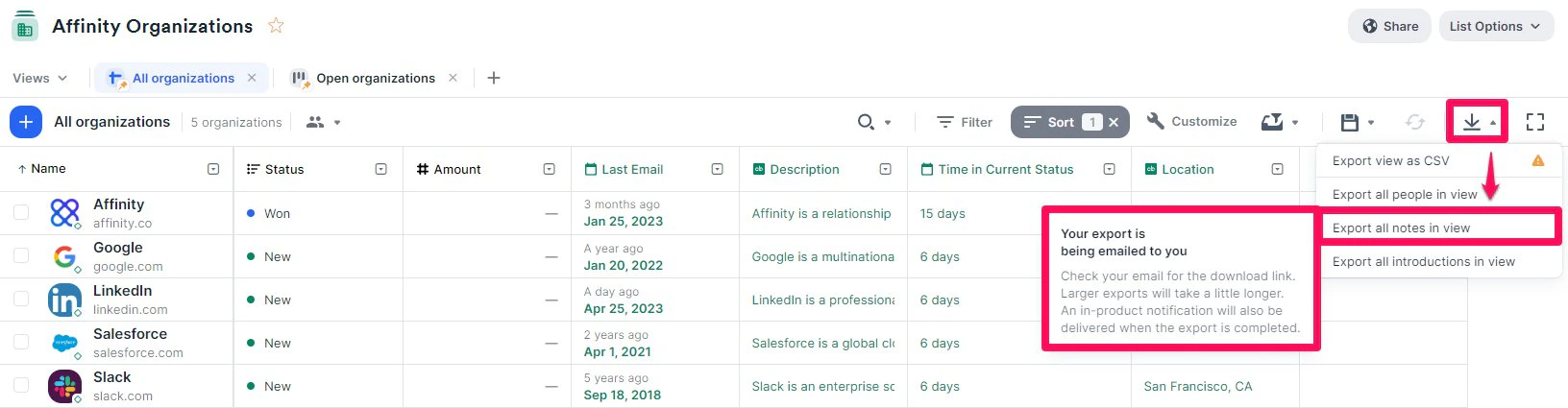
1. Click the **Export** icon, then click **Export all notes in view**. This will include notes attached to synced calendar events and manually logged meetings/phone calls.
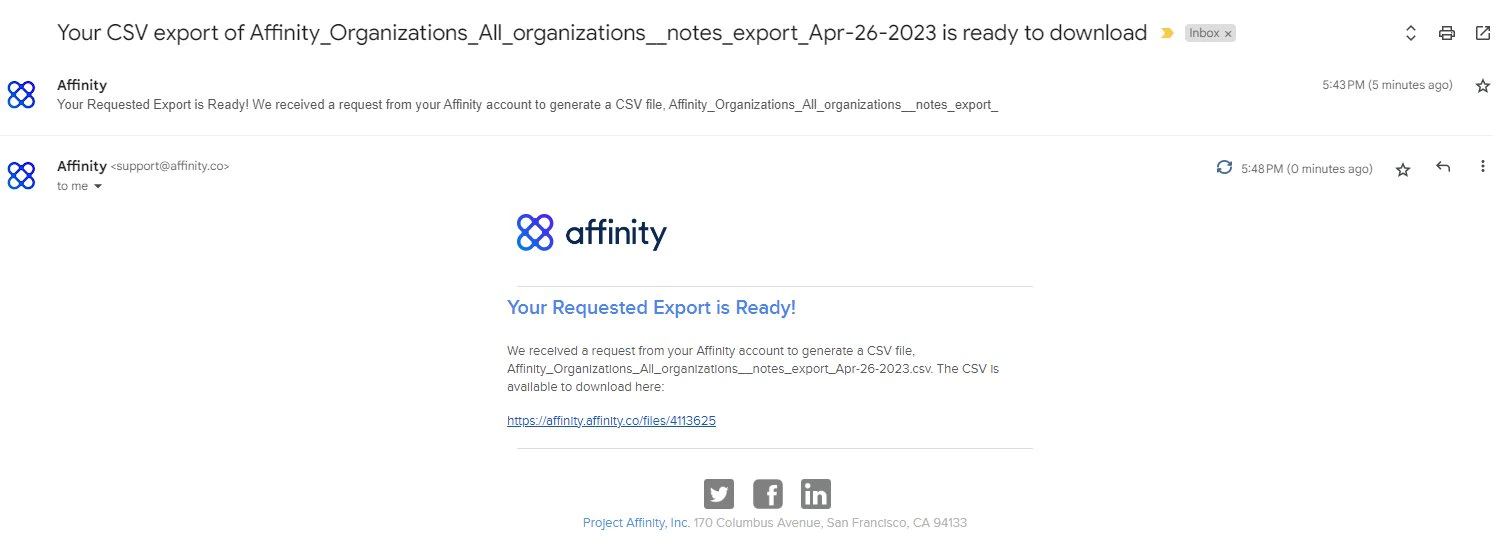
 2. Once the download is ready, you will receive an email notification that includes the link to download the CSV file.
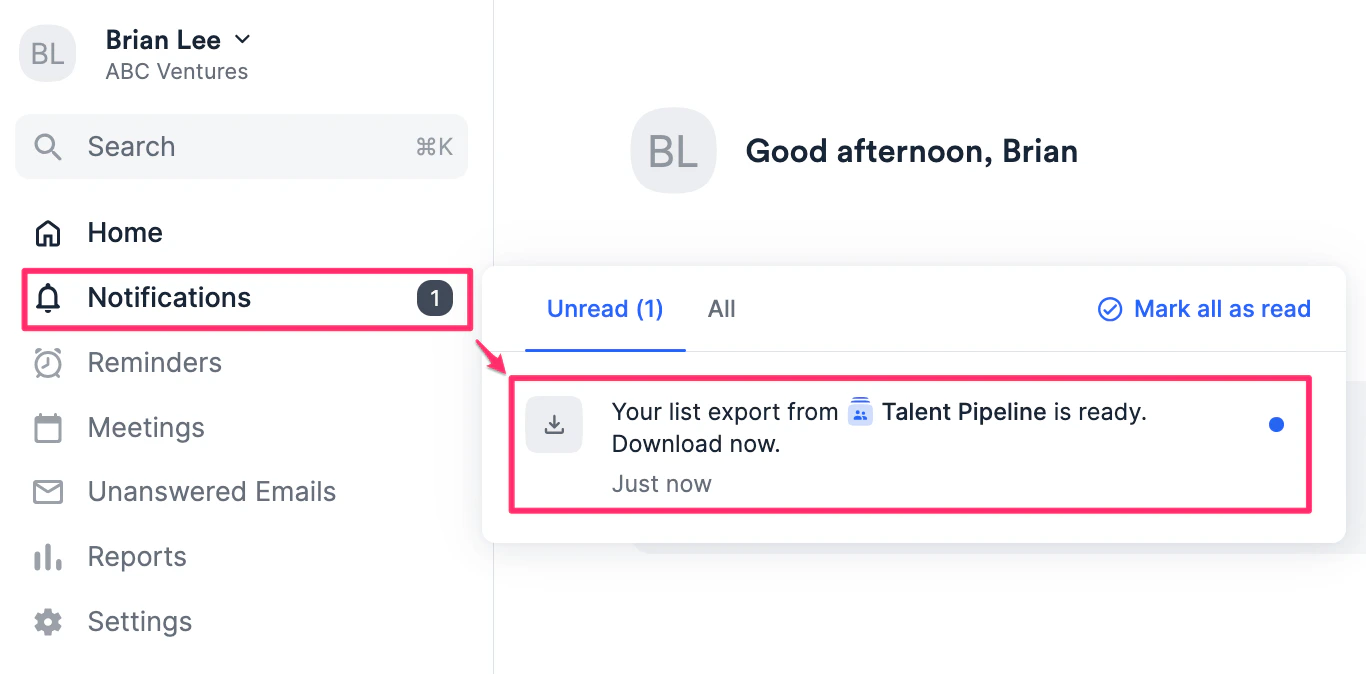
 3. You can also download the file by clicking on **Notifications** on the left sidebar.
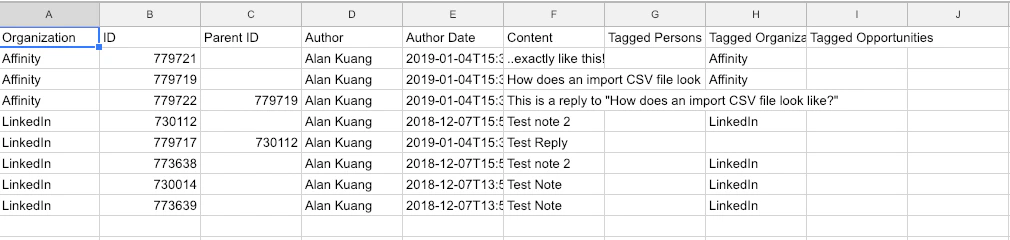
 4. Finally, open the downloaded CSV file - it should look like the following below.
 ## **Exporting notes from profile pages**
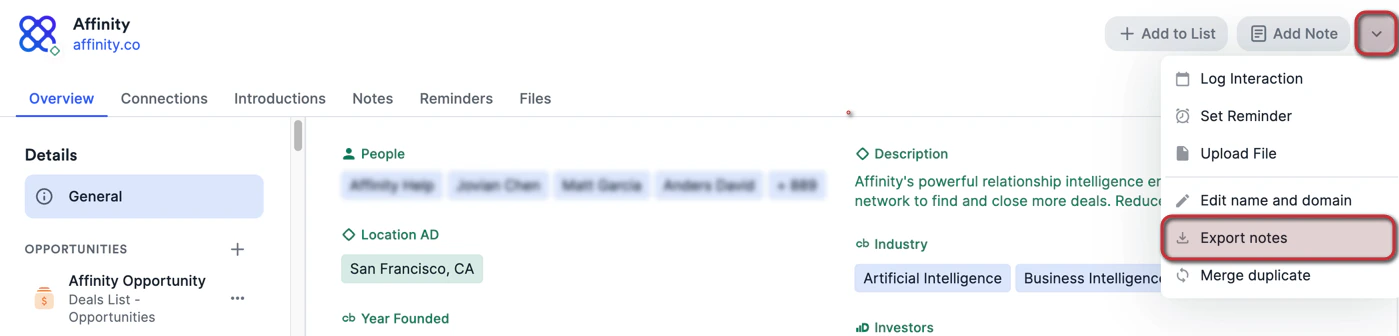
1. Go to the profile page you wish to export notes from, then click the \*\*dropdown arrow \*\*at the top-right corner.
2. Click **Export notes**. This will export all notes associated with that contact, including notes attached on synced calendar events and manually logged meetings/phone calls.
## **Exporting notes from profile pages**
1. Go to the profile page you wish to export notes from, then click the \*\*dropdown arrow \*\*at the top-right corner.
2. Click **Export notes**. This will export all notes associated with that contact, including notes attached on synced calendar events and manually logged meetings/phone calls.
 ## **Exporting all notes you have access to (Enterprise Admins only)**
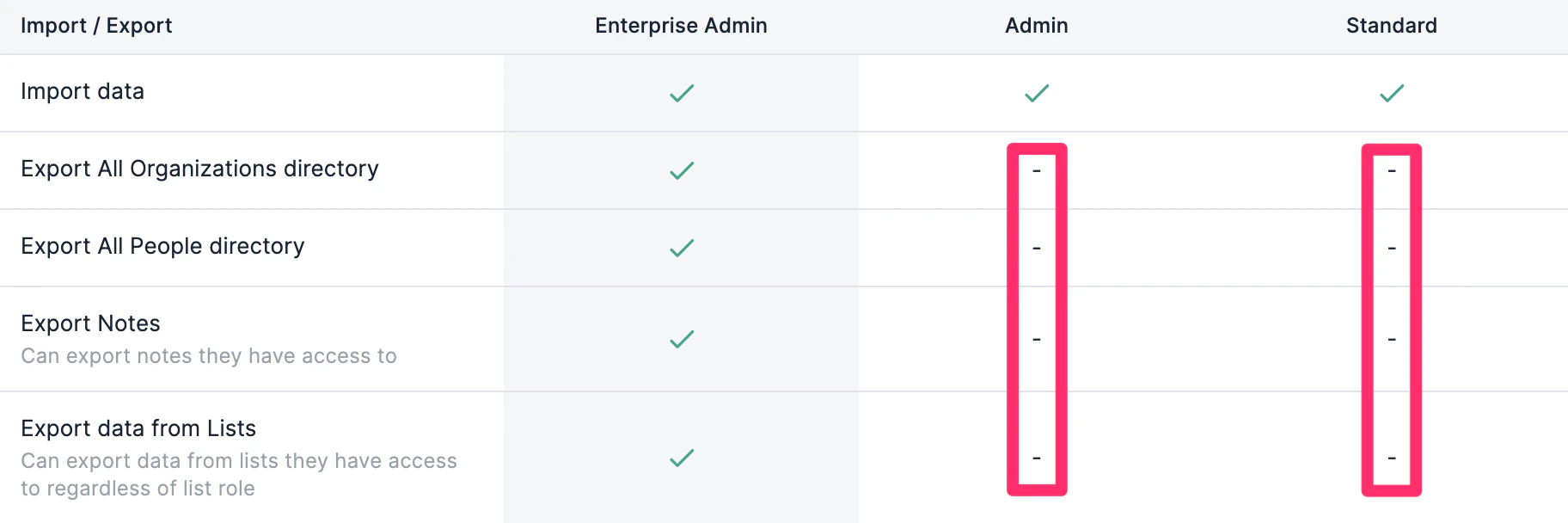
Please note that this feature is only available for\*\* Enterprise Admins **on the** Enterprise tier\*\*.
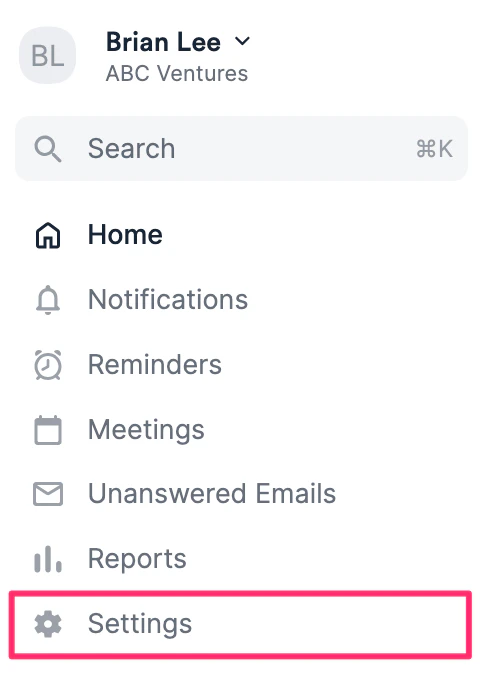
1. If you are an **Enterprise Admin** for your team's Affinity account, click on **Settings** on the left-side of your screen.
## **Exporting all notes you have access to (Enterprise Admins only)**
Please note that this feature is only available for\*\* Enterprise Admins **on the** Enterprise tier\*\*.
1. If you are an **Enterprise Admin** for your team's Affinity account, click on **Settings** on the left-side of your screen.
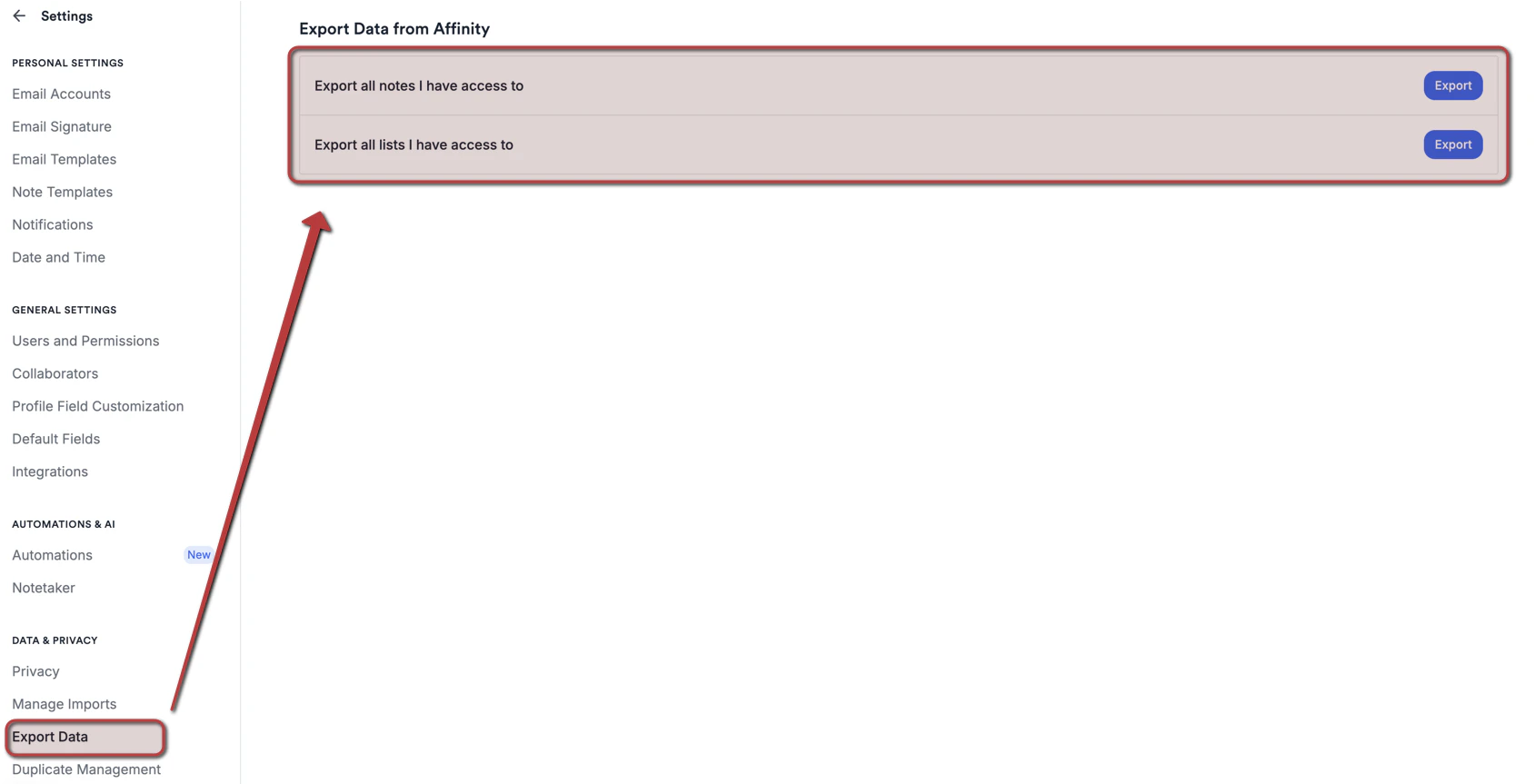
 2. Click on **Export Data** tab, then click **Export** for the first option: **Export all notes I have access to**.
 3. While this will include notes attached to synced meetings (including both manually-added notes from users and auto-generated notes from [Affinity Notetaker](https://affinity2ndorg.lightning.force.com/articles/Knowledge/How-to-set-up-and-use-Affinity-Notetaker)) and logged interactions, only the notes that are shared with the Enterprise Admin specifically will be exported. Any private notes or shared notes that the Enterprise Admin does **not** have access to will not be exported.
## **Important Callouts**
* If you don't see the **Export** button or the **Export** option for notes, it is most likely because you are on the **Enterprise tier** and your Enterprise Admin has disabled exporting options for your account role.
3. While this will include notes attached to synced meetings (including both manually-added notes from users and auto-generated notes from [Affinity Notetaker](https://affinity2ndorg.lightning.force.com/articles/Knowledge/How-to-set-up-and-use-Affinity-Notetaker)) and logged interactions, only the notes that are shared with the Enterprise Admin specifically will be exported. Any private notes or shared notes that the Enterprise Admin does **not** have access to will not be exported.
## **Important Callouts**
* If you don't see the **Export** button or the **Export** option for notes, it is most likely because you are on the **Enterprise tier** and your Enterprise Admin has disabled exporting options for your account role.
 * To ensure the success of exporting large datasets, all your note exports will be sent to your email inbox, or by clicking the **Notifications** on the global navigation sidebar.
* The more data that is being exported, the longer it will take to process - if you don't receive an email notification within 2-3 hours, let us know at [support@affinity.co](mailto:support@affinity.co) and we'd be happy to help.
* If a note begins with an @ mention, you may notice an apostrophe (`'`) at the start of that cell in your exported file (e.g., `'@Jane Smith`). This is a security safeguard — spreadsheet applications like Excel can interpret cells starting with `@` as a formula rather than plain text, which could expose your data to unintended behavior. The apostrophe forces the content to be treated as text, keeping your export safe.
* Includes: All notes admin has access to (respects sharing permissions)
* Delivery: Email notification with download link
**Use Cases**: Data migration, Executive reporting, Compliance/audit, Backup, Analysis in Excel
* To ensure the success of exporting large datasets, all your note exports will be sent to your email inbox, or by clicking the **Notifications** on the global navigation sidebar.
* The more data that is being exported, the longer it will take to process - if you don't receive an email notification within 2-3 hours, let us know at [support@affinity.co](mailto:support@affinity.co) and we'd be happy to help.
* If a note begins with an @ mention, you may notice an apostrophe (`'`) at the start of that cell in your exported file (e.g., `'@Jane Smith`). This is a security safeguard — spreadsheet applications like Excel can interpret cells starting with `@` as a formula rather than plain text, which could expose your data to unintended behavior. The apostrophe forces the content to be treated as text, keeping your export safe.
* Includes: All notes admin has access to (respects sharing permissions)
* Delivery: Email notification with download link
**Use Cases**: Data migration, Executive reporting, Compliance/audit, Backup, Analysis in Excel