> ## Documentation Index
> Fetch the complete documentation index at: https://support.affinity.co/llms.txt
> Use this file to discover all available pages before exploring further.
# How to export data from Affinity
> Help center reference: How to export data from Affinity
**How-to** — task-oriented recipe.
Learn about the different data points you can export from Affinity lists based on your account role and the list type.
**Note**: If you don't see the **Export** button or the **Export** option within a list, it is most likely because you are on the **Enterprise tier** and your Enterprise Admin has disabled exporting options for your account role (see Important Callouts).
## What you can export based on list type
Depending on the list-type, here are the types of exports you can do within a list:
| | **People lists** | **Organization lists** | **Opportunity lists** |
| -------------------------------- | ---------------- | ---------------------- | --------------------- |
| Export this view as CSV | X | X | X |
| Export all notes in view | X | X | X |
| Export all people in view | X | X | X |
| Export all introductions in view | X | X | |
**Note**: To learn more about who can export list data based on their account role, see the section titled "What about exporting data from lists?" in the article [List Level Permissions](/s/article/List-Level-Permissions).
## How to export a list
1. Make sure you **include the appropriate columns** in the saved view you plan to export (see [How to customize saved views in your lists](/s/article/How-to-customize-saved-views-in-your-lists)).
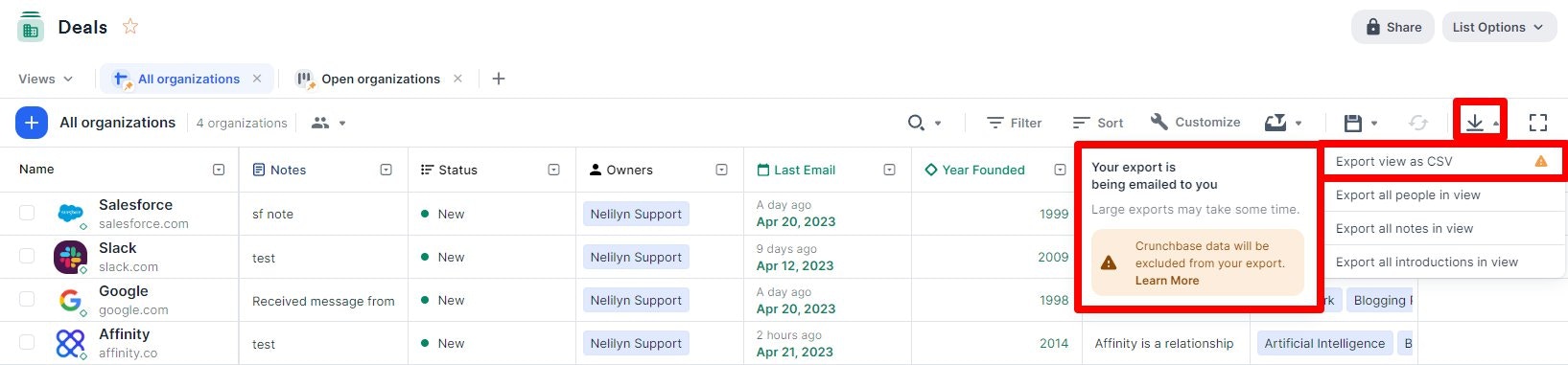
2. Click the **Export** button, then click **Export view as CSV**, which will send you an email with a link to download the CSV file.
**Note**: If you export a saved view that includes Crunchbase fields, they will be excluded (see [Crunchbase data in Affinity](/s/article/Crunchbase-data-in-Affinity)). Feel free to export their equivalent [Affinity Data](/s/article/Affinity-Data) fields instead.
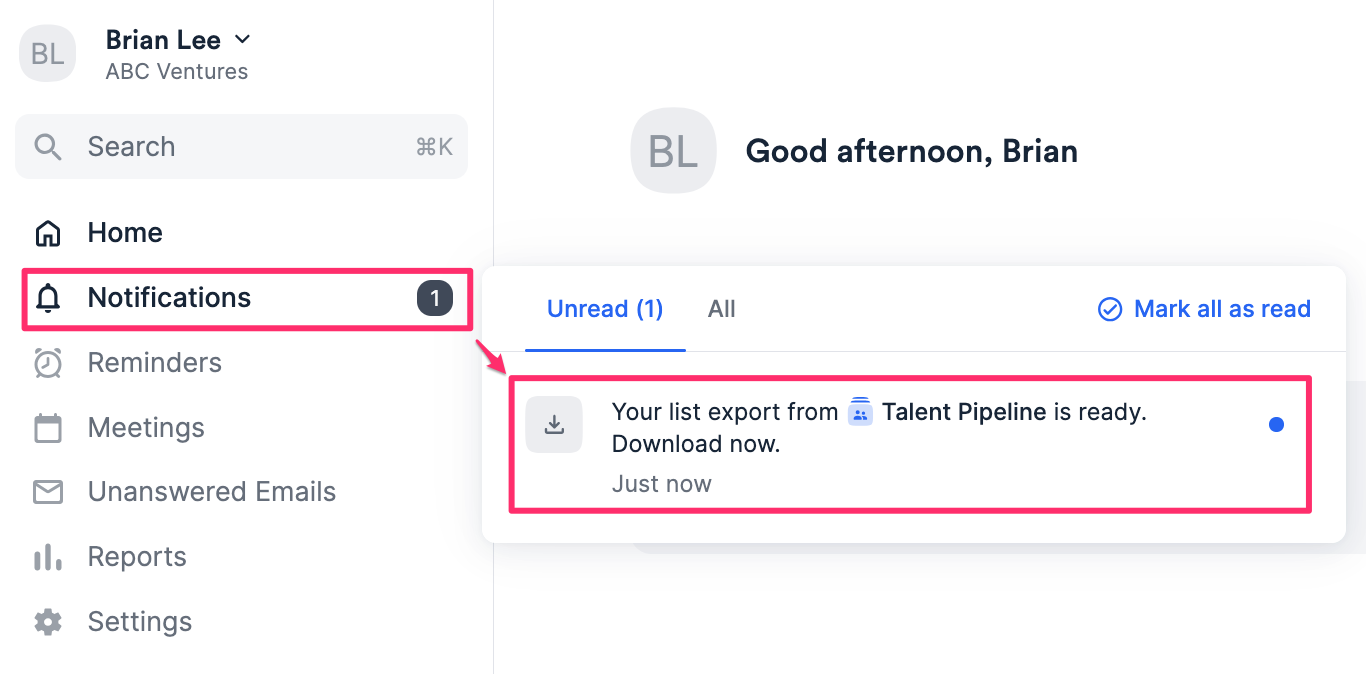
 3. You can also click the **Notifications** tab, where you will receive a notification to download the CSV file.
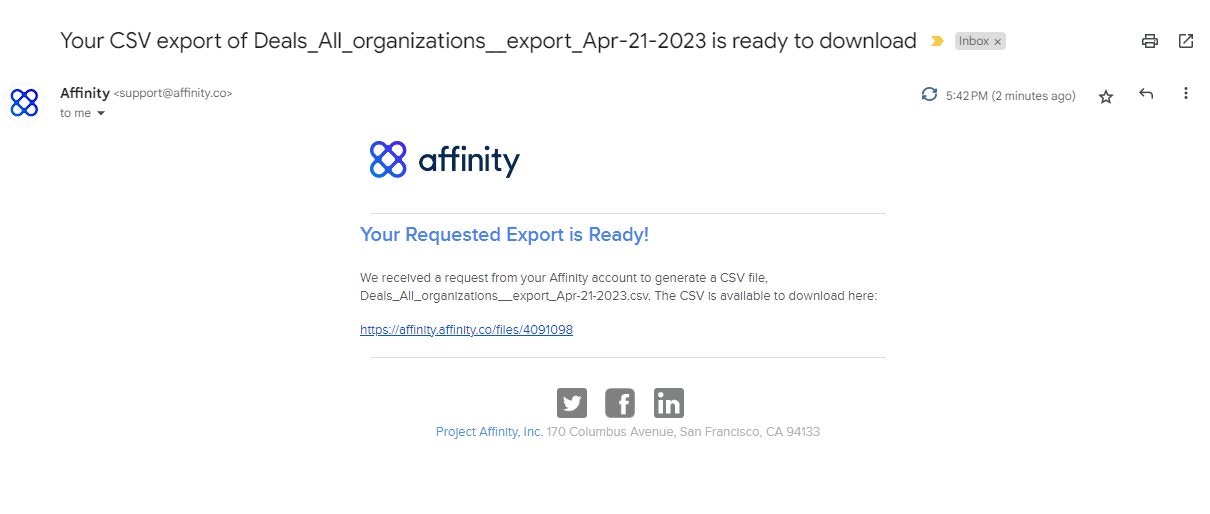
 4. If needed, you can always go back to previous emails for previous exports and click the **download link** within the email that has been sent to your **primary email address**. **Note:** The **Connections** column will not export any data at the moment.
 ## How to export all lists (Enterprise Admins only)
Please note that this feature is only available for **Enterprise Admins** on the **Enterprise tier**.
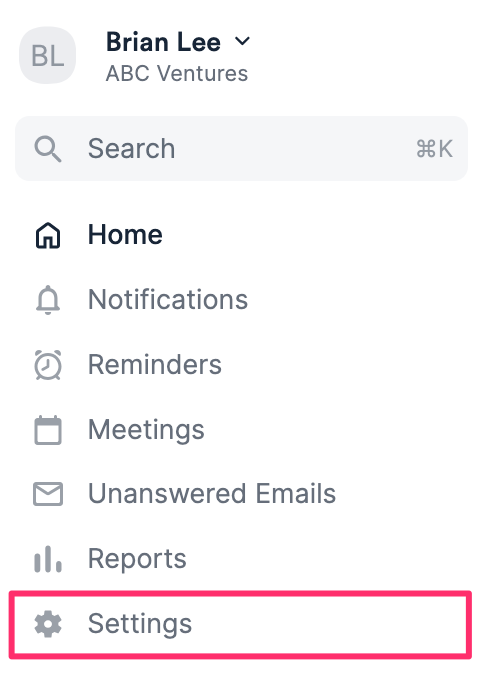
1. If you are an **Enterprise Admin,** click on **Settings** on the global navigation bar on the left side of your screen.
## How to export all lists (Enterprise Admins only)
Please note that this feature is only available for **Enterprise Admins** on the **Enterprise tier**.
1. If you are an **Enterprise Admin,** click on **Settings** on the global navigation bar on the left side of your screen.
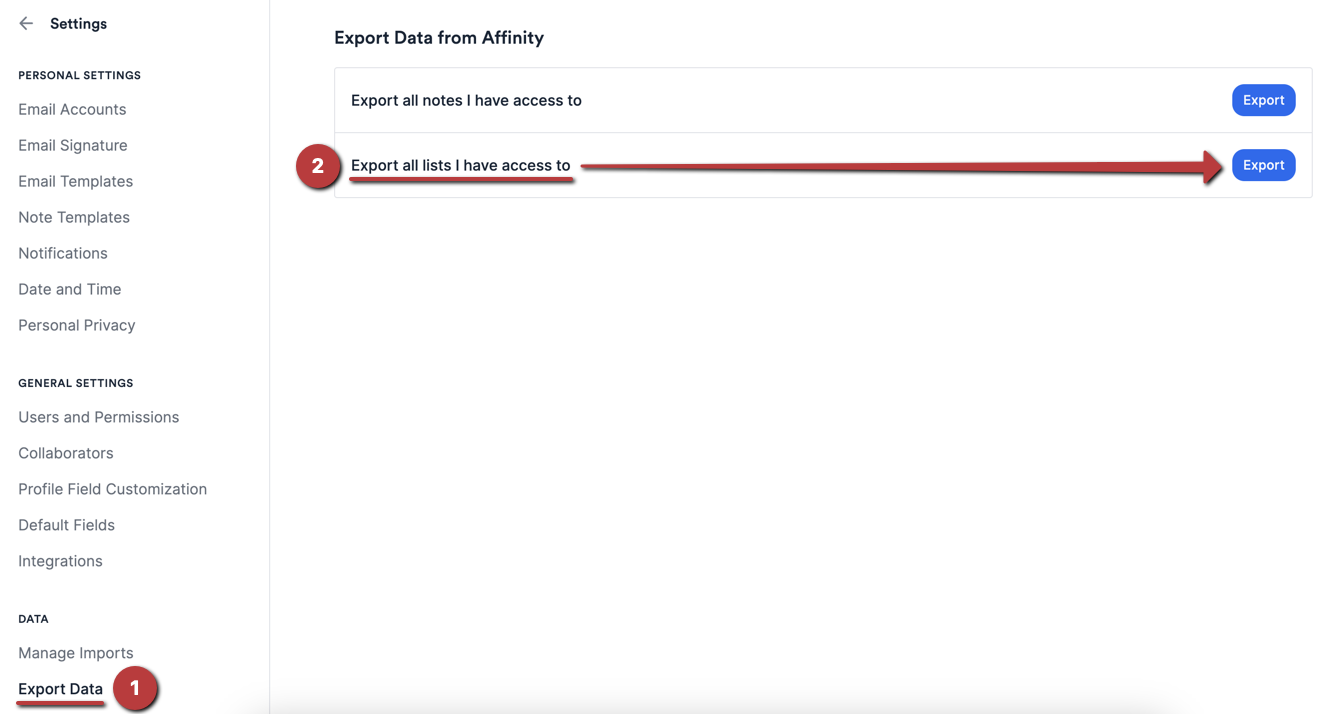
 2. Click the **Export Data** tab, then click **Export** for the second option: **Export all lists I have access to**.
**Note**: To understand what notes you'd be exporting if you chose the first option, see the section titled "Exporting all team members' notes (Enterprise Admins only)" in the article [How to export notes from Affinity](/s/article/How-to-export-notes-from-Affinity).
2. Click the **Export Data** tab, then click **Export** for the second option: **Export all lists I have access to**.
**Note**: To understand what notes you'd be exporting if you chose the first option, see the section titled "Exporting all team members' notes (Enterprise Admins only)" in the article [How to export notes from Affinity](/s/article/How-to-export-notes-from-Affinity).
 3. Given that downloading all of the lists will contain a plethora of data, Affinity will only export certain columns for each list based on the list type.
| **People lists** | **Organization lists** | **Opportunity lists** |
| :--------------------- | :--------------------- | :--------------------- |
| Affinity Row ID | Affinity Row ID | Affinity Row ID |
| Person ID | Organization ID | Opportunity ID |
| Full Name | Organization Name | Opportunity Name |
| First Name | Website | Close Date |
| Last Name | Date Added | Date Added |
| Email Addresses | Amount | Amount |
| Primary Email | Owners | Owners |
| Date Added | Status | Status |
| Amount | Time in Current Status | Time in Current Status |
| Owners | People | People |
| Status | | Organizations |
| Time in Current Status | | |
| Organizations | | |
4. **Note**: These are the columns that will be exported for every list. Additional columns may be included in exports of certain lists based on whether they are default columns from Affinity's list templates.
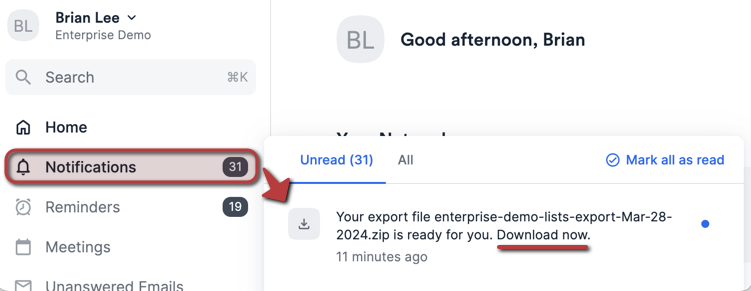
5. Once the export is complete, you should receive a web-app notification where you can download the ZIP file. Opening the ZIP file will show multiple CSV files - one CSV file for each list.
3. Given that downloading all of the lists will contain a plethora of data, Affinity will only export certain columns for each list based on the list type.
| **People lists** | **Organization lists** | **Opportunity lists** |
| :--------------------- | :--------------------- | :--------------------- |
| Affinity Row ID | Affinity Row ID | Affinity Row ID |
| Person ID | Organization ID | Opportunity ID |
| Full Name | Organization Name | Opportunity Name |
| First Name | Website | Close Date |
| Last Name | Date Added | Date Added |
| Email Addresses | Amount | Amount |
| Primary Email | Owners | Owners |
| Date Added | Status | Status |
| Amount | Time in Current Status | Time in Current Status |
| Owners | People | People |
| Status | | Organizations |
| Time in Current Status | | |
| Organizations | | |
4. **Note**: These are the columns that will be exported for every list. Additional columns may be included in exports of certain lists based on whether they are default columns from Affinity's list templates.
5. Once the export is complete, you should receive a web-app notification where you can download the ZIP file. Opening the ZIP file will show multiple CSV files - one CSV file for each list.
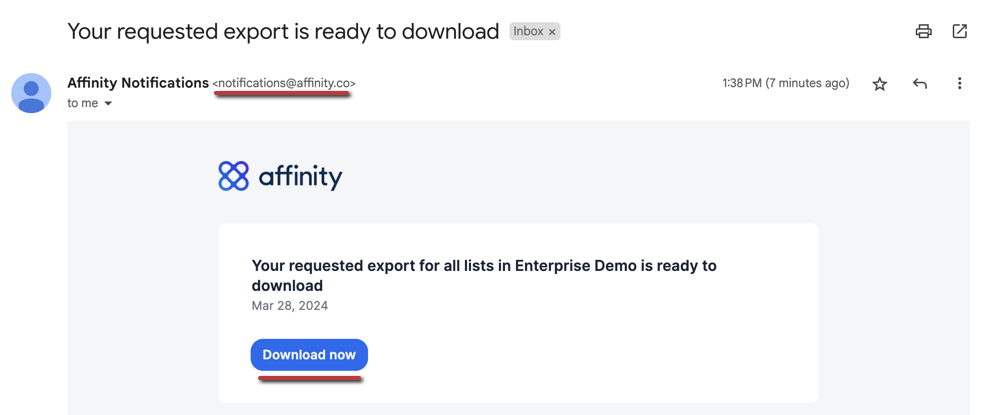
 5. Otherwise, you can go to your email inbox and click the **Download now** button to download the ZIP file from there - just make sure that it's coming from [notifications@affinity.co](mailto:notifications@affinity.co).
 ## Troubleshooting common issues
Here are some reasons why you may not be receiving an email about your export:
* You are exporting a very large set of data (thousands of rows and several columns). It may take some time depending on the amount of data being exported - if you still don't receive an email, feel free to reach out to us at [support@affinity.co](mailto:support@affinity.co).
* You may have already received it in another email account you're syncing into Affinity. Please check your inboxes in your other email accounts.
## Important Callouts
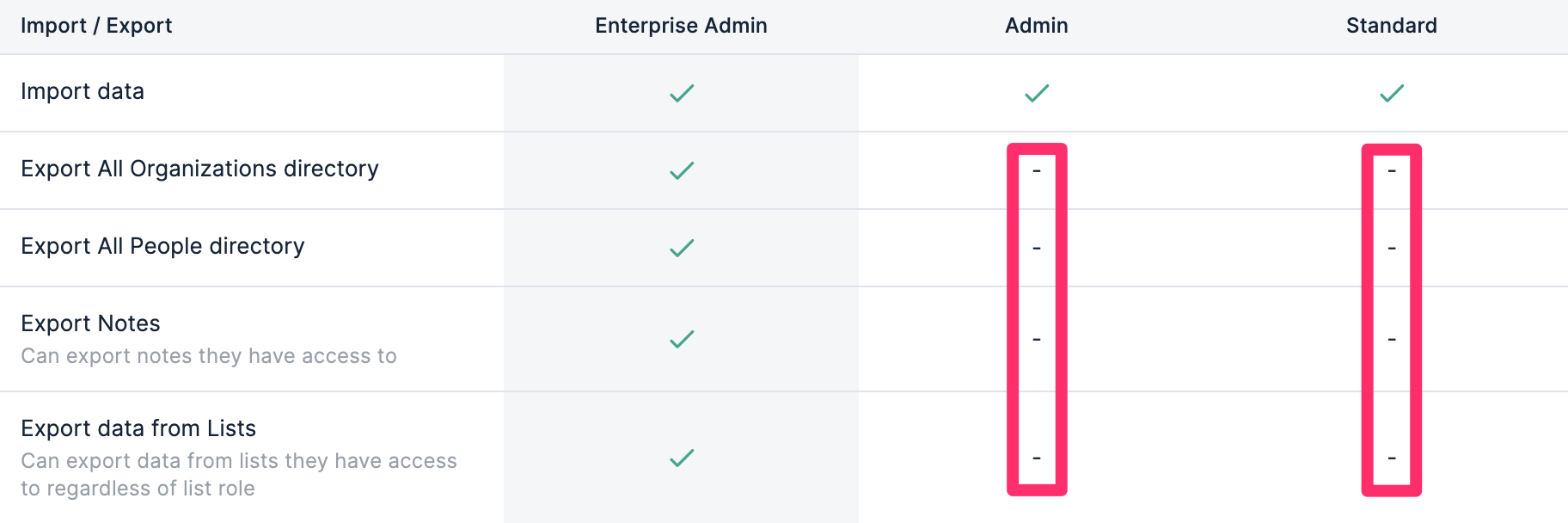
* If you don't see the **Export** button or the **Export** option within a list, it is most likely because you are on the **Enterprise tier** and your Enterprise Admin has disabled exporting options for your account role.
## Troubleshooting common issues
Here are some reasons why you may not be receiving an email about your export:
* You are exporting a very large set of data (thousands of rows and several columns). It may take some time depending on the amount of data being exported - if you still don't receive an email, feel free to reach out to us at [support@affinity.co](mailto:support@affinity.co).
* You may have already received it in another email account you're syncing into Affinity. Please check your inboxes in your other email accounts.
## Important Callouts
* If you don't see the **Export** button or the **Export** option within a list, it is most likely because you are on the **Enterprise tier** and your Enterprise Admin has disabled exporting options for your account role.
 * Per our contract with Crunchbase, Crunchbase fields will **not** be included in the exports, even if they are showing in the saved view that you exported from (see [Crunchbase data in Affinity](/s/article/Crunchbase-data-in-Affinity)).
* You can export the equivalent [Affinity Data](/s/article/Affinity-Data) fields instead.
* Per our contract with Crunchbase, Crunchbase fields will **not** be included in the exports, even if they are showing in the saved view that you exported from (see [Crunchbase data in Affinity](/s/article/Crunchbase-data-in-Affinity)).
* You can export the equivalent [Affinity Data](/s/article/Affinity-Data) fields instead.