> ## Documentation Index
> Fetch the complete documentation index at: https://support.affinity.co/llms.txt
> Use this file to discover all available pages before exploring further.
# How To Export Data From Salesforce To Import Into Affinity
> Help center reference
**How-to** — task-oriented recipe.
For clients looking to migrate data from Salesforce to Affinity, follow the steps below to seamlessly export data from Salesforce in **one single** file rather than multiple files.
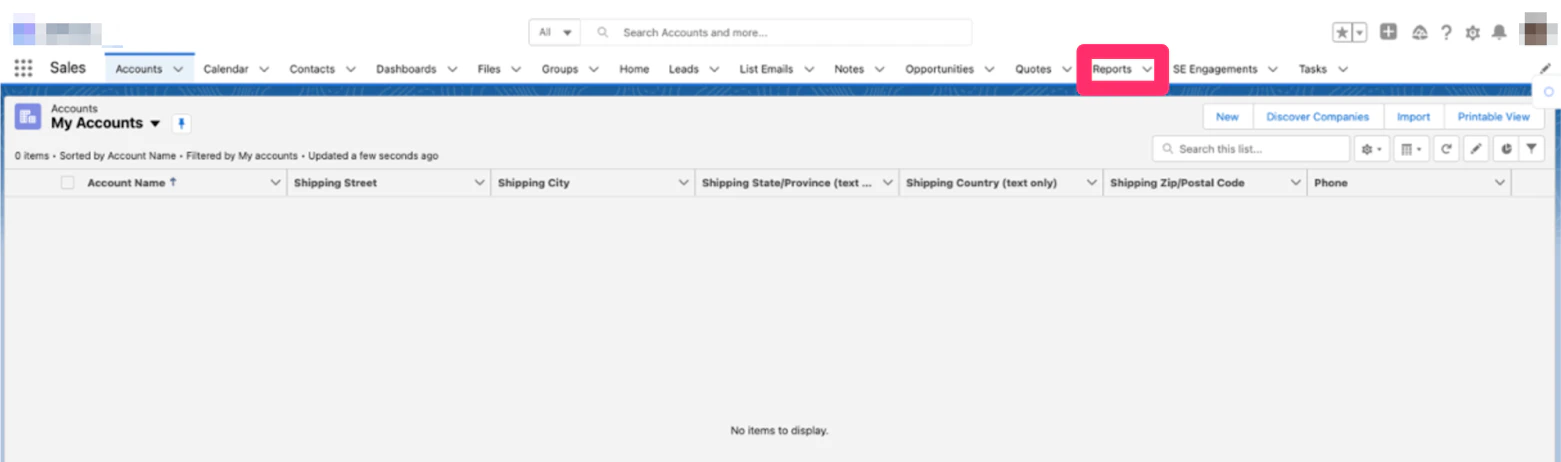
1. In your Salesforce instance, click on **Reports**.
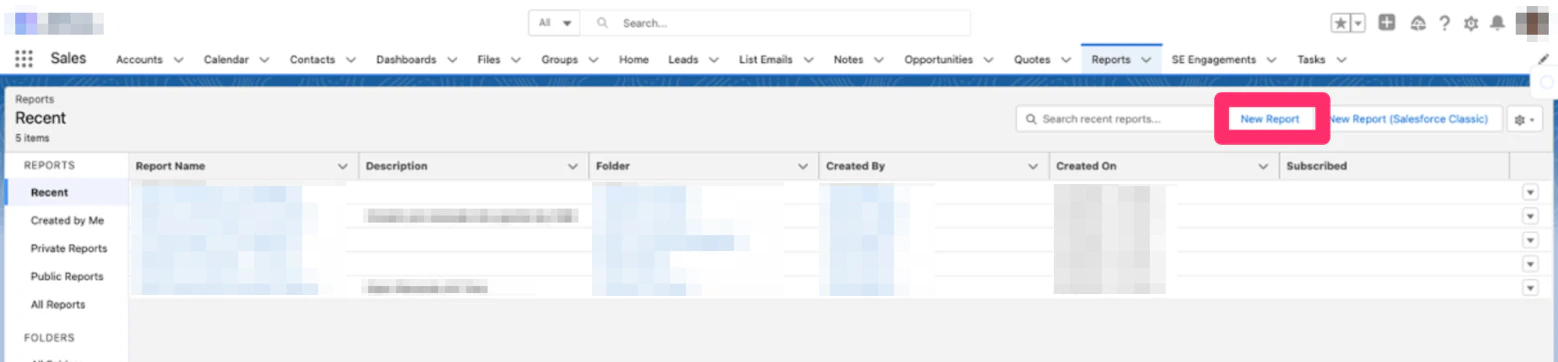
 2. Click **New Report** in the top-right corner.
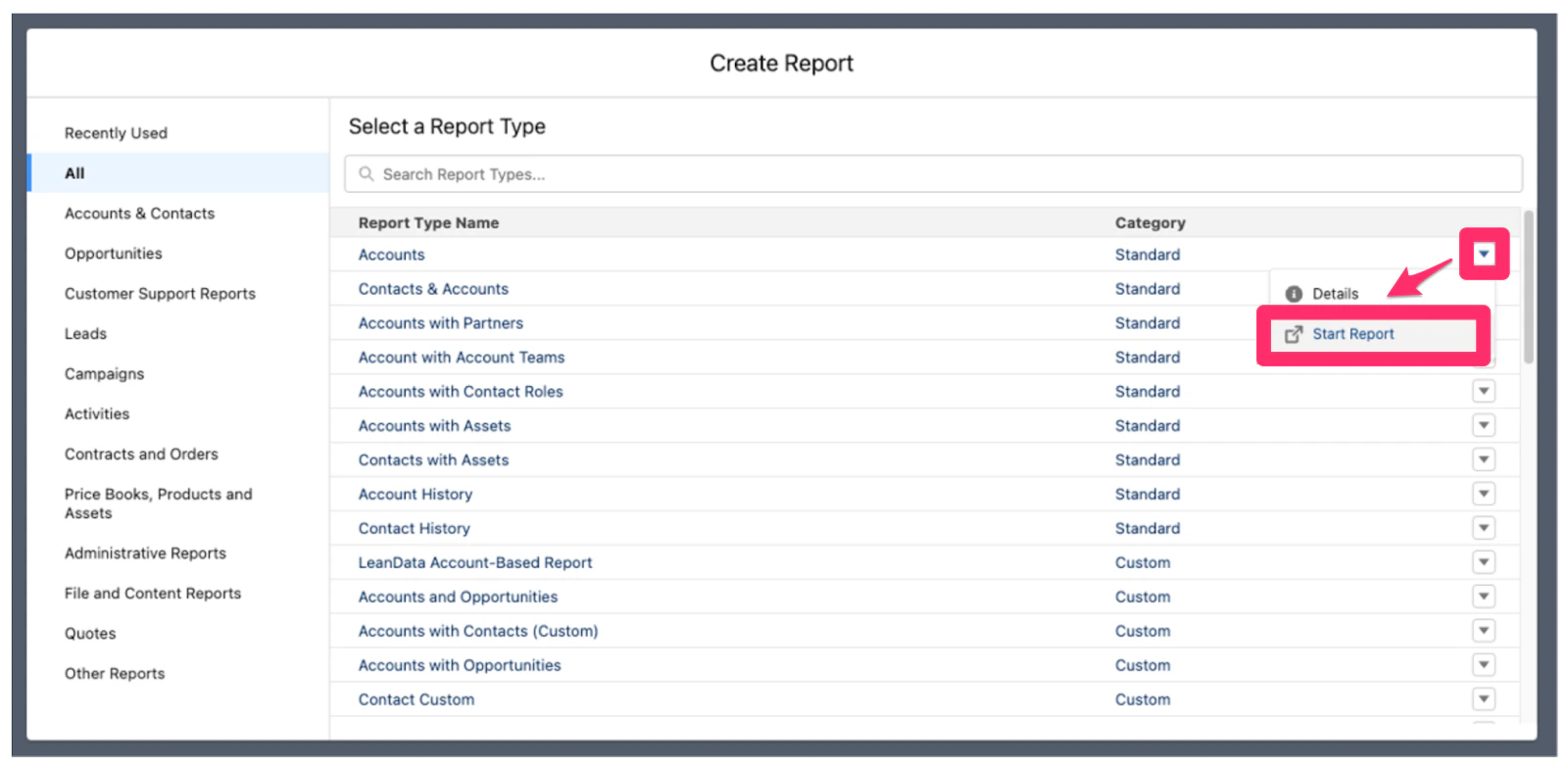
 3. Under **Select a Report Type**, click the dropdown arrow next to the Report Type of your choice, then click **Start Report**.
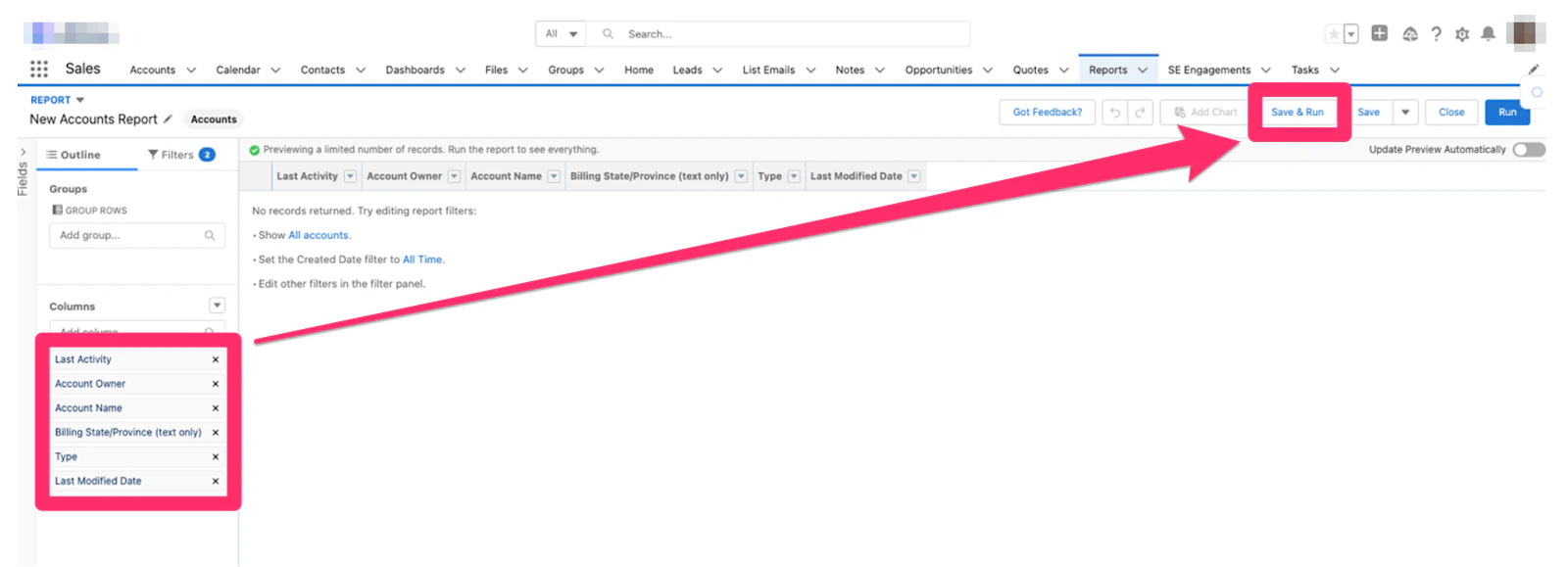
 4. Under **Columns** on the left sidebar, select which columns to include in your report. Then, click **Save & Run** in the top-right corner.
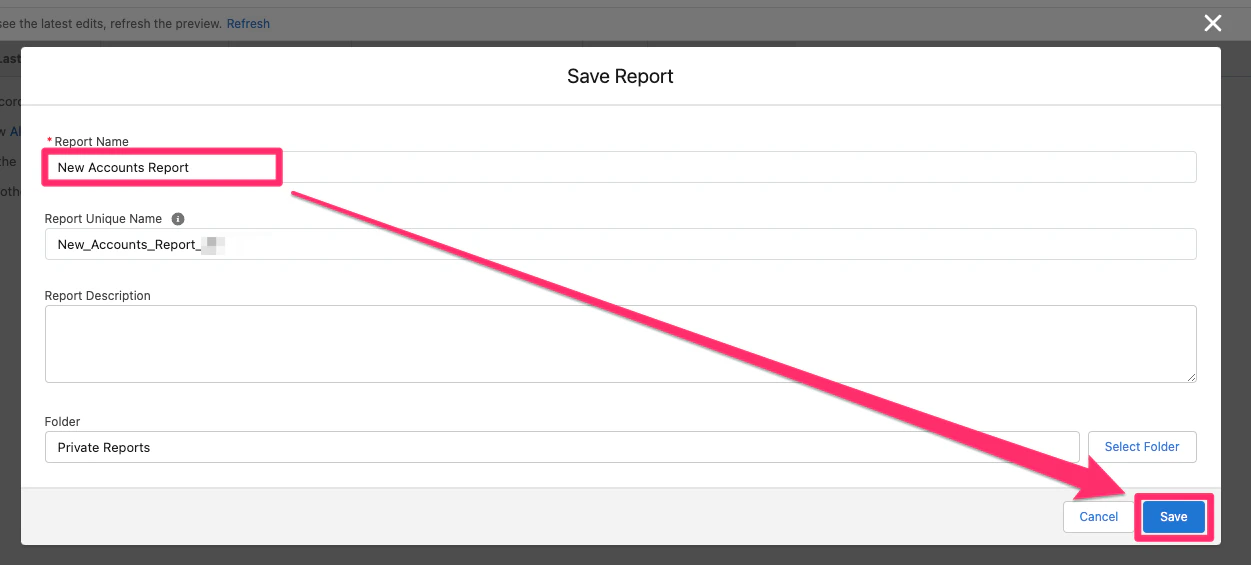
 5. Enter your Report Name and click **Save**.
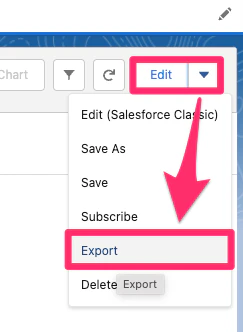
 6. In the top-right corner, click the drop down arrow next to **Edit** and click **Export**.
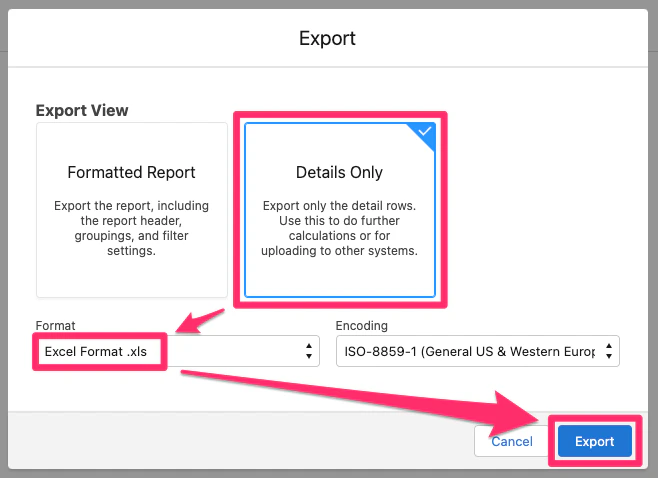
 7. Export as **Details Only**. Then, make sure to select **Excel Format .xls** or **.csv** for the Format field, then click **Export**.
**Note**: We do not suggest exporting using the **.xlsx** option because cells with lots of text will get cut off after a certain number of characters.
7. Export as **Details Only**. Then, make sure to select **Excel Format .xls** or **.csv** for the Format field, then click **Export**.
**Note**: We do not suggest exporting using the **.xlsx** option because cells with lots of text will get cut off after a certain number of characters.
 8. You may notice that some activities are missing in the exported file - this is likely due to Salesforce's policy on [**Archive Days Limits and Maximums**](https://help.salesforce.com/s/articleView?id=000385669\&type=1), which range from 1-10 years:
1. 365 days (1 year as the default)
2. 1826 days (5 years as the recommended maximum)
3. 3650 days (10 years as the maximum limit) To increase the Archive Days limit, please ask your System Administrator to [**create a Support Case with the Feature Activations & Limits Team**](https://help.salesforce.com/s/articleView?id=000391052\&type=1).
9. Now that you have the exported file from Salesforce, follow these articles below to start the import process into Affinity:
1. [Cleaning up your data before importing into Affinity](/s/article/Cleaning-up-your-data-before-importing-into-Affinity)
2. [How to import your data into Affinity](/s/article/How-to-import-your-data-into-Affinity)
3. [Viewing your data import history](/s/article/Viewing-your-data-import-history)
8. You may notice that some activities are missing in the exported file - this is likely due to Salesforce's policy on [**Archive Days Limits and Maximums**](https://help.salesforce.com/s/articleView?id=000385669\&type=1), which range from 1-10 years:
1. 365 days (1 year as the default)
2. 1826 days (5 years as the recommended maximum)
3. 3650 days (10 years as the maximum limit) To increase the Archive Days limit, please ask your System Administrator to [**create a Support Case with the Feature Activations & Limits Team**](https://help.salesforce.com/s/articleView?id=000391052\&type=1).
9. Now that you have the exported file from Salesforce, follow these articles below to start the import process into Affinity:
1. [Cleaning up your data before importing into Affinity](/s/article/Cleaning-up-your-data-before-importing-into-Affinity)
2. [How to import your data into Affinity](/s/article/How-to-import-your-data-into-Affinity)
3. [Viewing your data import history](/s/article/Viewing-your-data-import-history)