> ## Documentation Index
> Fetch the complete documentation index at: https://support.affinity.co/llms.txt
> Use this file to discover all available pages before exploring further.
# How To Enable Domain Wide Delegation For Google Impersonation Enterprise Only
> Help center reference: How To Enable Domain Wide Delegation For Google Impersonation Enterprise Only
**How-to** — task-oriented recipe.
Note: This feature is only available for the **Enterprise Tier** or accounts with **Sync-Only seat licenses**.
For Google Admins desiring to set up Google impersonation for Affinity, follow these steps below.
**Note**: Setting up domain-wide delegation for your team means that you will not be able to limit specific users on the syncing process.
1. Sign into your team's [Google Admin console](https://admin.google.com/) using an account with super admin privileges.
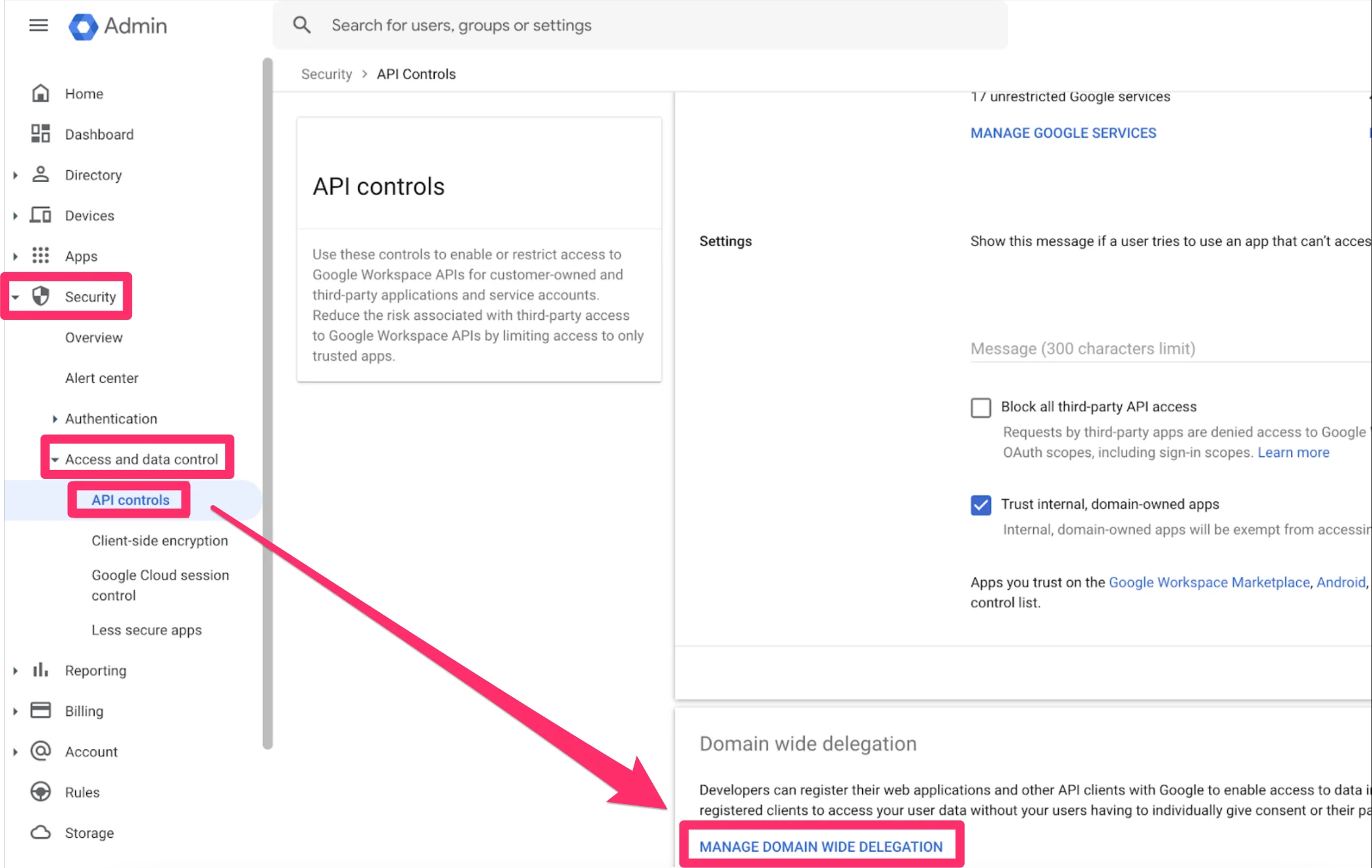
2. On the left sidebar, click **Security** > **Access and data control** > **API controls**. From there, scroll down and click on **MANAGE DOMAIN WIDE DELEGATION**.
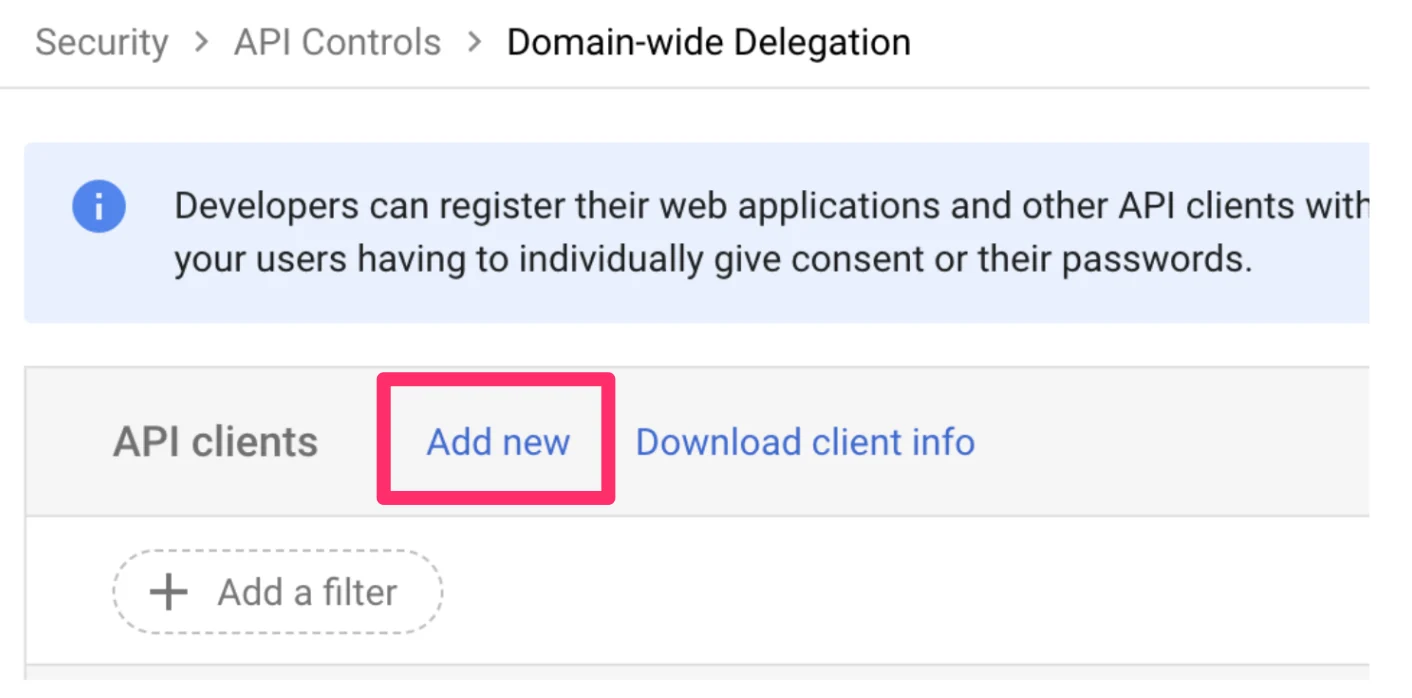
 3. From there, click **Add new**.
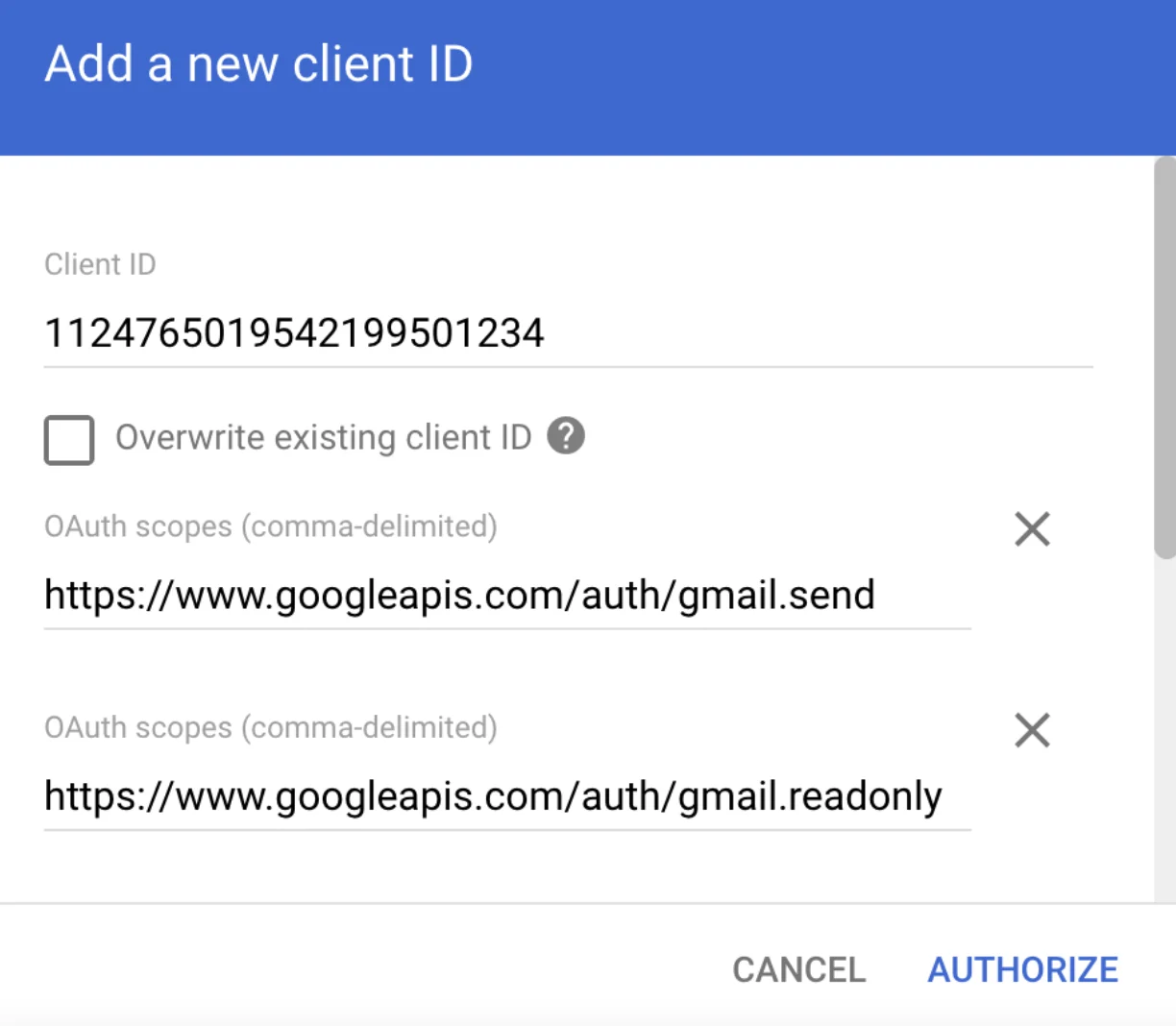
 4. Enter the following details:
1\.
**Client ID**: 112476501954219950174
2\. **OAuth Scopes**
1. [https://www.googleapis.com/auth/gmail.send](https://www.googleapis.com/auth/gmail.send)
2. [https://www.googleapis.com/auth/gmail.readonly](https://www.googleapis.com/auth/gmail.readonly)
3. [https://www.googleapis.com/auth/calendar.readonly](https://www.googleapis.com/auth/calendar.readonly)
4. [https://www.googleapis.com/auth/userinfo.email](https://www.googleapis.com/auth/userinfo.email)
5. Click **Authorize**. The client will now be added successfully.
4. Enter the following details:
1\.
**Client ID**: 112476501954219950174
2\. **OAuth Scopes**
1. [https://www.googleapis.com/auth/gmail.send](https://www.googleapis.com/auth/gmail.send)
2. [https://www.googleapis.com/auth/gmail.readonly](https://www.googleapis.com/auth/gmail.readonly)
3. [https://www.googleapis.com/auth/calendar.readonly](https://www.googleapis.com/auth/calendar.readonly)
4. [https://www.googleapis.com/auth/userinfo.email](https://www.googleapis.com/auth/userinfo.email)
5. Click **Authorize**. The client will now be added successfully.
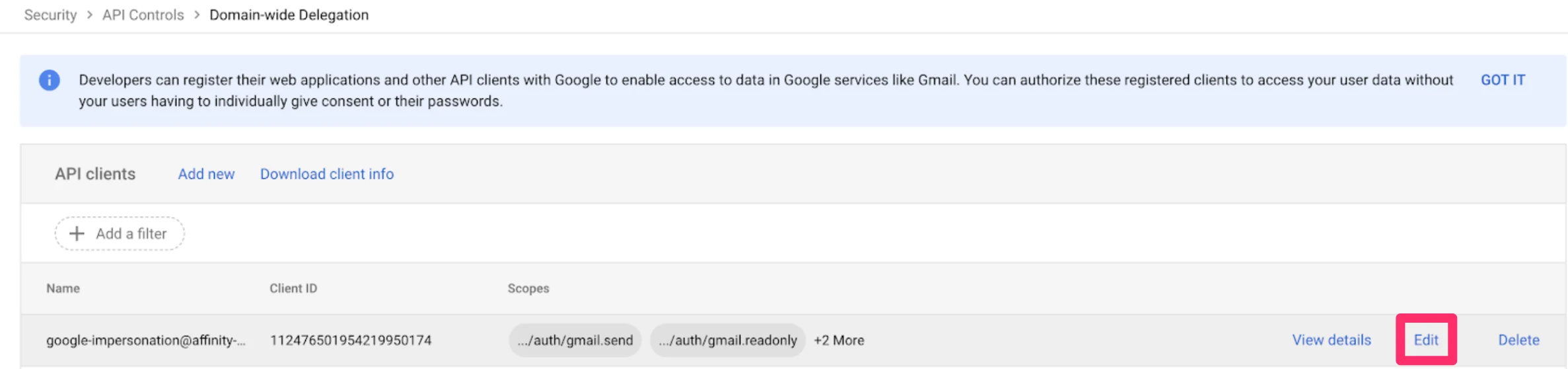
 6. Point to the new Client ID and click **View details** to make sure every scope is listed.
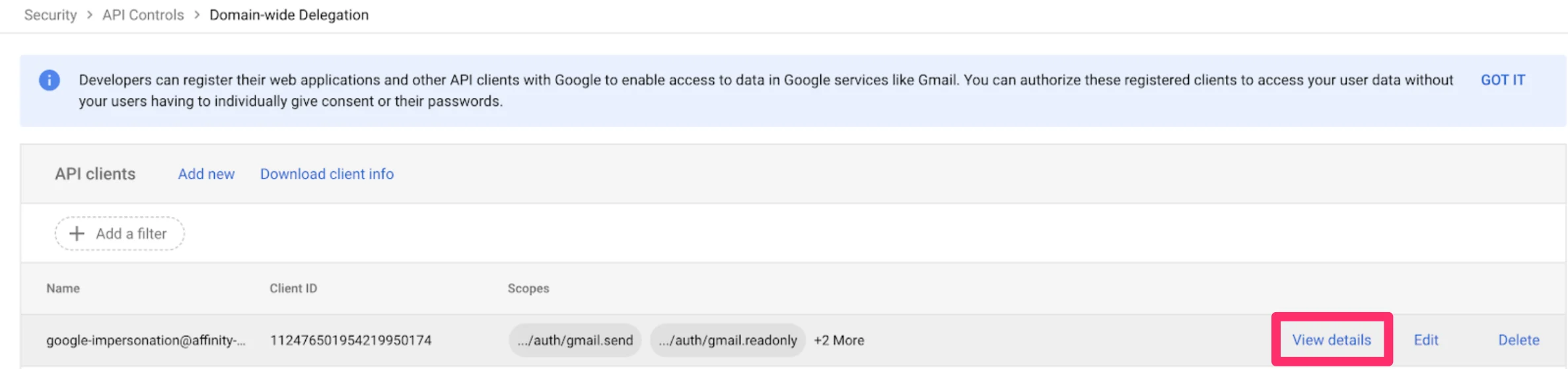 7. If a scope is not listed, click **Edit**, enter the missing scope, and click **Authorize** again. You will not be able to edit the client ID moving forward.
 8. The app should be available for use within an hour, but can take up to 24 hours.
9. Finally, please reach out to [support@affinity.co](mailto:support@affinity.co) stating that you have followed these steps so that we can complete the process from Affinity's end.
If you have any questions, please reach out to us at [support@affinity.co](mailto:support@affinity.co) and we'd be happy to help.
8. The app should be available for use within an hour, but can take up to 24 hours.
9. Finally, please reach out to [support@affinity.co](mailto:support@affinity.co) stating that you have followed these steps so that we can complete the process from Affinity's end.
If you have any questions, please reach out to us at [support@affinity.co](mailto:support@affinity.co) and we'd be happy to help.