> ## Documentation Index
> Fetch the complete documentation index at: https://support.affinity.co/llms.txt
> Use this file to discover all available pages before exploring further.
# How To Download Affinity's Outlook Add-in
> Help center reference
**How-to** — task-oriented recipe.
With the Affinity for Outlook add-in, Microsoft users can now take Affinity-related actions straight from their Outlook web and desktop apps. Check out this article to ensure you have the prerequisites and understand how to troubleshoot common issues in case you cannot access the add-in.
## Who can access Affinity's Outlook Add-in?
| Essentials | Scale | Advanced | Enterprise |
| ---------- | ----- | -------- | ---------- |
| No | Yes | Yes | Yes |
Interested in upgrading to **Scale**, **Advanced**, or **Enterprise**? Please reach out to your Affinity point of contact or [support@affinity.co](mailto:support@affinity.co).
## Prerequisites
* Affinity's Outlook add-in is only available for Office 365 and Exchange (On-Prem) accounts.
* Affinity's Outlook add-in is only compatible for Outlook versions after Outlook 2016.
* Affinity's Outlook add-in is only supported on the following browsers: **Google Chrome, Microsoft Edge,** and **Safari**.
## How to download Affinity for Outlook Add-in (Web App)
In addition to [Microsoft's article on Outlook add-ins](https://support.microsoft.com/en-us/office/use-add-ins-in-outlook-1ee261f9-49bf-4ba6-b3e2-2ba7bcab64c8), you can follow the steps below:
1. If you're an **Affinity CRM user**, feel free to skip Step 2 below and move on to Step 3.
2. If you're an **Affinity for Salesforce user**, please make sure your Salesforce Admin selects which users are allowed access to the Affinity for Outlook add-in (see the section titled "How to assign the Affinity permission set to users" in the article [How to install/update Affinity's Managed Package in Salesforce](/s/article/How-to-install-update-Affinity-s-Managed-Package-in-Salesforce)).
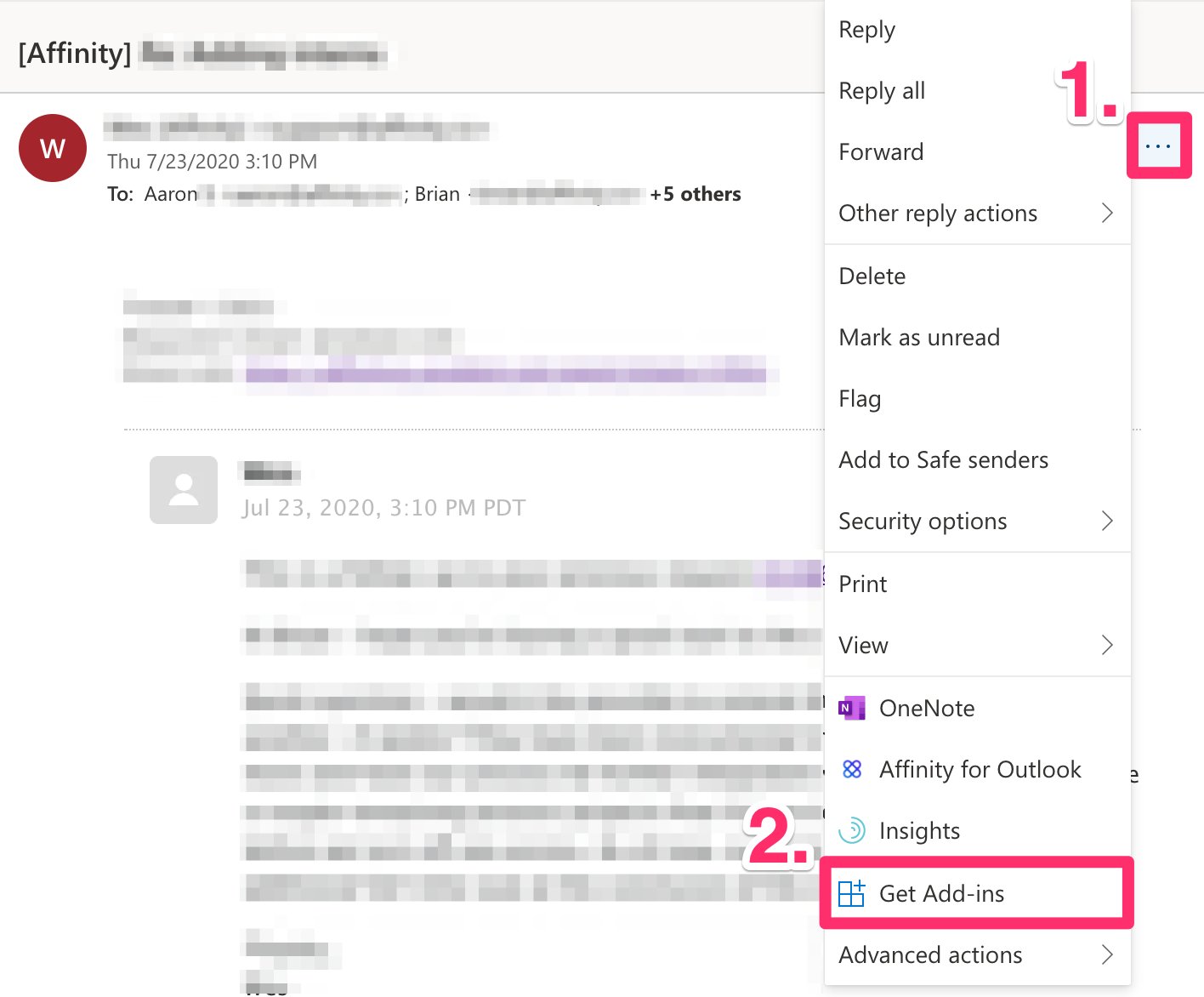
3. Now, make sure to sign in to your Outlook account that has specific access to your Affinity instance. Open any email, then click the **ellipsis (3-dotted icon)**. Click **Get Add-ins**.
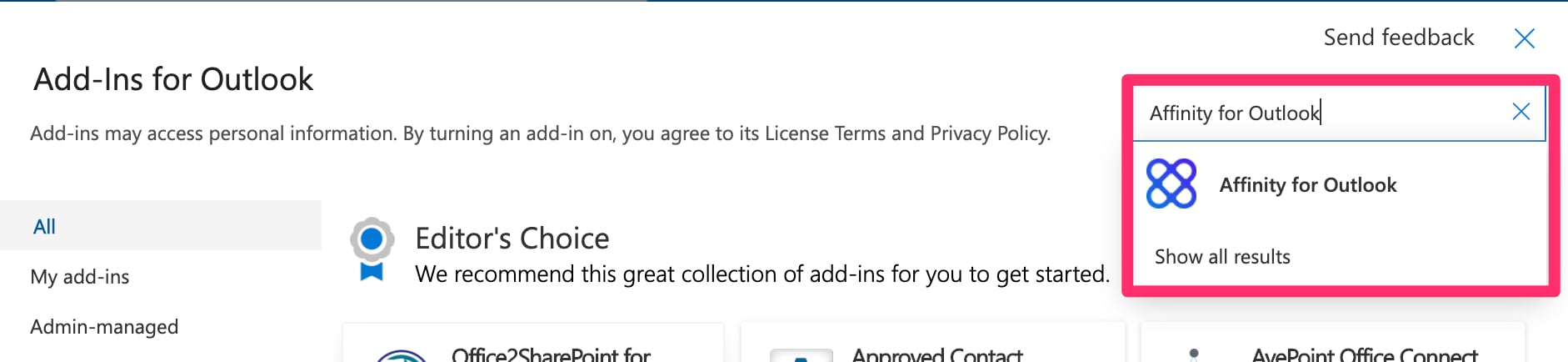
 4. Search for **Affinity for Outlook**.
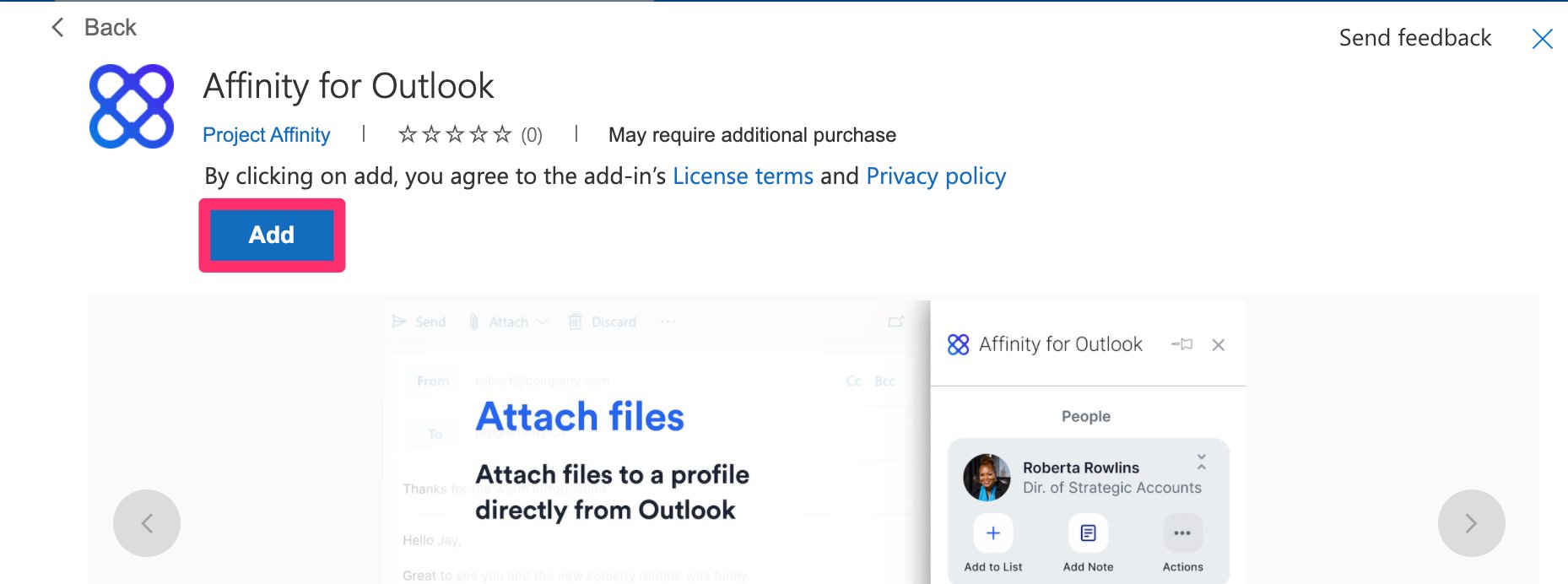
 5. Click **Add.**
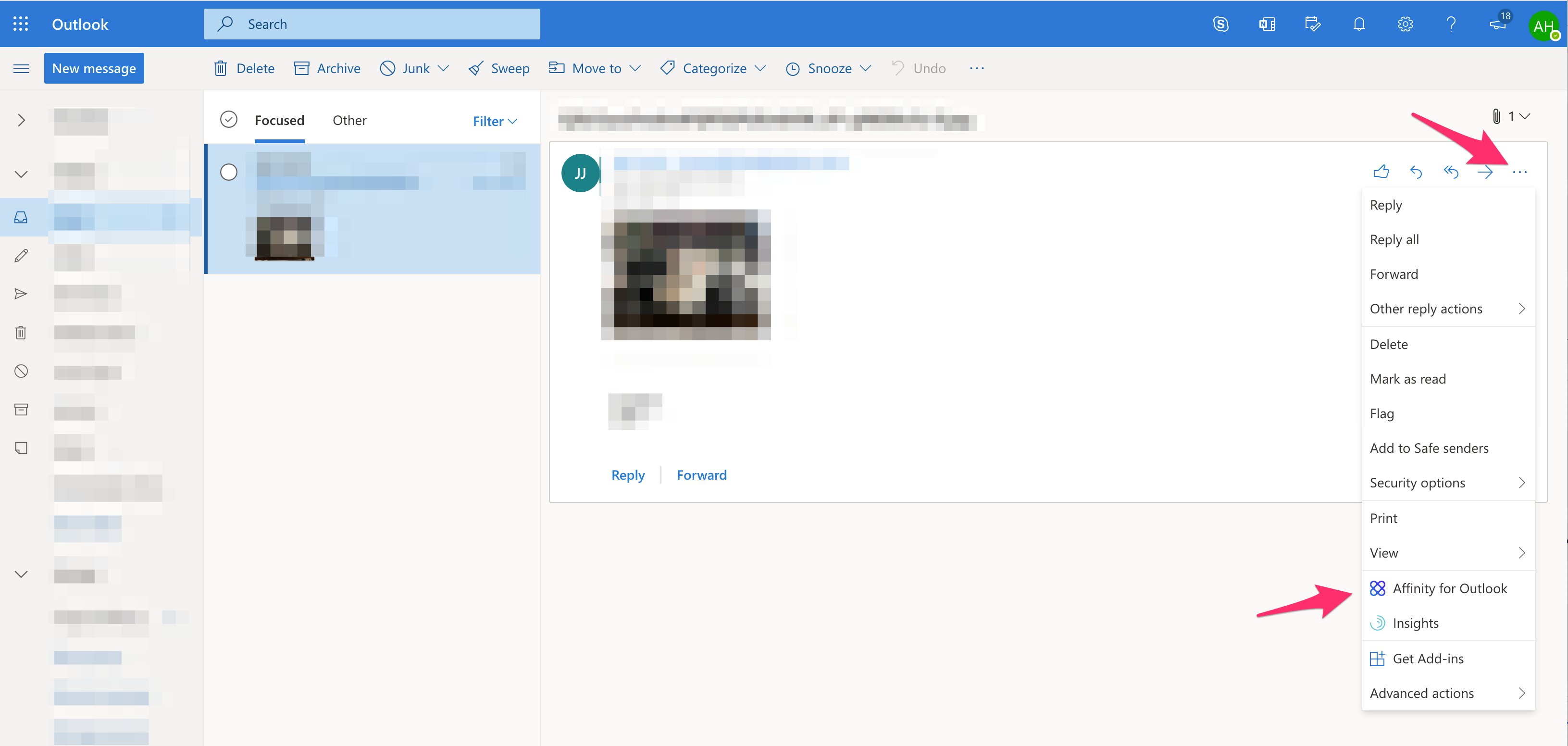
 6. Click open any email, then click the 3 dots to see **Affinity for Outlook** appear.
 7. Once you've successfully downloaded the add-in, check out one of the following based on whether you're using the Affinity CRM or Affinity for Salesforce:
1. [Affinity CRM - How to use Affinity's Outlook Add-in](/s/article/Affinity-CRM-How-to-use-Affinity-s-Outlook-Add-in)
2. [Affinity for Salesforce - How to use Affinity's Outlook add-in](/s/article/Affinity-for-Salesforce-How-to-use-Affinity-s-Outlook-add-in)
## How to download Affinity for Outlook Add-in (Desktop App)
In addition to [Microsoft's article on Outlook add-ins](https://support.microsoft.com/en-us/office/use-add-ins-in-outlook-1ee261f9-49bf-4ba6-b3e2-2ba7bcab64c8), you can follow the steps below:
1. If you're an **Affinity CRM user**, feel free to skip Step 2 below and move on to Step 3.
2. If you're an **Affinity for Salesforce user**, please make sure your Salesforce Admin selects which users are allowed access to the Affinity for Outlook add-in (see the section titled "How to assign the Affinity permission set to users" in the article [How to install/update Affinity's Managed Package in Salesforce](/s/article/How-to-install-update-Affinity-s-Managed-Package-in-Salesforce)).
3. Now, open your Outlook desktop application to access your add-ins:
1. **Windows users**: Click the **Files** tab at the very top of your screen, then click **Manage Add-ins**.
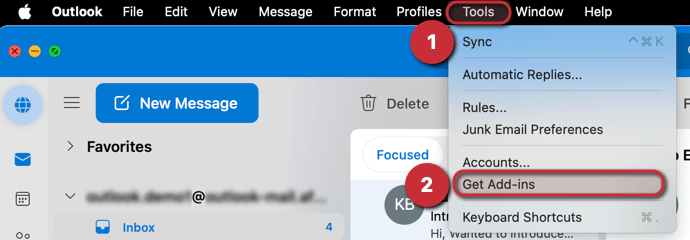
2. **Mac users**: Click the **Tools** tab at the very top of your screen, then click **Get Add-ins**.
7. Once you've successfully downloaded the add-in, check out one of the following based on whether you're using the Affinity CRM or Affinity for Salesforce:
1. [Affinity CRM - How to use Affinity's Outlook Add-in](/s/article/Affinity-CRM-How-to-use-Affinity-s-Outlook-Add-in)
2. [Affinity for Salesforce - How to use Affinity's Outlook add-in](/s/article/Affinity-for-Salesforce-How-to-use-Affinity-s-Outlook-add-in)
## How to download Affinity for Outlook Add-in (Desktop App)
In addition to [Microsoft's article on Outlook add-ins](https://support.microsoft.com/en-us/office/use-add-ins-in-outlook-1ee261f9-49bf-4ba6-b3e2-2ba7bcab64c8), you can follow the steps below:
1. If you're an **Affinity CRM user**, feel free to skip Step 2 below and move on to Step 3.
2. If you're an **Affinity for Salesforce user**, please make sure your Salesforce Admin selects which users are allowed access to the Affinity for Outlook add-in (see the section titled "How to assign the Affinity permission set to users" in the article [How to install/update Affinity's Managed Package in Salesforce](/s/article/How-to-install-update-Affinity-s-Managed-Package-in-Salesforce)).
3. Now, open your Outlook desktop application to access your add-ins:
1. **Windows users**: Click the **Files** tab at the very top of your screen, then click **Manage Add-ins**.
2. **Mac users**: Click the **Tools** tab at the very top of your screen, then click **Get Add-ins**.
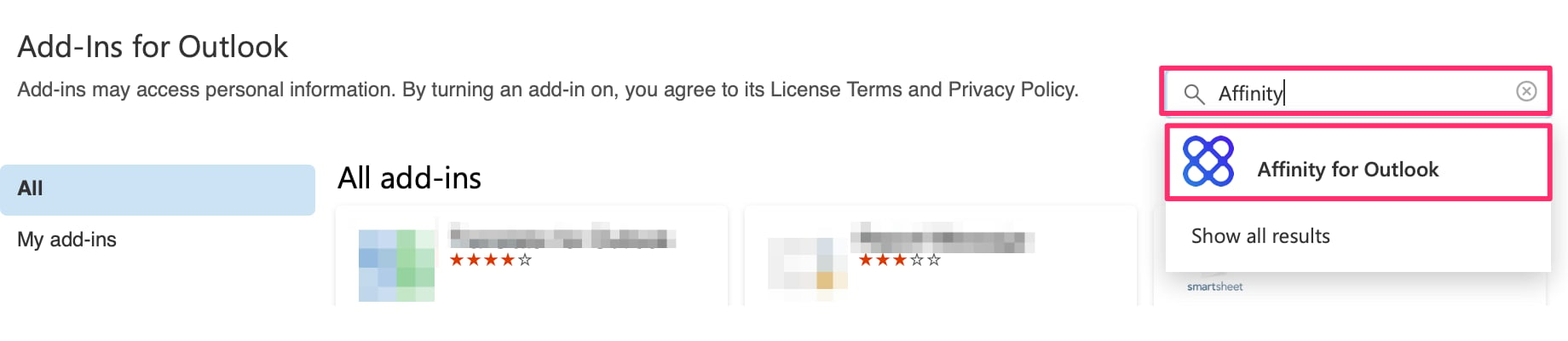
 4. Search for **Affinity for Outlook**, then download the add-in.
 5. Once you've successfully downloaded the add-in, check out one of the following based on whether you're using the Affinity CRM or Affinity for Salesforce:
1. [Affinity CRM - How to use Affinity's Outlook Add-in](/s/article/Affinity-CRM-How-to-use-Affinity-s-Outlook-Add-in)
2. [Affinity for Salesforce - How to use Affinity's Outlook add-in](/s/article/Affinity-for-Salesforce-How-to-use-Affinity-s-Outlook-add-in)
## Troubleshooting Common Issues
### Problem: Blank Screen? Clear your cache
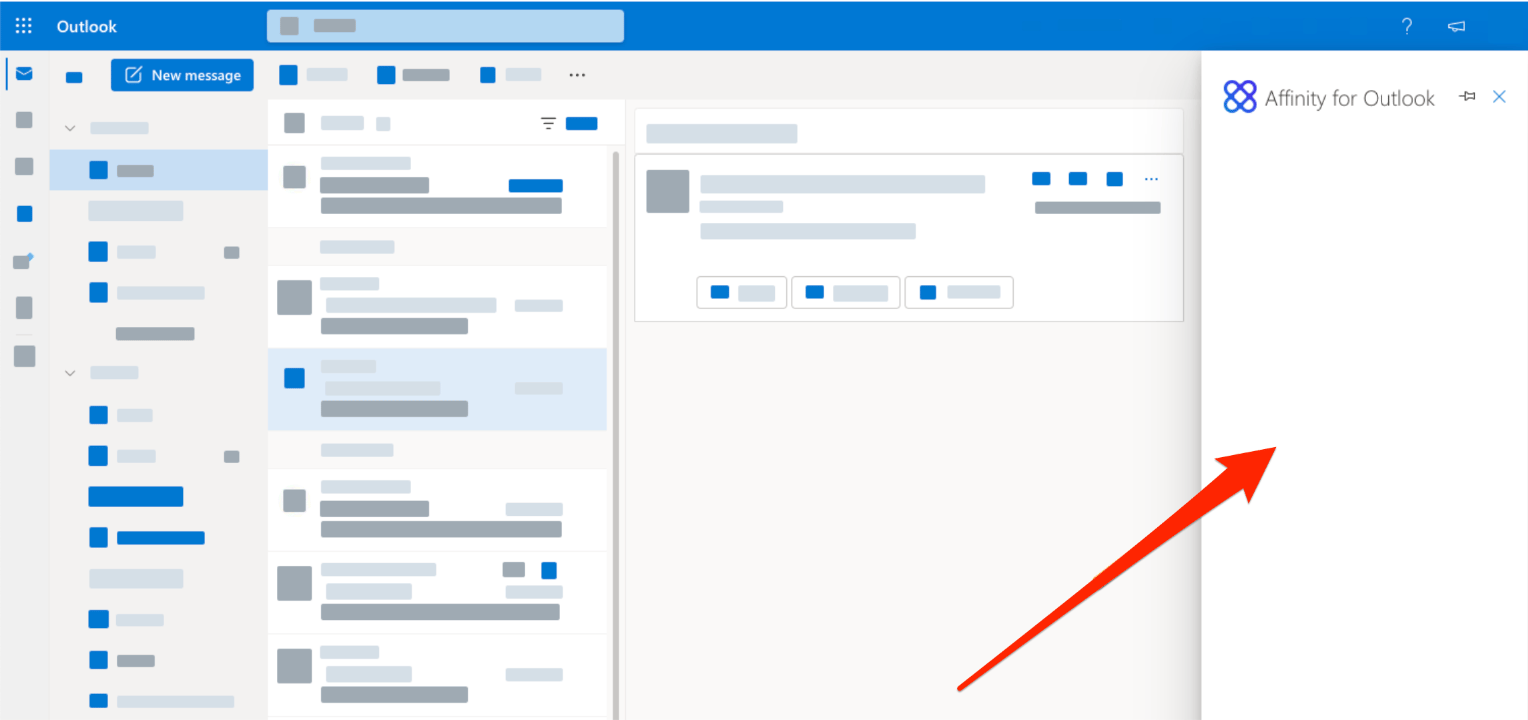
If met with a blank screen (see example below), you will need to empty your cache and perform a hard reload of the application. The reload will help to retrieve the latest version of the Outlook add-in.
5. Once you've successfully downloaded the add-in, check out one of the following based on whether you're using the Affinity CRM or Affinity for Salesforce:
1. [Affinity CRM - How to use Affinity's Outlook Add-in](/s/article/Affinity-CRM-How-to-use-Affinity-s-Outlook-Add-in)
2. [Affinity for Salesforce - How to use Affinity's Outlook add-in](/s/article/Affinity-for-Salesforce-How-to-use-Affinity-s-Outlook-add-in)
## Troubleshooting Common Issues
### Problem: Blank Screen? Clear your cache
If met with a blank screen (see example below), you will need to empty your cache and perform a hard reload of the application. The reload will help to retrieve the latest version of the Outlook add-in.
 To reload, please follow steps below based on which browser/app you're using.
### Web App — Clearing your cache
**Google Chrome**
1. Windows users — Press **Ctrl** + **F5** on your keyboard.
2. Mac users — Press **Cmd** + **Shift** + **R** on your keyboard.
**Firefox**
1. Windows users — Press **Ctrl** + **F5** on your keyboard.
2. Mac users — Press **Cmd** + **Shift** + **R** on your keyboard.
**Safari**
1. Click **Safari** on the top navigation bar, then click **Empty Cache**, or press **Opt** + **Cmd** + **E**.
2. To refresh, click the **Refresh** button on the address bar or press **Cmd** + **R**.
**Microsoft Edge**
1. Press **Ctrl** + **F5** on your keyboard.
### Desktop App — Clearing your cache
**Outlook Desktop for Mac**
1. Open Affinity for Outlook add-in.
2. Right click the side panel.
3. Select **Reload**.
To reload, please follow steps below based on which browser/app you're using.
### Web App — Clearing your cache
**Google Chrome**
1. Windows users — Press **Ctrl** + **F5** on your keyboard.
2. Mac users — Press **Cmd** + **Shift** + **R** on your keyboard.
**Firefox**
1. Windows users — Press **Ctrl** + **F5** on your keyboard.
2. Mac users — Press **Cmd** + **Shift** + **R** on your keyboard.
**Safari**
1. Click **Safari** on the top navigation bar, then click **Empty Cache**, or press **Opt** + **Cmd** + **E**.
2. To refresh, click the **Refresh** button on the address bar or press **Cmd** + **R**.
**Microsoft Edge**
1. Press **Ctrl** + **F5** on your keyboard.
### Desktop App — Clearing your cache
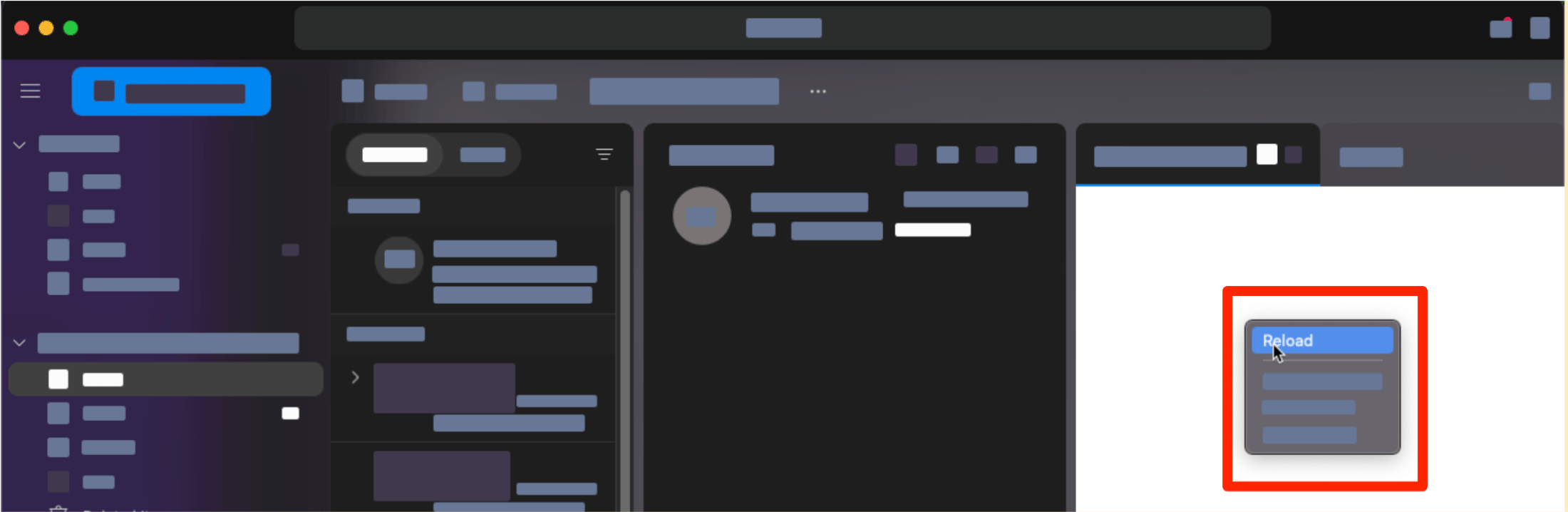
**Outlook Desktop for Mac**
1. Open Affinity for Outlook add-in.
2. Right click the side panel.
3. Select **Reload**.
 **Outlook Desktop for Windows**
1. Open the **Affinity for Outlook** add-in.
2. Right click the side panel.
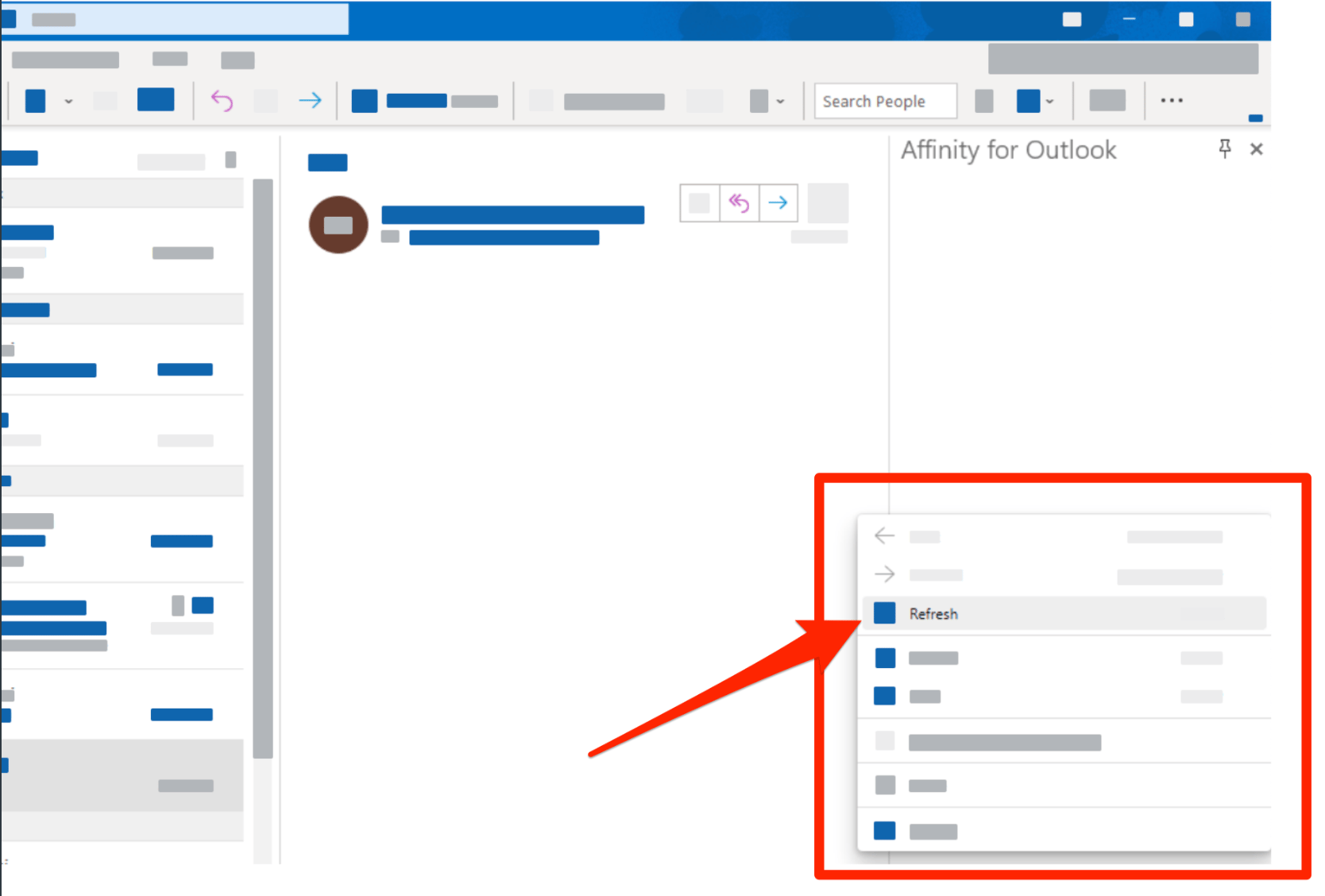
3. Select **Refresh**.
**Outlook Desktop for Windows**
1. Open the **Affinity for Outlook** add-in.
2. Right click the side panel.
3. Select **Refresh**.
 ### Problem: Missing or Disabled add-in icon?
### Web App — Checking your cookie settings
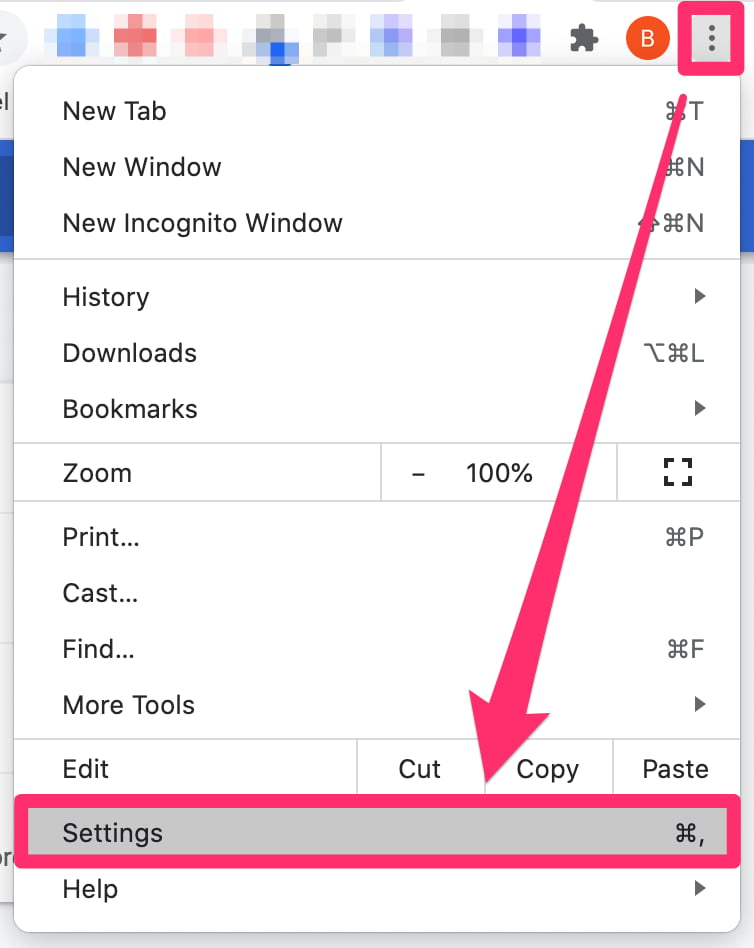
1. On the top-right corner of your web browser, click the **ellipsis (3-dotted icon)**, then click **Settings**.
### Problem: Missing or Disabled add-in icon?
### Web App — Checking your cookie settings
1. On the top-right corner of your web browser, click the **ellipsis (3-dotted icon)**, then click **Settings**.
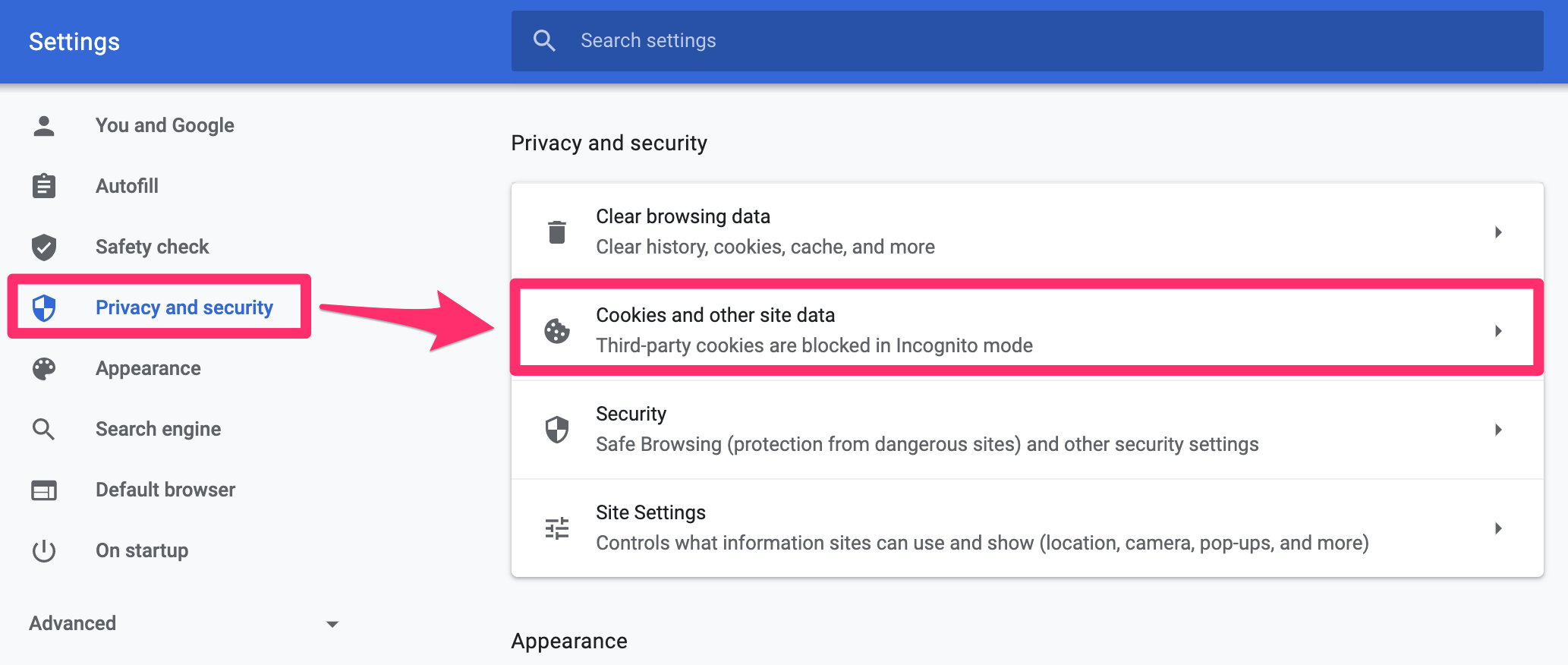
 2) Click **Privacy and security**, then click **Cookies and other site data**.
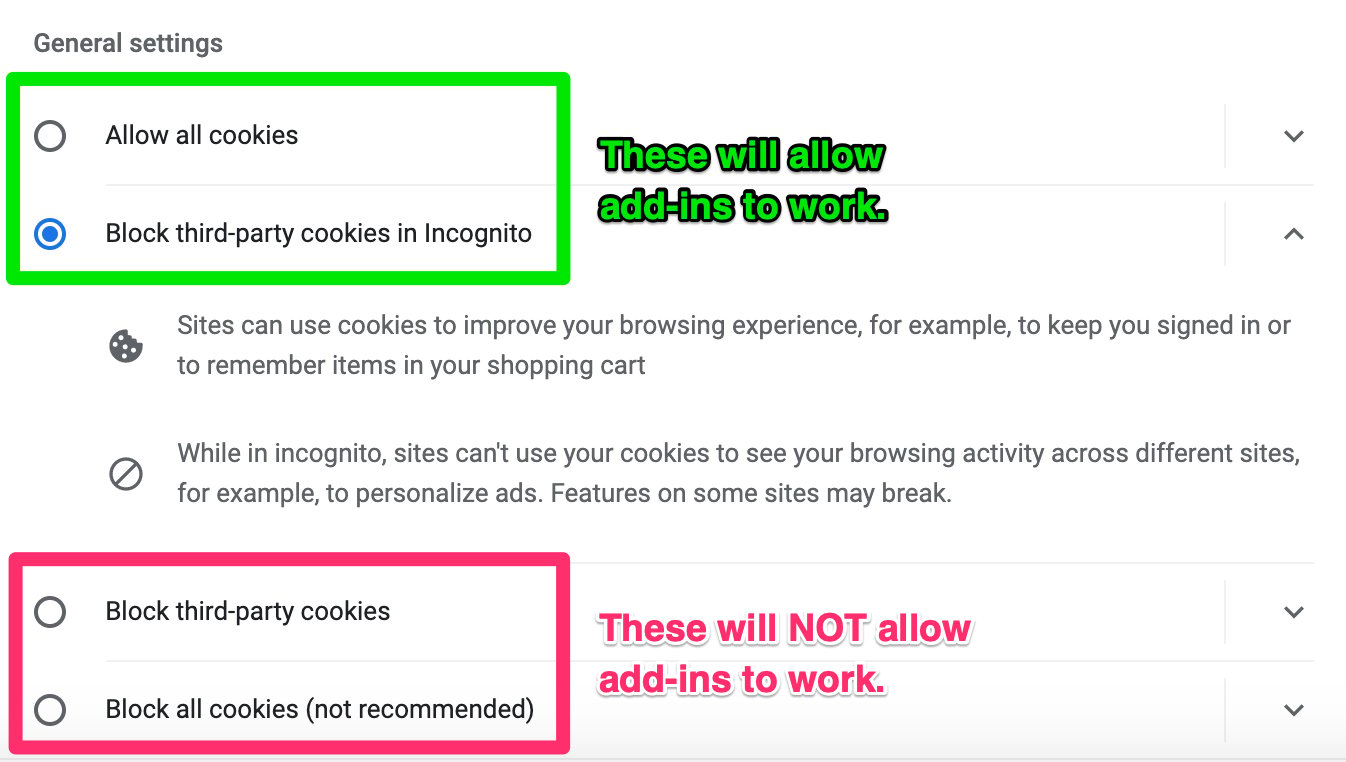
 3. Make sure your cookie settings are either **Allow all cookies** or **Block third-party cookies in Incognito**. If they are set to **Block third-party cookies** or **Block all cookies (not recommended)**, then Affinity's Outlook add-in will not work.
 ### Desktop App — Missing or Disabled Add-in icon (for Windows/PC)
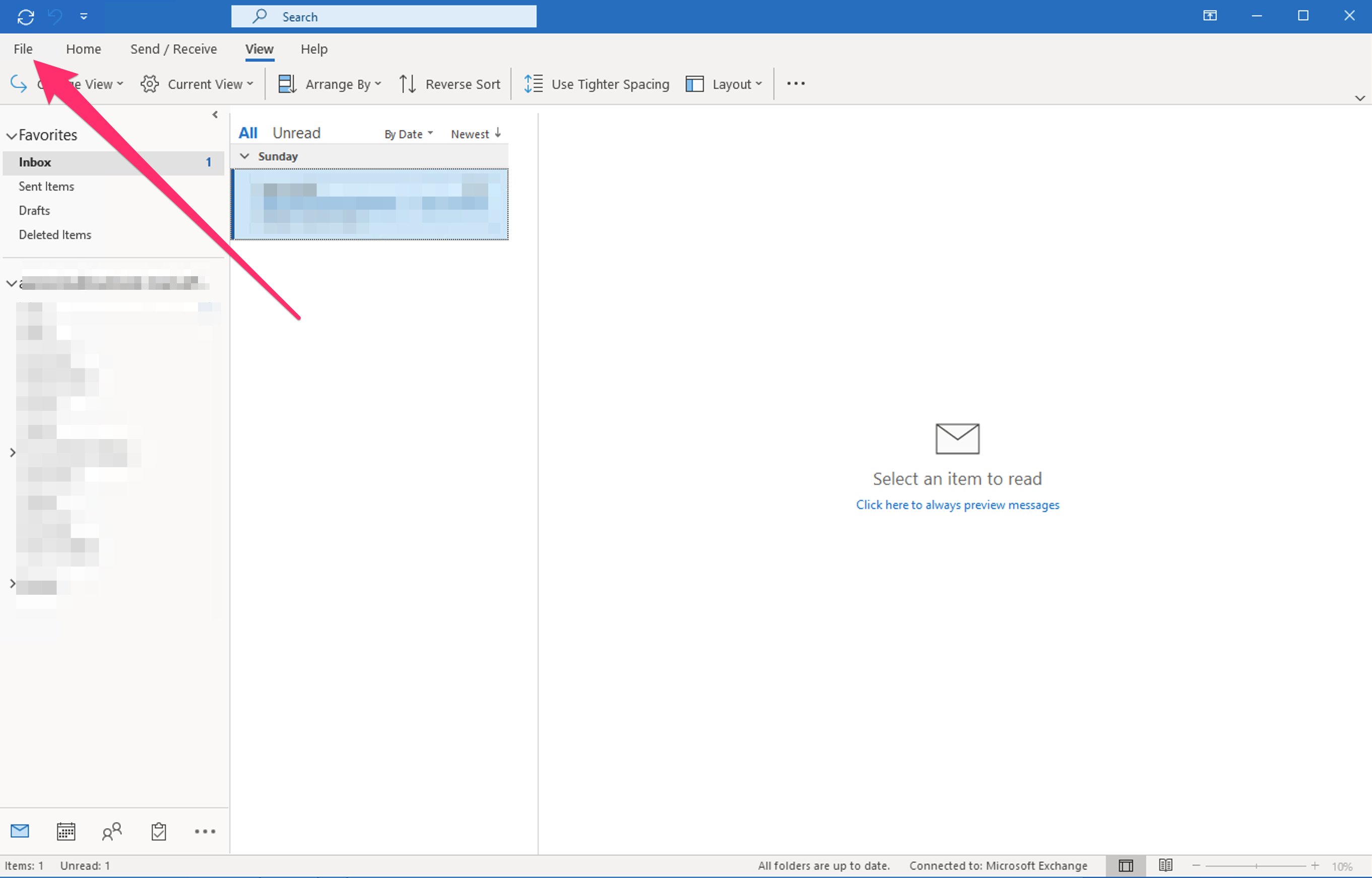
1. Click **File** to open additional options.
### Desktop App — Missing or Disabled Add-in icon (for Windows/PC)
1. Click **File** to open additional options.
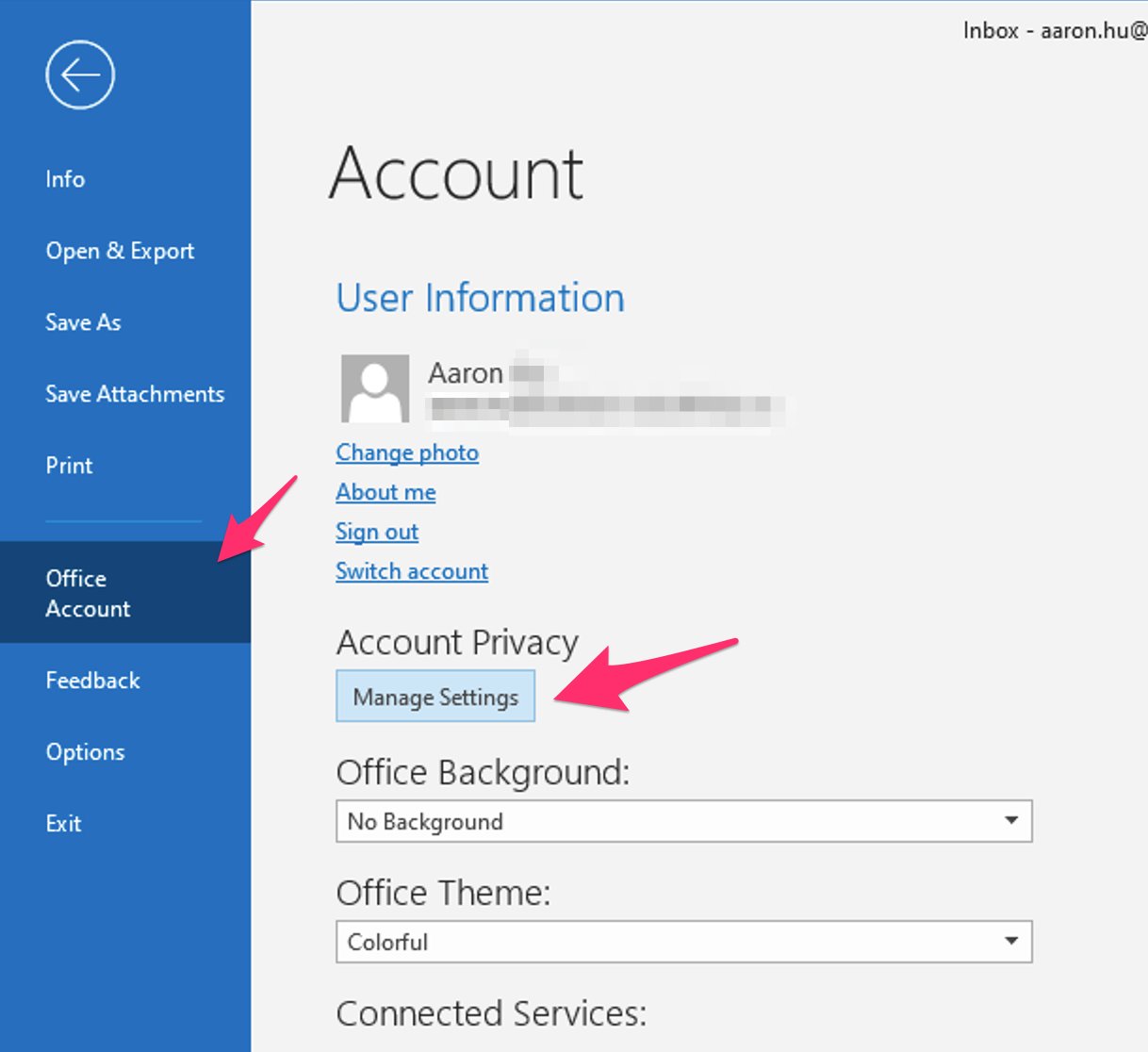
 2) Select **Office Account**, and select **Manage Settings**.
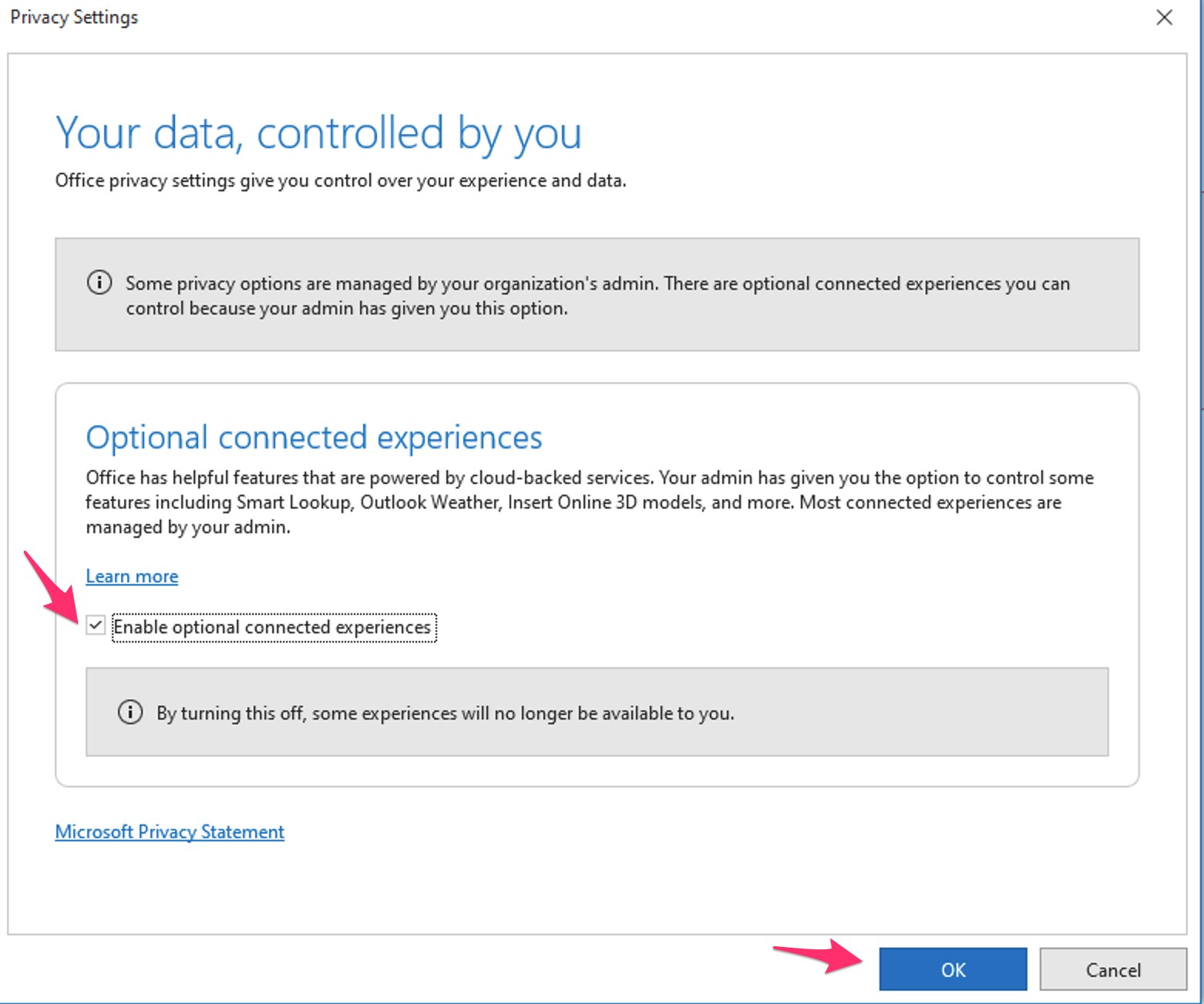
 3. Check the box for **Enable optional connected experiences**, then click **OK** and restart Outlook.
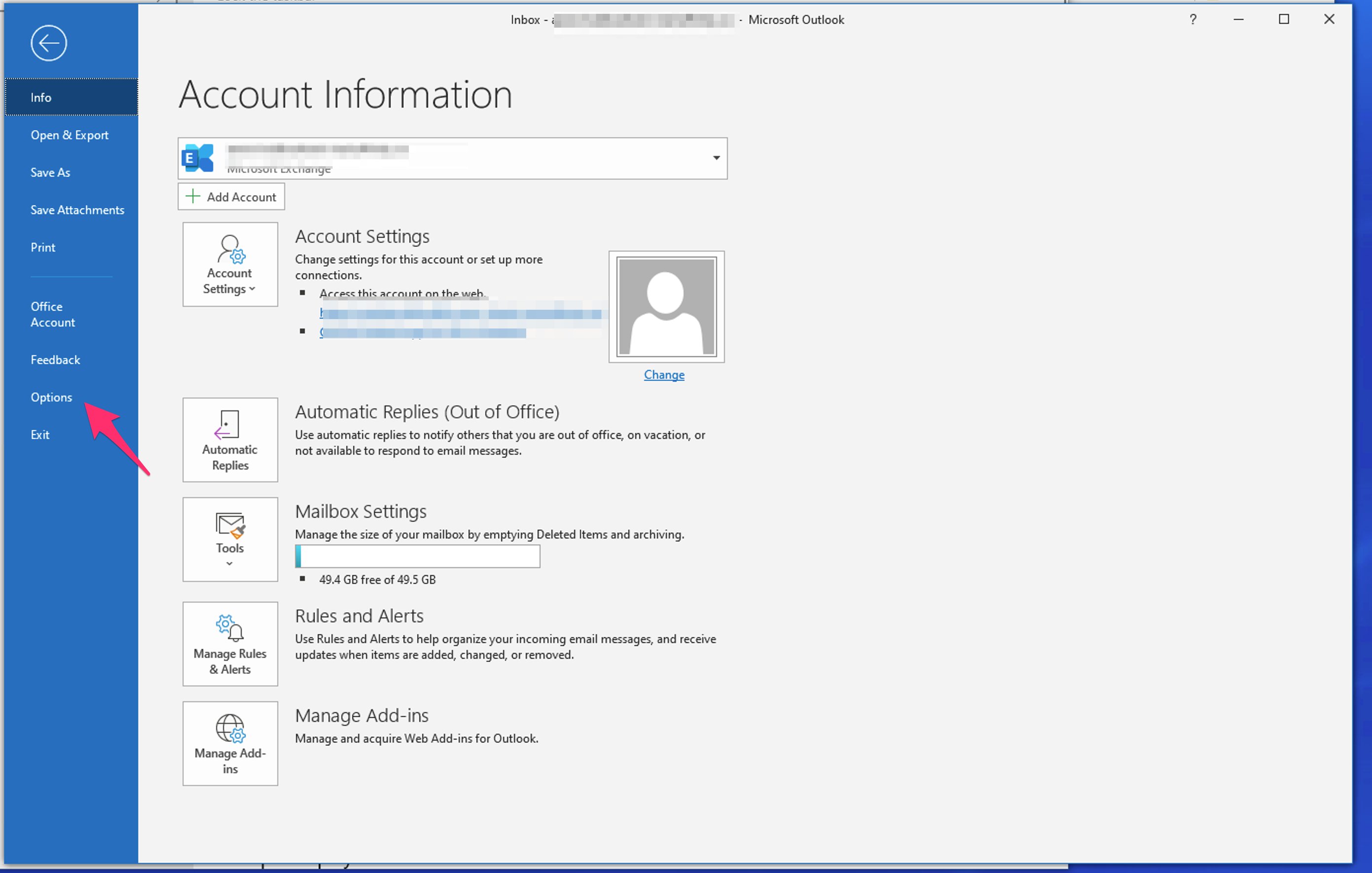
 4) If you still do not see the add-in appear after restarting, open your Office Options menu and go to **File** > **Options**.
 5. Select **Customize Ribbon (1)**, then select **All Commands (2)**. Then, click **Add-ins (3)** and click **Add>> (4)** to add the Add-ins icon to your Ribbon (menu bar).
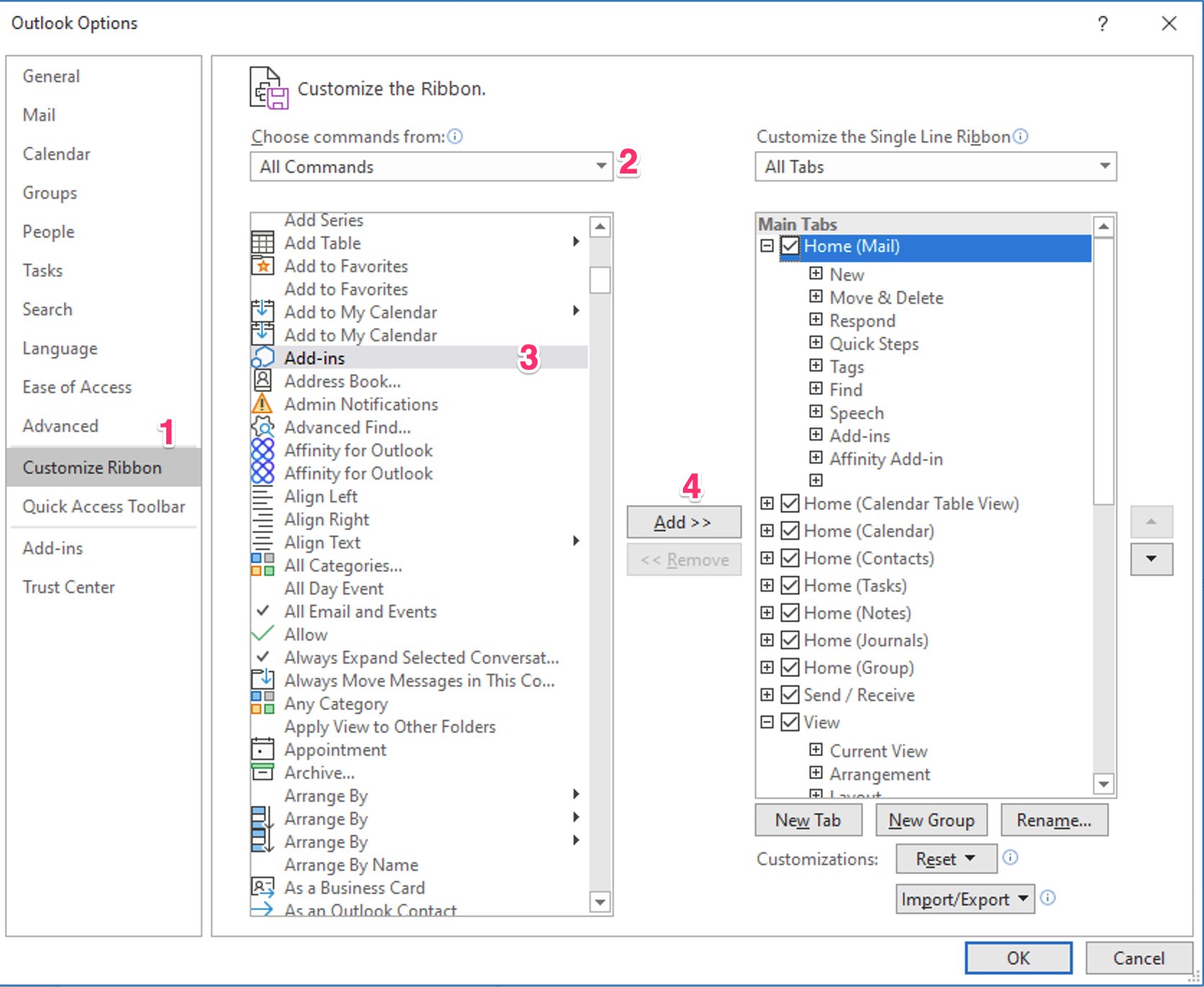 6) Click **OK** to save your changes.
### Desktop App — Missing or Disabled Add-in icon (for Mac)
1. Click **Outlook** on the top left corner, then click **Preferences**.
6) Click **OK** to save your changes.
### Desktop App — Missing or Disabled Add-in icon (for Mac)
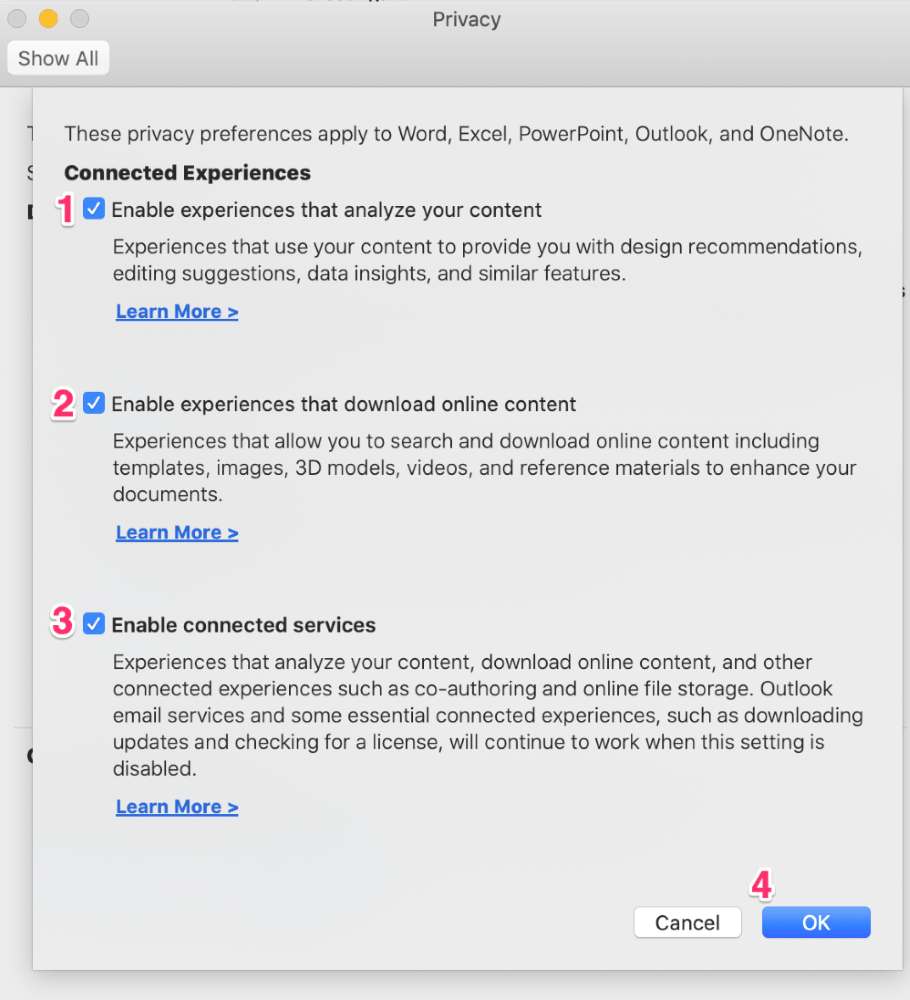
1. Click **Outlook** on the top left corner, then click **Preferences**.
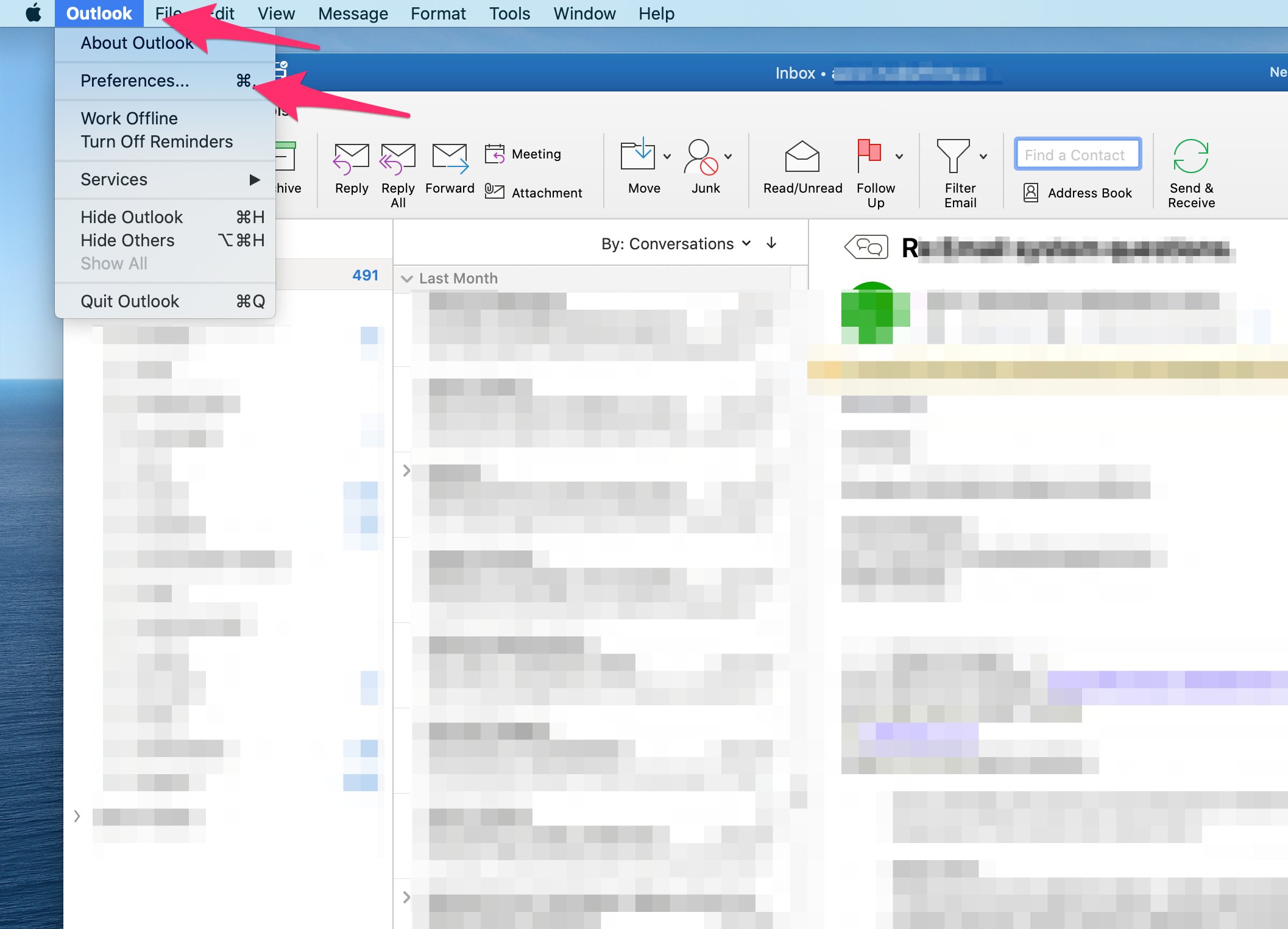 2) Click on **Privacy**.
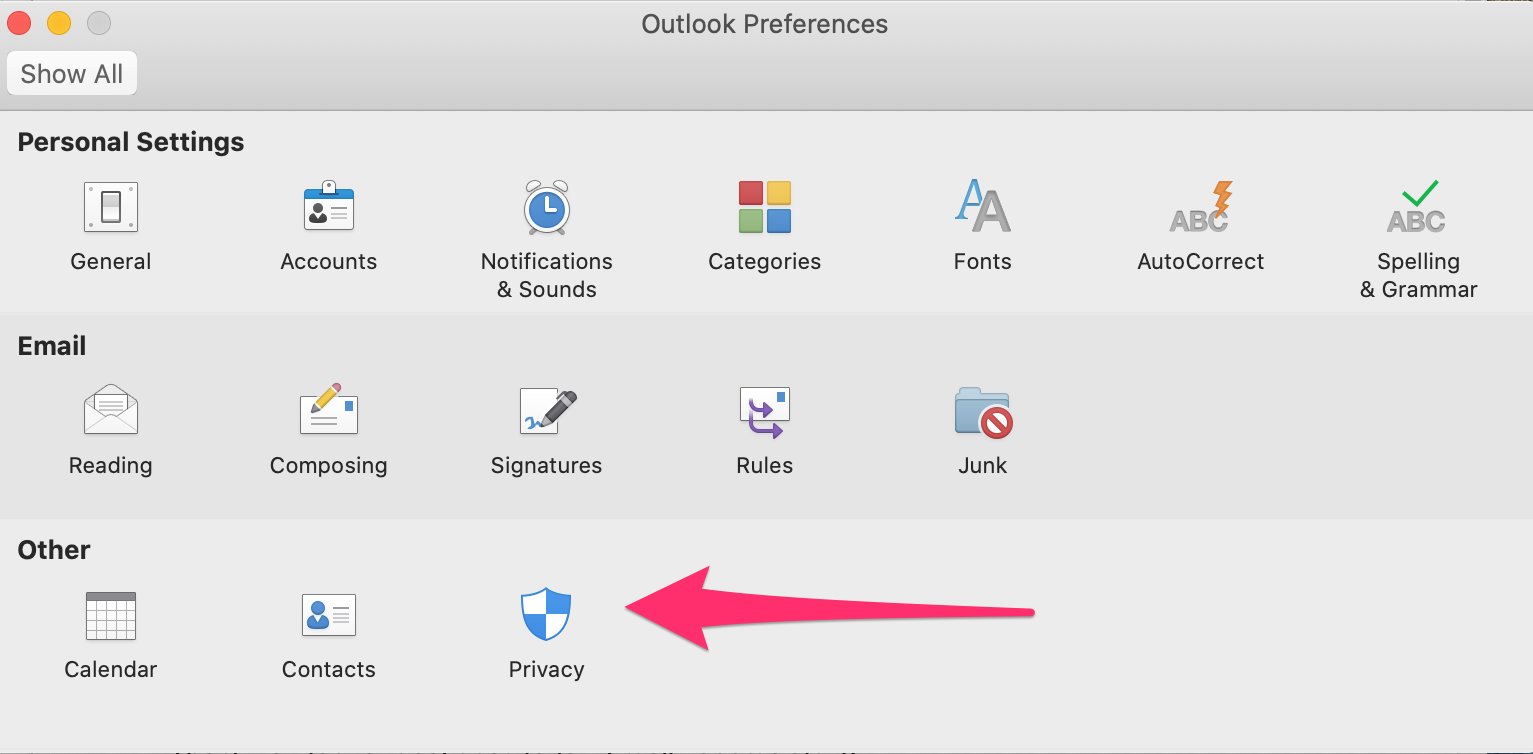 3. Click **Manage Connected Experiences**.
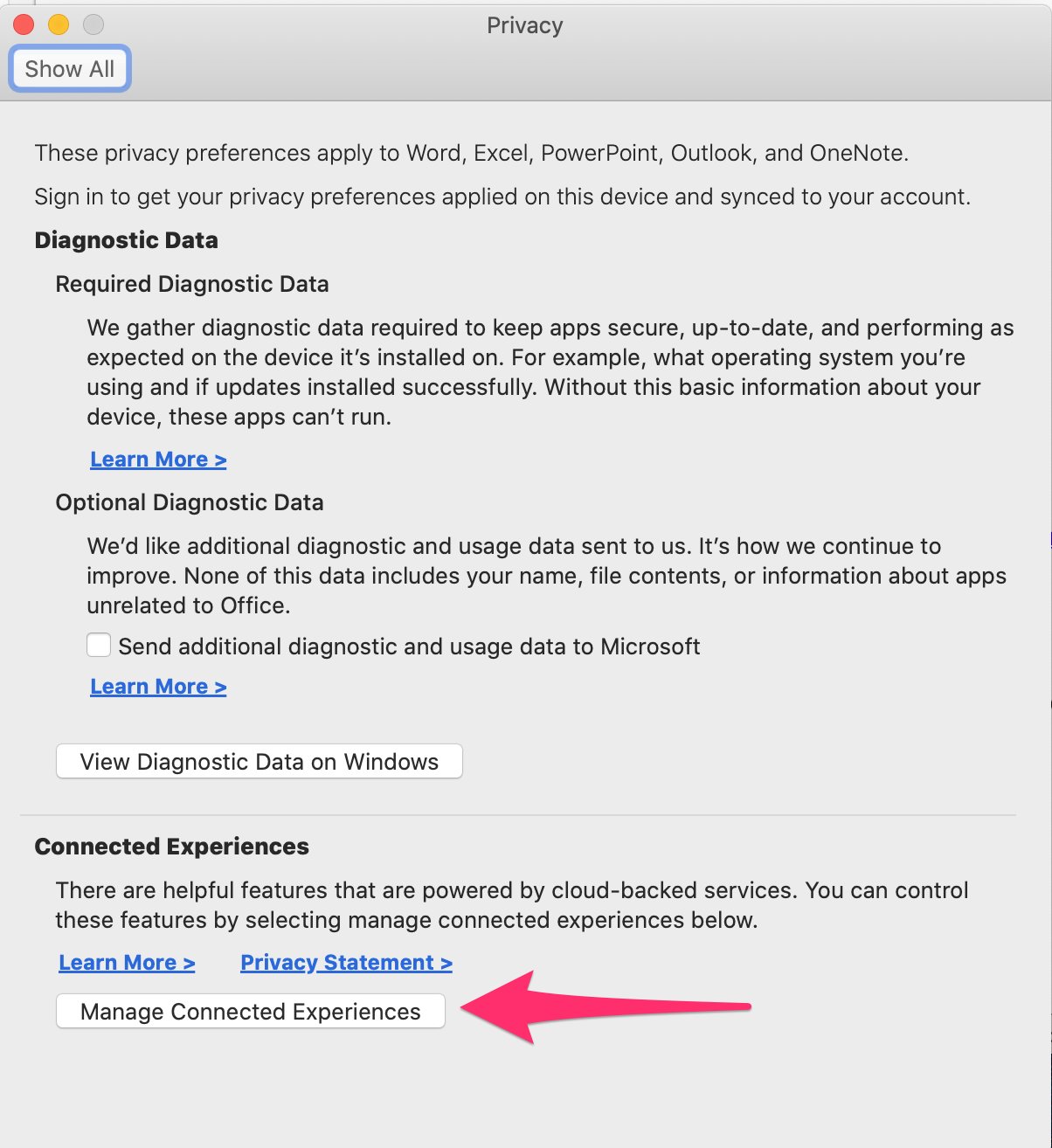 4) Ensure **all checkboxes** are enabled, then click **OK**. You may need to restart Outlook to apply these changes.
 **Note:** Some users may have to ask their IT team for permission to use Affinity's Outlook Add-in. See [Specify the administrators and users who can install and manage add-ins for Outlook](https://docs.microsoft.com/en-us/exchange/clients-and-mobile-in-exchange-online/add-ins-for-outlook/specify-who-can-install-and-manage-add-ins) to learn more.