> ## Documentation Index
> Fetch the complete documentation index at: https://support.affinity.co/llms.txt
> Use this file to discover all available pages before exploring further.
# How To Deactivate Reactivate Or Remove Users From Your Affinity Account
> Help center reference: How To Deactivate Reactivate Or Remove Users From Your Affinity Account
**How-to** — task-oriented recipe.
Have a seat in your Affinity subscription that you'd like to reuse for another team member? Admins can recycle seats by either deactivating existing users or completely removing users from their account, then inviting a new user or reactivating a deactivated user afterwards.
### What happens when deactivating vs. removing a user?
The main difference between deactivating vs. removing a user on your team's Affinity account is based on whether you'd like to keep or delete the user's company email/calendar data. See the table below for more details:
| | **Deactivating** | **Removing** |
| ------------------------------------------------------------------------------------------------------------------------ | ---------------- | ------------ |
| User will no longer have sign in access to your team's Affinity account | True | True |
| User's email accounts will stop syncing | True | True |
| User's ownership of private/shared lists will be transferred to the admin who deactivated/removed them from the account | True | True |
| User's generated API key will be deactivated and impact any native integrations using that API key | True | True |
| User's personal email/calendar data will be removed\* | True | True |
| User's company email/calendar data will be removed\* | | True |
| User will no longer appear as a Connection to other entities | | True |
| User's notes attached to deleted logged interactions/synced meetings will be detached and converted to regular notes\*\* | True | True |
* Example: If Company123 has an Affinity subscription and their registered email domain in Affinity is @company123.com, then deactivating a user on this account will keep the email/calendar data associated with the email account ending in "@company123.com". On the other hand, if the user synced in other personal email accounts ending in "@gmail.com" or different email domains, then the email/calendar data associated with these accounts will be removed.
* \*\* - If a user gets deactivated/removed, notes that are attached to their deleted [logged interactions](https://support.affinity.co/hc/en-us/articles/360038874471)/[synced meetings](https://support.affinity.co/hc/en-us/articles/360021745472) will get detached and converted into regular notes (click the hyperlinks to learn more). Any logged interactions/synced meetings that remain will have their attached notes remain as is.
### How to deactivate a user
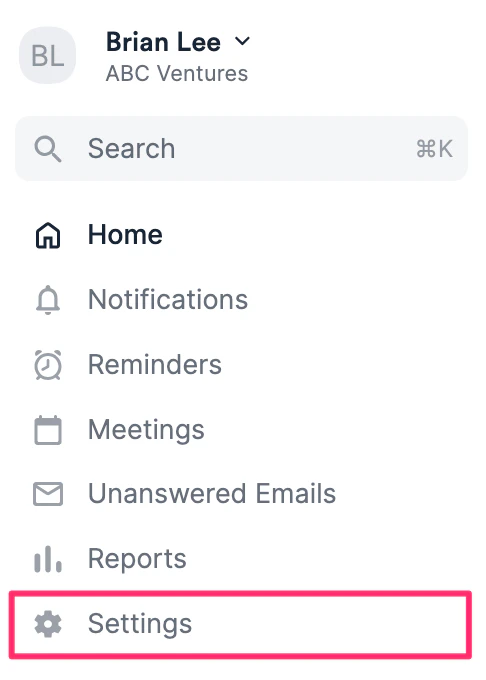
1. Click **Settings** on the left side panel.
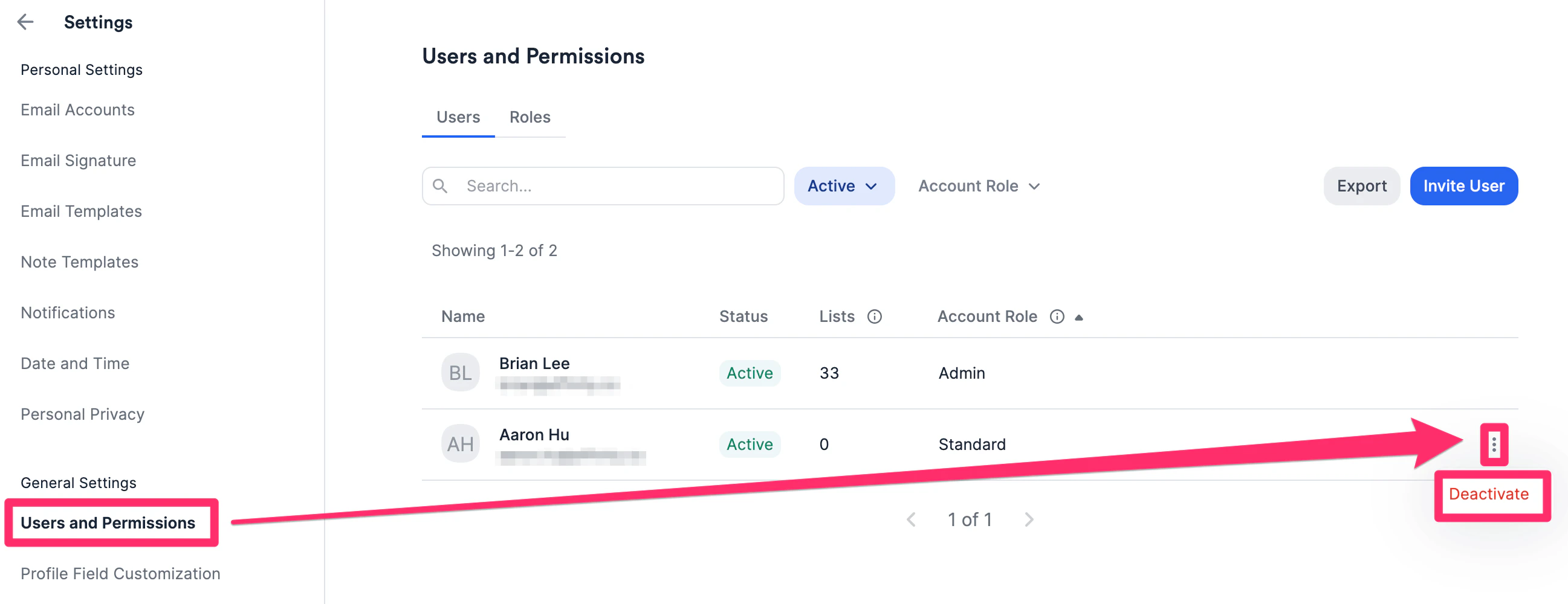
 2. Click **Users and Permissions** tab, then click the **3-dotted icon** next to the user you'd like to deactivate. **Note:** For our **Enterprise** tier customers, only the **Enterprise Admin** will be able to deactivate a user (see [Account Level Permissions](/s/article/Account-level-permissions)).
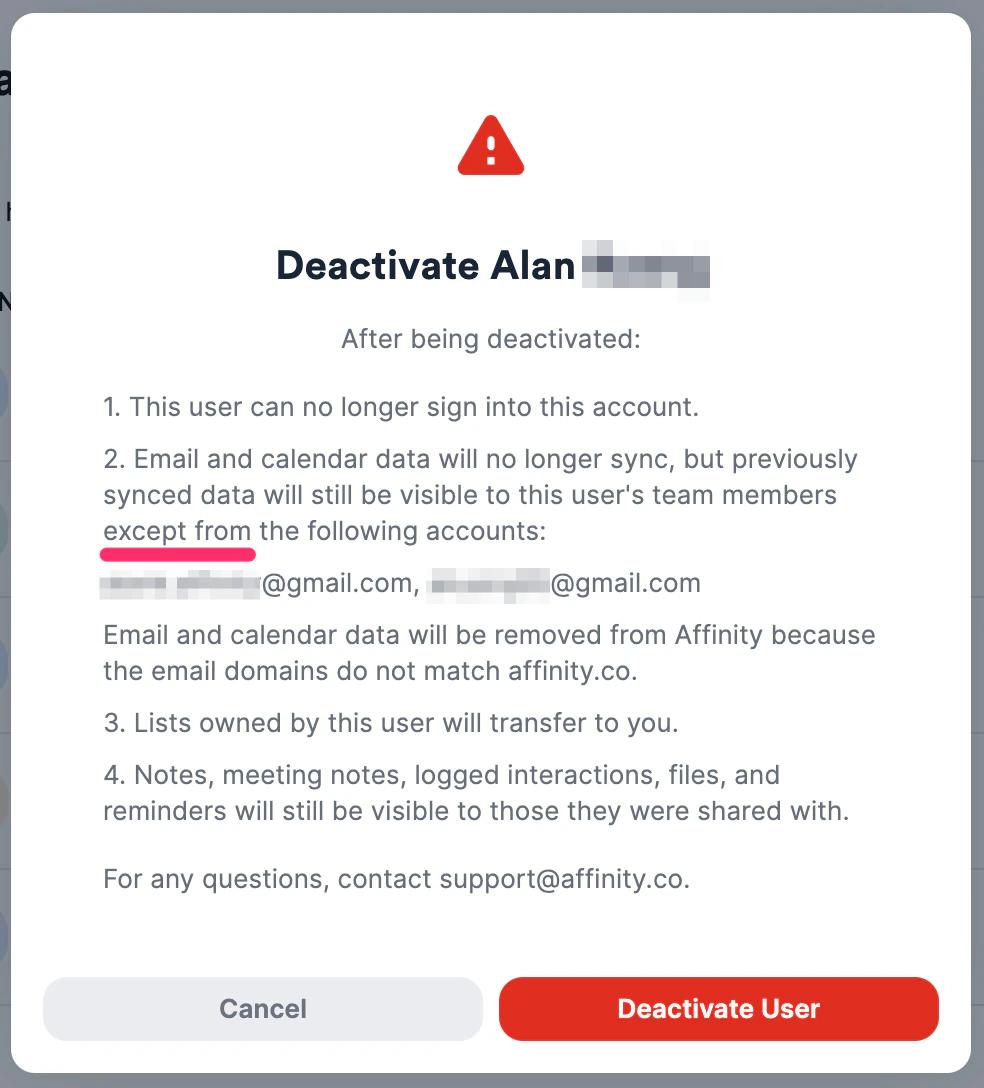
 3. Make sure you agree with the following, then click **Confirm**.
1. This screenshot will show if the user only has their work email account(s) synced.
3. Make sure you agree with the following, then click **Confirm**.
1. This screenshot will show if the user only has their work email account(s) synced.
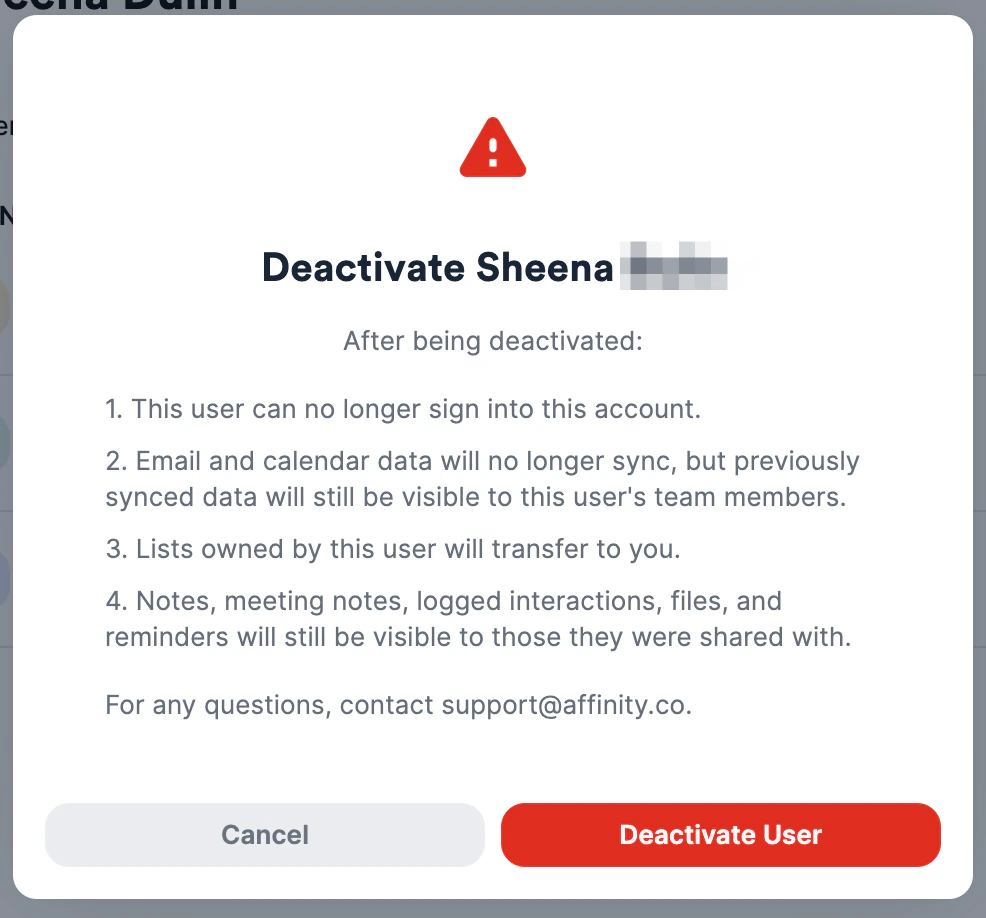 2. This screenshot will show if the user also has personal/other email account(s) synced - the main difference being that any email accounts whose domains do not match that of their work email account will have their email/calendar data removed.
 ### How to remove a user
1. If you are an admin, please send an email to [support@affinity.co](mailto:support@affinity.co), stating the full name and email address(es) of the user that you are requesting to completely remove.
2. If you are **not** an admin, please CC your admin in the email so that they are aware of your request.
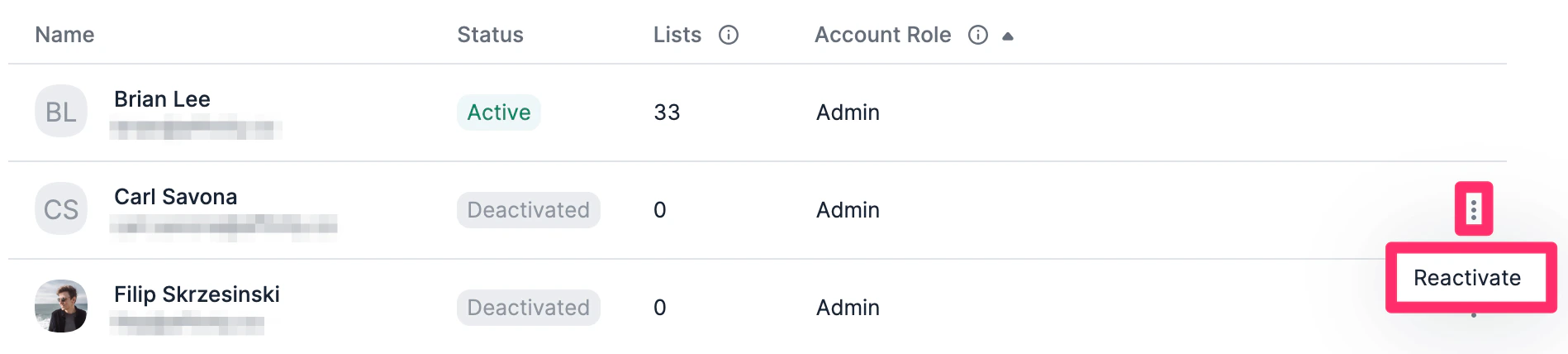
### How to reactivate a user
1. Go to **Settings**, click the **Users and Permissions** tab, then make sure to check the box to show **Deactivated** users.
### How to remove a user
1. If you are an admin, please send an email to [support@affinity.co](mailto:support@affinity.co), stating the full name and email address(es) of the user that you are requesting to completely remove.
2. If you are **not** an admin, please CC your admin in the email so that they are aware of your request.
### How to reactivate a user
1. Go to **Settings**, click the **Users and Permissions** tab, then make sure to check the box to show **Deactivated** users.
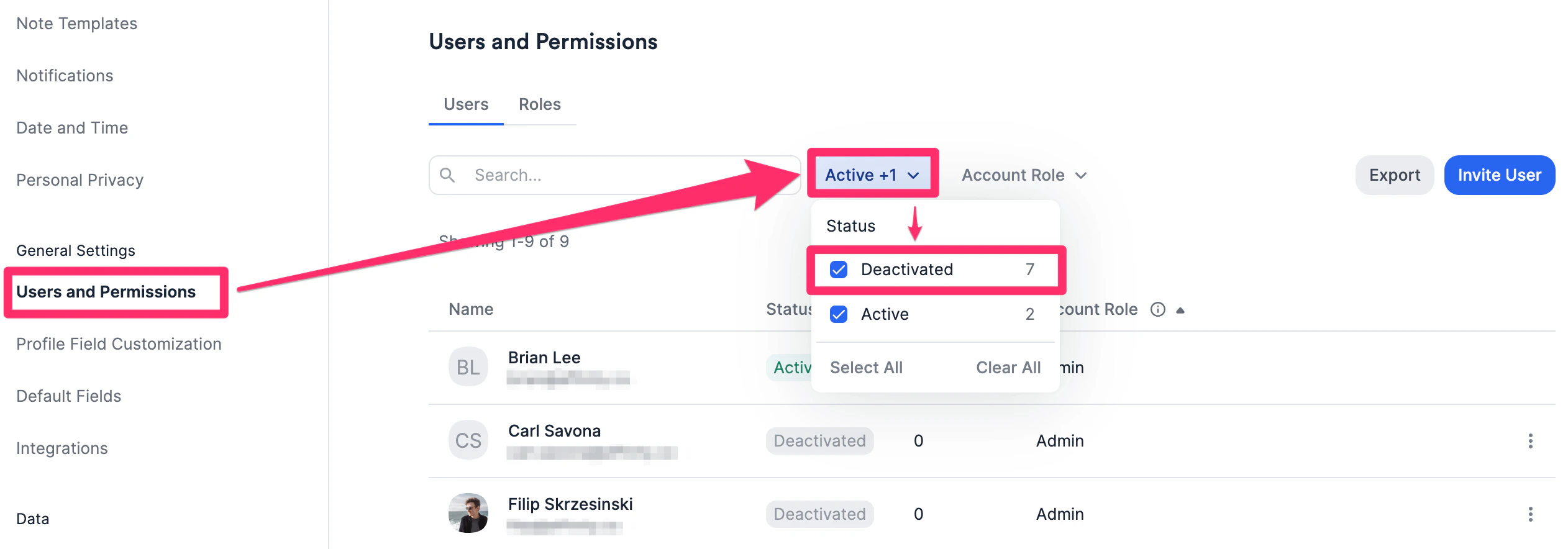 2. Then, click the **3-dotted icon** next to the user you'd like to reactivate. **Note:** For our **Enterprise** tier customers, only the **Enterprise Admin** will be able to reactivate a user (see [Account Level Permissions](/s/article/Account-level-permissions)). **Note:** When reactivating a user, a new API key will need to be generated (see [How to obtain your Affinity API key](https://support.affinity.cohttps://developer.affinity.co/)).