> ## Documentation Index
> Fetch the complete documentation index at: https://support.affinity.co/llms.txt
> Use this file to discover all available pages before exploring further.
# How to customize Default Fields
> Help center reference
**How-to** — task-oriented recipe.
Streamline the creation of new contacts by only displaying the fields that are important to your team. Please note that when setting up default fields, all changes made will apply to everyone on your team.
## How to customize default fields
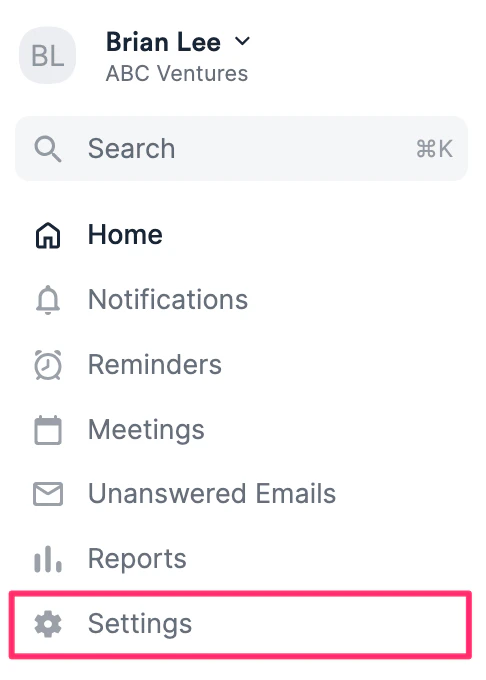
1. Click on **Settings** on the left-side of your screen.
 2. Click **Default Fields**, then click the **Menu** icon to choose from the 4 different sections below:
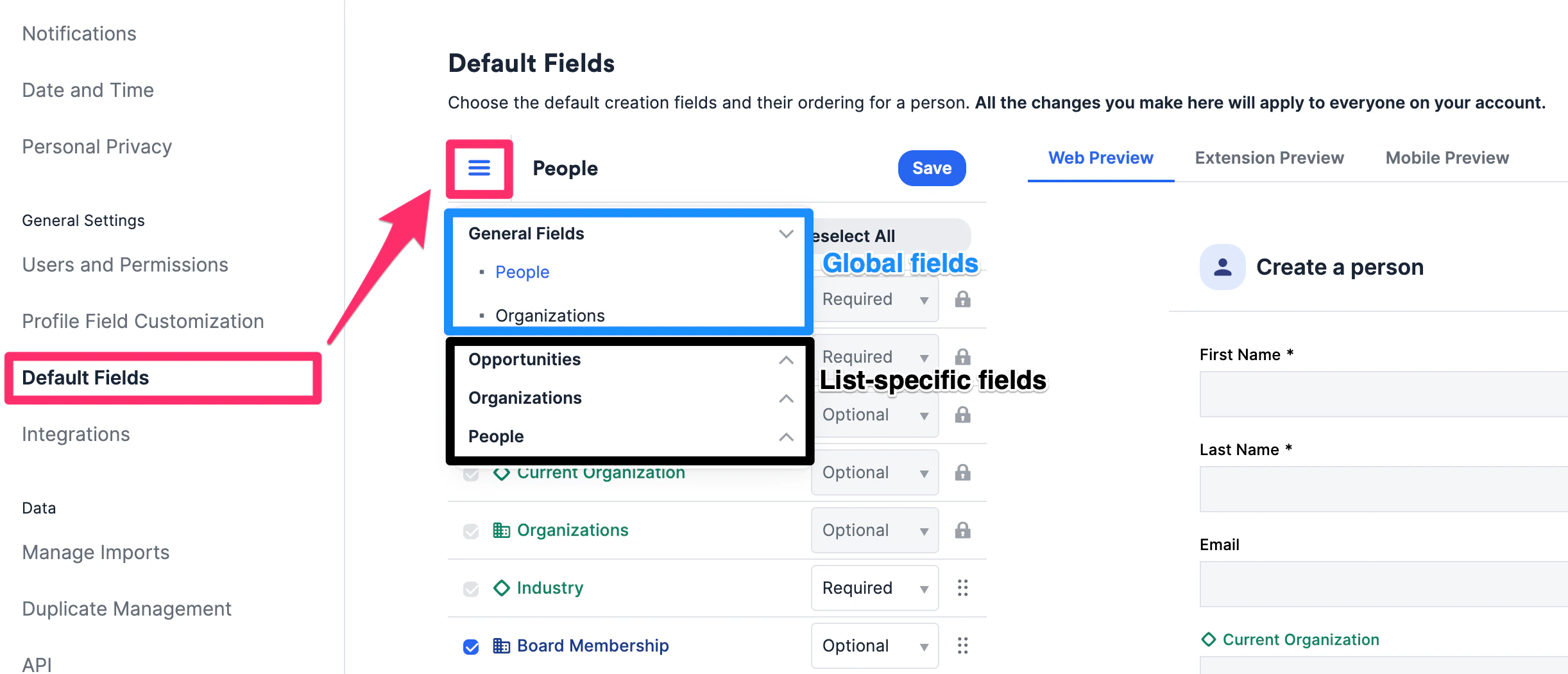 3. **General Fields:** Account admins can choose which [global](/s/article/Enriched-Global-and-List-specific-Fields) fields to show/require when creating a new person or organization
4. **Opportunities, Organizations,** and **People:** Those who are list admins can choose which [list-specific](/s/article/Enriched-Global-and-List-specific-Fields) fields to show/require for their respective lists when users attempt to add entries to these lists.
5. Click the checkboxes for the fields you want to show and uncheck those you'd like to hide
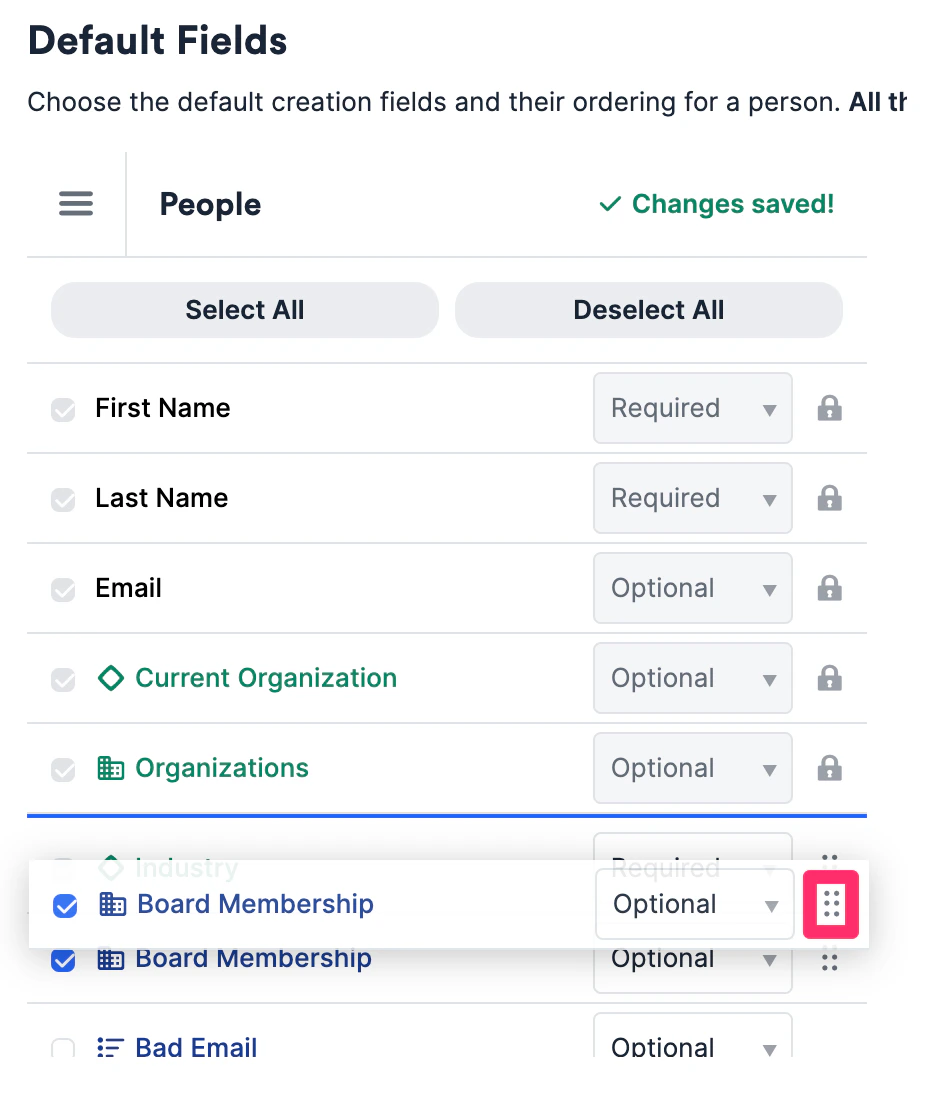
6. Drag and drop to reorder the layout of the fields. You will notice that some fields are locked - these are Affinity's default fields and cannot be removed or reordered
3. **General Fields:** Account admins can choose which [global](/s/article/Enriched-Global-and-List-specific-Fields) fields to show/require when creating a new person or organization
4. **Opportunities, Organizations,** and **People:** Those who are list admins can choose which [list-specific](/s/article/Enriched-Global-and-List-specific-Fields) fields to show/require for their respective lists when users attempt to add entries to these lists.
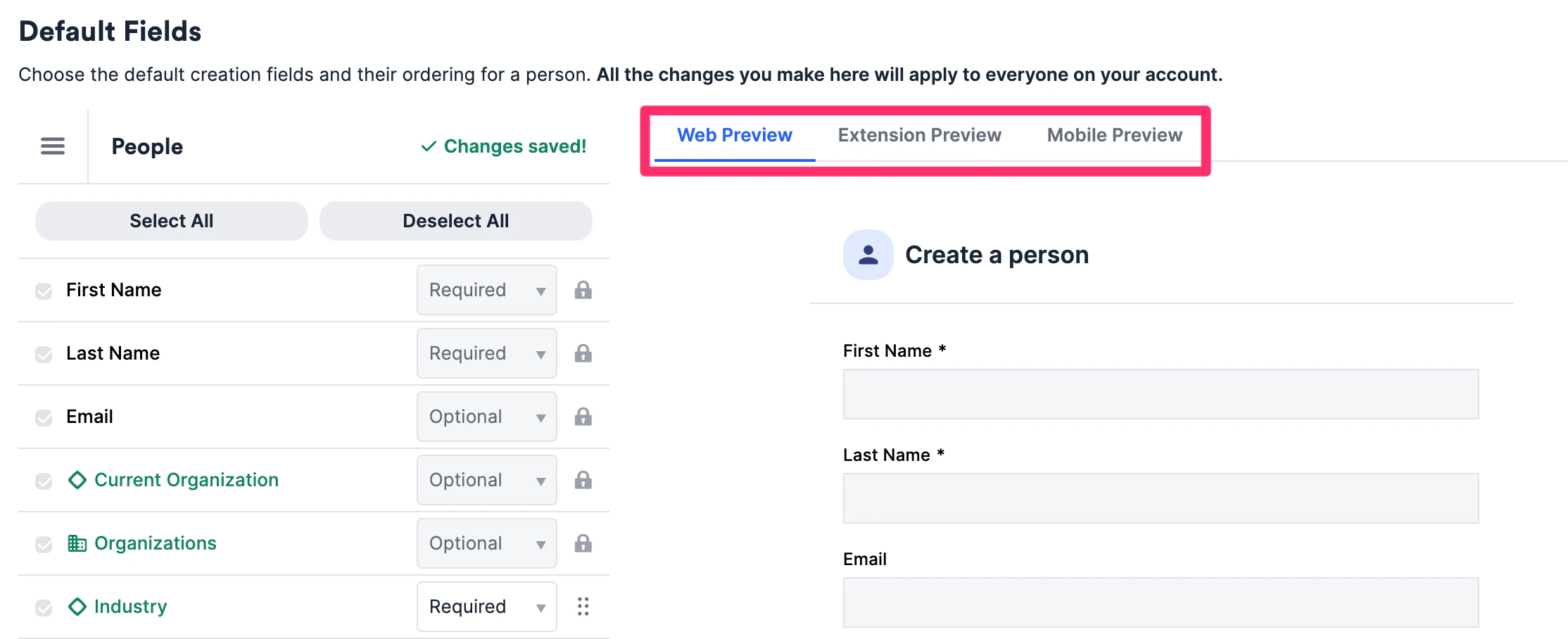
5. Click the checkboxes for the fields you want to show and uncheck those you'd like to hide
6. Drag and drop to reorder the layout of the fields. You will notice that some fields are locked - these are Affinity's default fields and cannot be removed or reordered
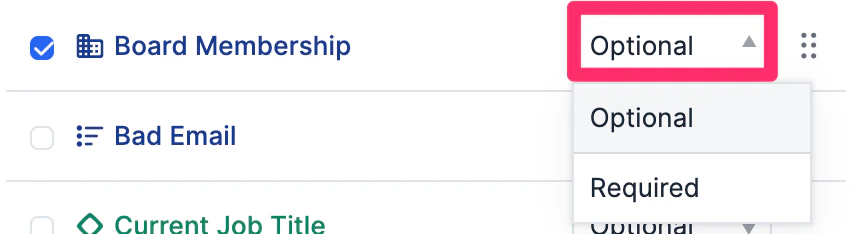
 7. You can also select which fields are **Required** to be filled out. Otherwise, you can leave them as **Optional**.
 8. You can also preview how these fields will appear on these different platforms: **Web**, **Chrome Extension**, and **Mobile**.
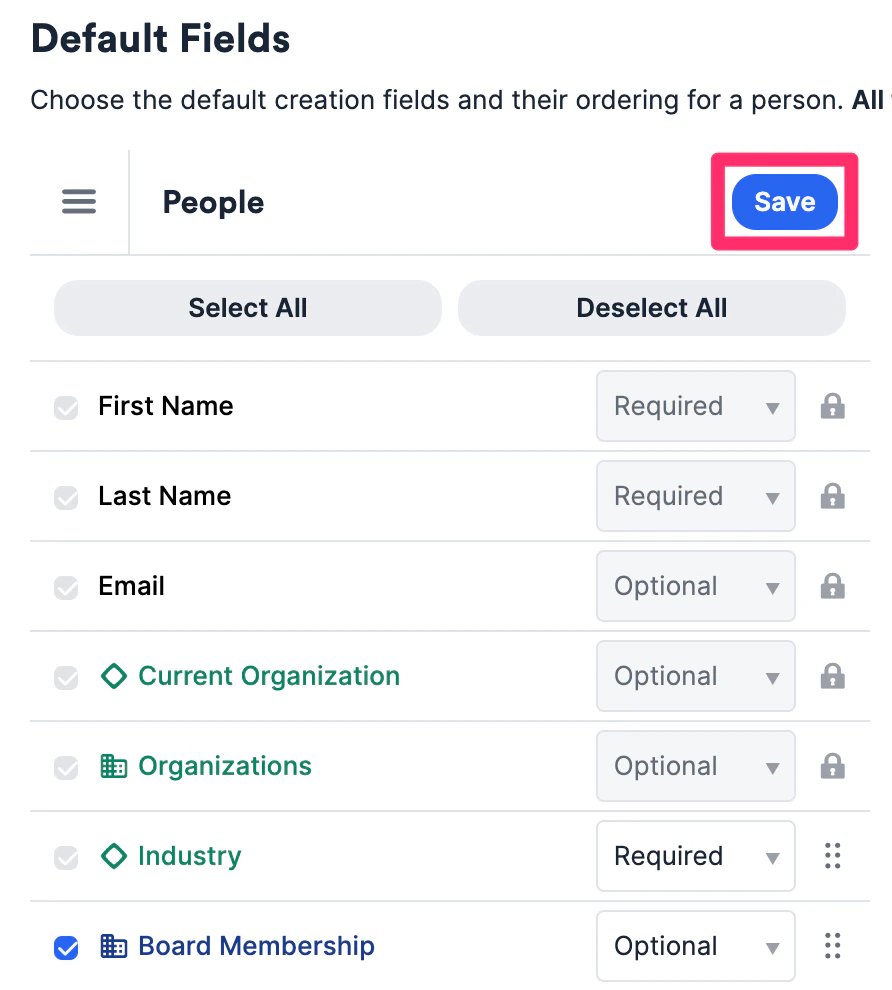
 9. Once you're done customizing, click **Save**.
 ## Important Callouts
We will not enforce required fields when new contacts are created or new list entries are added via the following methods:
* Data Imports
* External API
* Auto-created organizations and people by Affinity
* Entities that already exist on a list
## Important Callouts
We will not enforce required fields when new contacts are created or new list entries are added via the following methods:
* Data Imports
* External API
* Auto-created organizations and people by Affinity
* Entities that already exist on a list