> ## Documentation Index
> Fetch the complete documentation index at: https://support.affinity.co/llms.txt
> Use this file to discover all available pages before exploring further.
# How To Create Use Email Templates Within Affinity
> Help center reference
**How-to** — task-oriented recipe.
Accelerate and simplify your outreach processes by creating and using email templates within Affinity.
### How to create, save, and manage email templates
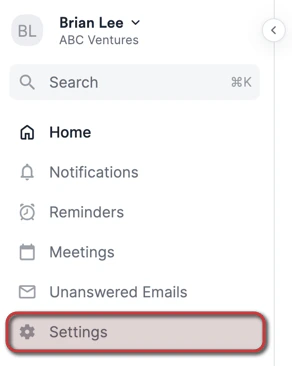
1. Click **Settings** on the left side of your screen.
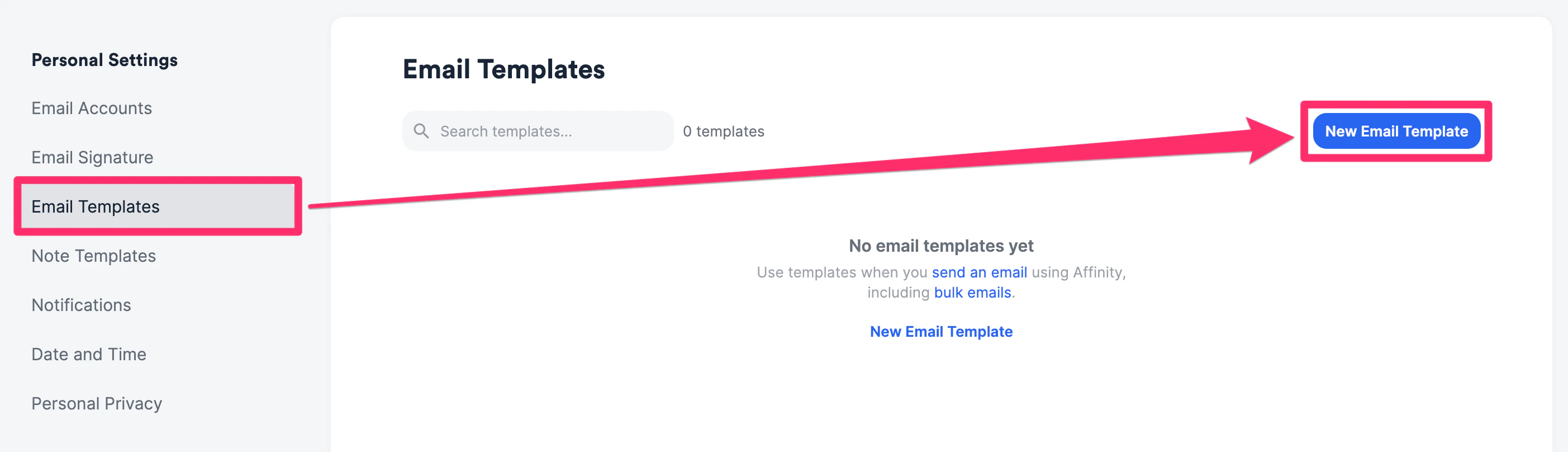
 2. Click the **Email Templates** tab, then click **New email template**.
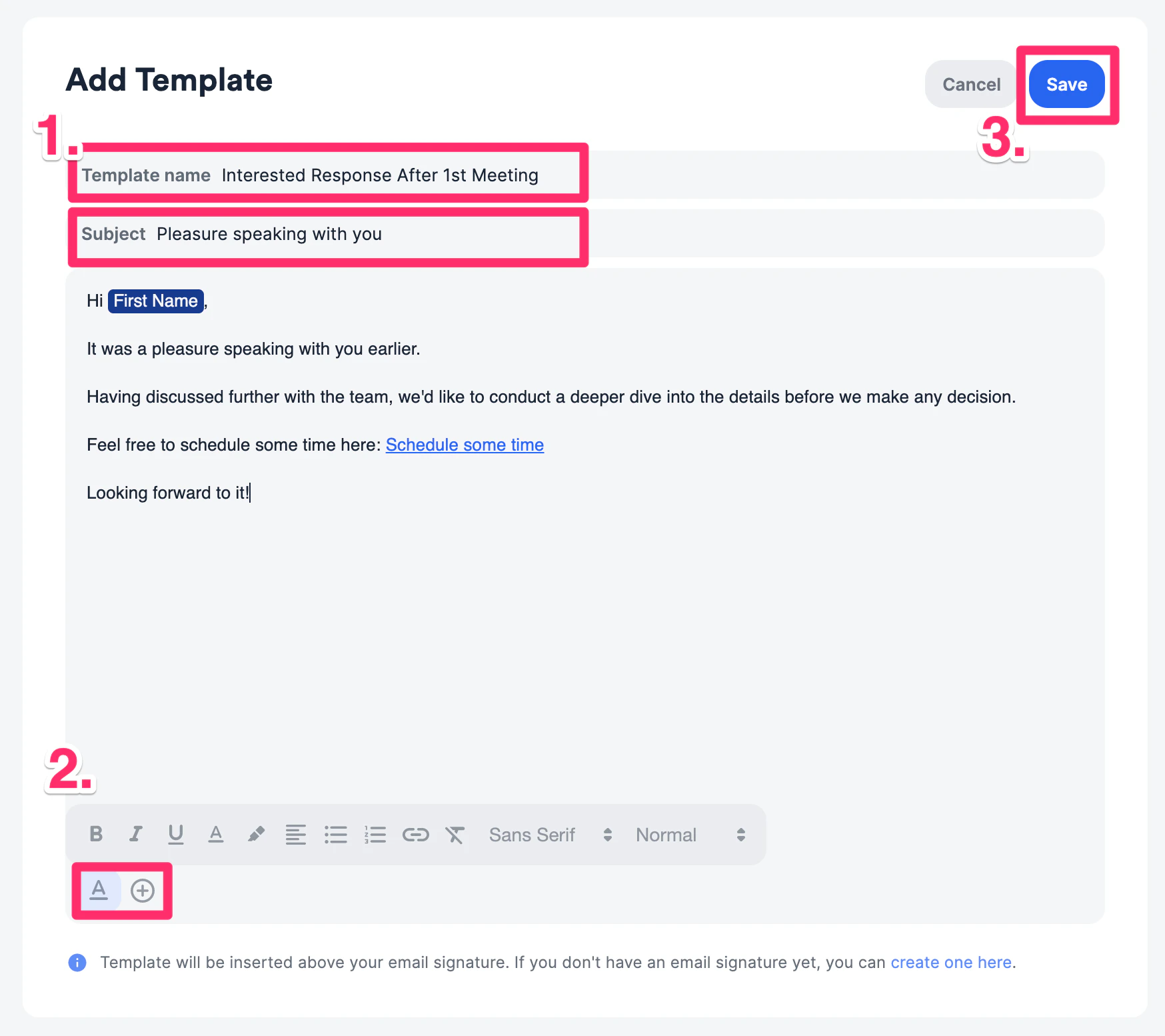
 3. Within the Add Template section, you can do the following:
1. Fill out the **Template name** and **Subject**
2. Fill out and customize the **Email Body** by using rich-text formatting and inserting dynamic fields like **First Name** and **Last Name**.
3. Once you're done making edits, click **Save** on the top-right corner.
**Note**: Embedding images or tables within the **Email Body** are not supported at this time for email templates. However, you can attach images as files when using email templates within Affinity.
3. Within the Add Template section, you can do the following:
1. Fill out the **Template name** and **Subject**
2. Fill out and customize the **Email Body** by using rich-text formatting and inserting dynamic fields like **First Name** and **Last Name**.
3. Once you're done making edits, click **Save** on the top-right corner.
**Note**: Embedding images or tables within the **Email Body** are not supported at this time for email templates. However, you can attach images as files when using email templates within Affinity.
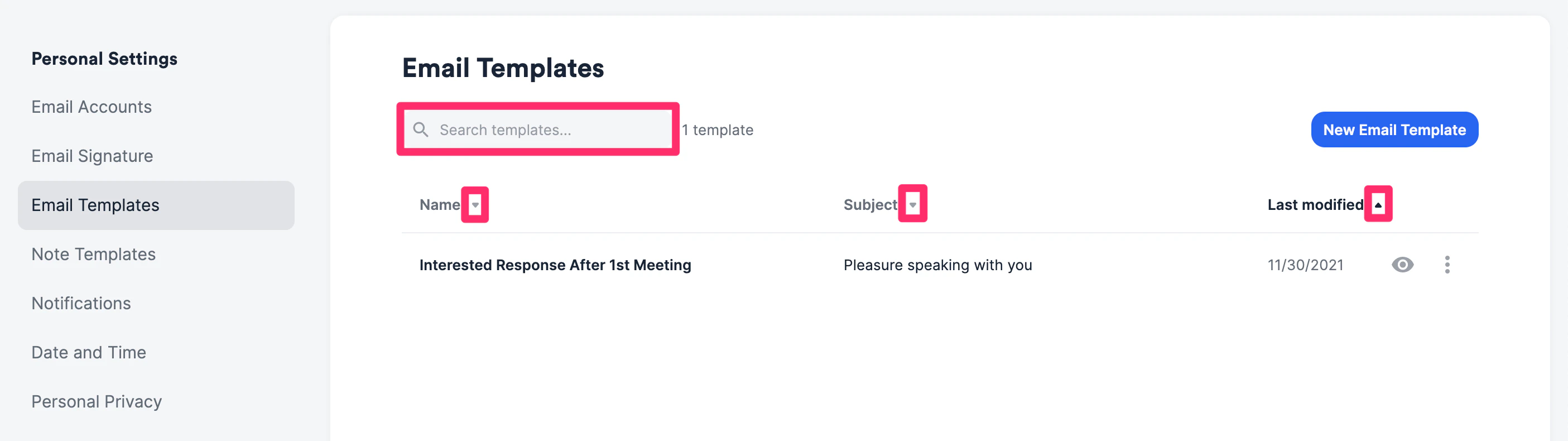
 4. By default, your email templates will be sorted by **Last modified**. However, you can also sort by **Template name** or **Subject**. If there are many templates, you can also search by **Template Name** and **Subject** for quicker access.
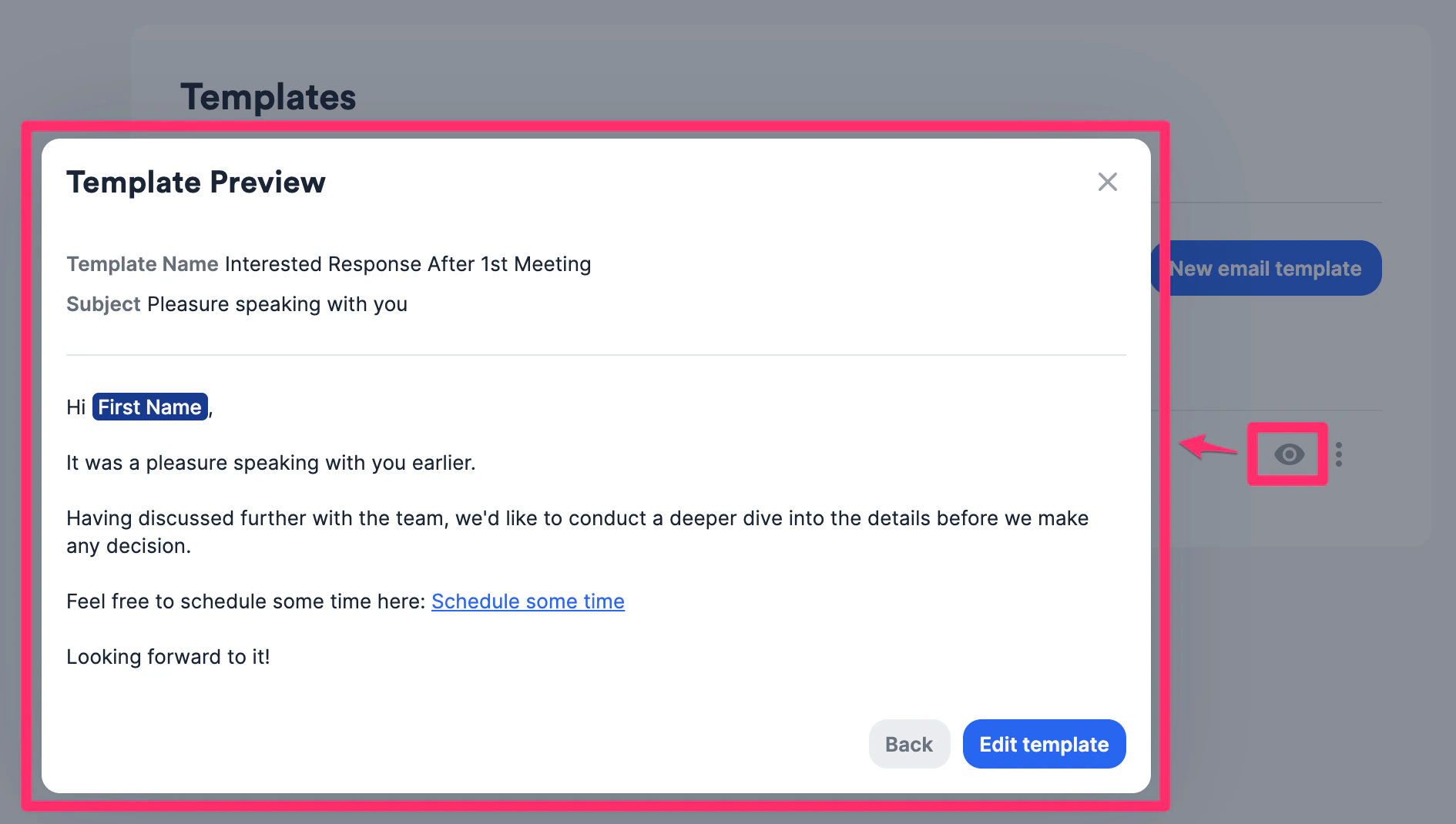
 5. Click on the **Preview** icon to quickly view the content of your templates. From there, you can either click **Back** to view another template or click **Edit template** to make changes.
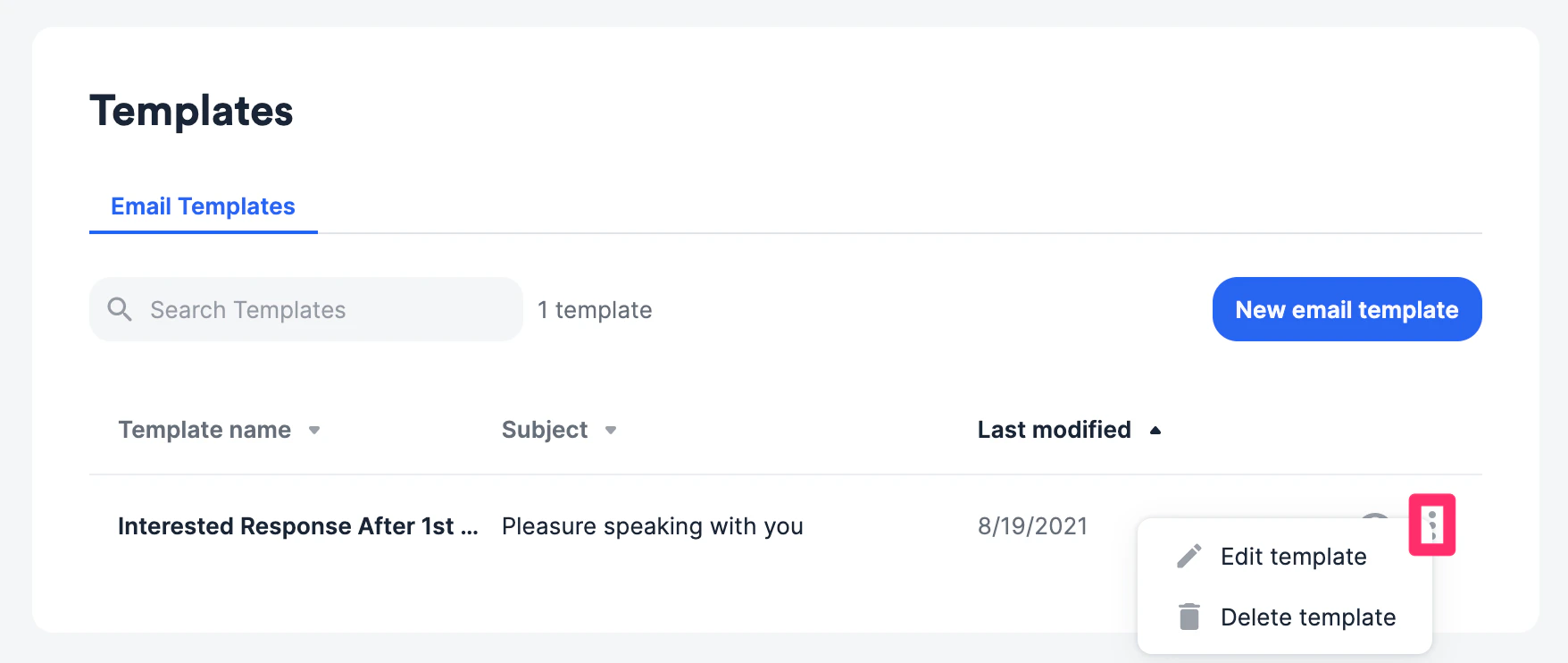
 6. You can also edit or delete templates by clicking on the **ellipsis (3-dotted icon)**.
 ### How to use email templates when sending individual and bulk emails from within Affinity
### Using email templates when sending an individual email
1. To send an individual email using an email template, click into the relevant contact's profile page, then click the **email button**.
### How to use email templates when sending individual and bulk emails from within Affinity
### Using email templates when sending an individual email
1. To send an individual email using an email template, click into the relevant contact's profile page, then click the **email button**.
 2. Then, click the **+** icon to insert a pre-saved email template.
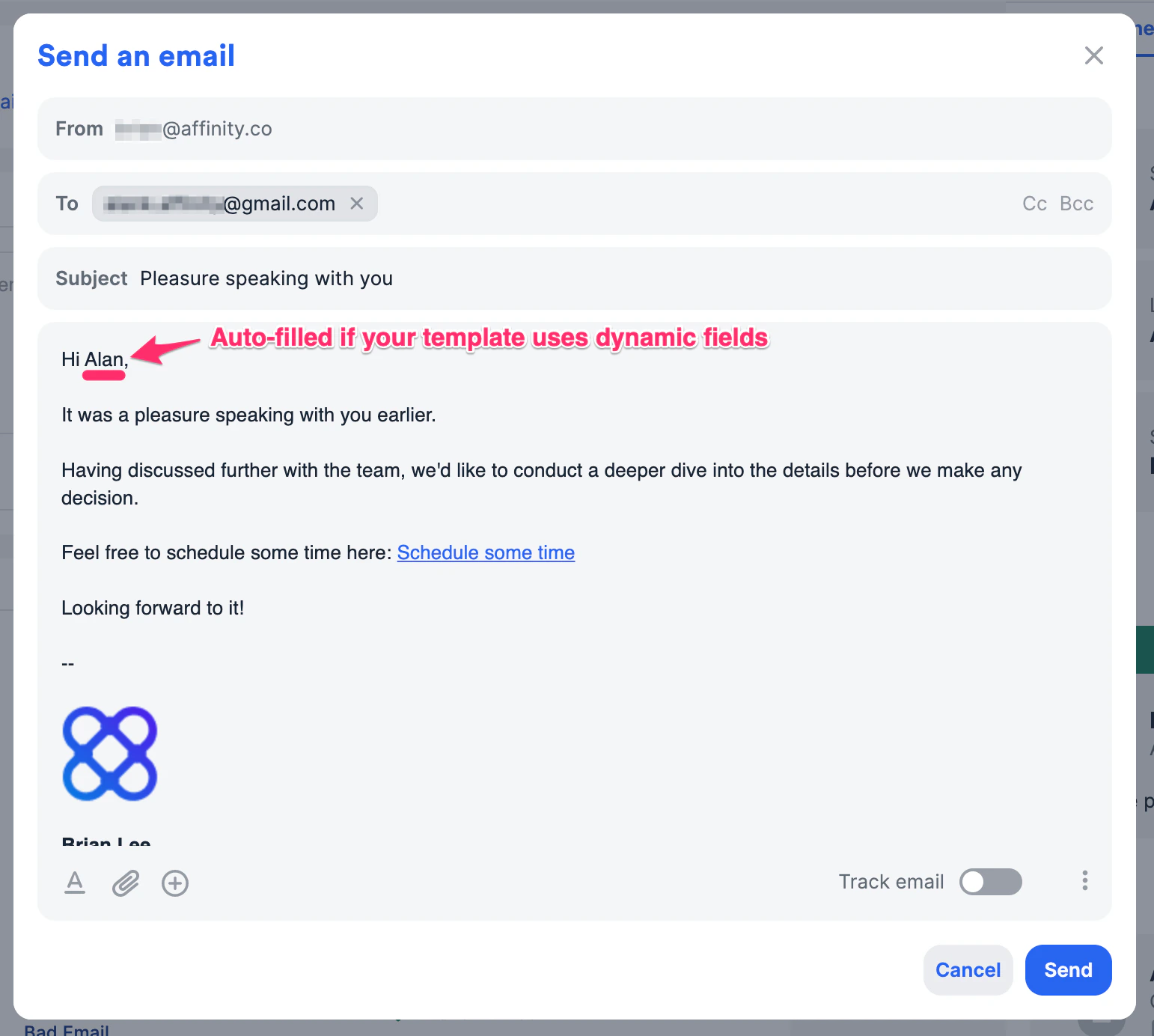
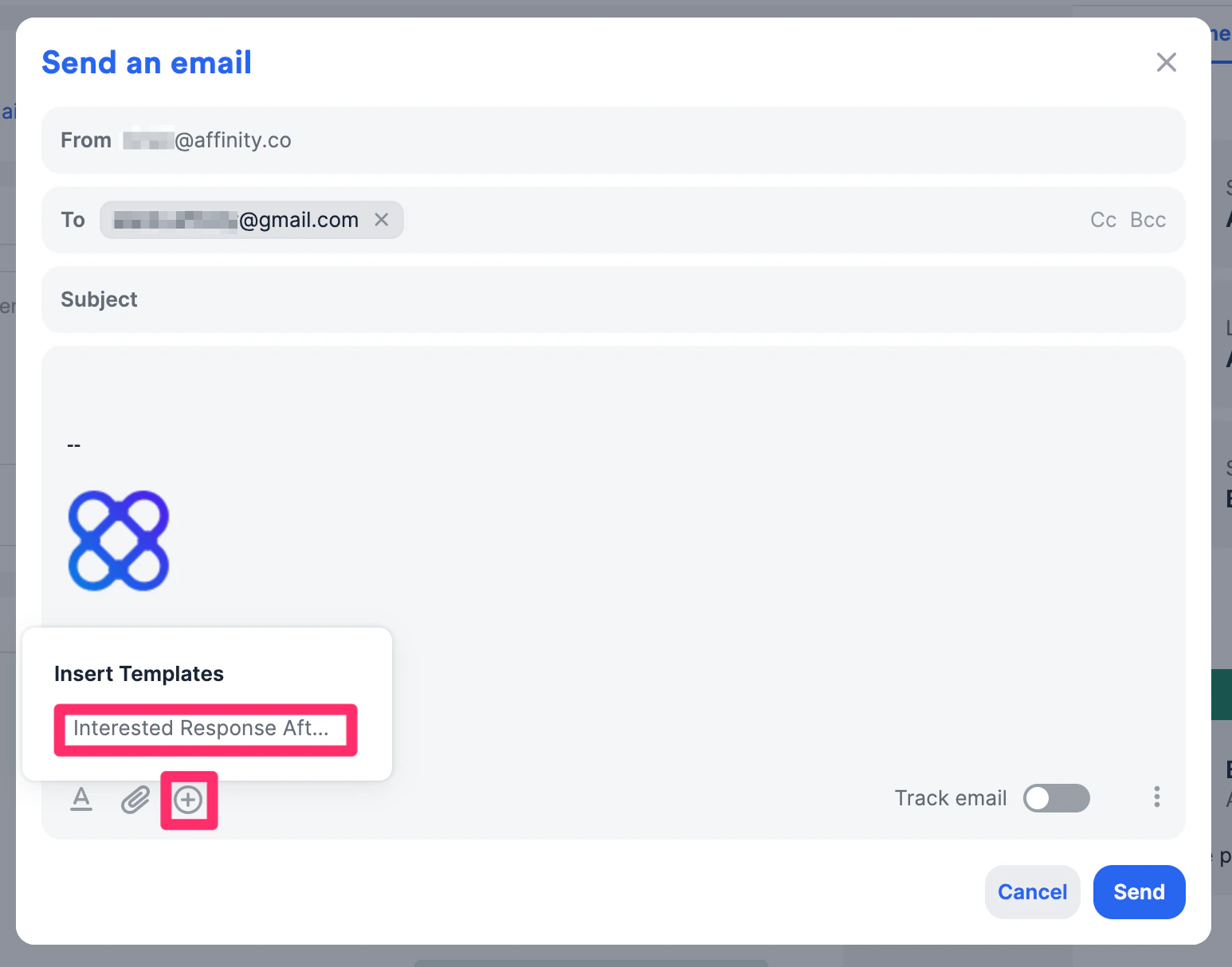 3. When sending an individual email from Affinity, we will auto-fill any dynamic fields immediately when you insert the template.
**Note**: There are two exceptions where Affinity **cannot** auto-fill the dynamic fields from your email templates. They are outlined in the Limitations for dynamic fields in email templates section below.
3. When sending an individual email from Affinity, we will auto-fill any dynamic fields immediately when you insert the template.
**Note**: There are two exceptions where Affinity **cannot** auto-fill the dynamic fields from your email templates. They are outlined in the Limitations for dynamic fields in email templates section below.
 ### Using email templates when sending personalized bulk emails
1. To send personalized bulk emails to multiple people within a list, click into the relevant people list or opportunity list.
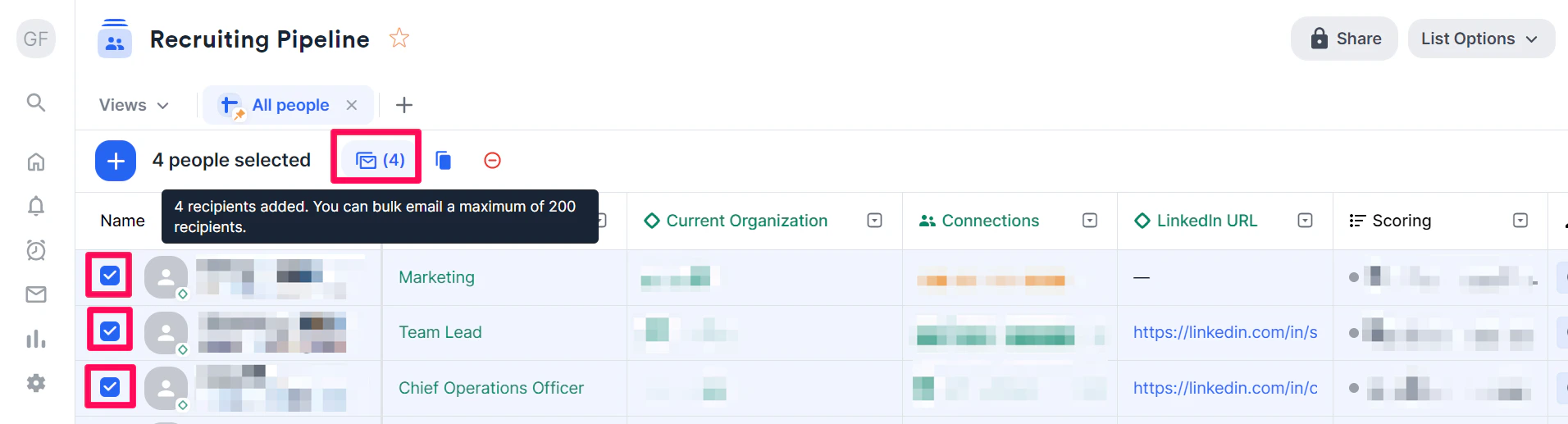
2. Click the checkboxes next to the individuals you'd like to send emails to, then click the **bulk email button**.
### Using email templates when sending personalized bulk emails
1. To send personalized bulk emails to multiple people within a list, click into the relevant people list or opportunity list.
2. Click the checkboxes next to the individuals you'd like to send emails to, then click the **bulk email button**.
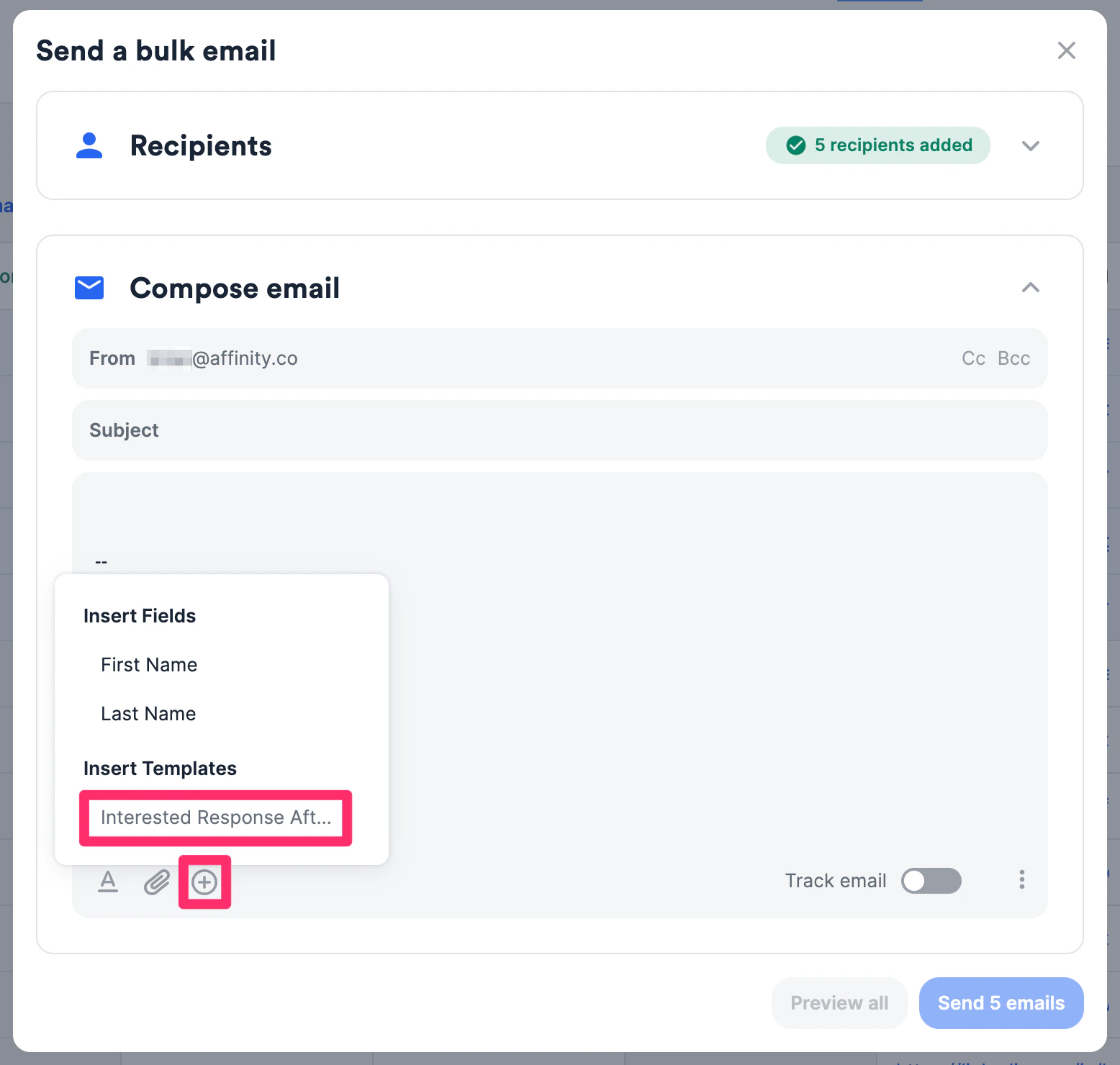
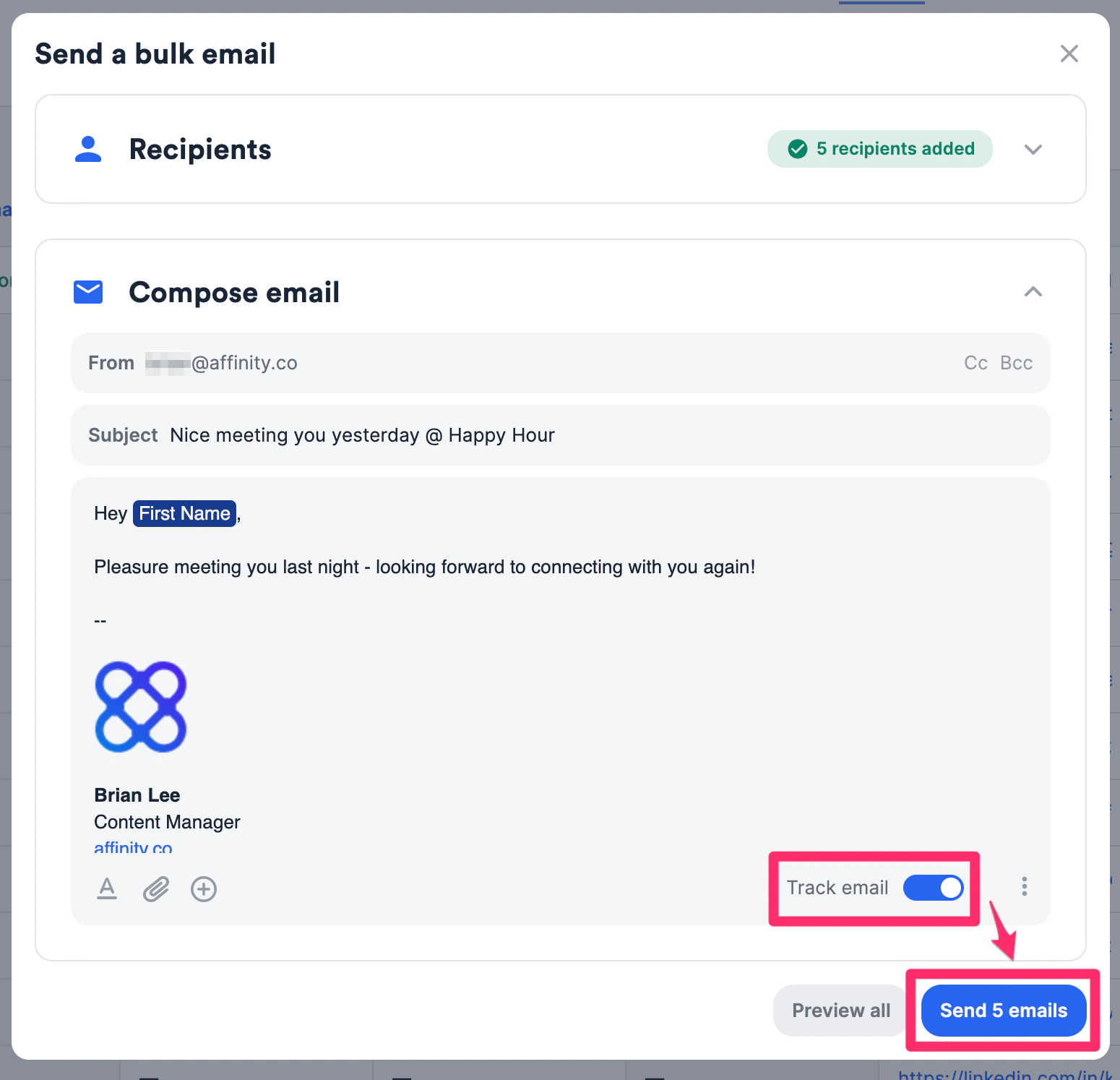
 3. Click the **+** icon to insert a pre-saved email template.
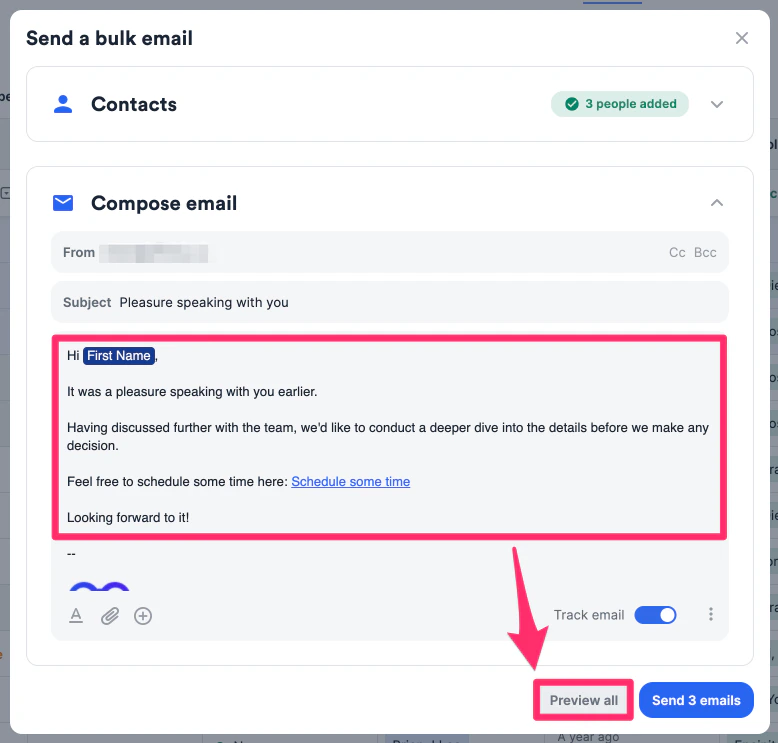
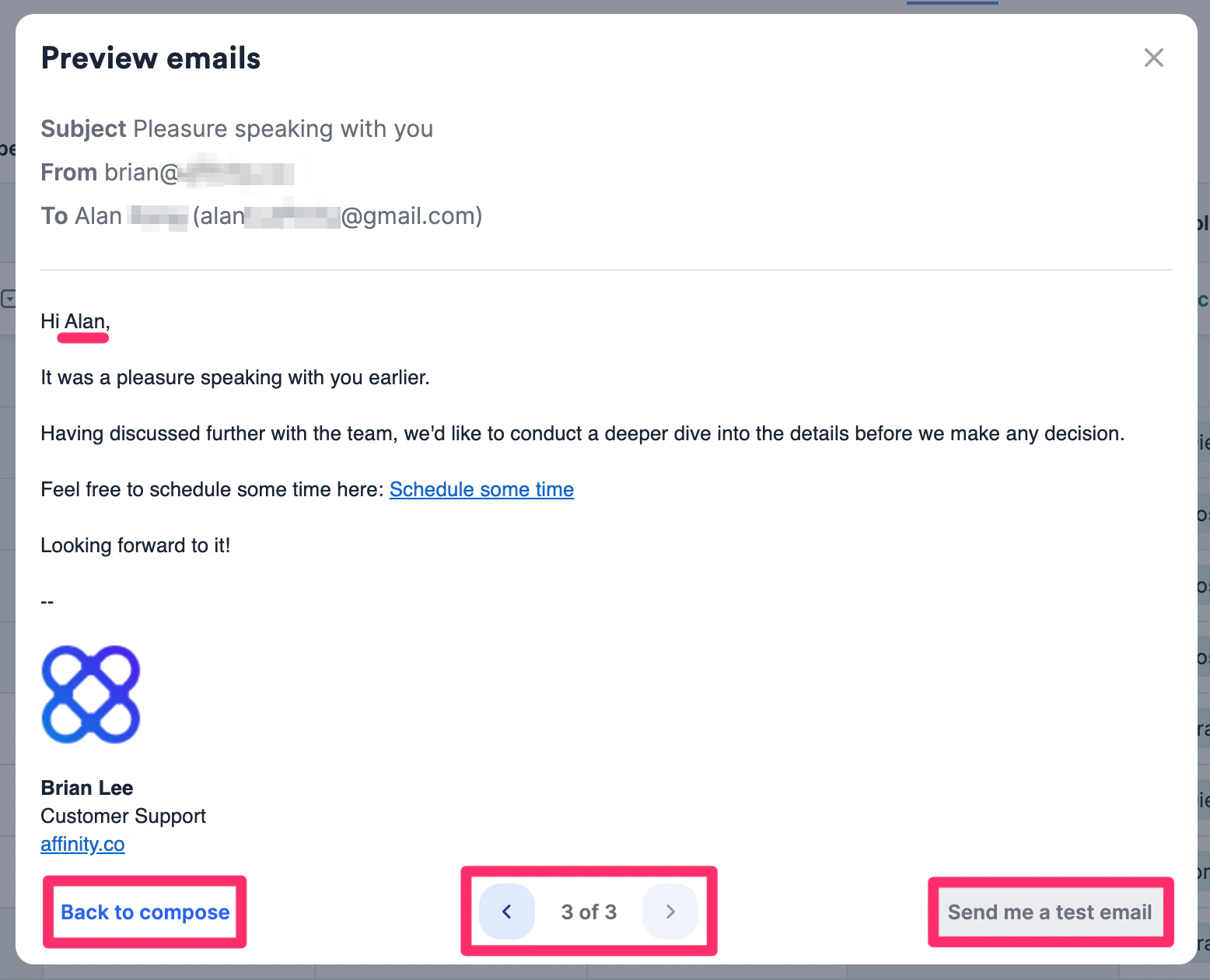
 4. When sending emails in bulk, you won't see dynamic fields auto-filled immediately. You must click **Preview all** to see them accordingly.
 5. Click through the arrows to confirm that they're ready to go. You can also click **Send me a test email** to see what it would look like from the recipient's end. Otherwise, click **Back to compose**.
 6. Should you need to make changes to any email templates or your email signature, click the **ellipsis (3-dotted icon)**.
7. Last but not least, toggle on the [email tracking](/s/article/How-to-track-emails-sent-through-Affinity) feature to track open, click, and response rates. Then, click **Send # emails** and you're all set!
6. Should you need to make changes to any email templates or your email signature, click the **ellipsis (3-dotted icon)**.
7. Last but not least, toggle on the [email tracking](/s/article/How-to-track-emails-sent-through-Affinity) feature to track open, click, and response rates. Then, click **Send # emails** and you're all set!
 ### Limitations for dynamic fields in email templates
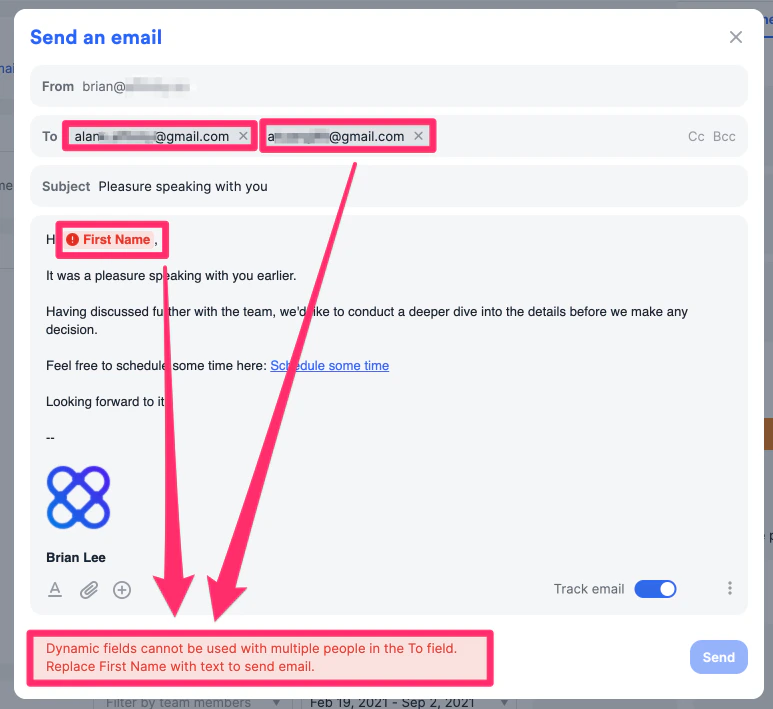
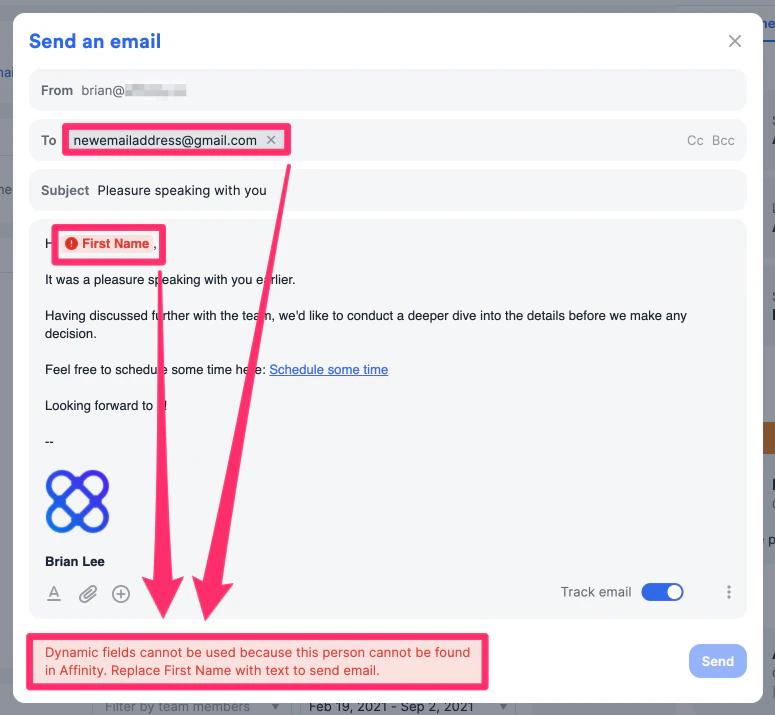
1. When using an email template to send an individual email, you can edit the **To** field with an email address not linked to any person in your Affinity account. Given there is no contact and no name, Affinity will **not** be able to auto-fill any dynamic fields from your email templates.
### Limitations for dynamic fields in email templates
1. When using an email template to send an individual email, you can edit the **To** field with an email address not linked to any person in your Affinity account. Given there is no contact and no name, Affinity will **not** be able to auto-fill any dynamic fields from your email templates.
 2. Affinity will also **not** be able to auto-fill any dynamic fields from your email templates if you have **more than one** email address in the **To** field.