> ## Documentation Index
> Fetch the complete documentation index at: https://support.affinity.co/llms.txt
> Use this file to discover all available pages before exploring further.
# How To Create Probability Adjusted Values For Forecasting With Affinity Analytics
> Help center reference: How To Create Probability Adjusted Values For Forecasting With Affinity Analytics
**Advanced** — power-user technique.
To track weighted averages and forecast the sum of your pipeline, the most common way to do this is to assign win probabilities to each status option.
**Note**: Affinity's opportunity lists already have probabilities that are built into the **Status** column and connected to the default **Amount** column. However, if you have another number-type column you're using instead of the default **Amount** column, or if you're leveraging an organization list, you can still create weighted averages for forecasting with Affinity Analytics (see video below in full-screen mode for the best experience): **Note**: This video contains the old navigation bar on the top, whereas the current navigation bar now lies on the left side of your screen. While the remaining content is still the same, rest assured that we will be updating our videos accordingly. To generate probability-adjusted values for forecasting in Affinity Analytics:
1. Click into the list and open up the dashboard view you want to create this visualization in.
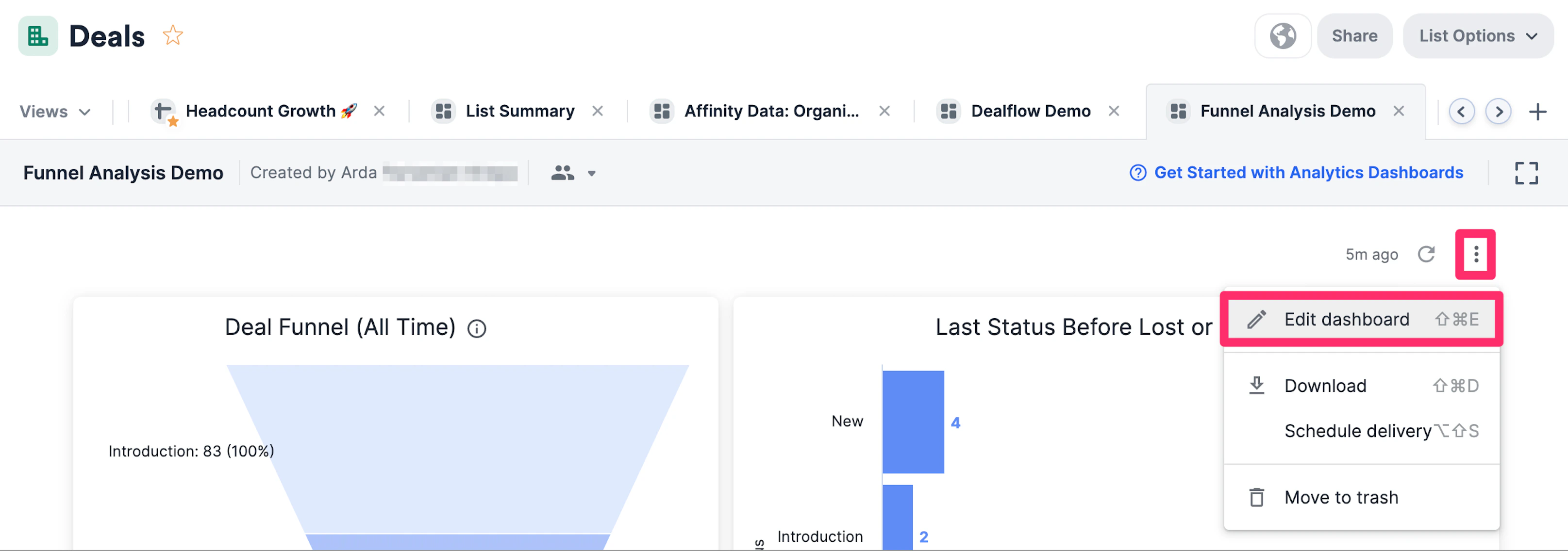
2. Click the ellipsis (3 dotted icon), then click **Edit dashboard**.
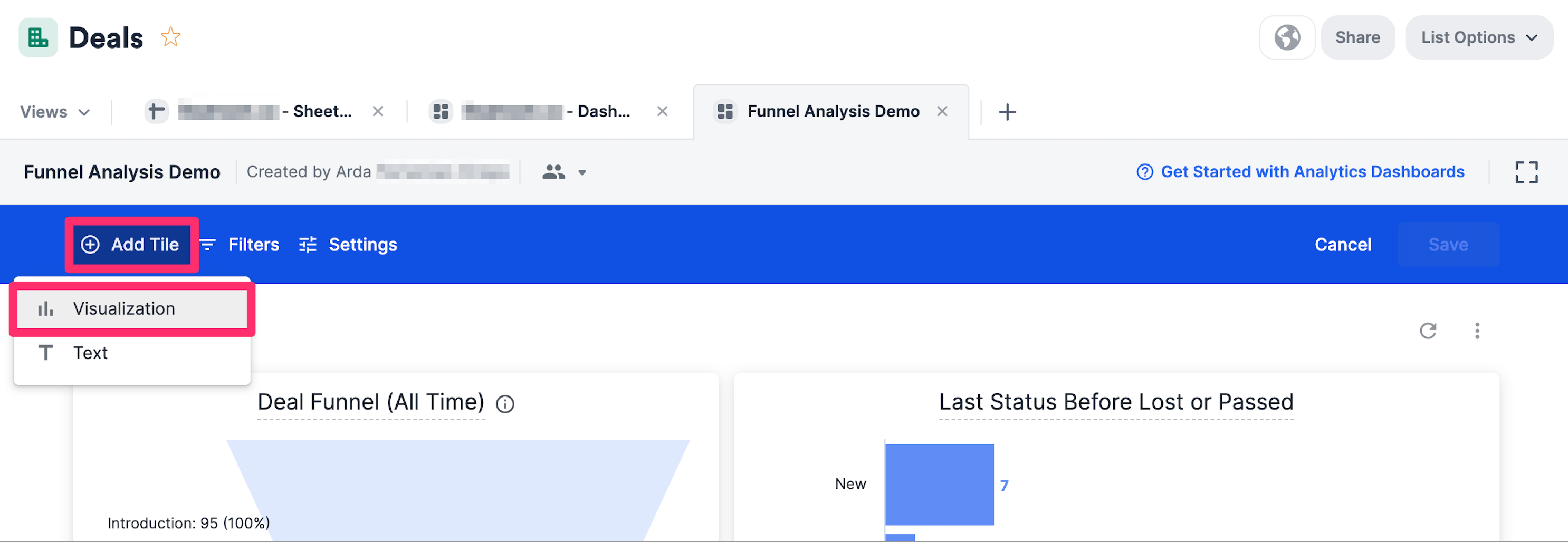
 3. Click **Add Tile** to create a new **Visualization** tile.
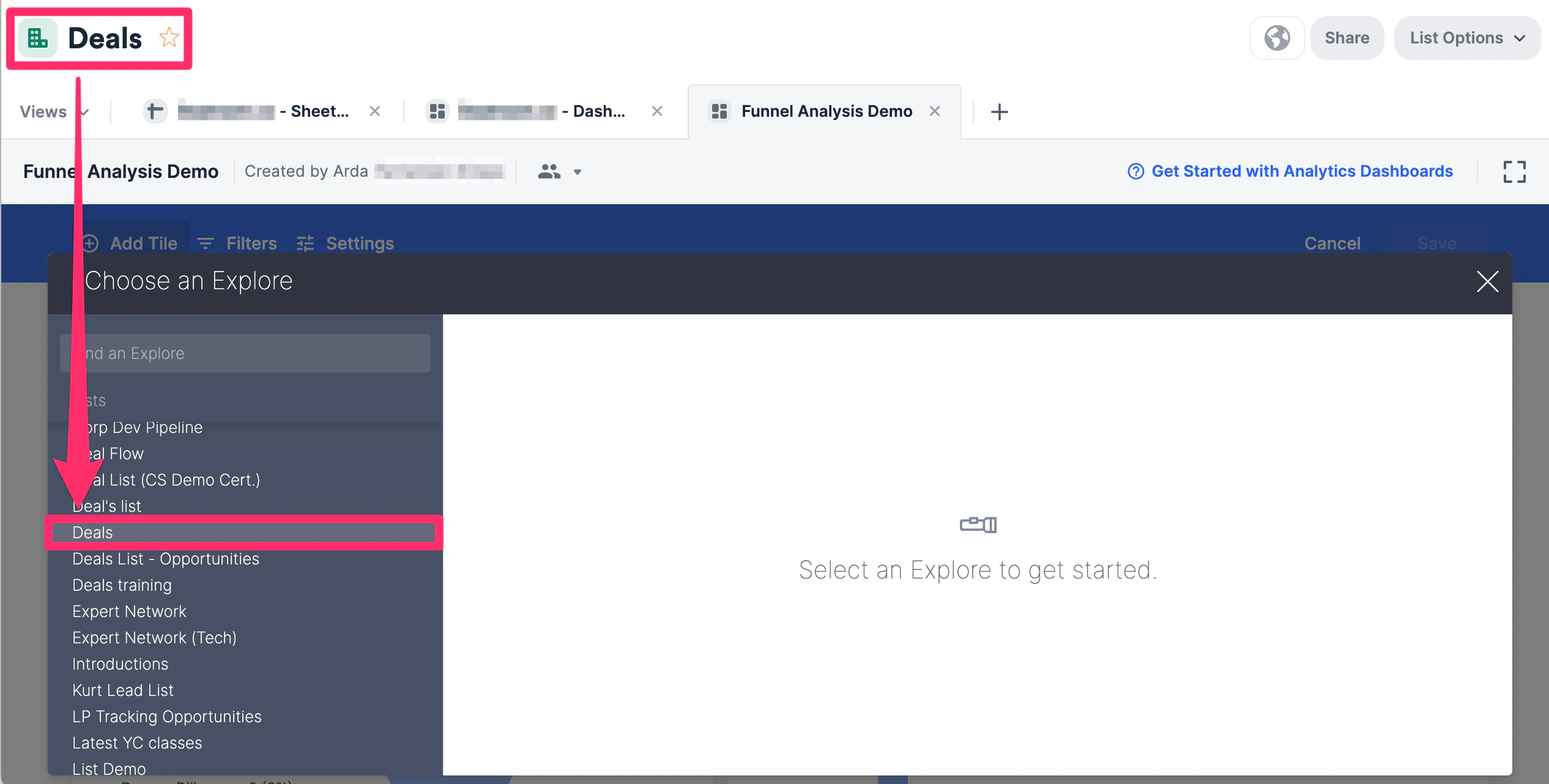
 4. Once the **Choose an Explore** modal opens up, select the list you're currently on.
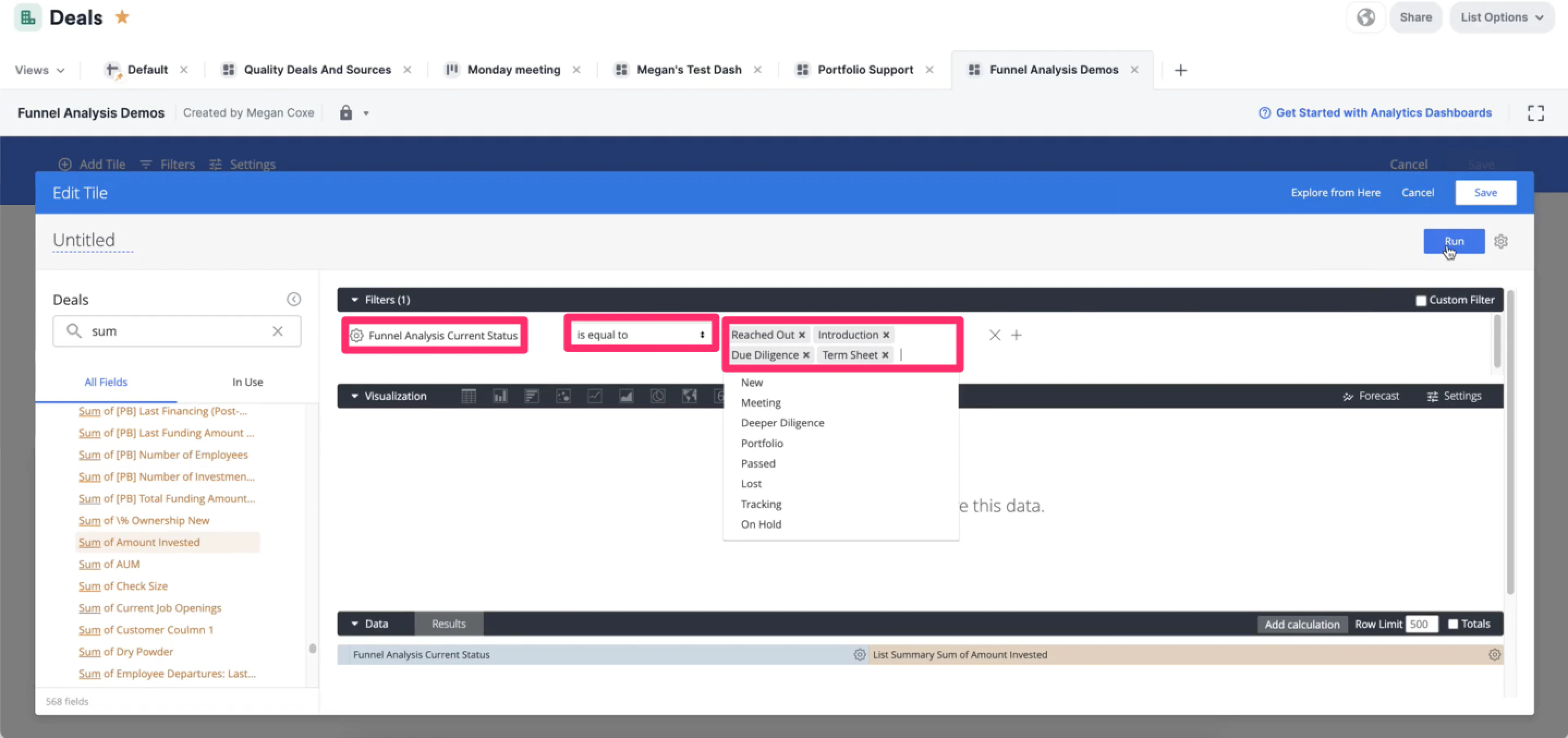
 5. Next, select **Current Status** as the dimension and **Sum of Amount Invested** as the measure.
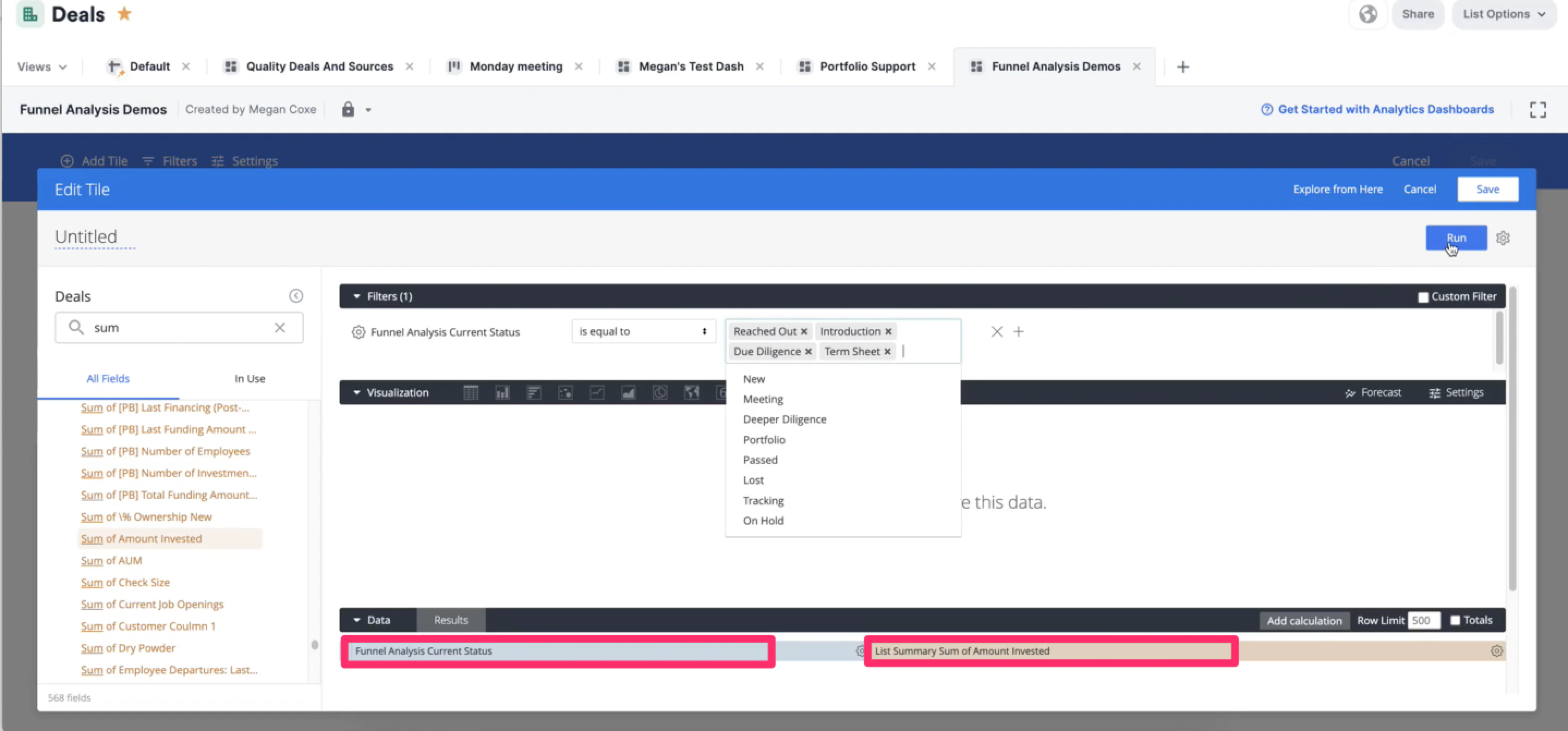 6. Next, filter on the **Current Status** measure to only include the status options that you want to track by using the "**is equal to**" expression.
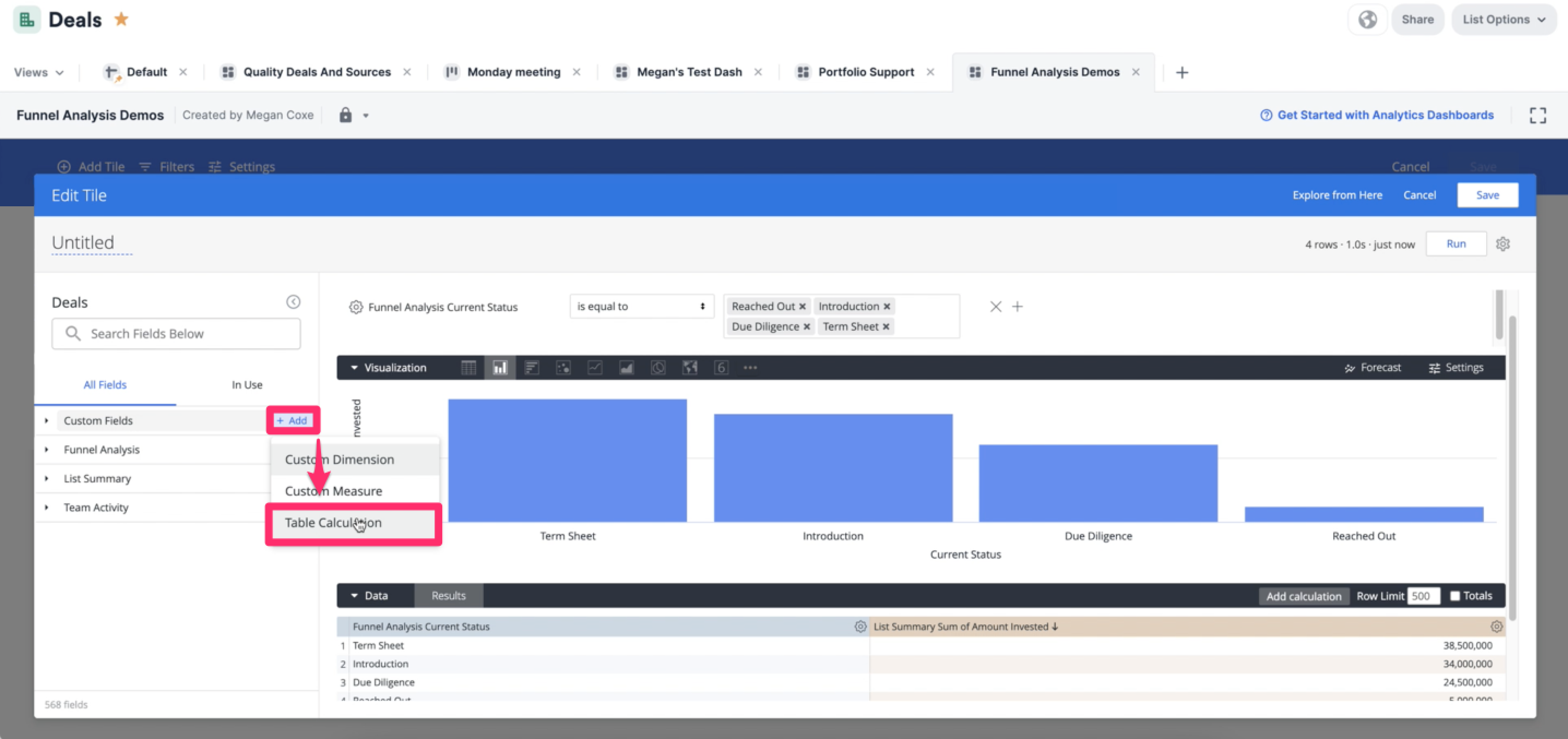
 7. Now, click on **+Add** right next to the **Custom Fields** section on the left side, then click **Table Calculation** to create an **if/then** table calculation. This will allow you to assign probabilities to each status option.
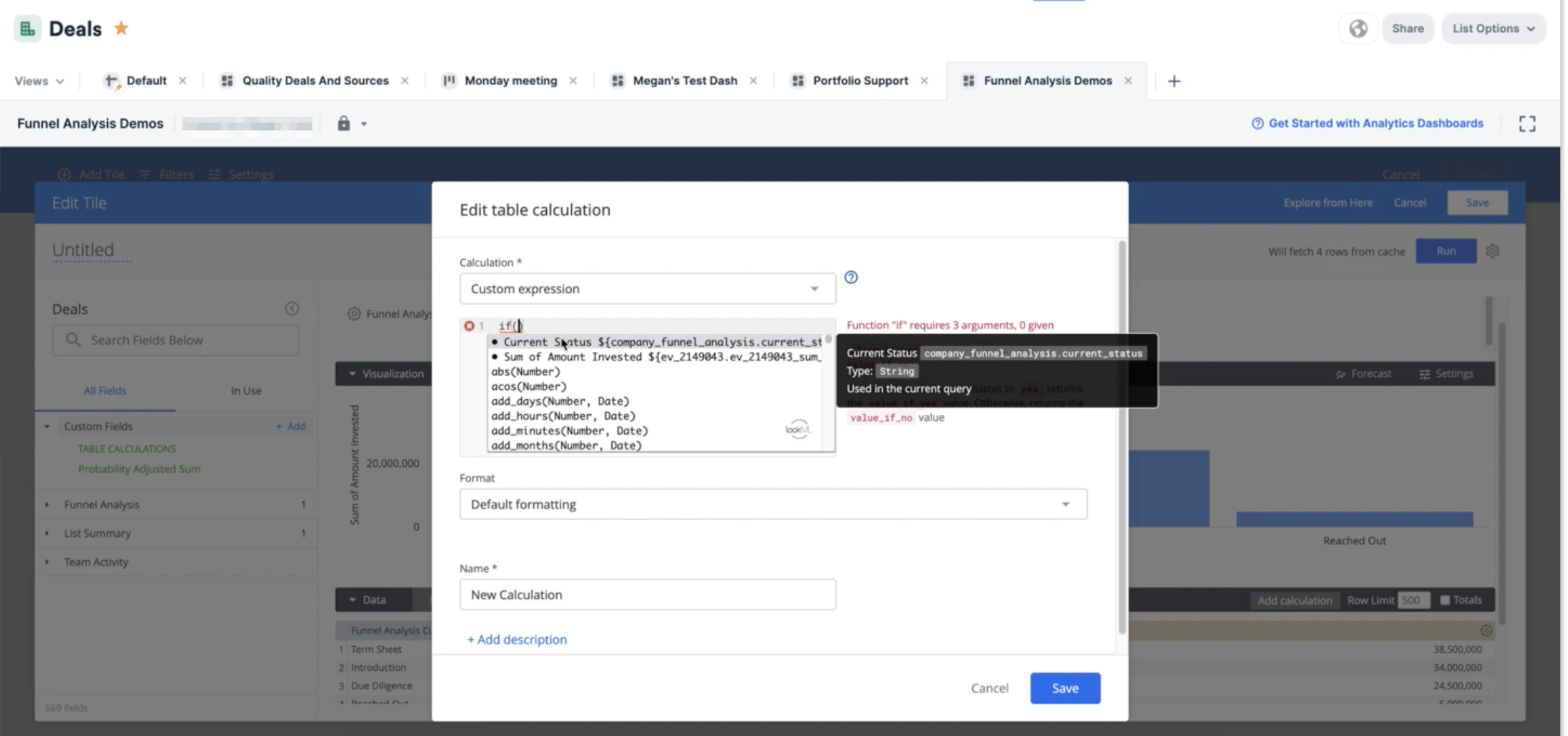
 8. Start off by typing "if(" to see suggestions appear, then select the **Current Status** suggestion.
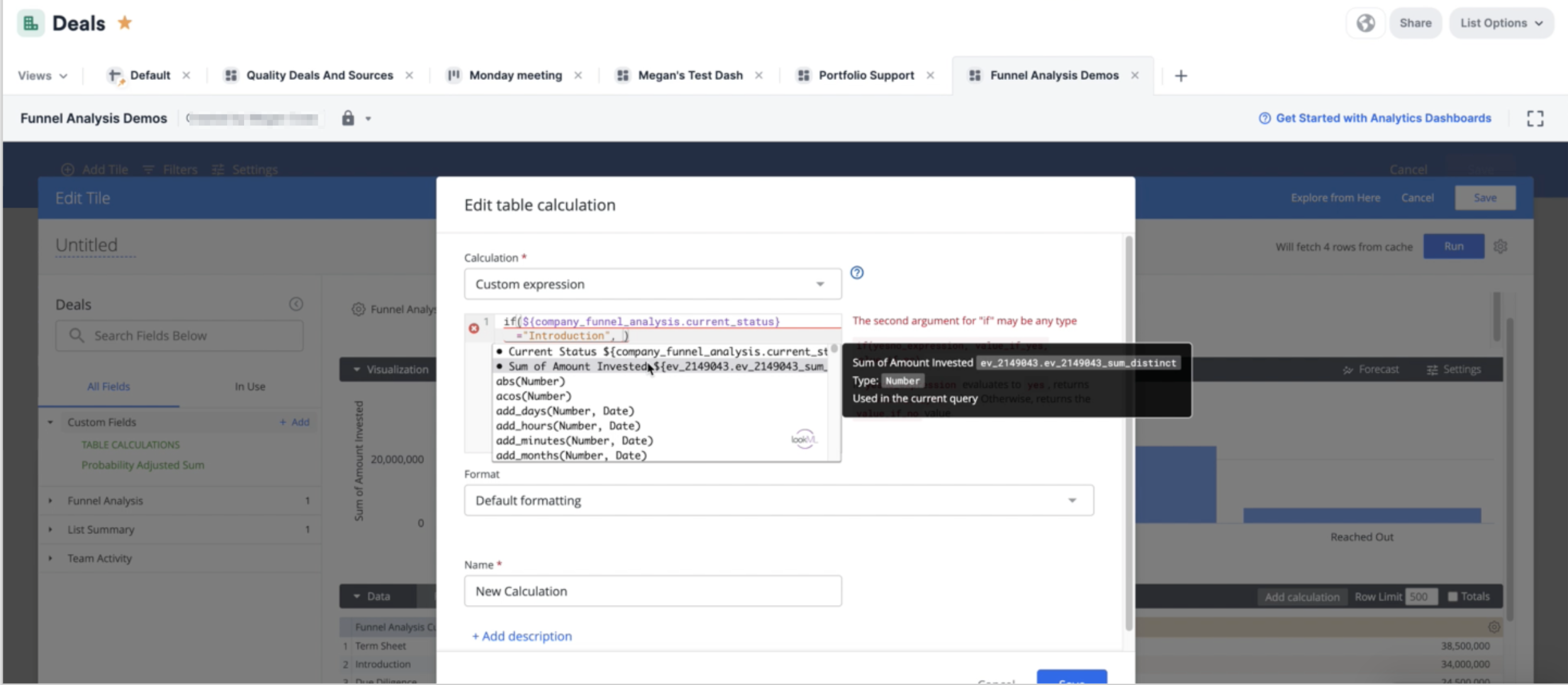
 9. Then, type **= "\[Name of the Status Option]",** and make sure to add a comma right after it. For the example below, it would be **= "Introduction",**
 10. Then, select the **Sum of Amount Invested** suggestion and multiply it by **0.10** using the (asterisk) sign, followed by another comma.
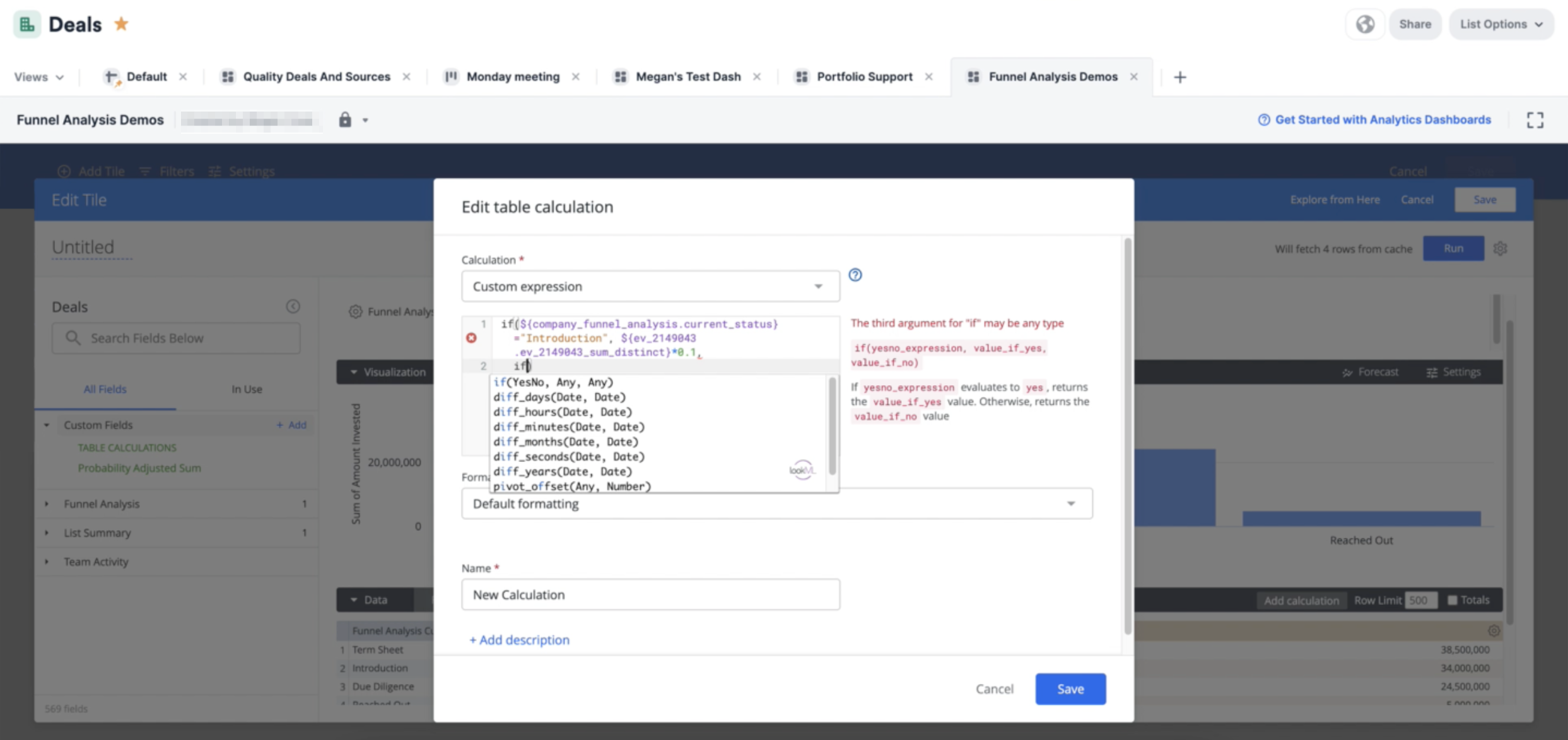 11. Now, press **Enter/Return** to skip to the next line and type **if(** again to repeat Steps 8-10 above for each following status option. In this example below, you'll see that with each following status option, the probability values get higher and higher as it gets closer to closing the deal (i.e. Reached Out has a 25% chance, Due Diligence has a 75% chance, and Term Sheet has a 90% chance).
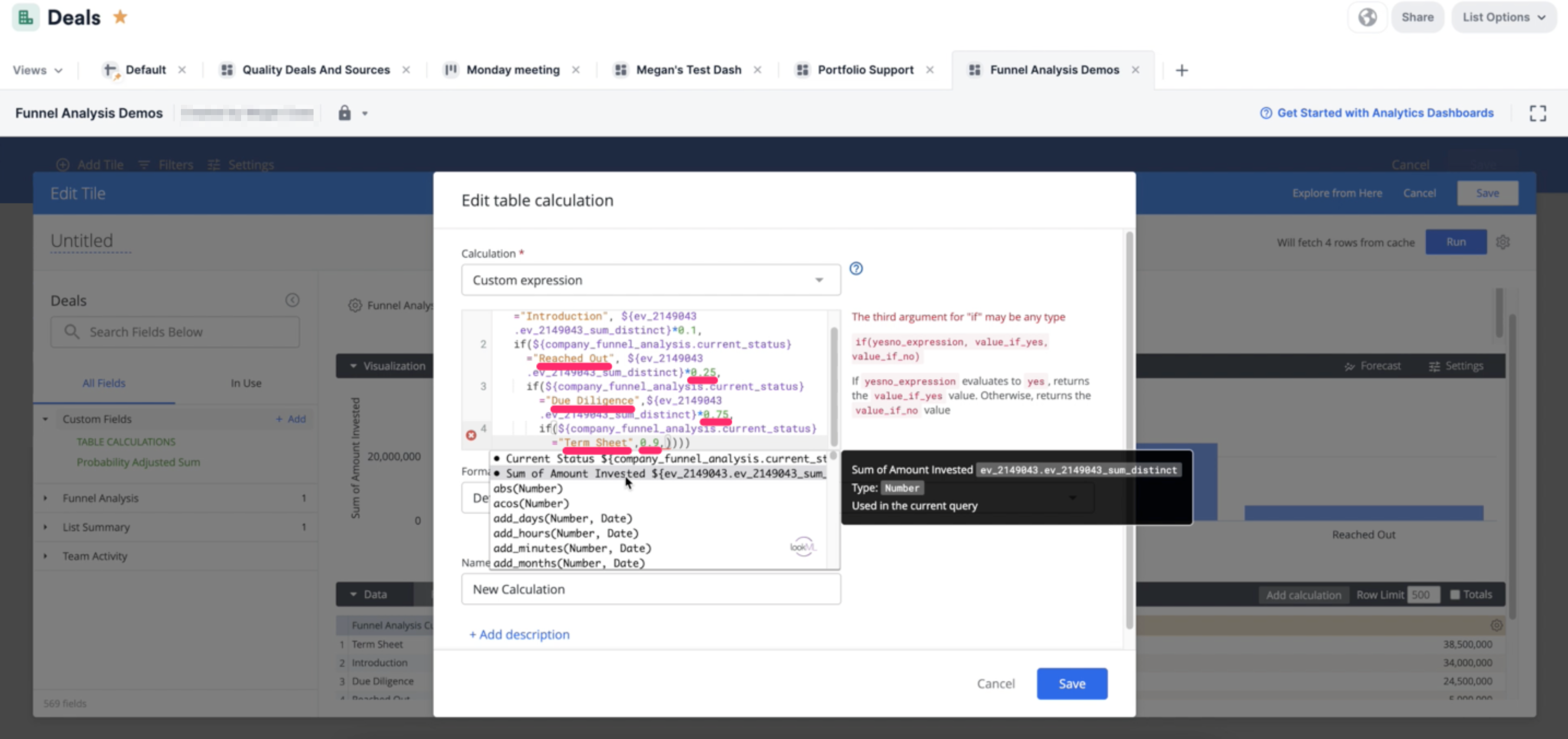 12. Once you get to assigning the probability for the final status option (see Term Sheet with a 90% chance above in Step 11), finish with selecting the **Sum of Amount Invested** option and close out the parentheses - you may need multiple closing parentheses based on how many status options you embedded into the statement.
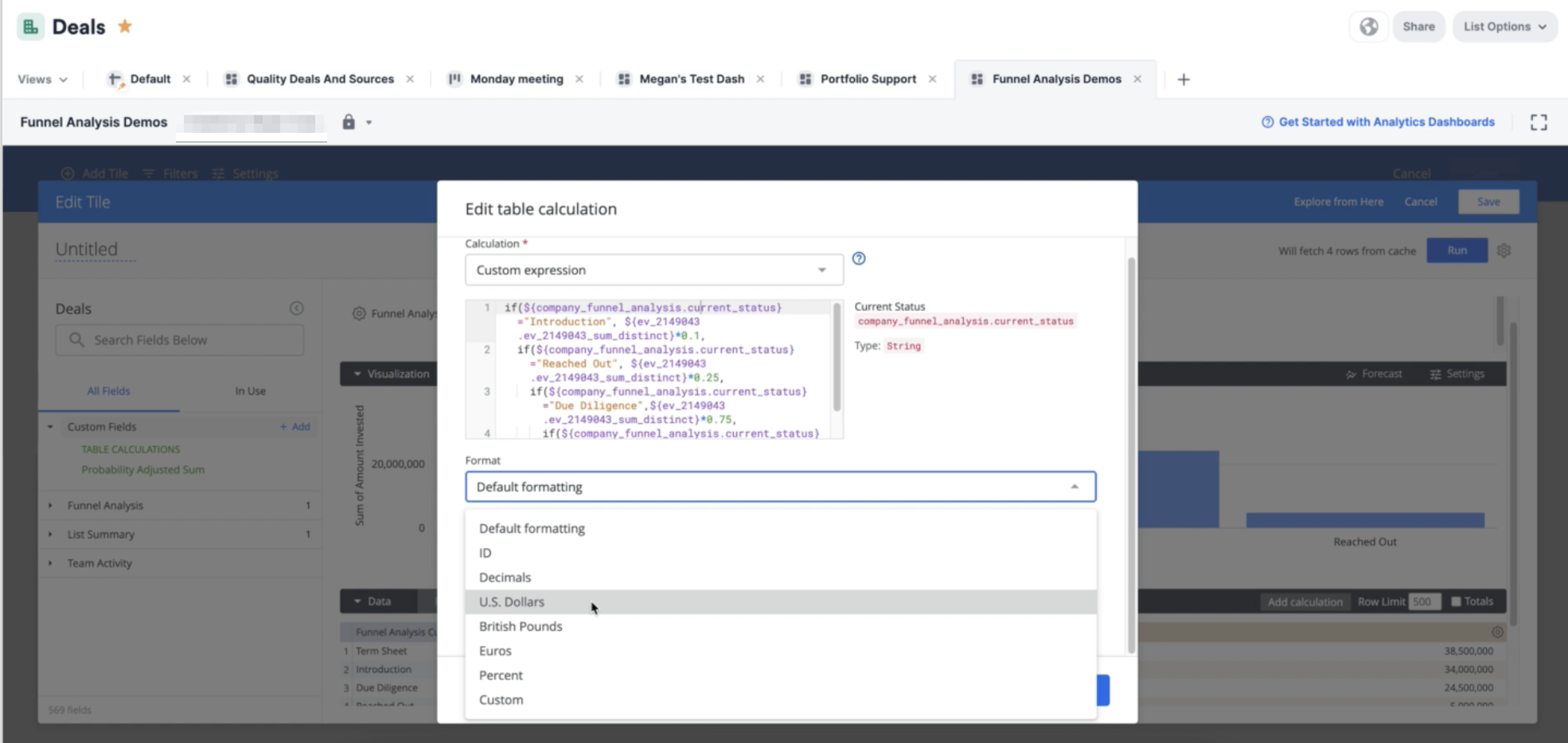
13. Make sure to select the format - in this case, we will select **U.S. Dollars**.
12. Once you get to assigning the probability for the final status option (see Term Sheet with a 90% chance above in Step 11), finish with selecting the **Sum of Amount Invested** option and close out the parentheses - you may need multiple closing parentheses based on how many status options you embedded into the statement.
13. Make sure to select the format - in this case, we will select **U.S. Dollars**.
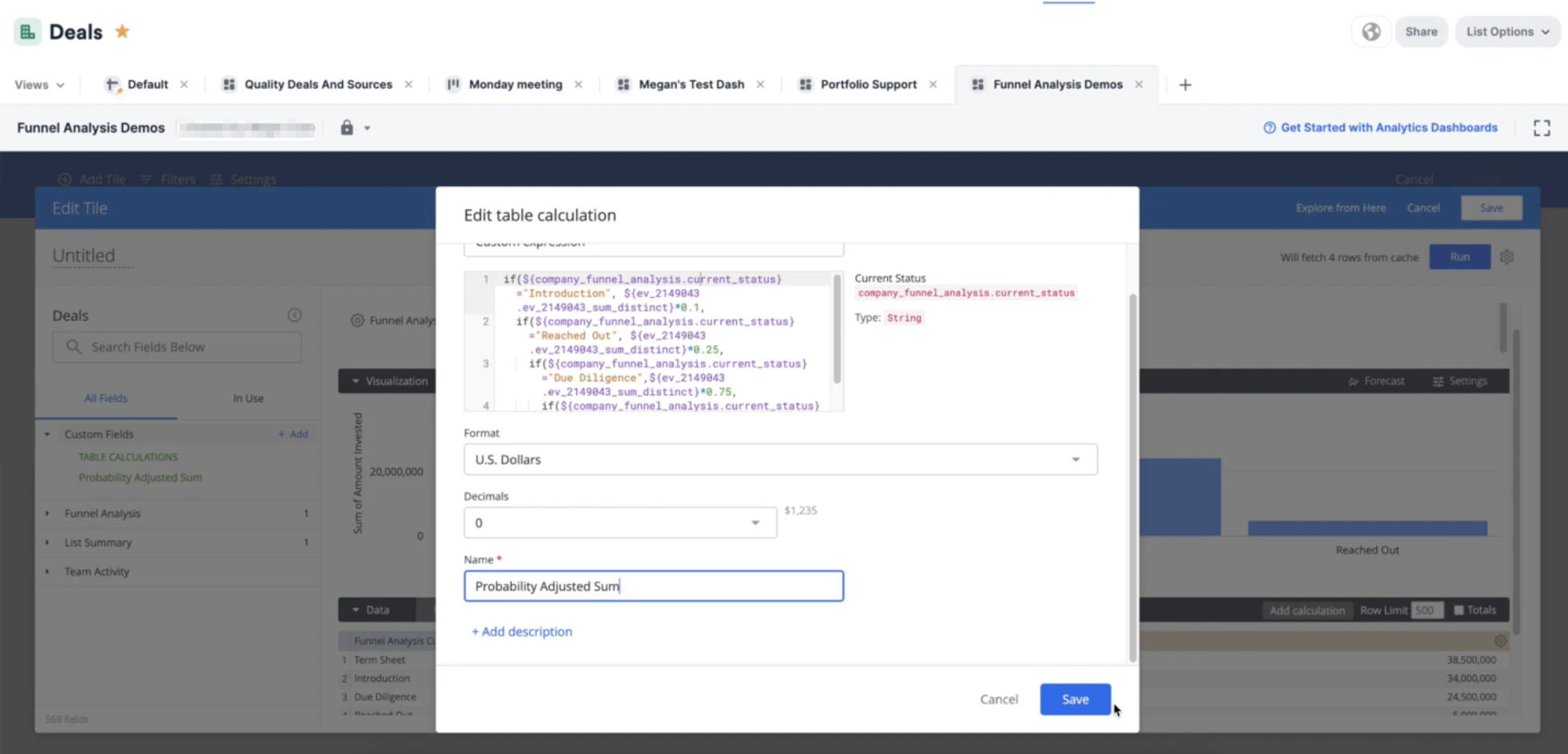
 14. Make sure to also name your table calculation - in this case, we will name is **Probability Adjusted Sum**. Then, click **Save**.
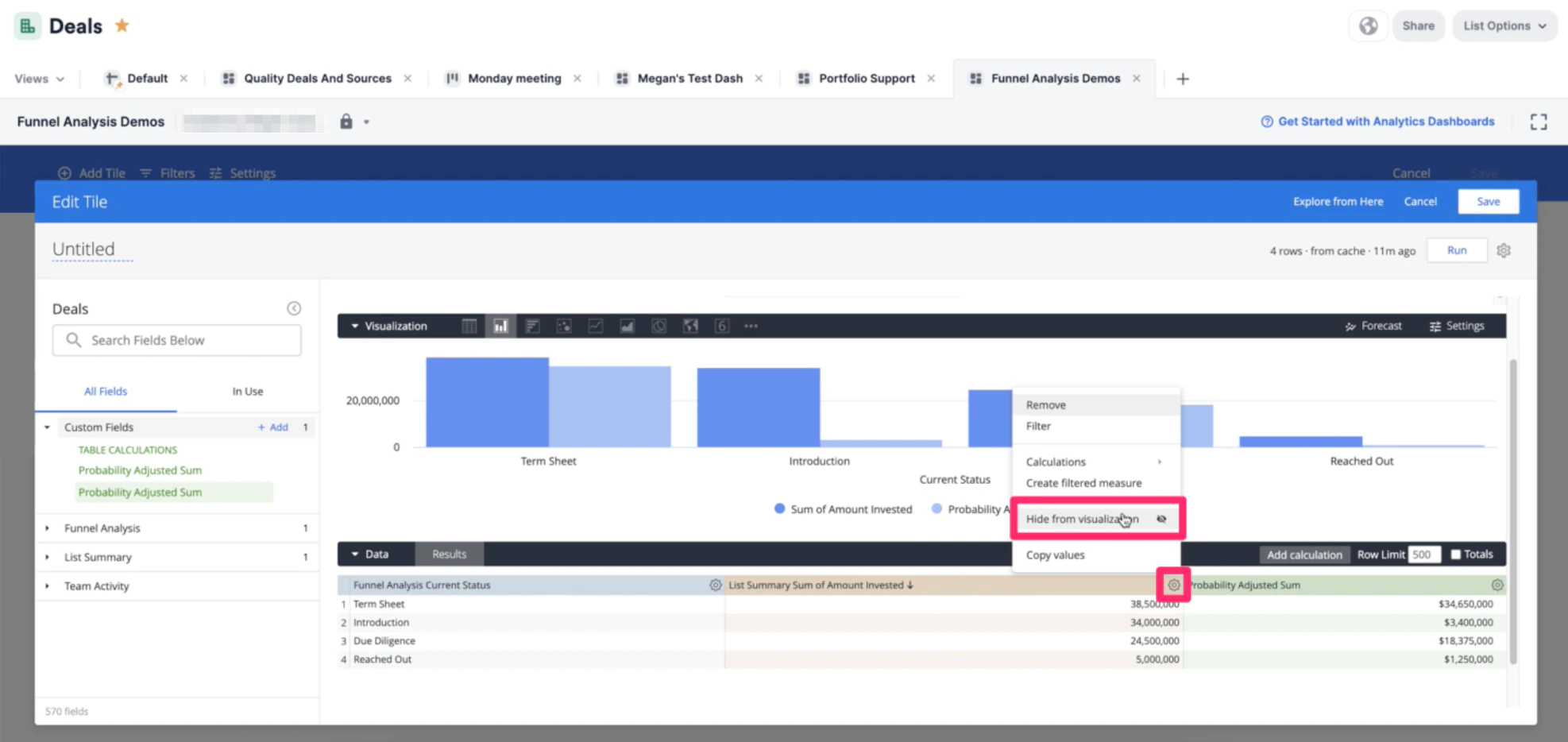
 15. To only show the weighted average sums, you can hide the **Sum of Amount Invested** column so that it does not appear in the visualization, but is still informing it by remaining in the **Data** section.
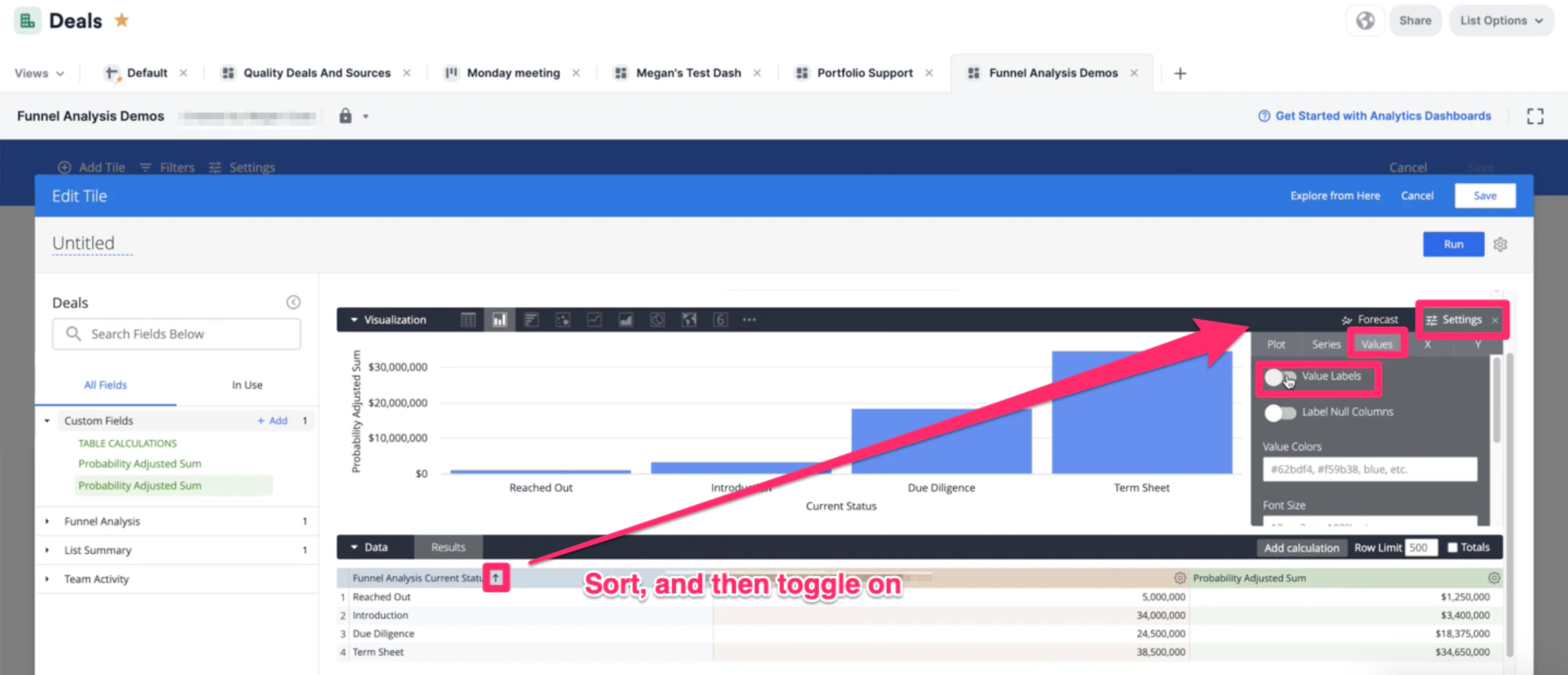
 16. Make sure to click on **Current Status** to sort the status options in order, then click on the **Values** tab in **Settings** to toggle on **Value Labels**.
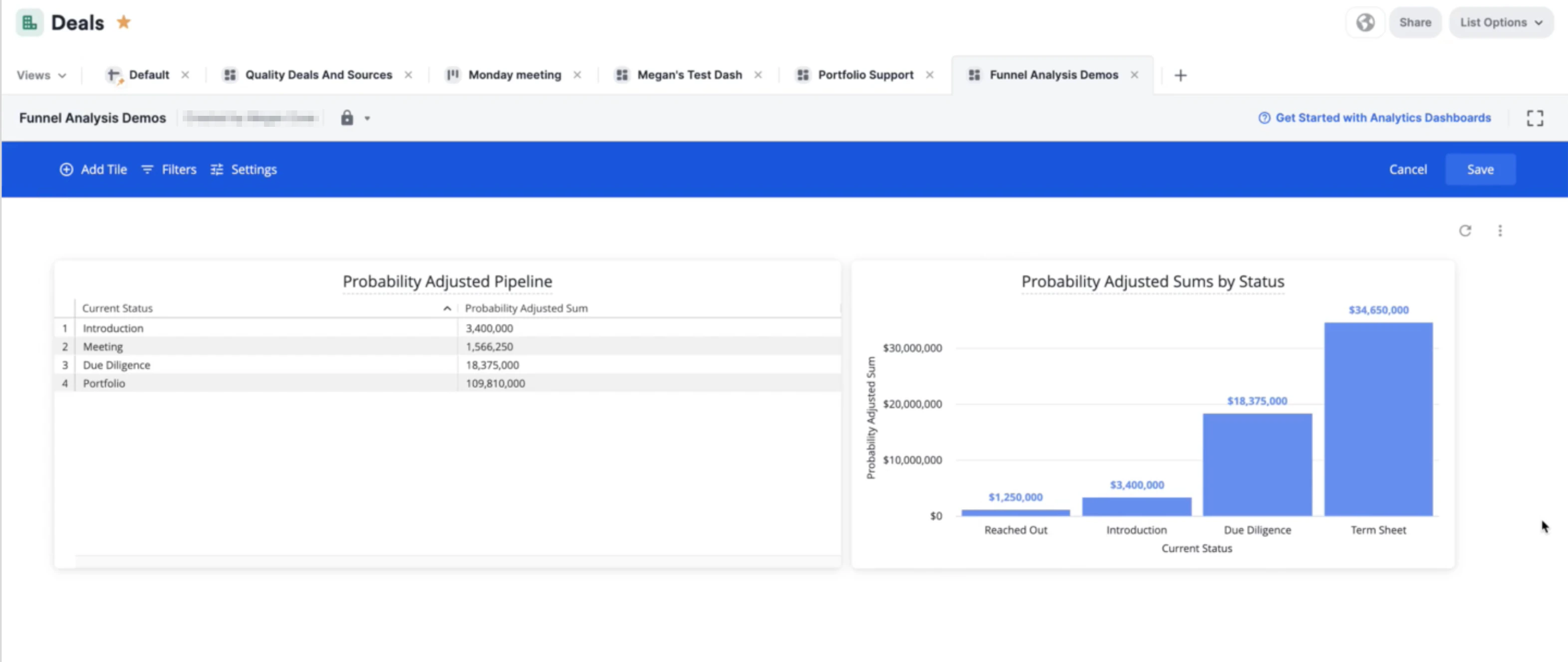 17. Name your visualization title on the top-left corner where it says **Untitled**, then click **Run**, then click **Save** right above it. Your finished visualization tile will look like the following below:
 18. Make sure to click **Save** on the top-right corner one more time and you're all set!