> ## Documentation Index
> Fetch the complete documentation index at: https://support.affinity.co/llms.txt
> Use this file to discover all available pages before exploring further.
# How to create list calculations using the formula field
> Use formula fields to calculate values from other fields in your list — sums, averages, weighted values, and other custom metrics.
**Advanced** — power-user technique.
Use formula fields in your Affinity lists to create basic list calculations, eliminating the need to perform these calculations outside of Affinity.
## How to create formula fields within your Affinity lists
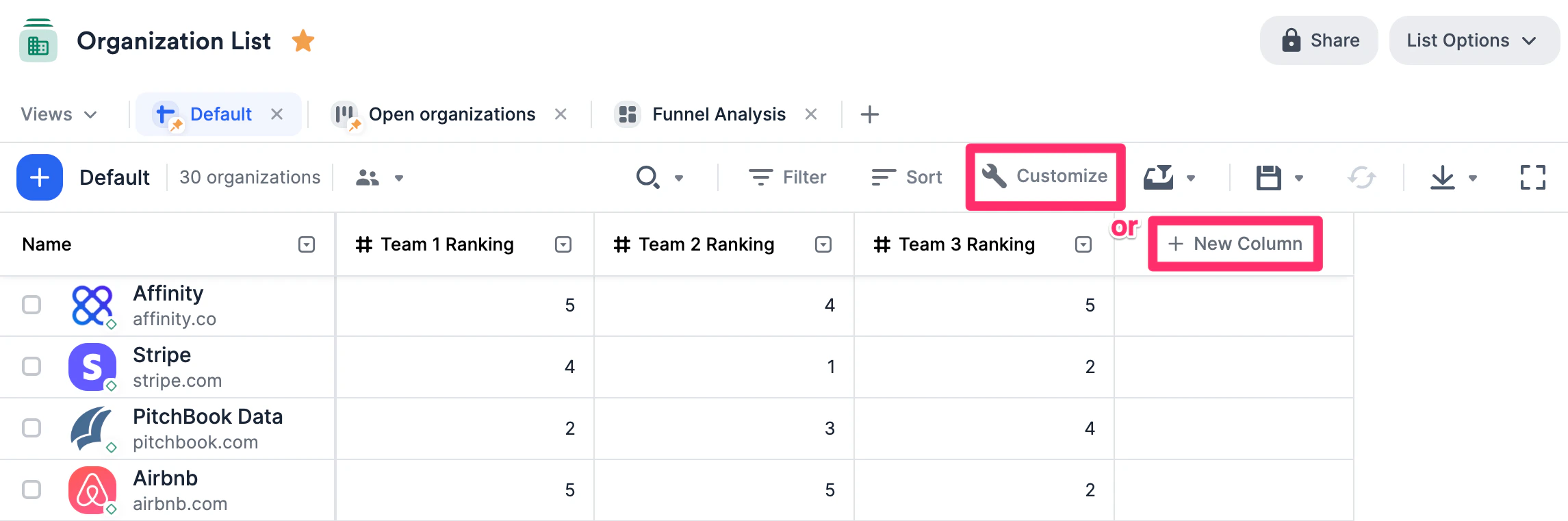
1. To create a formula field, click into any list and click on the **Customize View** button or **+ New Column** at the very right.
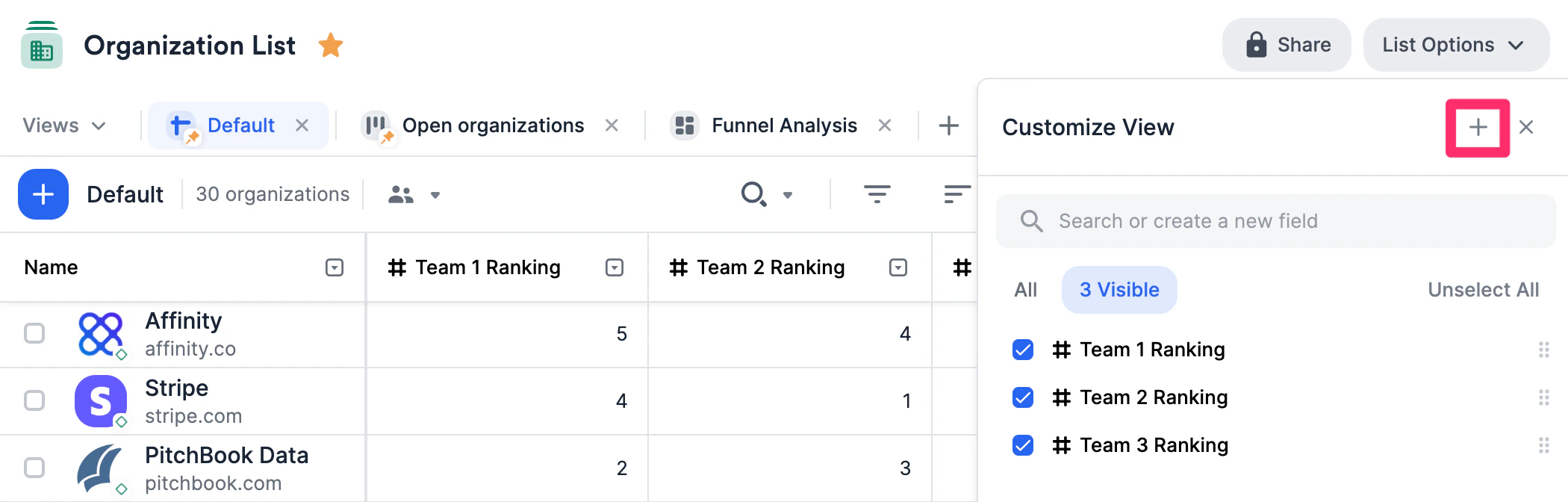
 * If you click the **Customize View** button, click on the **+** icon on the top-right corner to create.
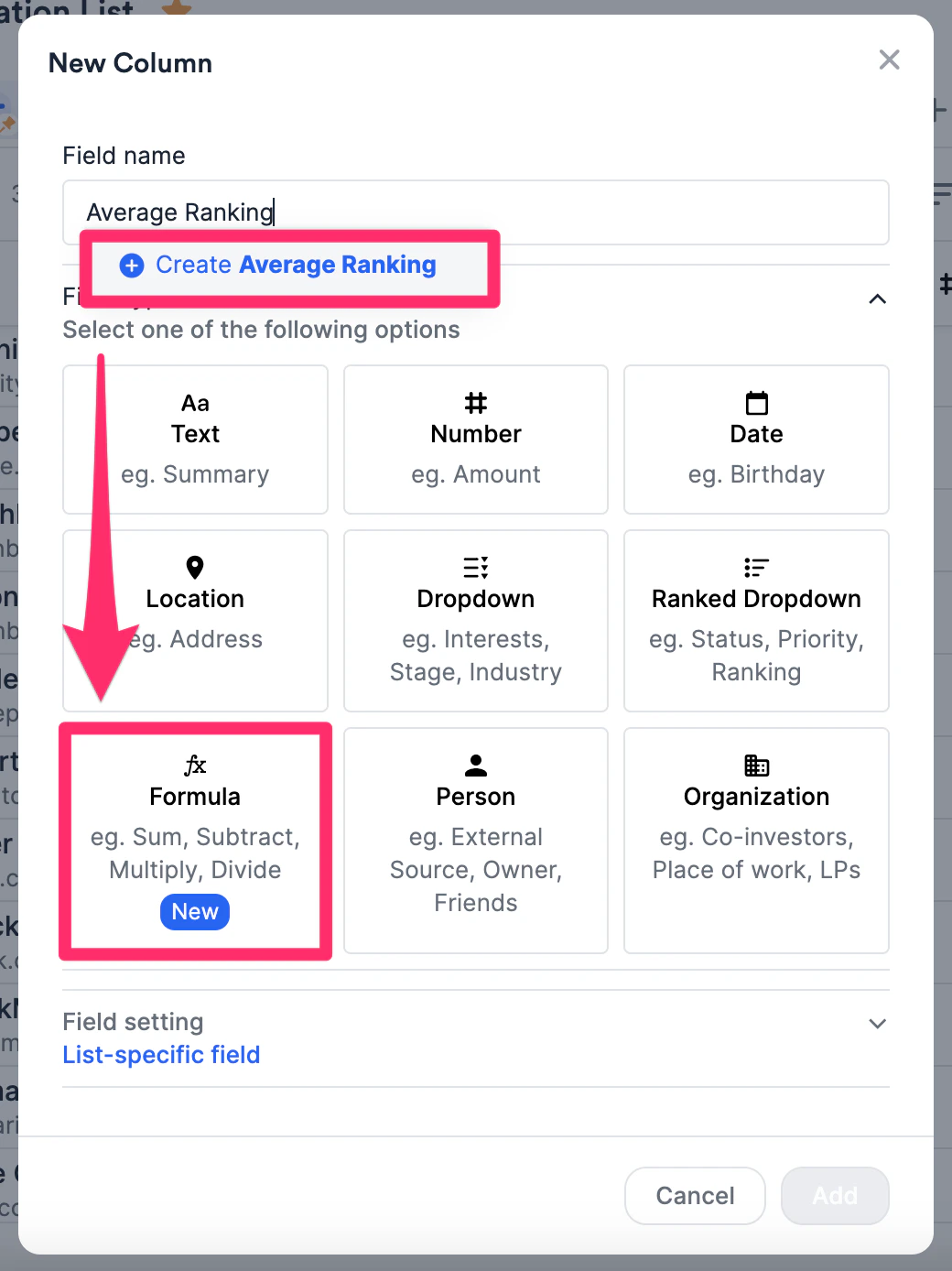
 2. Give the new field a name. For this example, we'll create a new formula field called **Average Ranking**. Then, select the **Formula** option below.
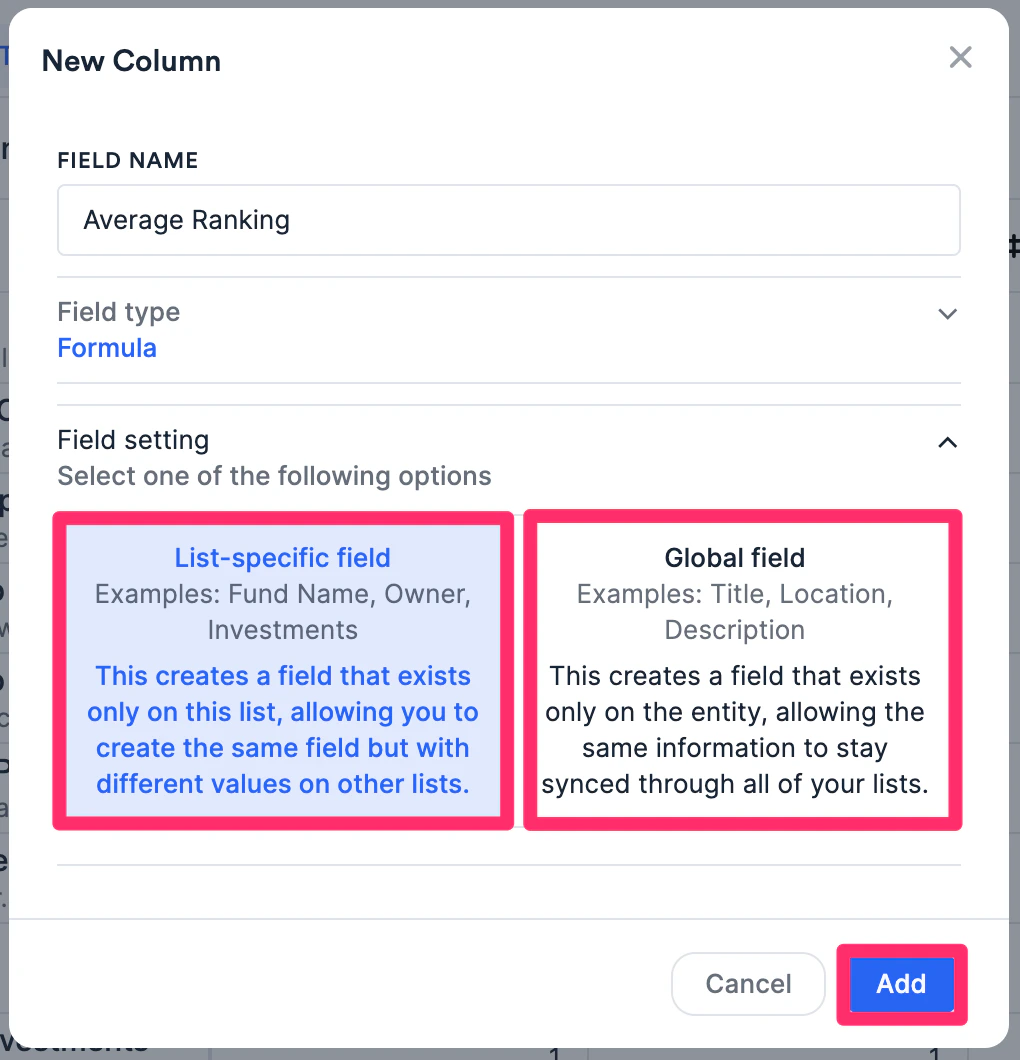
 3. Select either **list-specific** or **global** depending on whether you'd like this new formula field to only appear on the list you're creating it in or to appear across all other lists of the same type (e.g. for this example, it would appear across all other organization lists). Then, click **Add**.
* If you make a **list-specific** formula field, then you can use **both** list-specific fields (from that particular list) and global fields within the formula itself.
* If you make a **global** formula field, then you can **only** use global fields within the formula itself.
3. Select either **list-specific** or **global** depending on whether you'd like this new formula field to only appear on the list you're creating it in or to appear across all other lists of the same type (e.g. for this example, it would appear across all other organization lists). Then, click **Add**.
* If you make a **list-specific** formula field, then you can use **both** list-specific fields (from that particular list) and global fields within the formula itself.
* If you make a **global** formula field, then you can **only** use global fields within the formula itself.
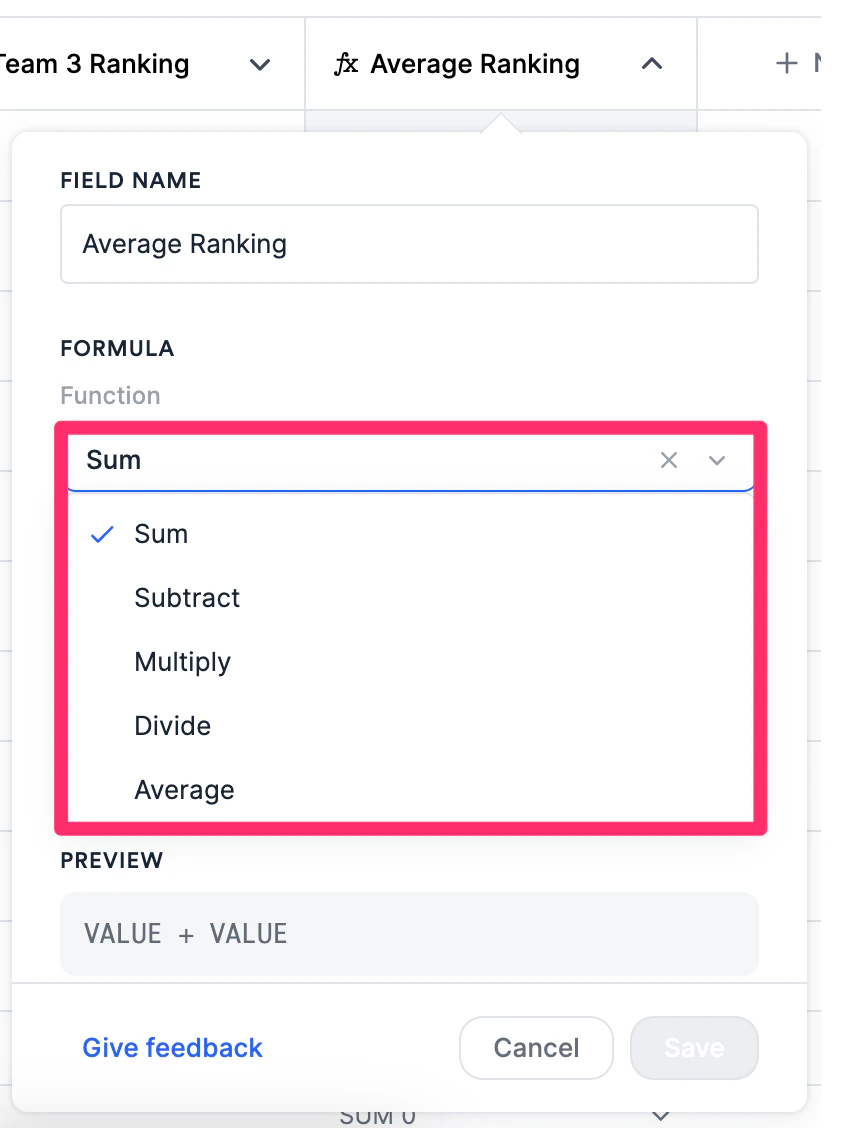
 4. Select the function type you'd like to use - there are currently 5 different function types available (each function type supports up to 16 values):
* Sum - Add up to 16 values from different fields
* Subtract - Subtract up to 16 values from different fields
* Multiply - Multiply up to 16 values from different fields
* Divide - Divide up to 16 values from different fields
* Average - Get the average of up to 16 values from different fields
4. Select the function type you'd like to use - there are currently 5 different function types available (each function type supports up to 16 values):
* Sum - Add up to 16 values from different fields
* Subtract - Subtract up to 16 values from different fields
* Multiply - Multiply up to 16 values from different fields
* Divide - Divide up to 16 values from different fields
* Average - Get the average of up to 16 values from different fields
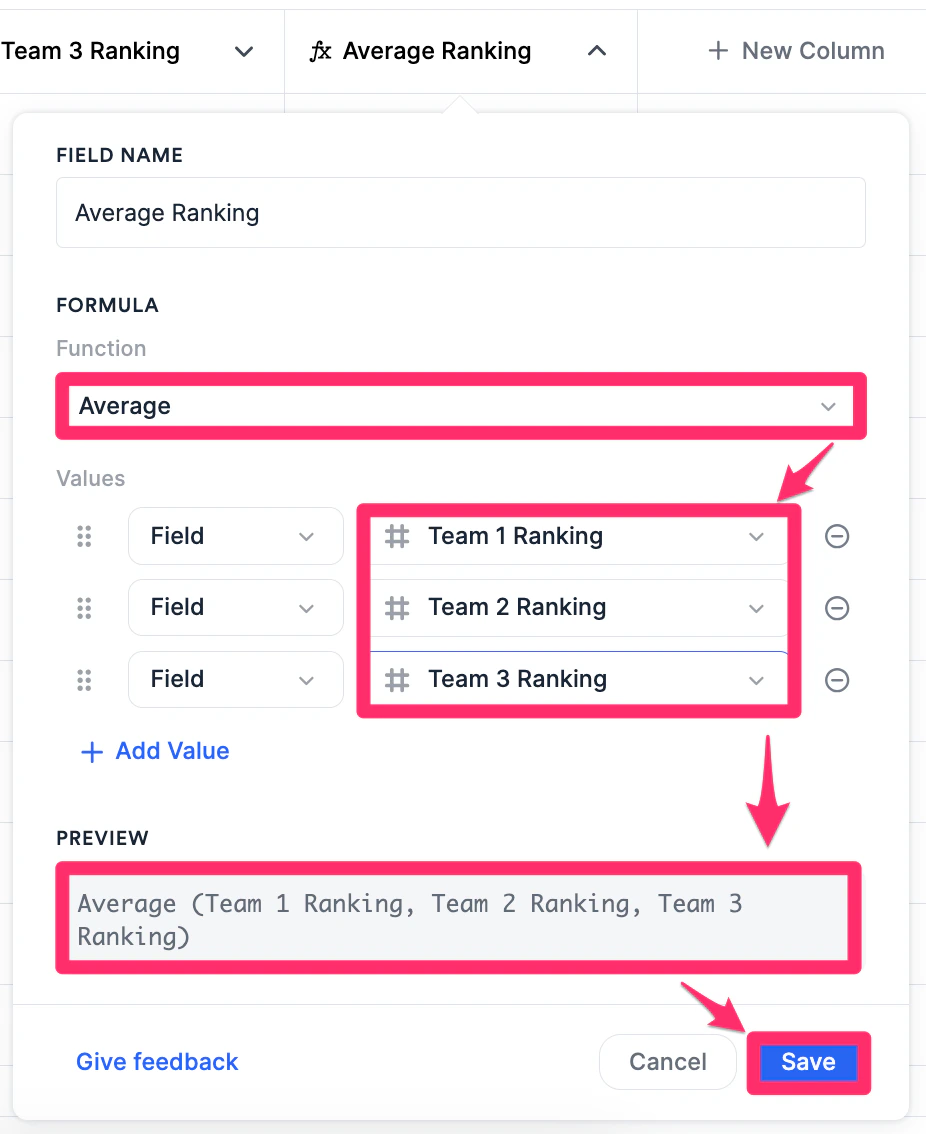
 5. For this example column called **Average Ranking**, these are the steps we would take:
* Select **Average** for the function type.
* Then, we will select three number-type fields that will be used for the formula (e.g. Team 1 Ranking, Team 2 Ranking, and Team 3 Ranking).
* Check the formula preview section below to make sure that it's correct, then click **Save**.
5. For this example column called **Average Ranking**, these are the steps we would take:
* Select **Average** for the function type.
* Then, we will select three number-type fields that will be used for the formula (e.g. Team 1 Ranking, Team 2 Ranking, and Team 3 Ranking).
* Check the formula preview section below to make sure that it's correct, then click **Save**.
 6. Last but not least, formula fields can be converted into 3 different formats depending on the use case:
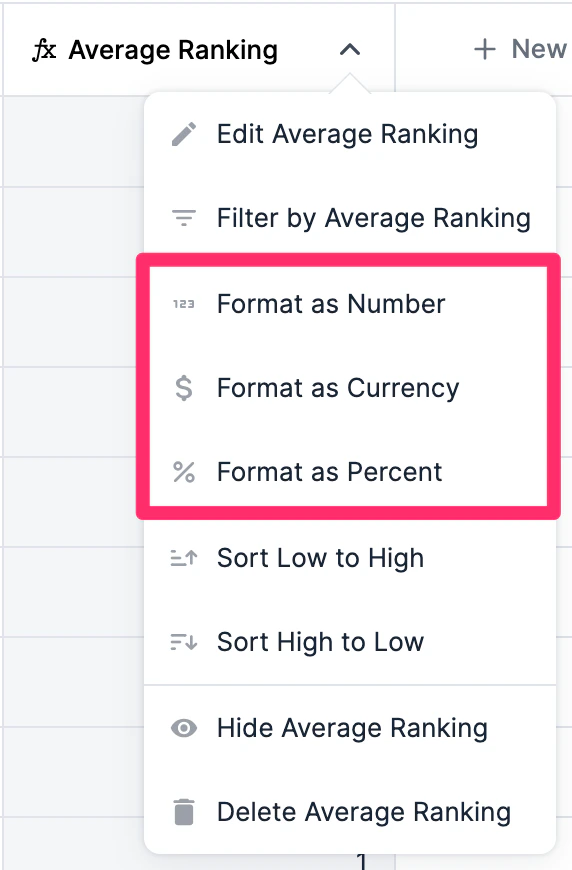 1. Option 1 - Format as **Number**
2. Option 2 - Format as **Currency (e.g. Dollar**, **Pound**, **Yen/Yuan**, **Euro**, **Rupee**, and **New Shekel)**
3. Option 3 - Format as **Percent**
4. Not sure what types of calculations to start off with? Check out the "**Common use cases and examples**" section just below.
## How to identify and fix errors for miscalculations
1. Depending on the columns used, you may come across empty cells (as shown with a dash "-") indicating that one of the values from the columns used is either incompatible or empty.**Note**: When it comes to formula fields based on addition, subtraction, division, and multiplication, empty cells will be automatically treated as zeros (0) to complete the calculation. However, formula fields based on **averages** will consider empty cells as null and therefore will **not** complete the calculation.
1. Option 1 - Format as **Number**
2. Option 2 - Format as **Currency (e.g. Dollar**, **Pound**, **Yen/Yuan**, **Euro**, **Rupee**, and **New Shekel)**
3. Option 3 - Format as **Percent**
4. Not sure what types of calculations to start off with? Check out the "**Common use cases and examples**" section just below.
## How to identify and fix errors for miscalculations
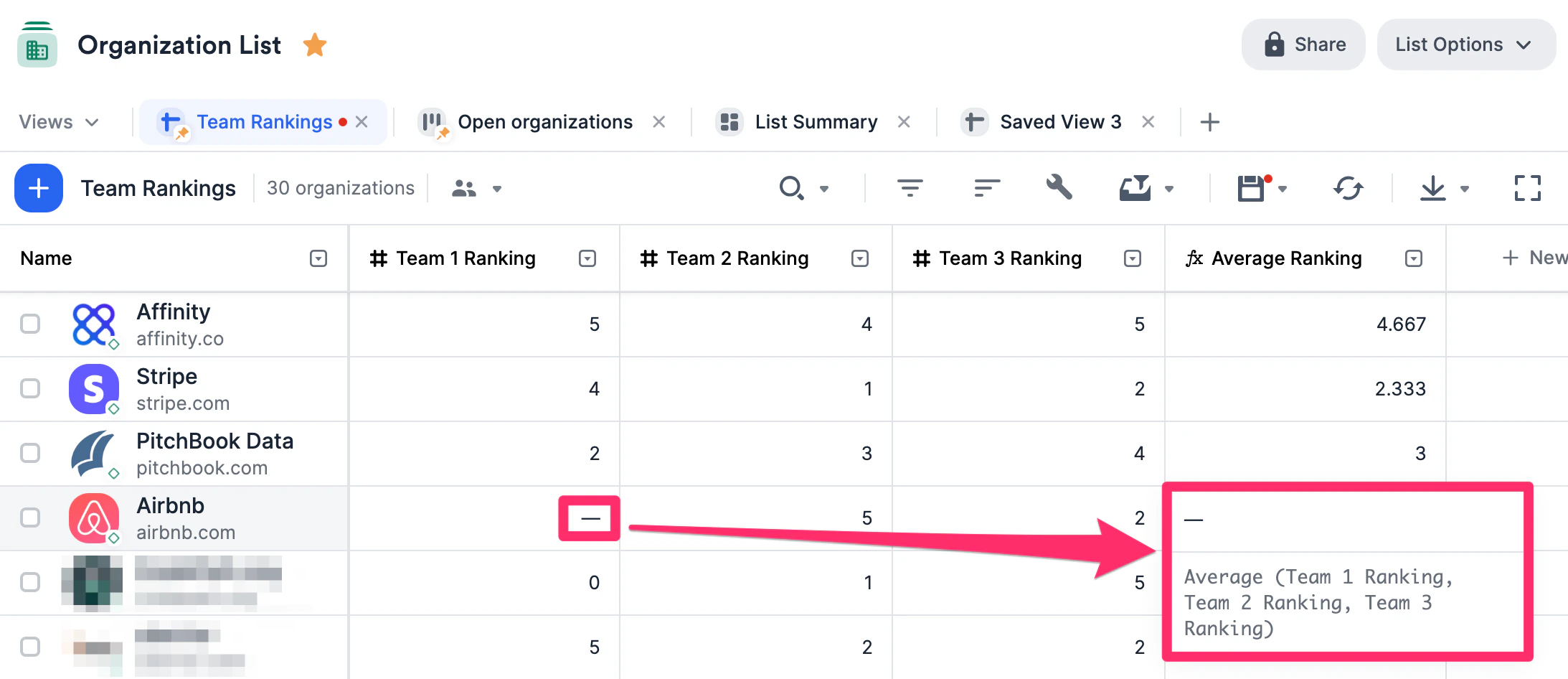
1. Depending on the columns used, you may come across empty cells (as shown with a dash "-") indicating that one of the values from the columns used is either incompatible or empty.**Note**: When it comes to formula fields based on addition, subtraction, division, and multiplication, empty cells will be automatically treated as zeros (0) to complete the calculation. However, formula fields based on **averages** will consider empty cells as null and therefore will **not** complete the calculation.
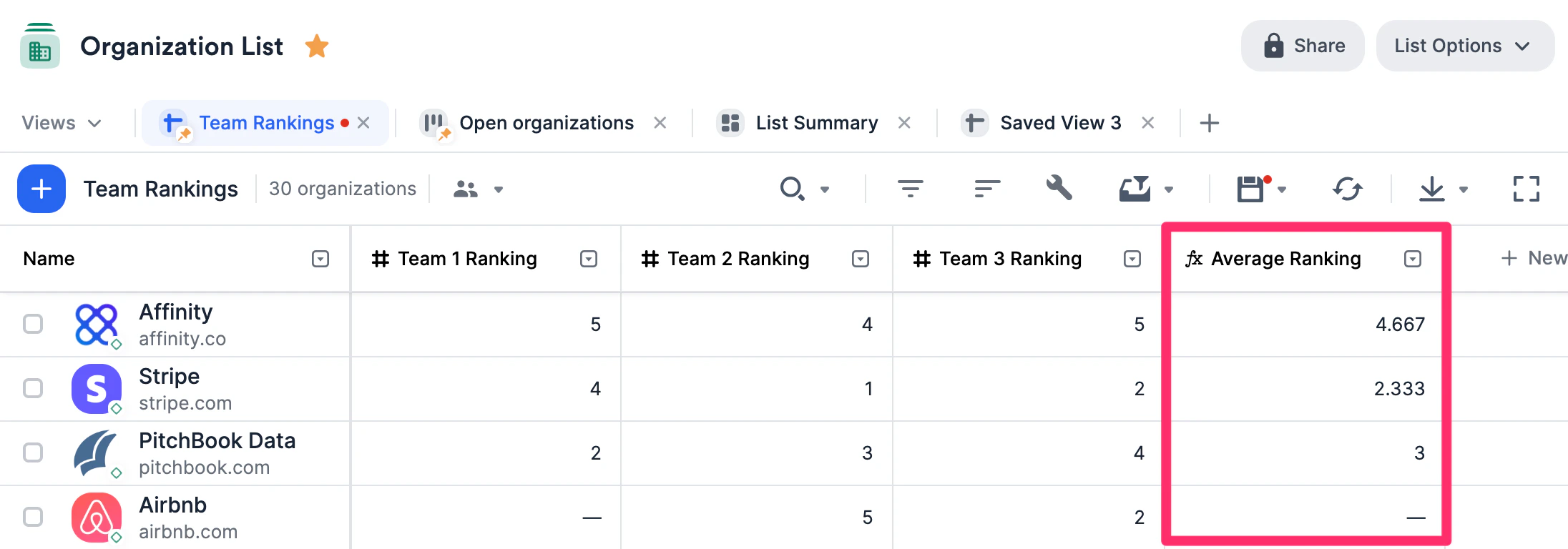 2. Click on the cell to see a preview of the formula so you can identify the issue. In this example, the "Team 1 Ranking" field value is empty for **Airbnb**, which is why the "Average Ranking" field value is empty as well.
 3. From here, you can decide whether to:
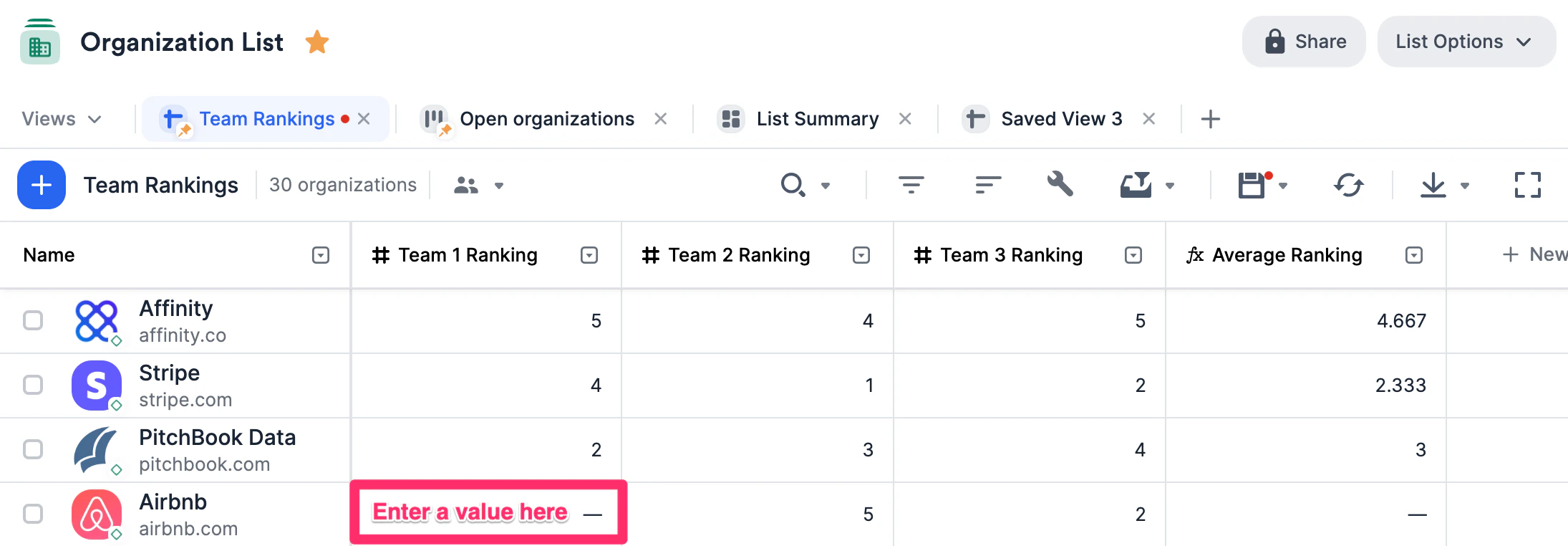
* Edit the values of the columns being used for the formula field.
3. From here, you can decide whether to:
* Edit the values of the columns being used for the formula field.
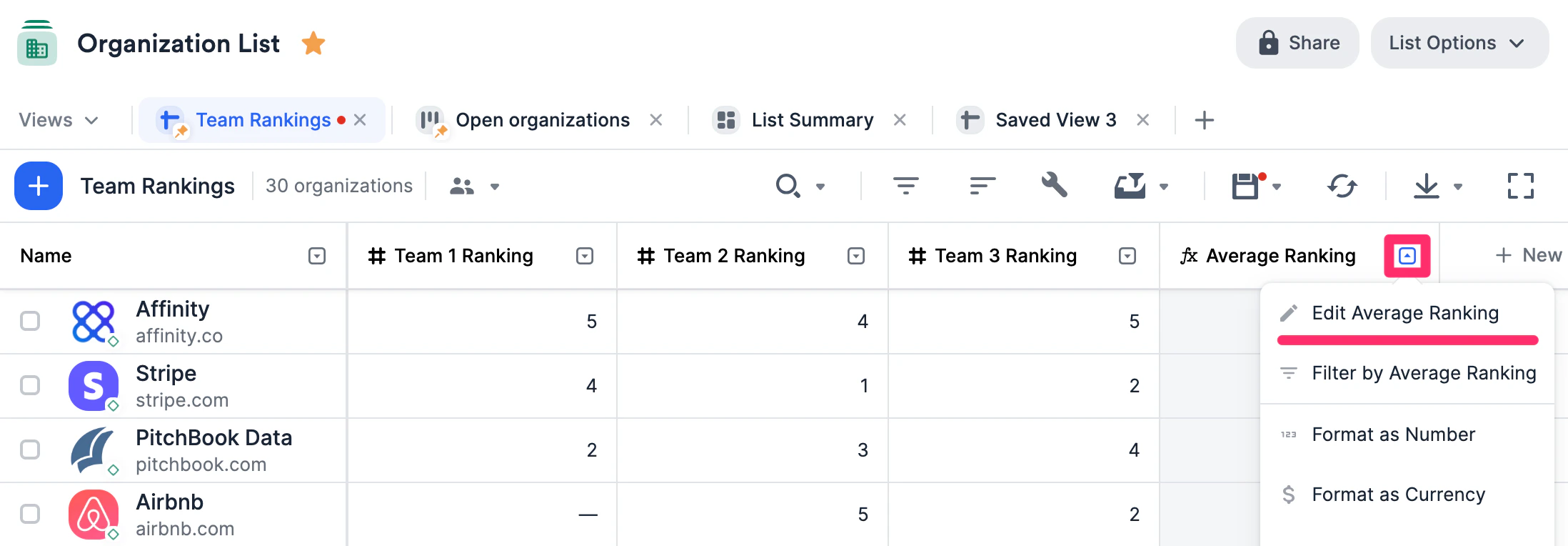
 * Edit the formula field itself by clicking on the dropdown arrow next to the column name.
 * Or leave it as is for now.
## Where you can use formula fields within Affinity
Once you've created your formula fields, check out all the areas where they can be used:
### Lists (Sheet Views and Board Views)
1. On **sheet views**, you can click the **Customize View** button to show the formula fields within the sheet itself.
* Or leave it as is for now.
## Where you can use formula fields within Affinity
Once you've created your formula fields, check out all the areas where they can be used:
### Lists (Sheet Views and Board Views)
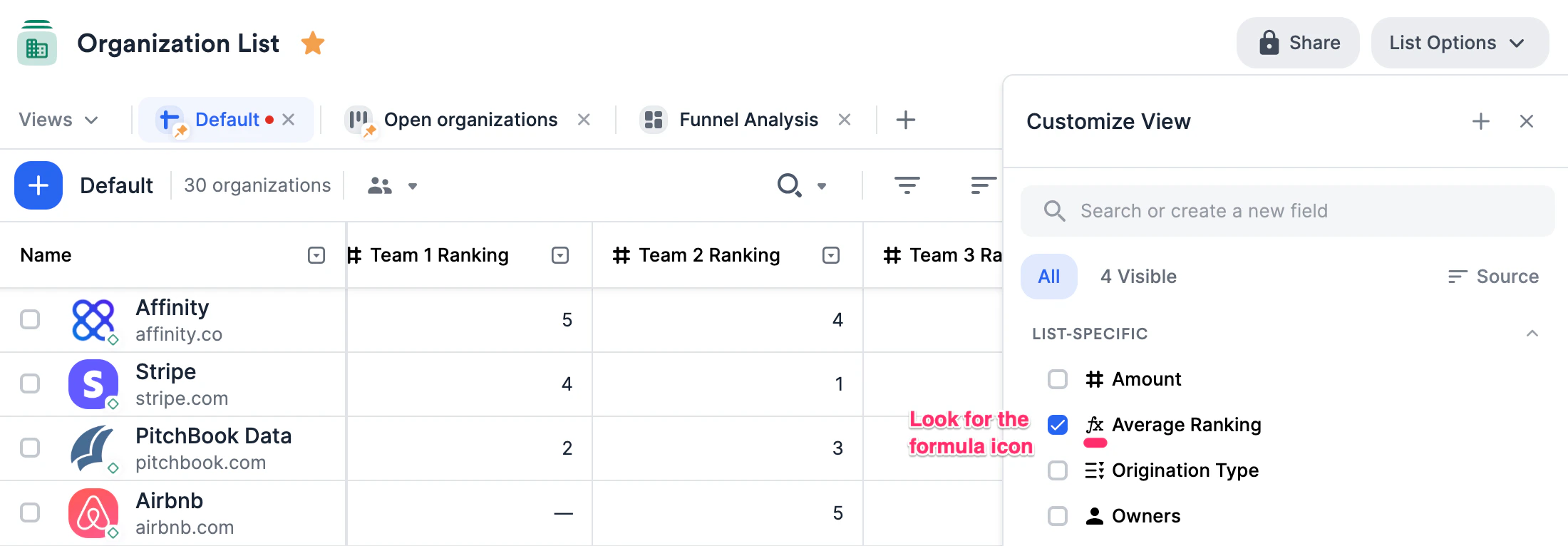
1. On **sheet views**, you can click the **Customize View** button to show the formula fields within the sheet itself.
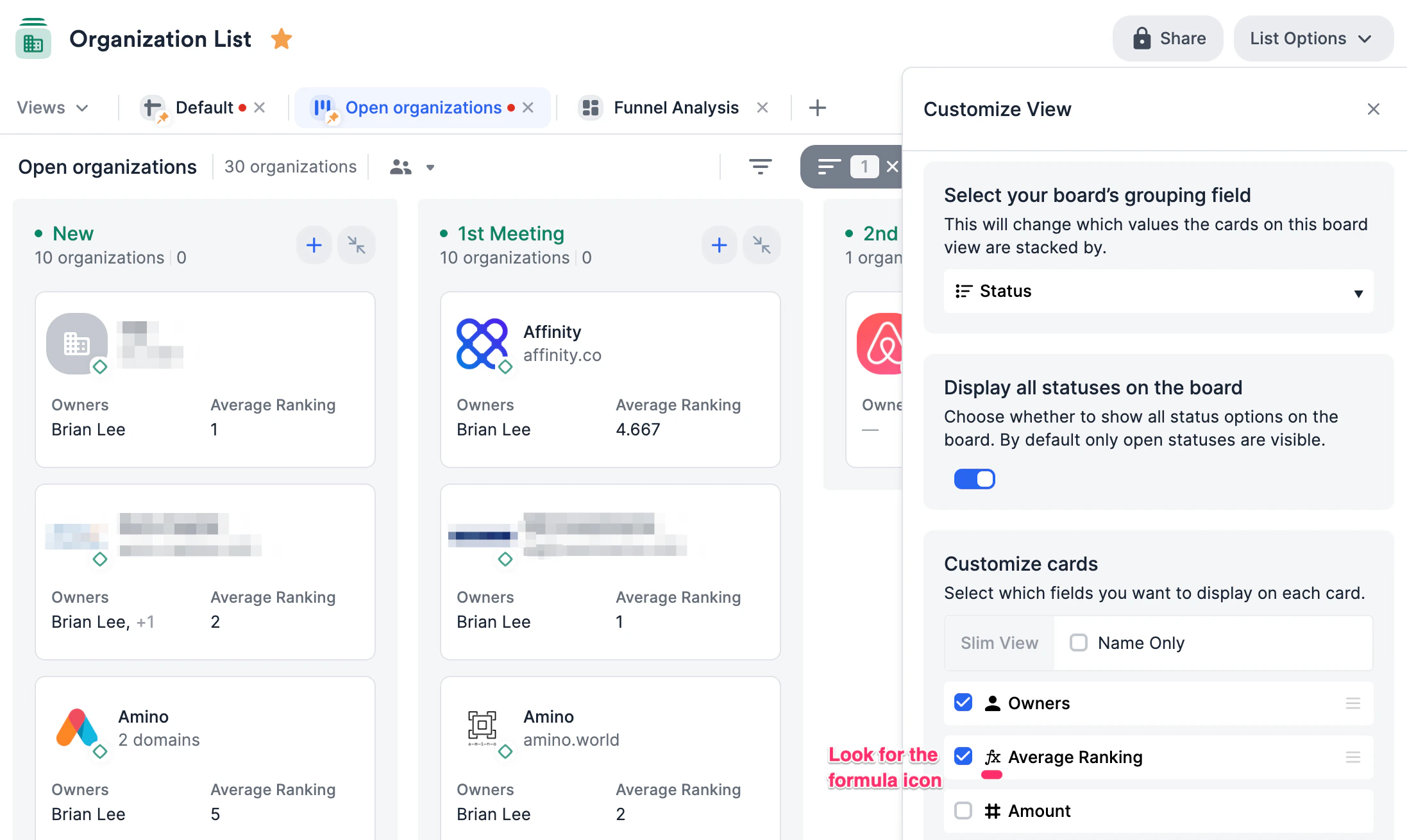
 2. On **board views**, you can click the **Customize View** button to show the formula fields within each card.
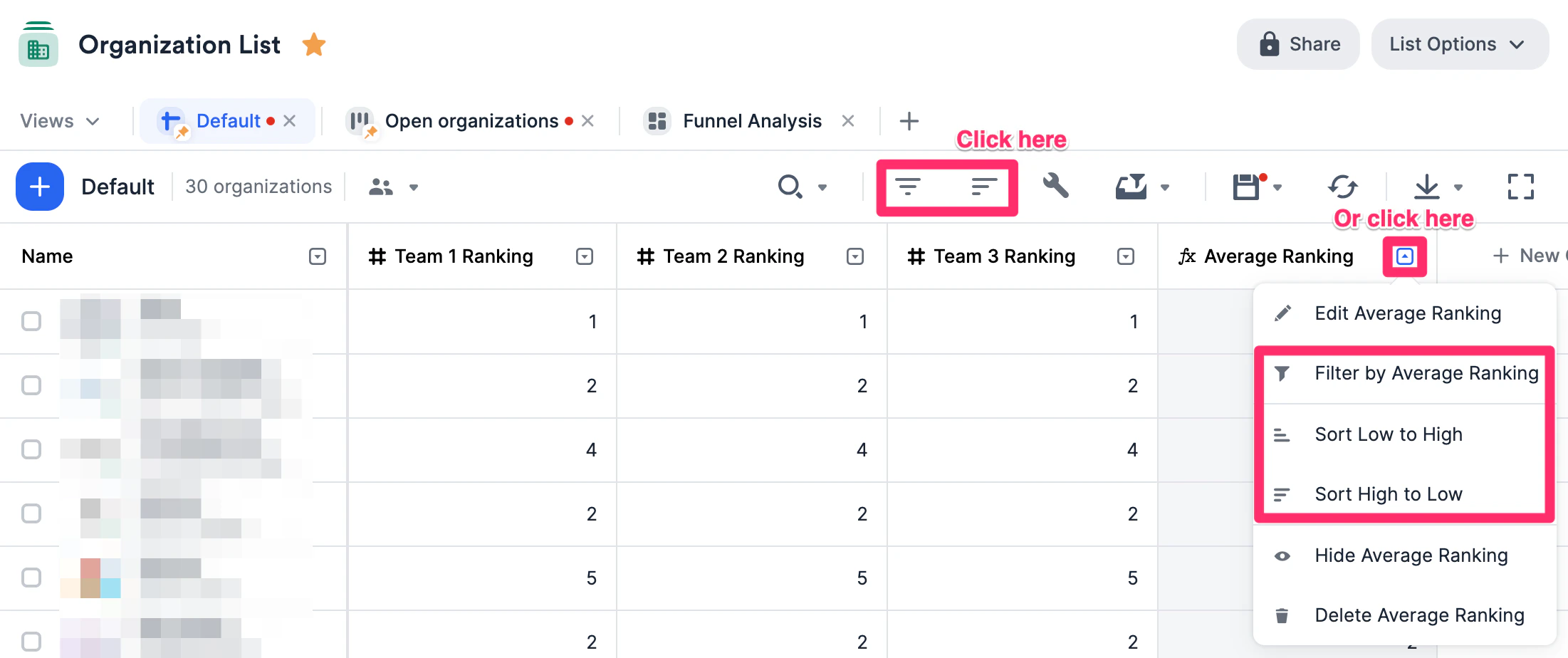
 3. Whether it's a sheet view or board view, you can filter and sort by these formula fields as well.
 ### Affinity Analytics (Dashboard Views)
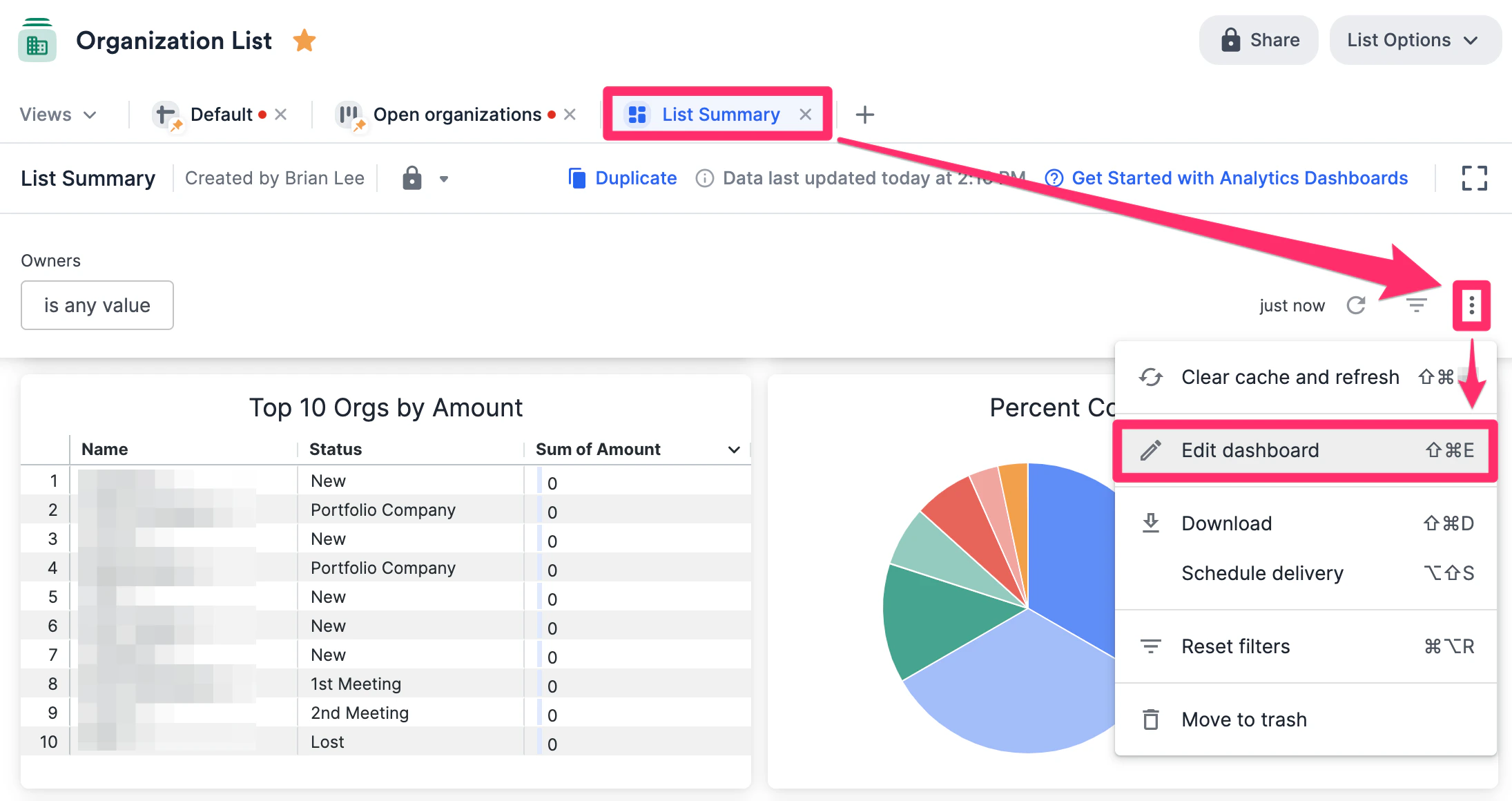
1. In the list that contains a dashboard view that you'd like to leverage your formula fields within, click the 3-dotted icon and click **Edit dashboard** (for **Creator** roles only).
### Affinity Analytics (Dashboard Views)
1. In the list that contains a dashboard view that you'd like to leverage your formula fields within, click the 3-dotted icon and click **Edit dashboard** (for **Creator** roles only).
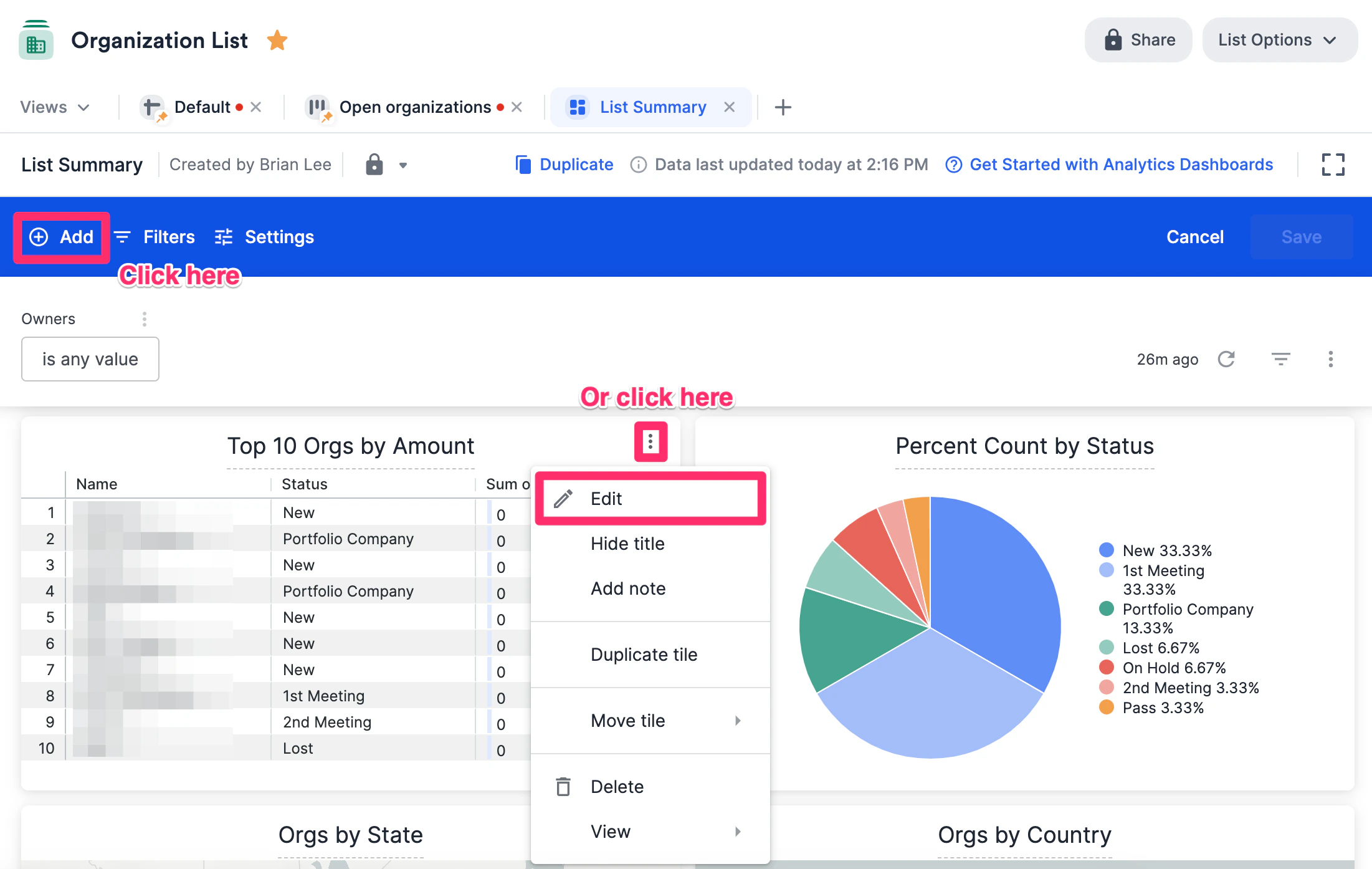
 2. From here, you can click **Add** to create a new visualization tile or click the 3-dotted icon for an existing visualization tile that you'd like to edit. For this example, we'll show you how to edit an existing visualization tile.
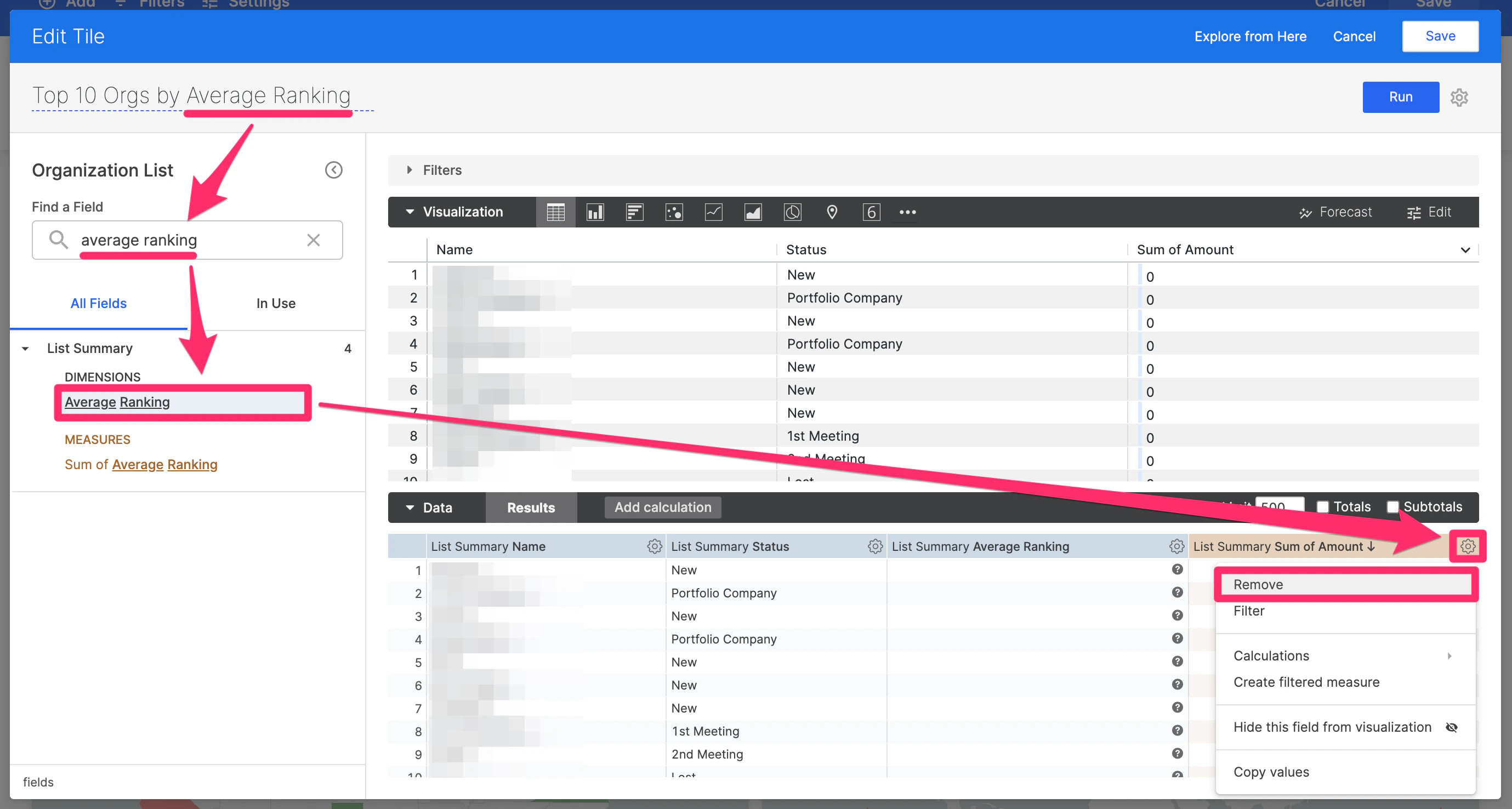
 3. Since we're editing the tile from showing "Top 10 Orgs by Amount" to "Top 10 Orgs by Average Ranking", we will do the following:
1. Rename the tile.
2. Then, search for the **Average Ranking** formula field, then click on it to make it appear.
3. Finally, remove any fields that you wouldn't like to see - in this example, we'll remove **Sum of Amount** since it's no longer necessary.
3. Since we're editing the tile from showing "Top 10 Orgs by Amount" to "Top 10 Orgs by Average Ranking", we will do the following:
1. Rename the tile.
2. Then, search for the **Average Ranking** formula field, then click on it to make it appear.
3. Finally, remove any fields that you wouldn't like to see - in this example, we'll remove **Sum of Amount** since it's no longer necessary.
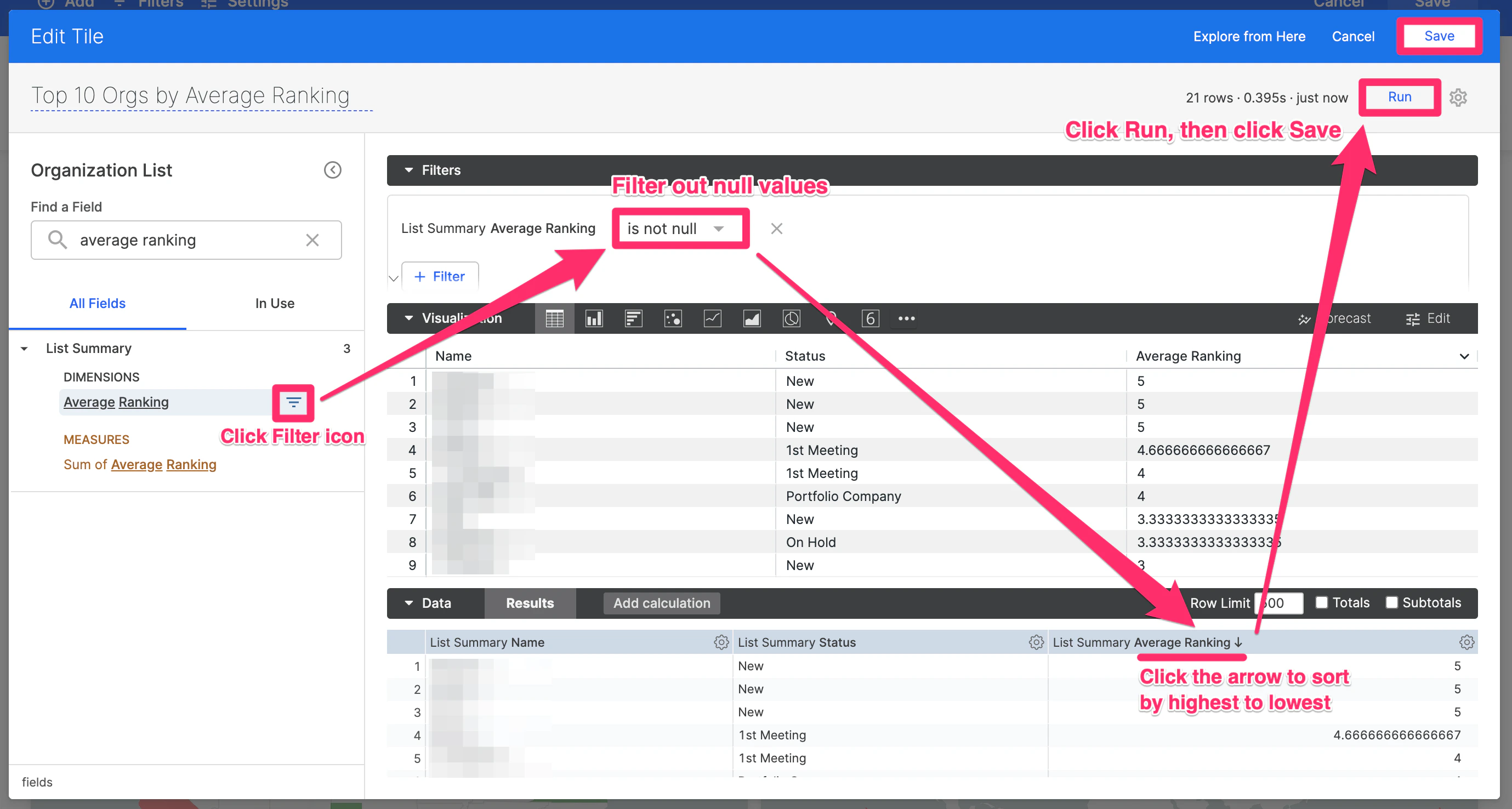
 4. To clean up the results, we will do the following:
* Click the **Filter** icon next to **Average Ranking** on the left sidebar to remove any rows that may include null values.
* Click the **Arrow** icon next to "List Summary **Average Ranking**" in the **Data** section to sort by highest to lowest.
* Click **Run** to generate the new results, then click **Save**.
4. To clean up the results, we will do the following:
* Click the **Filter** icon next to **Average Ranking** on the left sidebar to remove any rows that may include null values.
* Click the **Arrow** icon next to "List Summary **Average Ranking**" in the **Data** section to sort by highest to lowest.
* Click **Run** to generate the new results, then click **Save**.
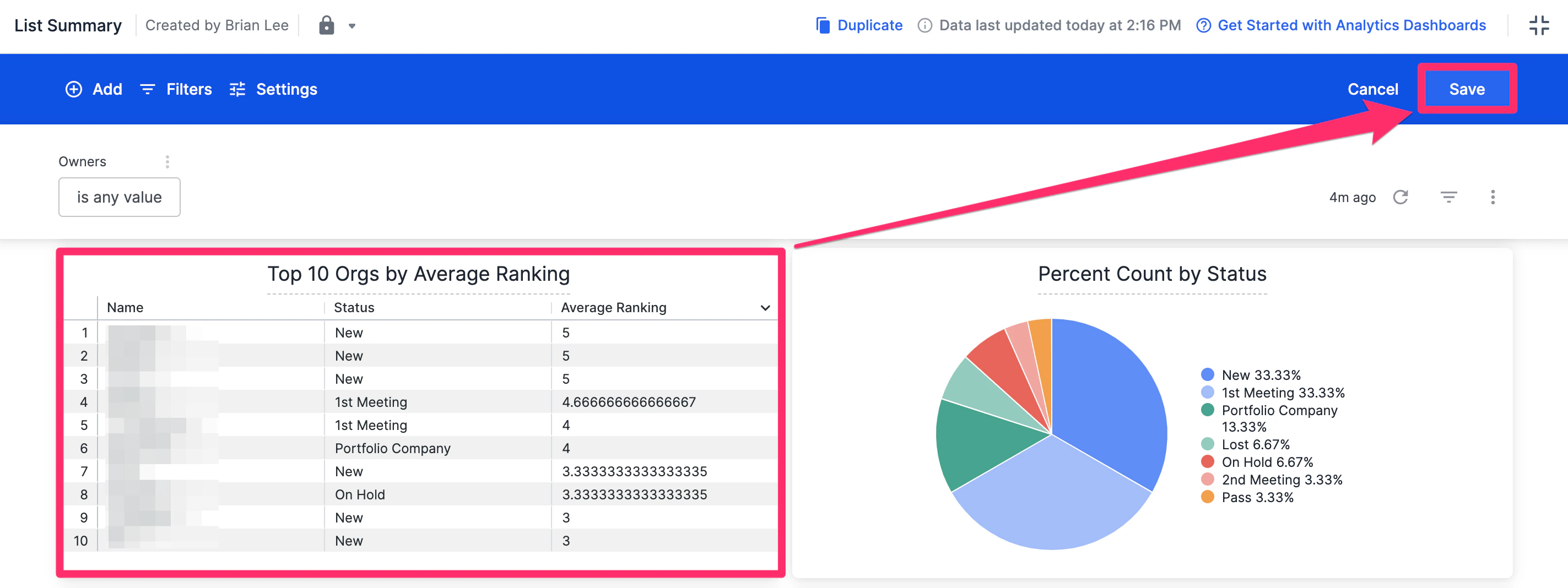
 5. Now, you'll see the visualization tile showing "Top 10 Orgs by Average Ranking" - click **Save** one more time to save all the changes made to the dashboard view and you're all set.
 ### Profile Pages
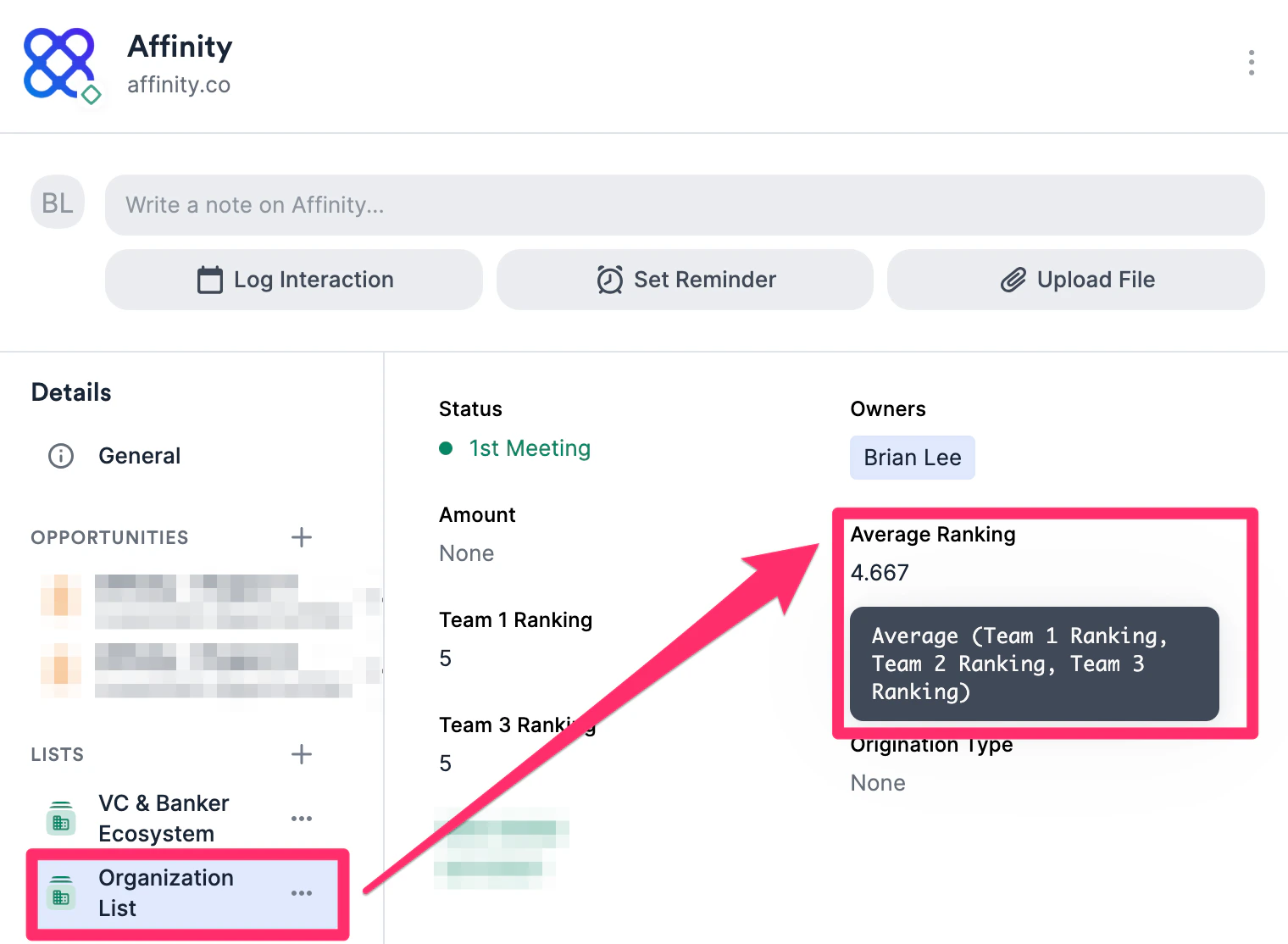
1. Go to **Settings** > **Profile Field Customization** and click the **Menu** icon to select from **General Fields** or from a specific list depending on whether the formula fields are global or list-specific.
### Profile Pages
1. Go to **Settings** > **Profile Field Customization** and click the **Menu** icon to select from **General Fields** or from a specific list depending on whether the formula fields are global or list-specific.
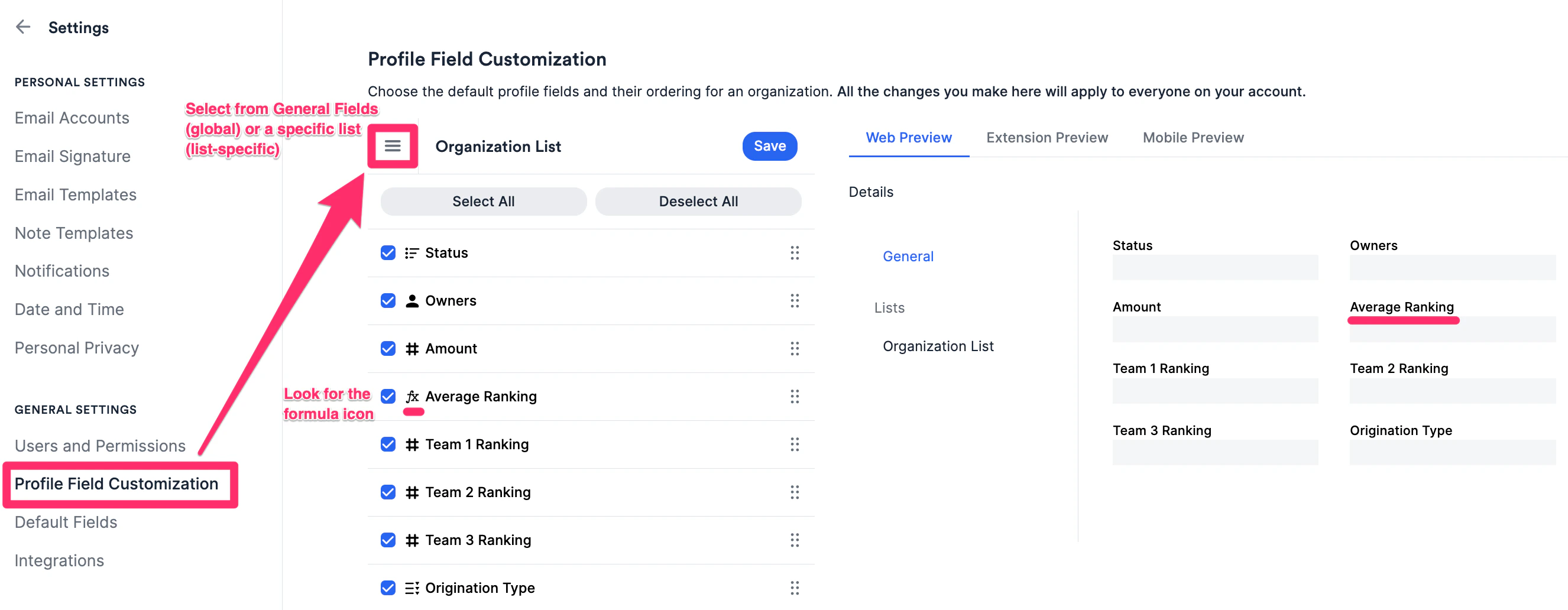 2. Once you click **Save**, navigate to a profile page that would include the formula fields you selected.
 ## Common use cases and examples
Here are some of the most common list calculations you can create. Each bracket containing names or numbers represents a single column:
| Example column name | Formula |
| -------------------------- | --------------------------------------------------------- |
| Sum of Commitments | `[Commitment 1 Amount] + [Commitment 2 Amount] + …` |
| Weighted Investment Amount | `[a number between 0 and 1] * [Investment Size]` |
| EBITDA Margin | `[EBITDA Amount] / [Revenue Amount]` |
| Sum of EBITDA and Revenue | `[EBITDA Amount] + [Revenue Amount]` |
| Post-Money Valuation | `[Pre-Money Valuation Amount] + [Invested Amount]` |
| Sum of Financial Metrics | `[Valuation Amount] + [Investment Amount] + …` |
| Average Score | `([Column 1] + [Column 2] + … [Column 4]) / # of columns` |
| % of Total | `[a number between 0 and 1] * [Total Amount]` |
## Important Callouts
* Each formula field can currently only use **one function type at a time** — you cannot combine two or more function types (e.g., multiplication and subtraction, addition and division).
* If you make a **list-specific** formula field, you can use **both** list-specific fields (from that particular list) and global fields within the formula itself.
* If you make a **global** formula field, you can **only** use global fields within the formula itself.
* Formula fields are currently **not** available via the Affinity API, the Affinity mobile app, Affinity extensions (Pathfinder and Outlook), or Basic Reporting.
* Only **single-value number-type fields** can be used as inputs within formula fields. Multi-value number-type fields or any other field types cannot be used as inputs.
* Formula fields **cannot** use other formula fields as inputs at this time.
## Common use cases and examples
Here are some of the most common list calculations you can create. Each bracket containing names or numbers represents a single column:
| Example column name | Formula |
| -------------------------- | --------------------------------------------------------- |
| Sum of Commitments | `[Commitment 1 Amount] + [Commitment 2 Amount] + …` |
| Weighted Investment Amount | `[a number between 0 and 1] * [Investment Size]` |
| EBITDA Margin | `[EBITDA Amount] / [Revenue Amount]` |
| Sum of EBITDA and Revenue | `[EBITDA Amount] + [Revenue Amount]` |
| Post-Money Valuation | `[Pre-Money Valuation Amount] + [Invested Amount]` |
| Sum of Financial Metrics | `[Valuation Amount] + [Investment Amount] + …` |
| Average Score | `([Column 1] + [Column 2] + … [Column 4]) / # of columns` |
| % of Total | `[a number between 0 and 1] * [Total Amount]` |
## Important Callouts
* Each formula field can currently only use **one function type at a time** — you cannot combine two or more function types (e.g., multiplication and subtraction, addition and division).
* If you make a **list-specific** formula field, you can use **both** list-specific fields (from that particular list) and global fields within the formula itself.
* If you make a **global** formula field, you can **only** use global fields within the formula itself.
* Formula fields are currently **not** available via the Affinity API, the Affinity mobile app, Affinity extensions (Pathfinder and Outlook), or Basic Reporting.
* Only **single-value number-type fields** can be used as inputs within formula fields. Multi-value number-type fields or any other field types cannot be used as inputs.
* Formula fields **cannot** use other formula fields as inputs at this time.