> ## Documentation Index
> Fetch the complete documentation index at: https://support.affinity.co/llms.txt
> Use this file to discover all available pages before exploring further.
# How To Create Custom Groups In Dashboard Views
> Help center reference
**How-to** — task-oriented recipe.
Create custom groups in your dashboard views so that you can categorize individual values based on your own preferences. In this video, we'll go over one of the most common examples: creating custom groups of teams based on specific team members using the **Owners** column.
**Note**: This video contains the old navigation bar on the top, whereas the current navigation bar now lies on the left side of your screen. While the remaining content is still the same, rest assured that we will be updating our videos accordingly. In addition to the video overview, you can follow these steps below:
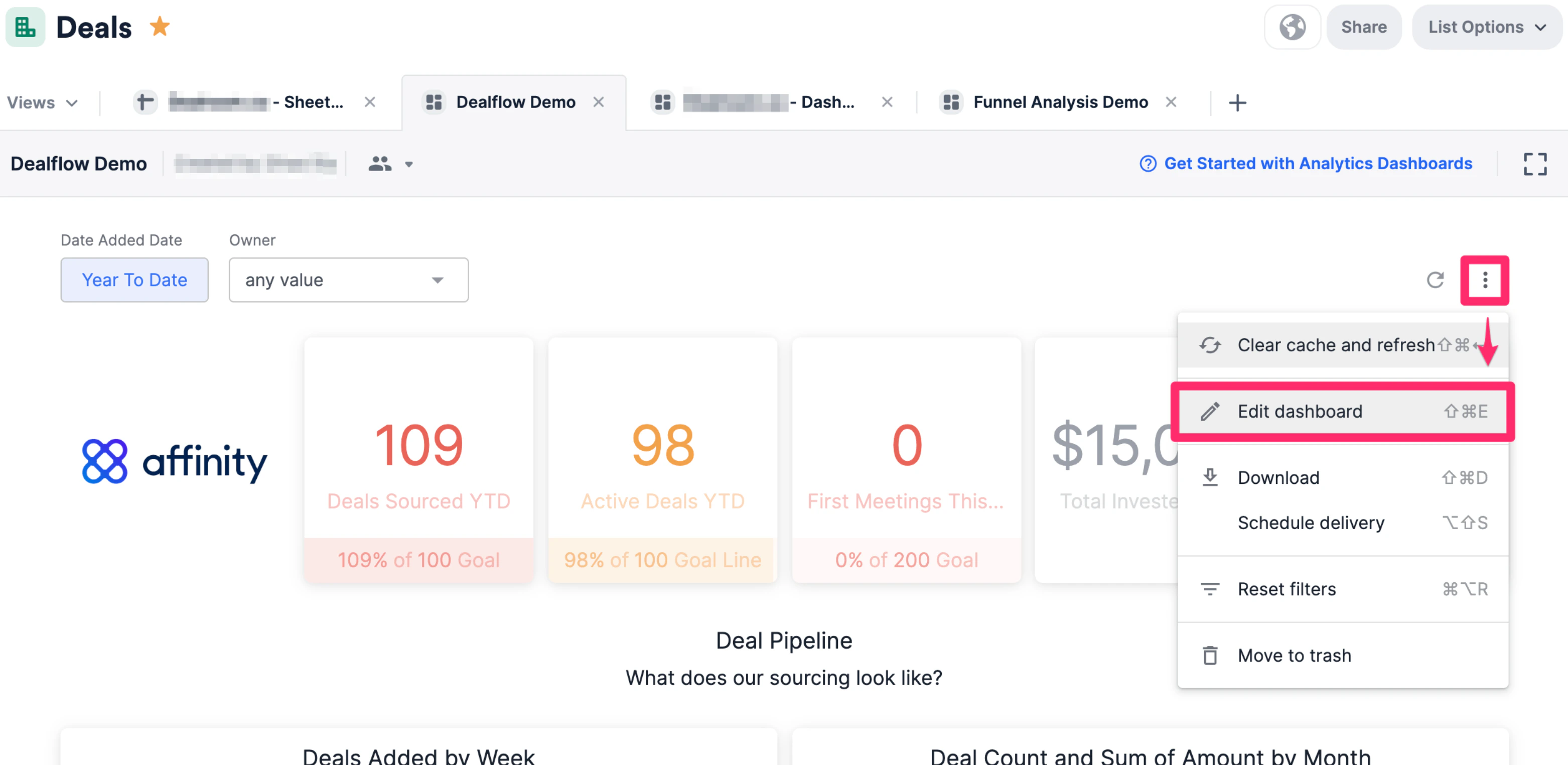
1. On the dashboard view you'd like to create custom groups in, click the ellipsis (3 dotted icon), then click **Edit dashboard**.
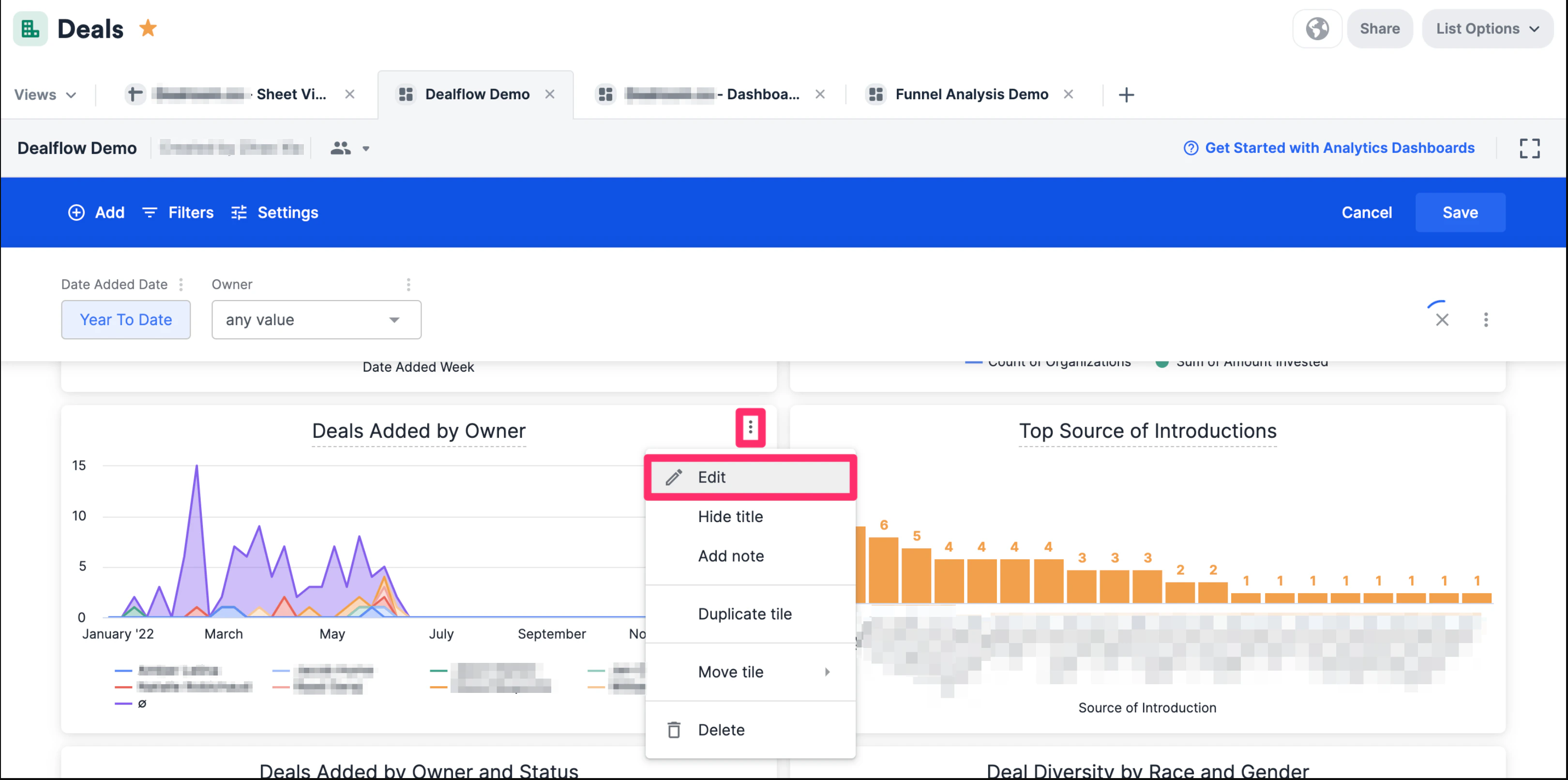
 2. Click the ellipsis (3 dotted icon) next to the visualization tile you'd like to create custom groups in, then click **Edit tile**.
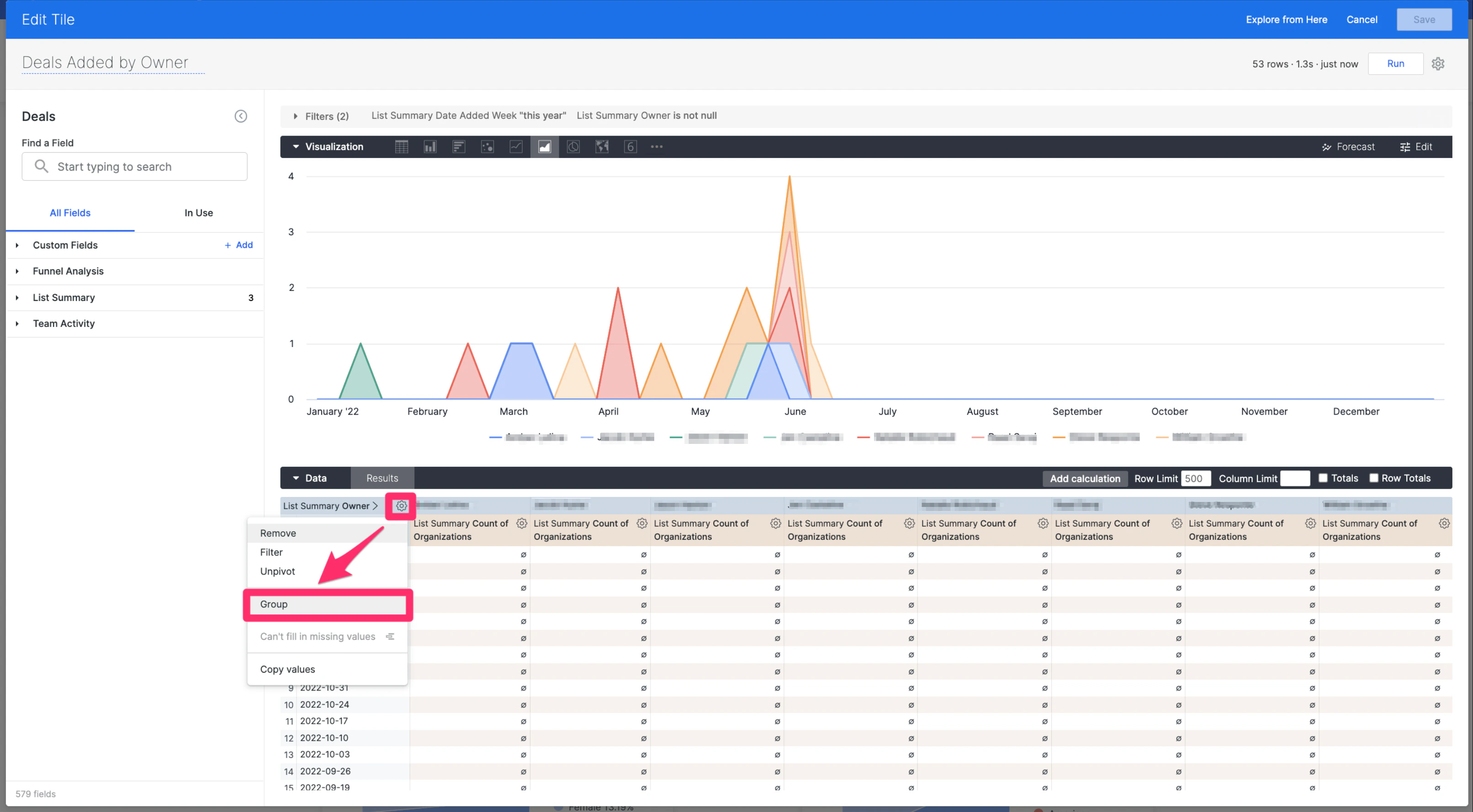
 3. In this example, we'll create groups of teams for the **Owners** column by clicking on the gear icon for the "List Summary **Owner**" dimension, then clicking on **Group**.
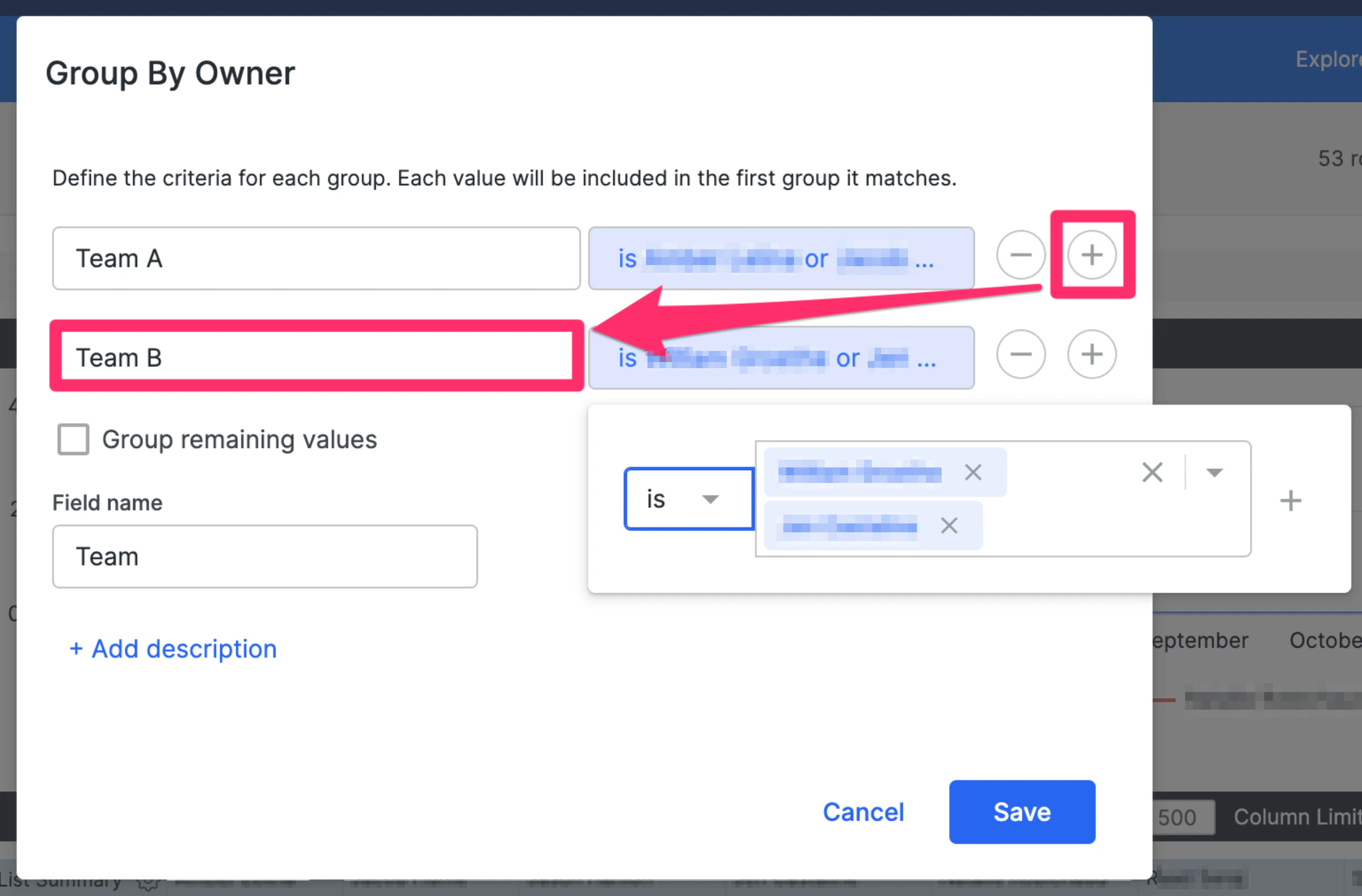
 4. Name the custom group (e.g. **Team A**) and add specific team members to that group.
5. Repeat as many times as needed (e.g. **Team B** with a different set of team members). Once you're done, fill out the **Field name** (e.g. **Team**), then click **Save**.
4. Name the custom group (e.g. **Team A**) and add specific team members to that group.
5. Repeat as many times as needed (e.g. **Team B** with a different set of team members). Once you're done, fill out the **Field name** (e.g. **Team**), then click **Save**.
 6. Now, remove the "List Summary **Owner**" dimension, then click **Run**.
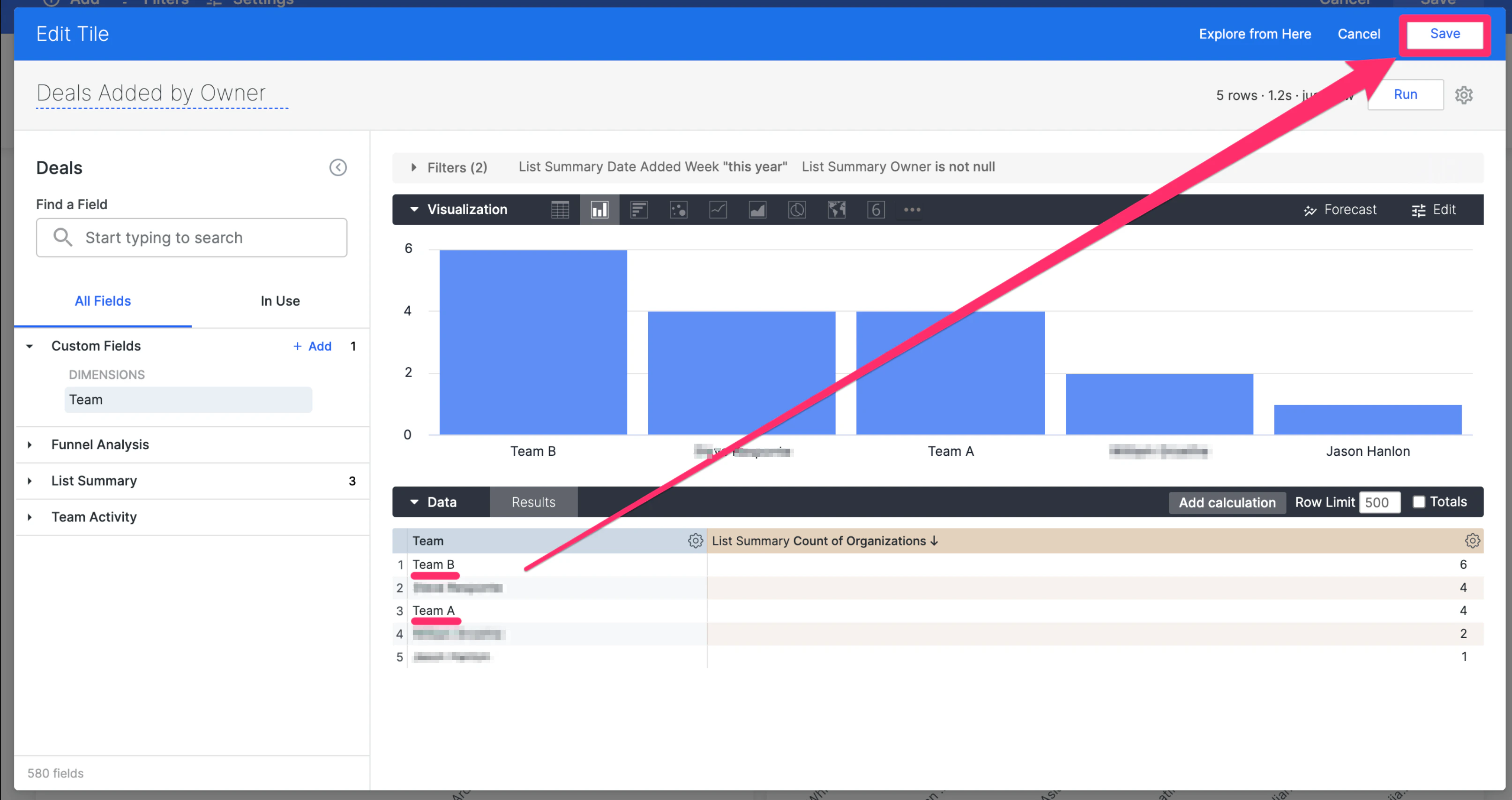
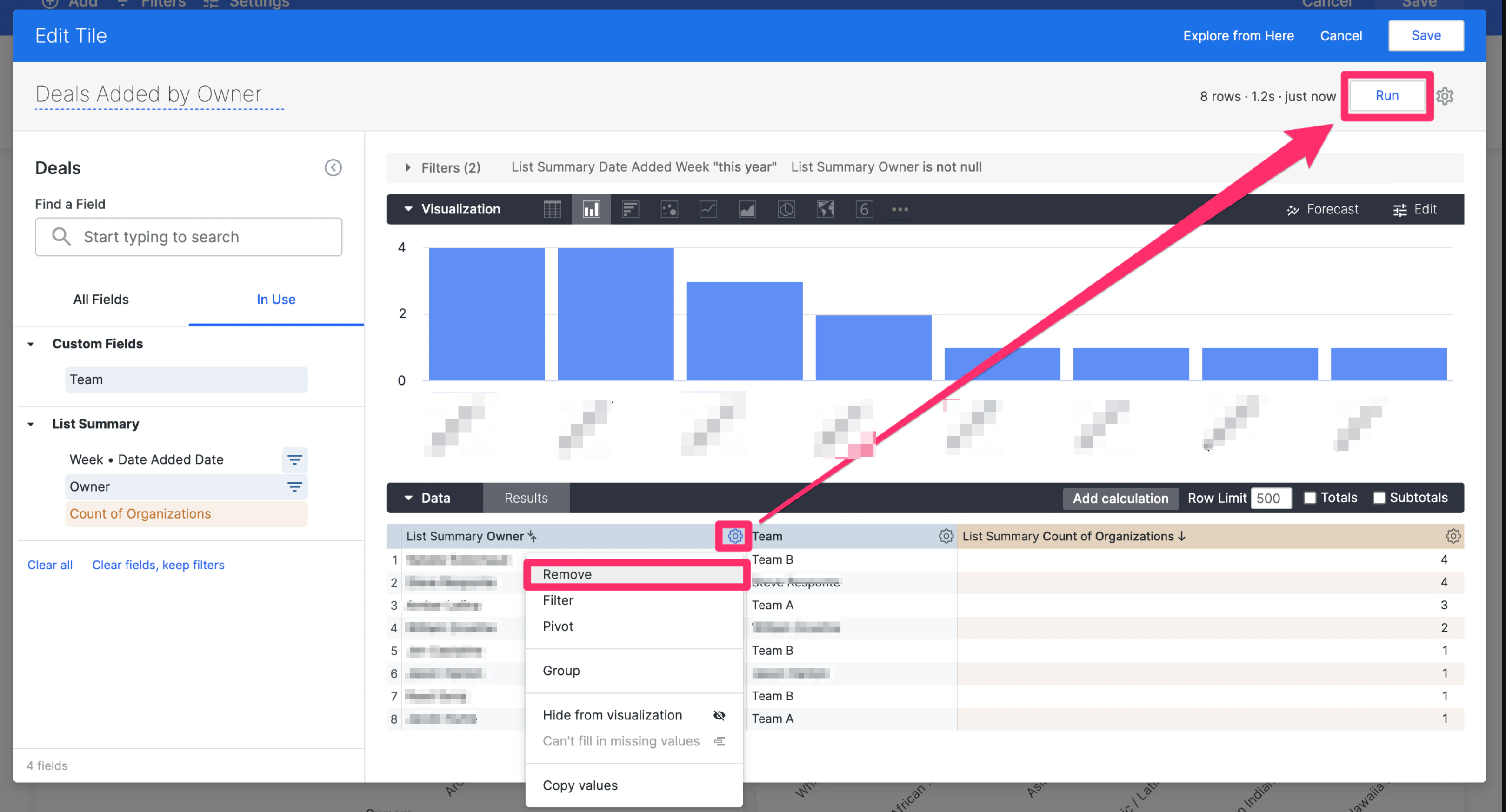 7. You'll see that the custom groups you've made (e.g. **Team A** and **Team B**) now appear - click **Save** once more on the top-right corner and you're all set.