> ## Documentation Index
> Fetch the complete documentation index at: https://support.affinity.co/llms.txt
> Use this file to discover all available pages before exploring further.
# How To Create Custom Dimensions Measures And Calculations In Affinity Analytics
> Help center reference
**Advanced** — power-user technique.
Trying to calculate, convert, or transform your existing fields to gain new insights? With Affinity Analytics, you can create new datapoints from existing fields in your list by creating custom dimensions, measures, and table calculations.
**Note**: This video contains the old navigation bar on the top, whereas the current navigation bar now lies on the left side of your screen. While the remaining content is still the same, rest assured that we will be updating our videos accordingly.
## Definitions to know
* **Dimensions** - The existing fields in your lists (e.g. Status, Owners, Amount, Location, etc.).
* **Measures** - The units of measurement for these existing fields (e.g. Count, Average, etc.)
* **Table Calculations** - Completely new fields generated from your existing fields.
## How to create custom dimensions, measures, and calculations
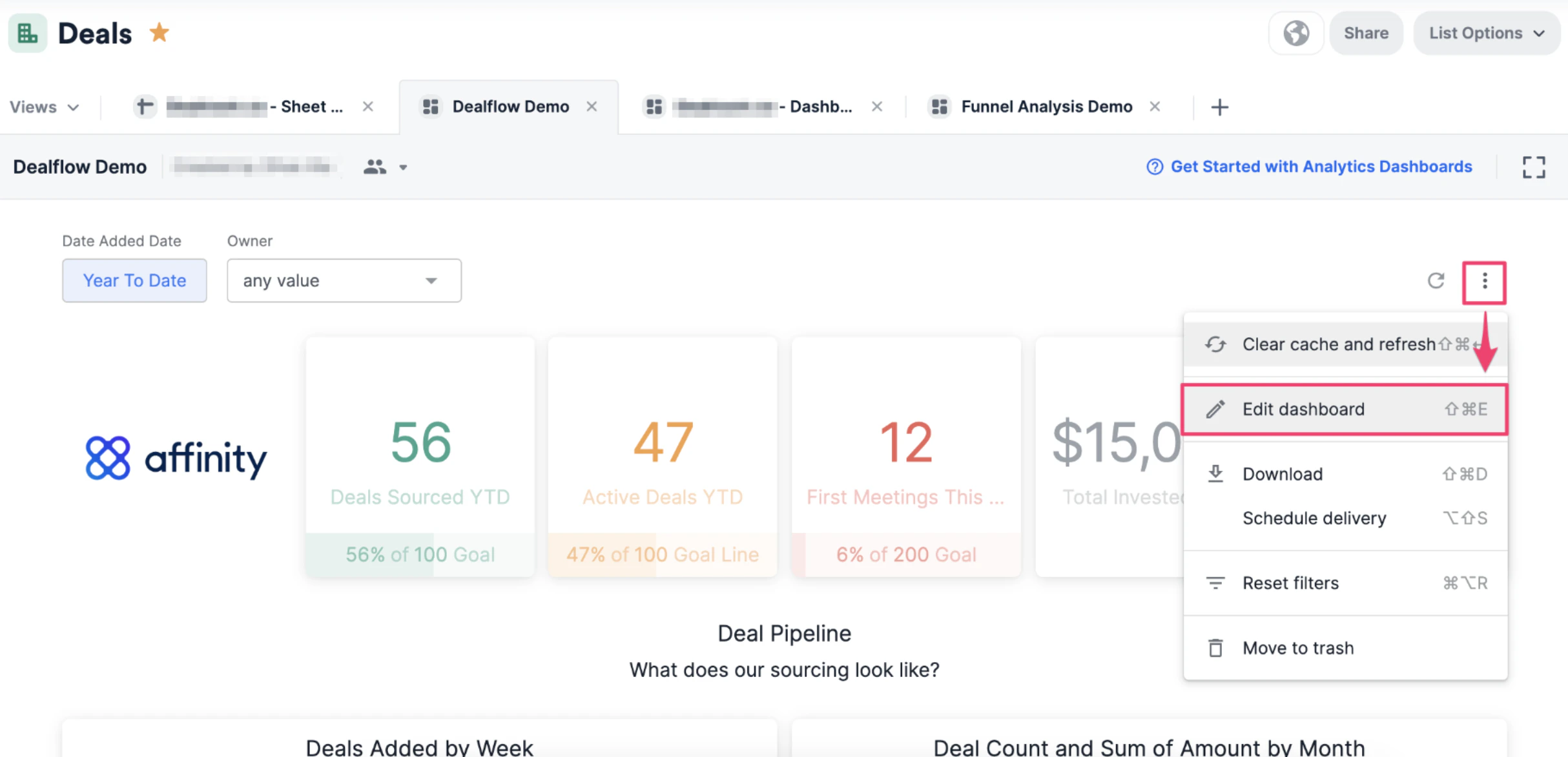
1. On the dashboard view you'd like to create these custom fields in, click the ellipsis (3 dotted icon), then click **Edit dashboard**.
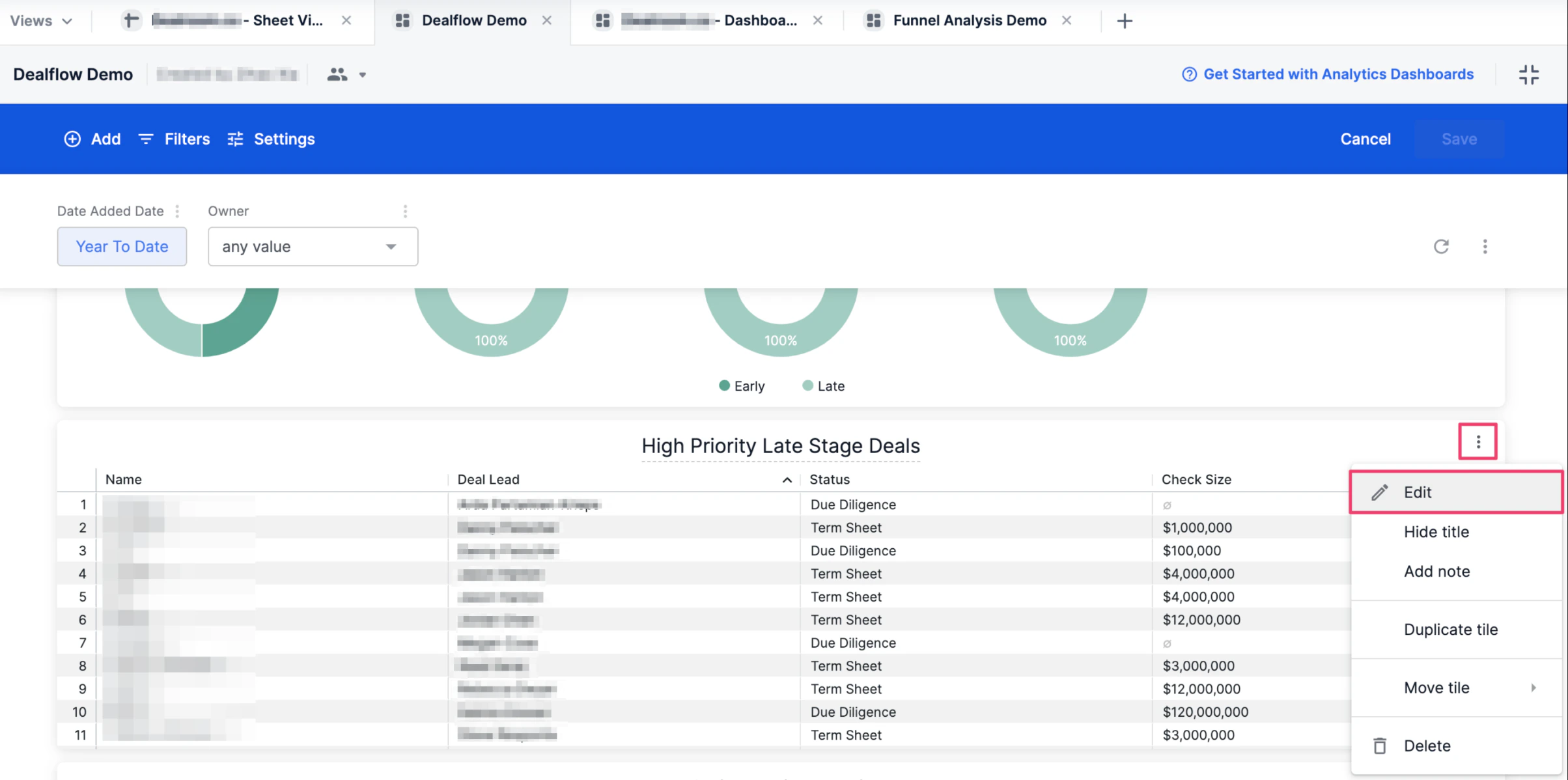
 2. Click the ellipsis (3 dotted icon) on the specific tile that you'd like to create these custom fields in, then click **Edit**.
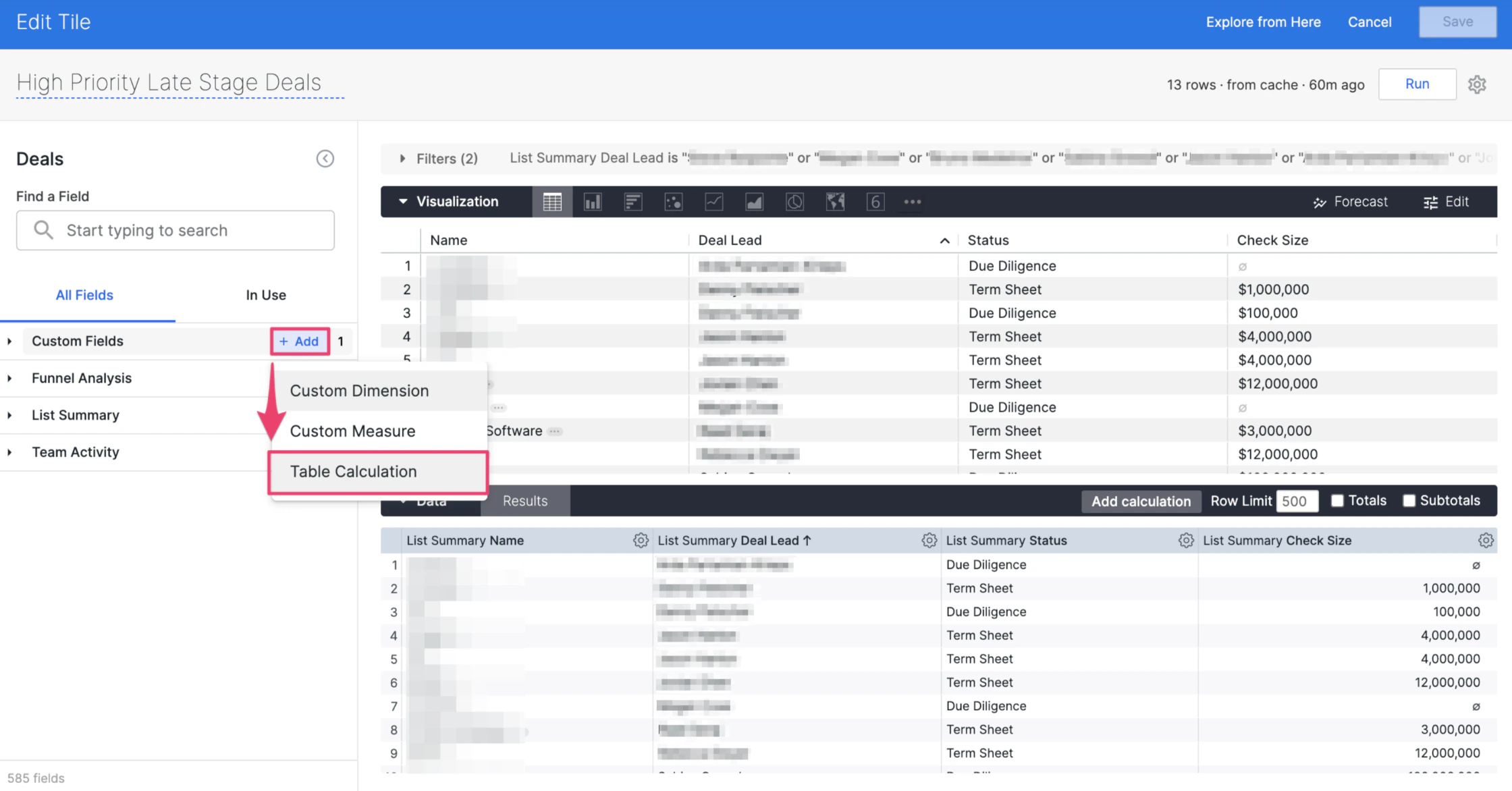
 3. In this example, we'll go over how to create a new table calculation based on the **Check Size** dimension shown in this visualization tile. To create this new table calculation, click **+ Add** next to the **Custom Fields** section, then click **Table Calculation**.
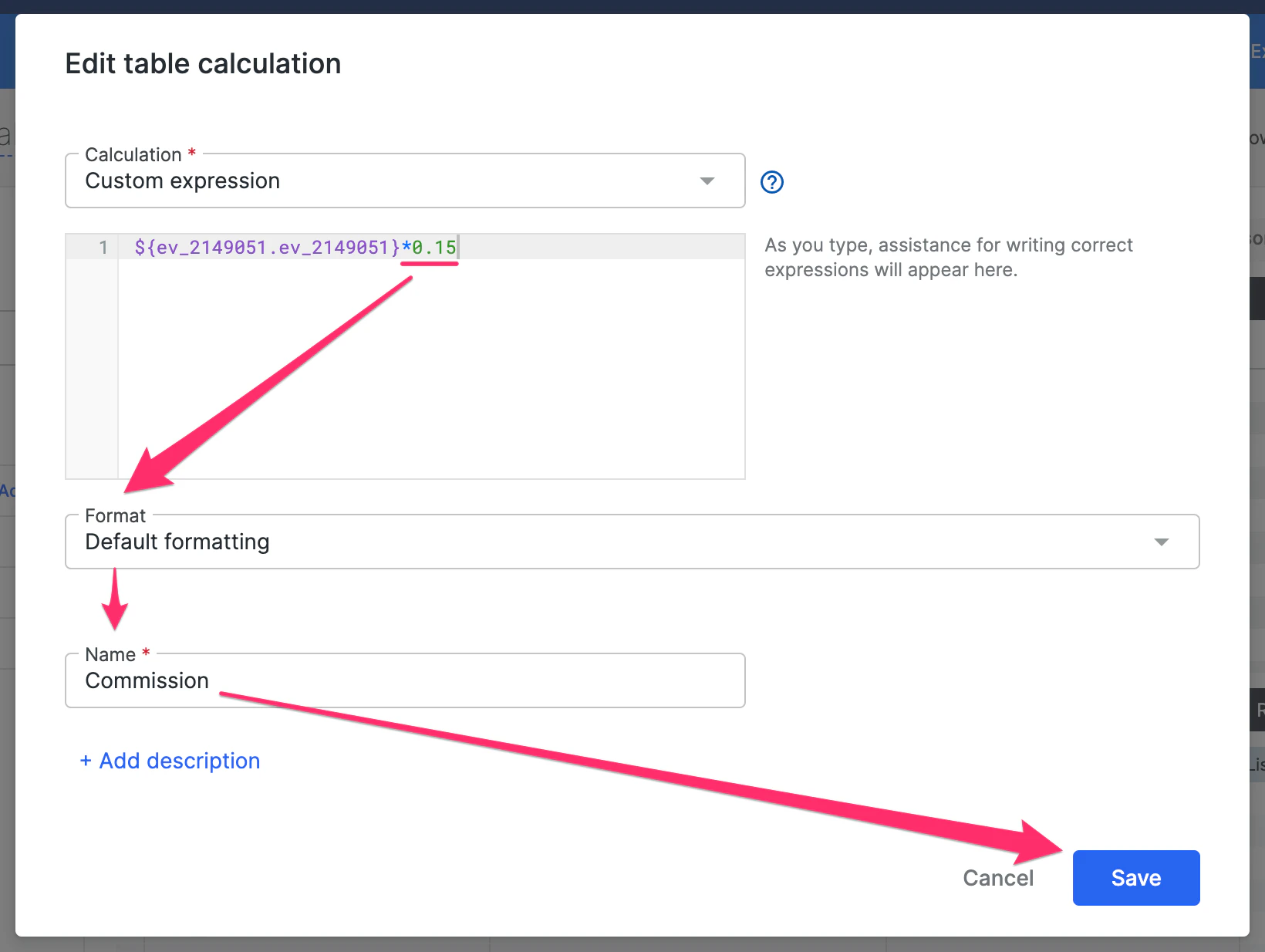
 4. Let's say this newly-calculated field is meant to track an adjusted amount of the **Check Size** based on the commission percentage our Sales Team receives for their closed deals. Therefore, click on the text box and select **Check Size**.
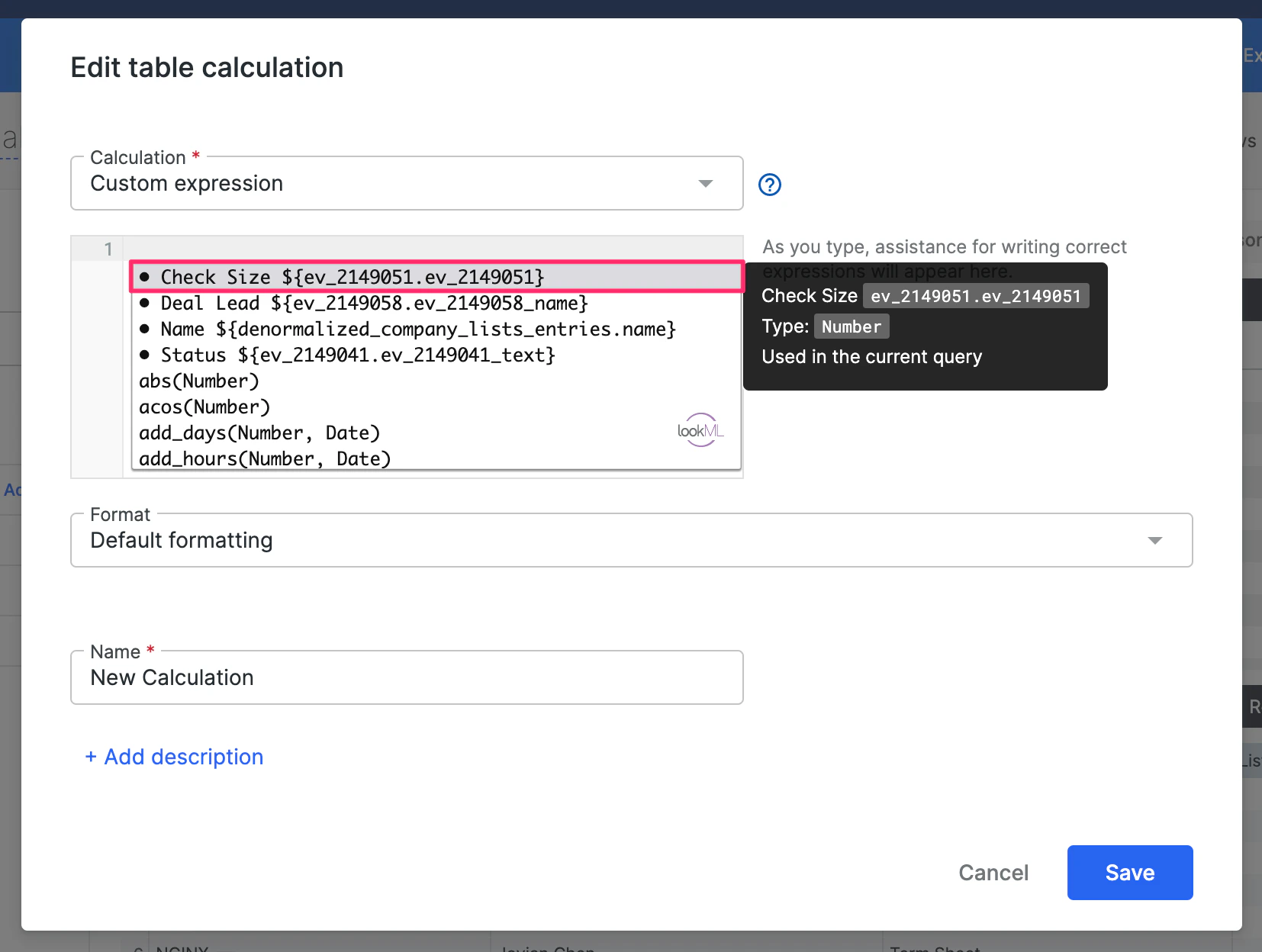 5. Now, we'll use the asterisk (\*) to multiply **Check Size** by the commission percentage of 15% (0.15). Then, select whatever currency format applies to you/your team in the **Format** field (e.g. Dollars, Pounds, or Euros), name this new field (e.g. Commission), and click **Save**.
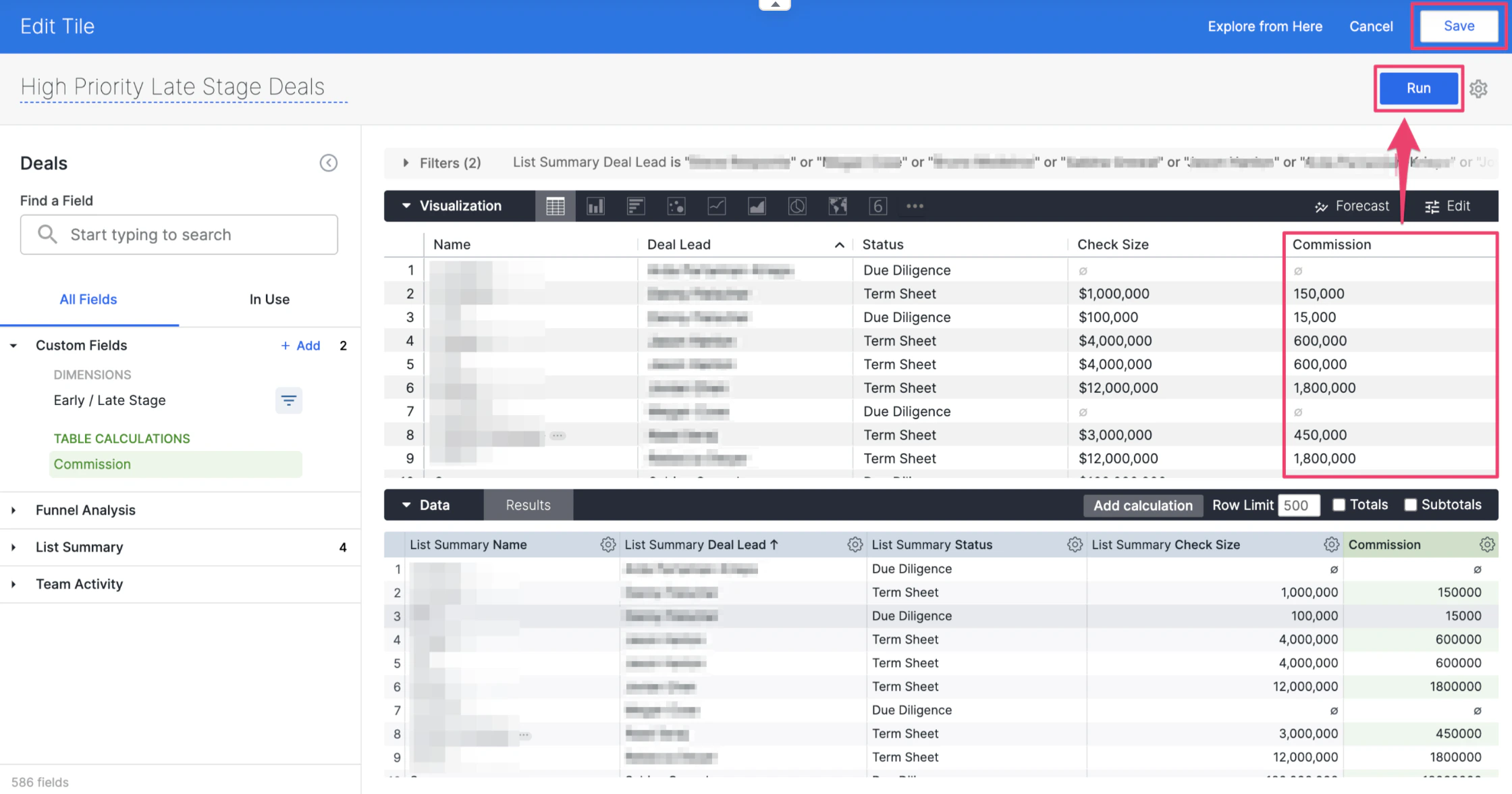
 6. Now, you'll see **Commission** as a new field showing up in the **Visualization** section - click **Run** to make sure any other changes applied render successfully, then click **Save**.
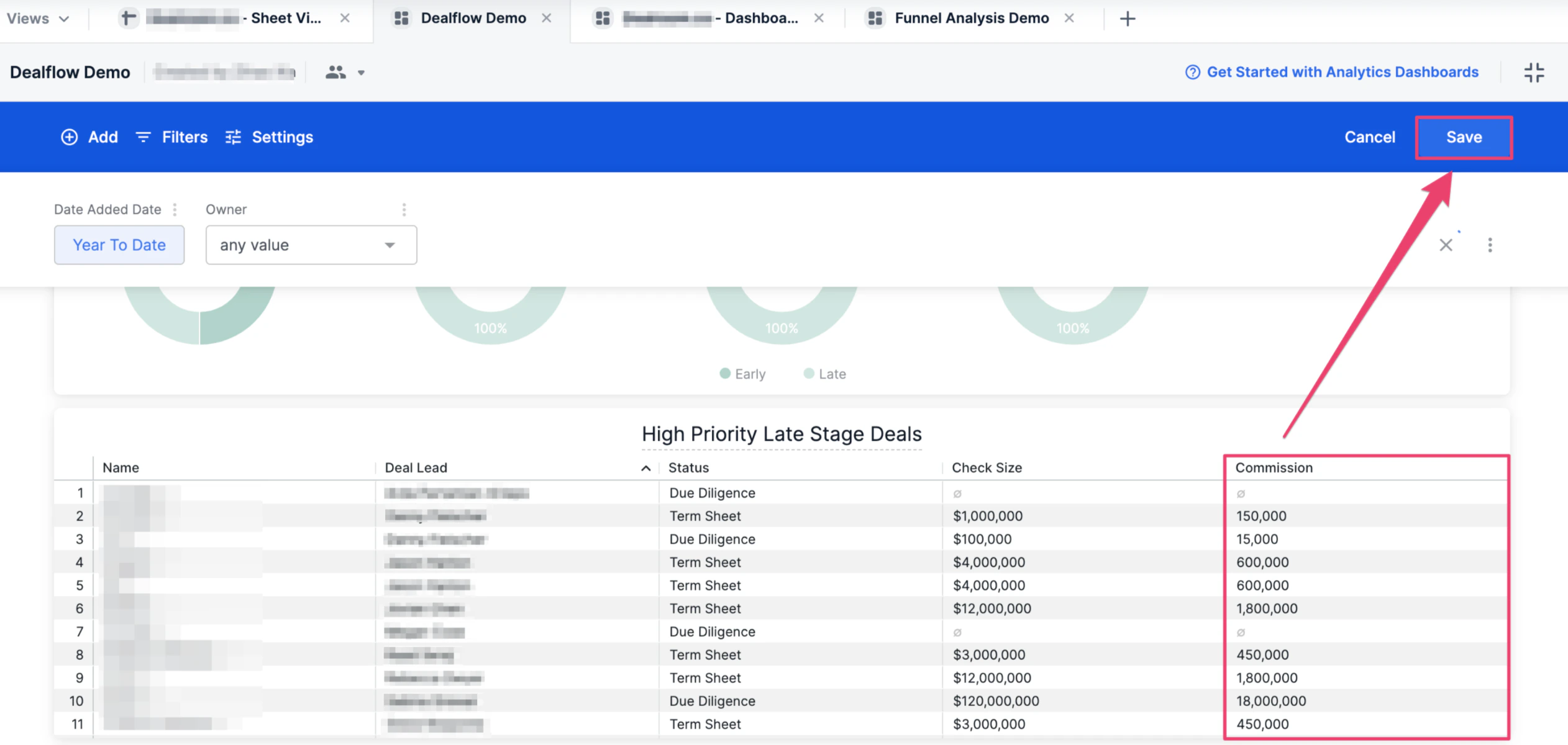
 7. Click **Save** one more time to ensure all changes to the dashboard view are saved, and you're all set!
 ## Additional Information
Aside from the basic operators (i.e. addition, subtraction, multiplication, division), check out the full list of Looker functions/operators you can use for your custom dimensions, measures, and table calculations: [Looker functions and operators](https://docs.looker.com/exploring-data/creating-looker-expressions/looker-functions-and-operators)
## Additional Information
Aside from the basic operators (i.e. addition, subtraction, multiplication, division), check out the full list of Looker functions/operators you can use for your custom dimensions, measures, and table calculations: [Looker functions and operators](https://docs.looker.com/exploring-data/creating-looker-expressions/looker-functions-and-operators)