> ## Documentation Index
> Fetch the complete documentation index at: https://support.affinity.co/llms.txt
> Use this file to discover all available pages before exploring further.
# How To Create And Leverage Opportunities In Affinity
> Help center reference
**Concept** — background and overview.
## What is an opportunity?
Aside from people and organizations, opportunities are special entities that can hold any unique combination of specific people and/or organizations for a particular purpose.
Opportunities are particularly useful for Venture Capital and Investment Banking firms that invest in or track the same company across multiple rounds or for different purposes, respectively.
* For Venture Capital customers, the opportunity names in your "Limited Partners" list can look like the following:
* Investor A - Fund I
* Investor A - Fund II
* Investor B - Fund II
* Investor B - Fund IV
* For Investment Banking customers, the opportunity names in your "Buyers" list can look like the following:
* Company XYZ - Buyer A
* Company XYZ - Buyer B
* Company 123 - Buyer A
* Company 123 - Buyer B
## How do I create an opportunity?
First, create a new opportunity list (see [How to create a new list in Affinity](/s/article/How-to-create-a-new-list-in-Affinity)). If you don't see the option to create a new opportunity list after clicking **Build from scratch**. Once you create a new opportunity list, you can create an opportunity in many different ways:
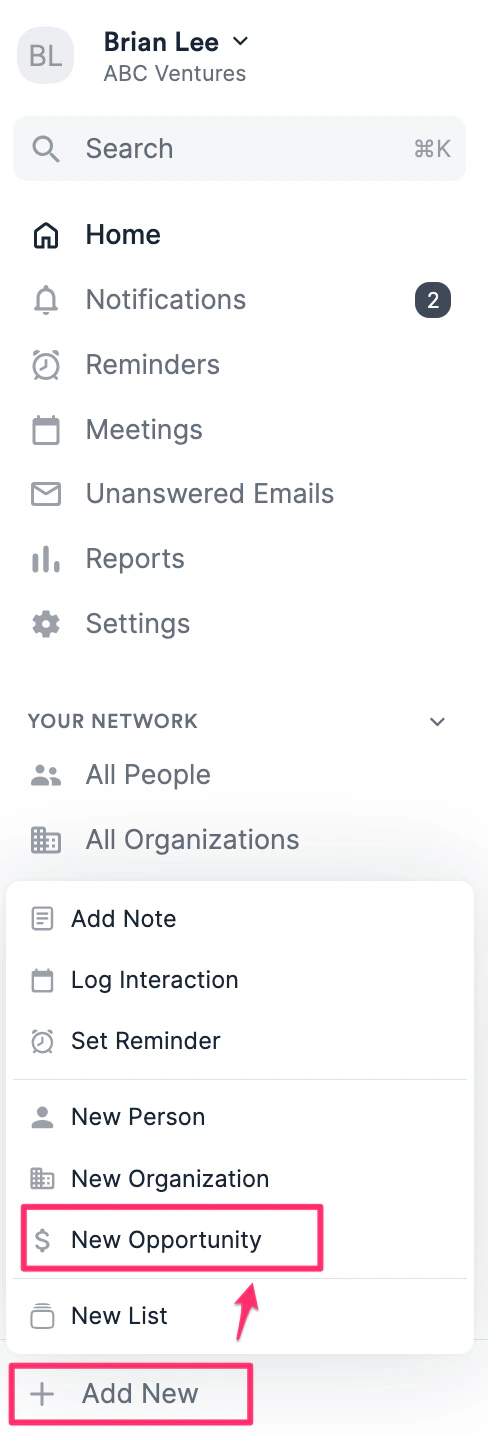
1. Click **+ Add New** on the bottom-left corner, then click **New Opportunity**.
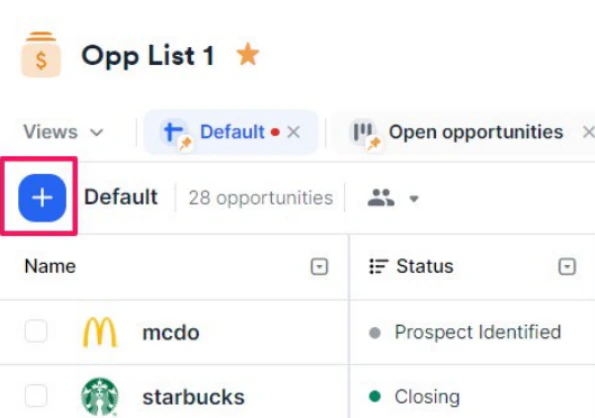
 2. Click the blue **+** button within the opportunity list itself.
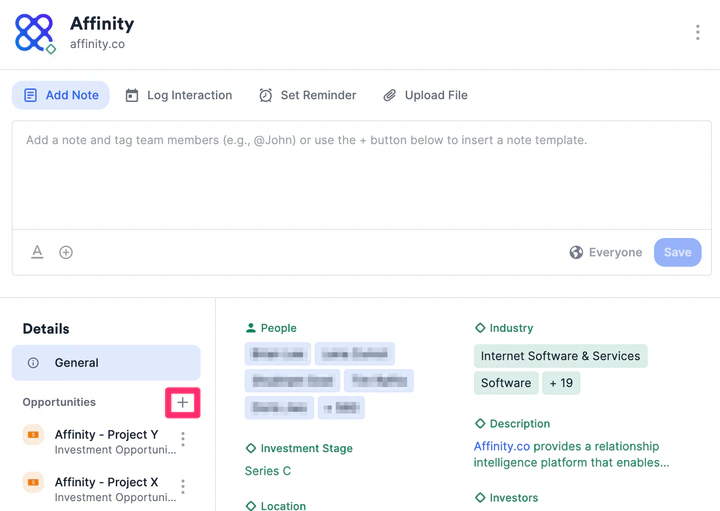
 3. Click the **+** icon on a contact's profile page next the **Opportunities** section.
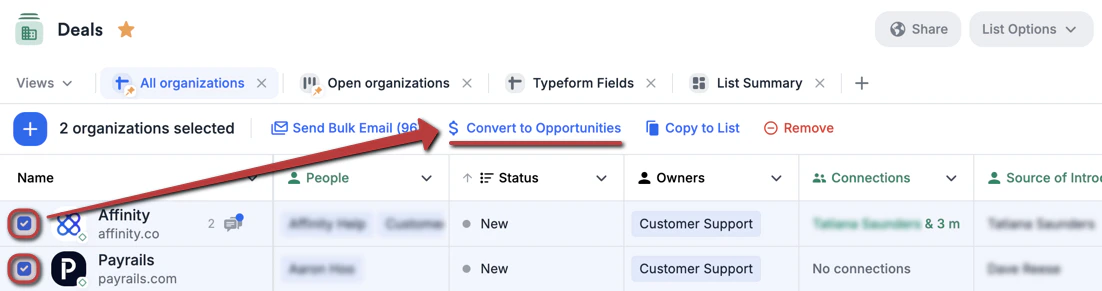
 4. You can also click the checkboxes next to specific organization list entries within an organization list, then click the **Convert to Opportunities** button.
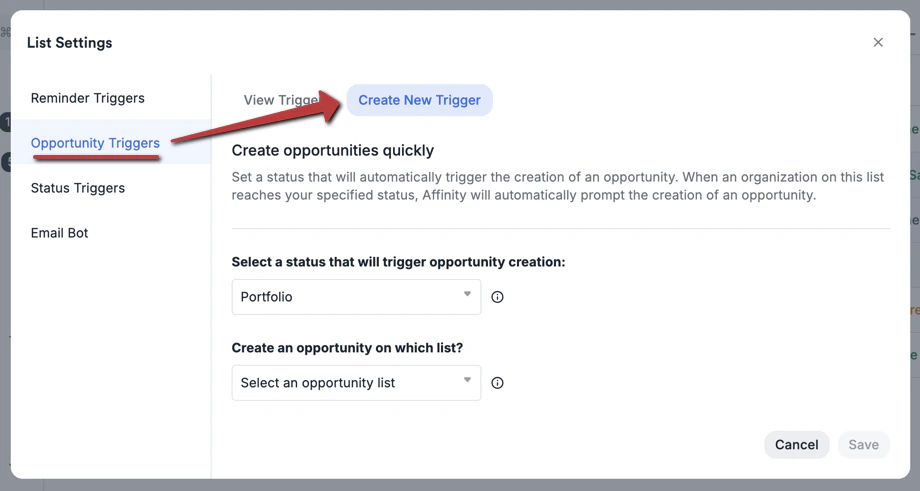
 5. Last but not least, you can [create an opportunity trigger](/s/article/How-to-set-up-Opportunity-Triggers) within an organization list so that new opportunities get created when certain list entries move to a particular status.
 ## How to leverage opportunity lists
1. Track multiple opportunities tied to one organization
* Track the communication history with the specific stakeholders for each individual opportunity associated with an organization.
2. Track communication with stakeholders at large organizations
* While an organization's contact page will show the entire history of communication between individuals at your firm and the organization, opportunities will help you easily access and track the communication history with the specific individuals associated with the opportunity.
3. Track of the value and amount of a deal
* See which team member is the point of contact for the opportunity and where it is in your pipeline using the default **Status** field.
* **Note:** Win probabilities for the **Status** column are only available in opportunity-type lists. Win probabilities come in handy when leveraging the Forecast Report (see [Basic Reporting](/s/article/Basic-Reporting-Forecast-Reports) or [Affinity Analytics](/s/article/How-to-create-probability-adjusted-values-for-forecasting-with-Affinity-Analytics)).
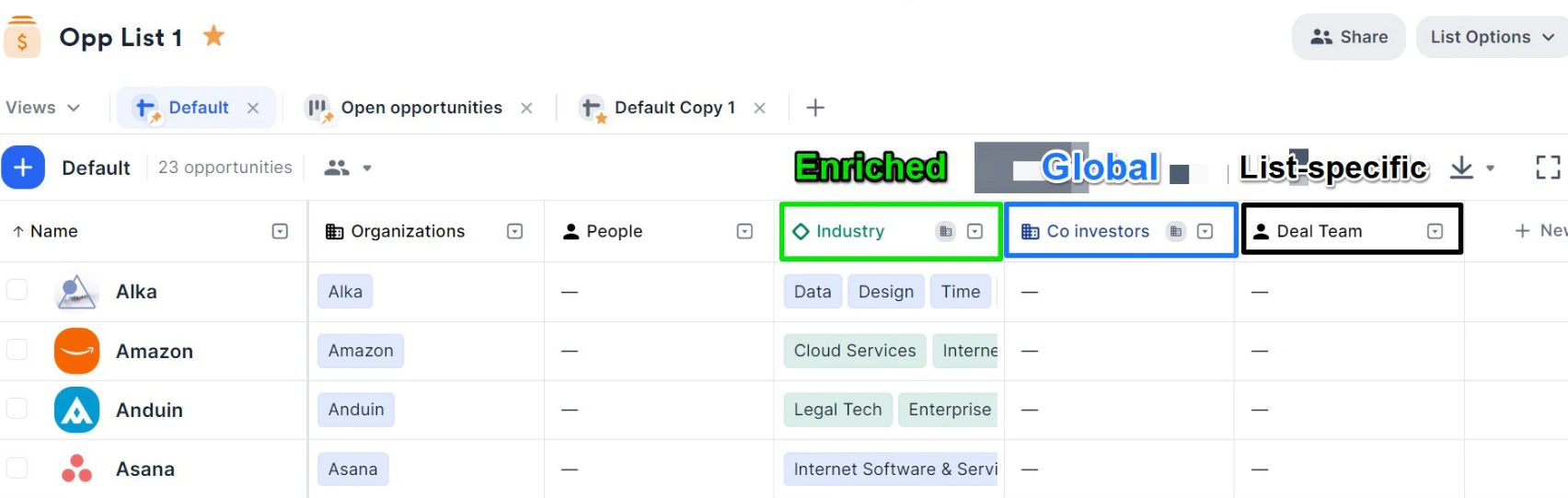
4. Leverage the enriched fields and global fields coming from organization lists.
* You can also create custom list-specific fields that are unique to each opportunity (see [How to create a new column in a list](/s/article/How-to-create-a-new-column-field-in-a-list)).
* Learn more about [Enriched, Global, and List-specific Fields](/s/article/Enriched-Global-and-List-specific-Fields).
## How to leverage opportunity lists
1. Track multiple opportunities tied to one organization
* Track the communication history with the specific stakeholders for each individual opportunity associated with an organization.
2. Track communication with stakeholders at large organizations
* While an organization's contact page will show the entire history of communication between individuals at your firm and the organization, opportunities will help you easily access and track the communication history with the specific individuals associated with the opportunity.
3. Track of the value and amount of a deal
* See which team member is the point of contact for the opportunity and where it is in your pipeline using the default **Status** field.
* **Note:** Win probabilities for the **Status** column are only available in opportunity-type lists. Win probabilities come in handy when leveraging the Forecast Report (see [Basic Reporting](/s/article/Basic-Reporting-Forecast-Reports) or [Affinity Analytics](/s/article/How-to-create-probability-adjusted-values-for-forecasting-with-Affinity-Analytics)).
4. Leverage the enriched fields and global fields coming from organization lists.
* You can also create custom list-specific fields that are unique to each opportunity (see [How to create a new column in a list](/s/article/How-to-create-a-new-column-field-in-a-list)).
* Learn more about [Enriched, Global, and List-specific Fields](/s/article/Enriched-Global-and-List-specific-Fields).
 ## How to use enriched fields and global fields from organizations in your opportunity lists
When an opportunity is associated with **only one organization** under the default **Organizations** field, you will begin to see the enriched fields and global fields from organization lists auto-populate with values corresponding to that particular organization.
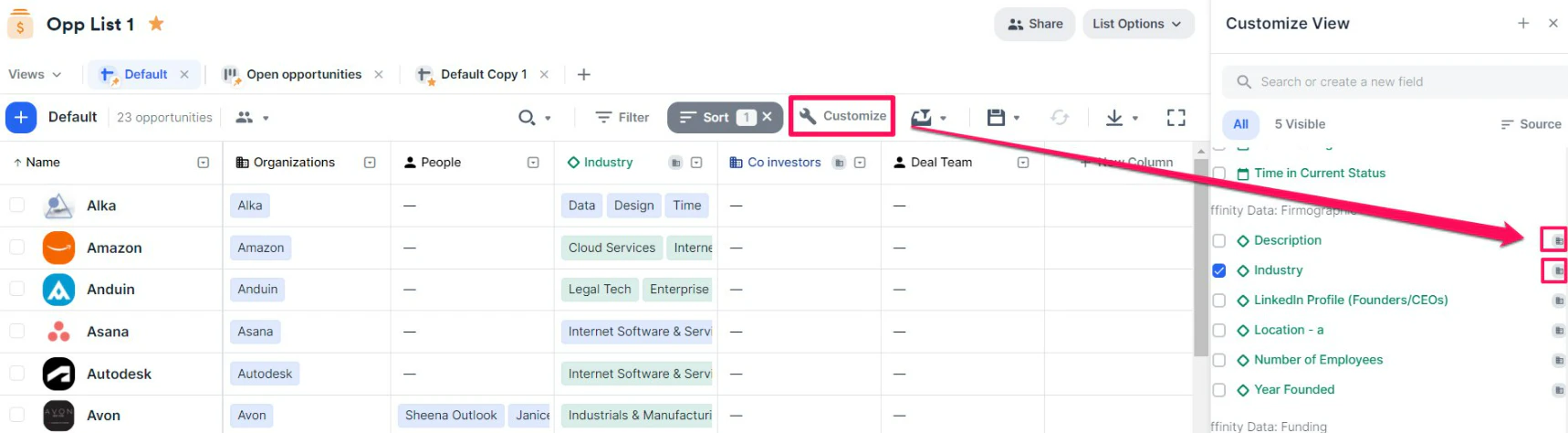
1. Click on **Customize View** to display the enriched fields and global fields you'd like to see.
* They can be easily distinguished by the **organization badge** on the right-side of the screen.
## How to use enriched fields and global fields from organizations in your opportunity lists
When an opportunity is associated with **only one organization** under the default **Organizations** field, you will begin to see the enriched fields and global fields from organization lists auto-populate with values corresponding to that particular organization.
1. Click on **Customize View** to display the enriched fields and global fields you'd like to see.
* They can be easily distinguished by the **organization badge** on the right-side of the screen.
 * They will also appear when you attempt to [create a new column](/s/article/How-to-create-a-new-column-field-in-a-list) in your opportunity list.
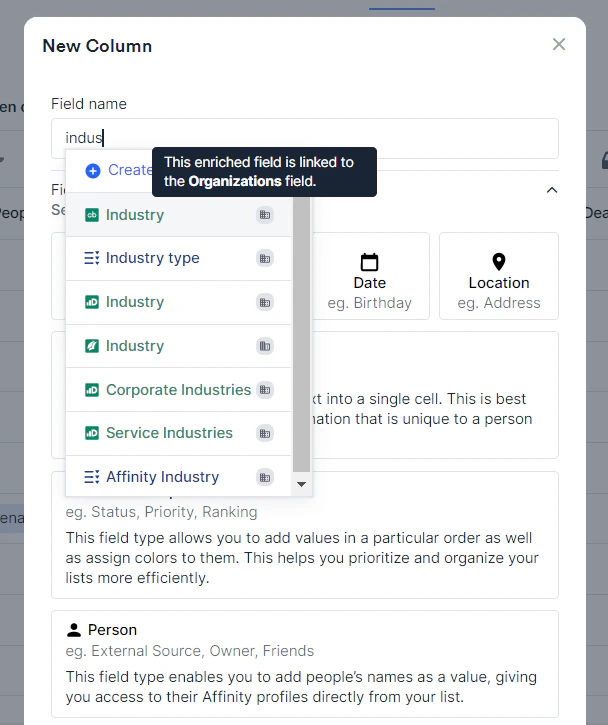 2. You can hover over these enriched fields and global fields to see that they're connected to the default **Organizations** field.
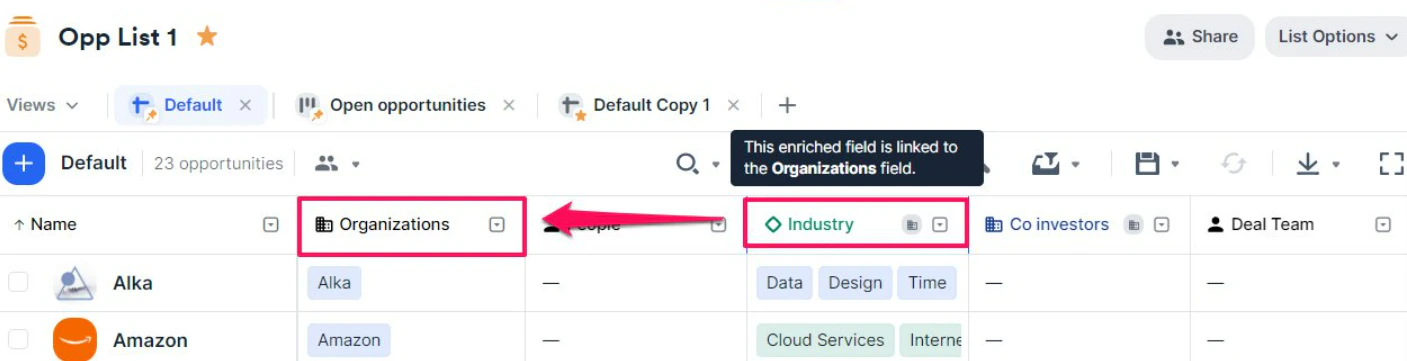 3. Within these enriched fields and global fields, you can edit, filter, and sort these fields like you normally would in organization lists.
4. Current Limitations
* Enriched fields and global fields from organization lists will only be available on sheet view in opportunity lists.
1. They will **not** surface in the Affinity mobile app.
2. They will **not** appear in board views or dashboard views.
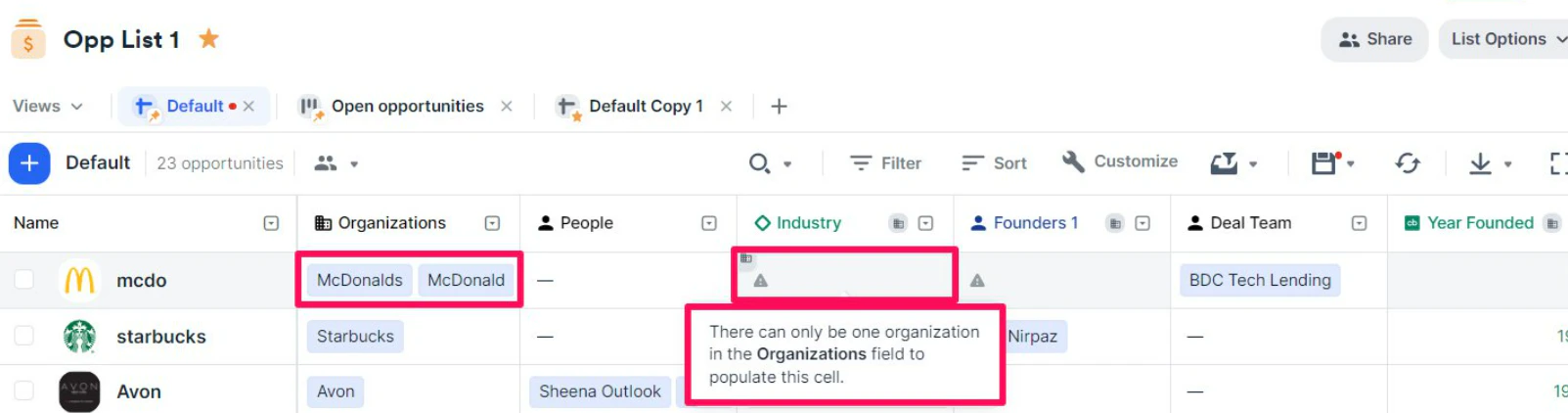
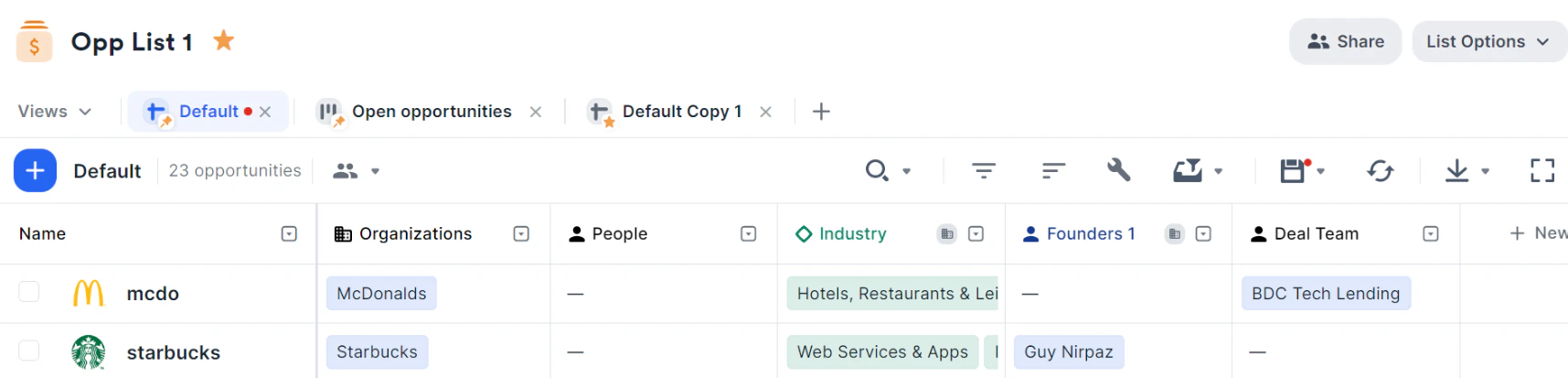
* Values will only appear if there is **only one organization** associated with the opportunity under the default **Organizations** field.
1. If there is **no organization** associated with the opportunity, then no values will appear.
2. If there are **two or more organizations** associated with the opportunity, then no values will appear.
3. Within these enriched fields and global fields, you can edit, filter, and sort these fields like you normally would in organization lists.
4. Current Limitations
* Enriched fields and global fields from organization lists will only be available on sheet view in opportunity lists.
1. They will **not** surface in the Affinity mobile app.
2. They will **not** appear in board views or dashboard views.
* Values will only appear if there is **only one organization** associated with the opportunity under the default **Organizations** field.
1. If there is **no organization** associated with the opportunity, then no values will appear.
2. If there are **two or more organizations** associated with the opportunity, then no values will appear.
 3. Enriched fields and global fields from organization lists cannot be mapped to when importing into an opportunity list. The **workaround** for now would be to import into an organization list instead.
## Understanding the benefits and limitations of opportunity lists
**Benefits**
* You can name the opportunity whatever you want.
* Name it by the organization name itself: Uber
* Name it by a round: Uber - Series A
* Name it by a particular opportunity: Uber - Company X
* The enriched fields and global fields from your organization lists can be leveraged in your opportunity lists as well.
* You can associate any unique combinations of people and/or organizations to each opportunity.
* Example: "JP Morgan Chase" is the name of an opportunity that has an organization and two people associated with it, while Sophia Parsons is the name of another opportunity that only has one person associated with it.
* The smart columns **First Email, Last Email, Last Meeting, Last Contact, and Next Meeting** are auto-enriched only based on who is in the default **People** column for each opportunity.
* This siphons out unwanted communications from other people that are otherwise associated with organizations in organization lists.
* Example: If JP Morgan Chase was in an organization list, there may be 100 people associated under the **People** column because me and my team know about 100 people at JP Morgan Chase.
* However, I can choose to associate JP Morgan Chase as an organization to an opportunity named "JP Morgan Chase", then associate just 2 out of the 100 people because they are specifically designated as main points of contact for this particular opportunity.
3. Enriched fields and global fields from organization lists cannot be mapped to when importing into an opportunity list. The **workaround** for now would be to import into an organization list instead.
## Understanding the benefits and limitations of opportunity lists
**Benefits**
* You can name the opportunity whatever you want.
* Name it by the organization name itself: Uber
* Name it by a round: Uber - Series A
* Name it by a particular opportunity: Uber - Company X
* The enriched fields and global fields from your organization lists can be leveraged in your opportunity lists as well.
* You can associate any unique combinations of people and/or organizations to each opportunity.
* Example: "JP Morgan Chase" is the name of an opportunity that has an organization and two people associated with it, while Sophia Parsons is the name of another opportunity that only has one person associated with it.
* The smart columns **First Email, Last Email, Last Meeting, Last Contact, and Next Meeting** are auto-enriched only based on who is in the default **People** column for each opportunity.
* This siphons out unwanted communications from other people that are otherwise associated with organizations in organization lists.
* Example: If JP Morgan Chase was in an organization list, there may be 100 people associated under the **People** column because me and my team know about 100 people at JP Morgan Chase.
* However, I can choose to associate JP Morgan Chase as an organization to an opportunity named "JP Morgan Chase", then associate just 2 out of the 100 people because they are specifically designated as main points of contact for this particular opportunity.
 **Limitations**
* While enriched fields and global fields from **organization lists** are available in opportunity lists ([sheet views and dashboard views only](/s/article/Getting-started-with-lists-in-Affinity), not board views), enriched fields and global fields from **people lists** are **not** available in opportunity lists.
* Even though the **Notes** and **Reminders** fields are colored in blue within **opportunity lists**, they will still be treated as **list-specific fields**. This means that any notes or reminders assigned to an opportunity will **not** carry over to the people and/or organizations that are associated with the opportunity.
**Limitations**
* While enriched fields and global fields from **organization lists** are available in opportunity lists ([sheet views and dashboard views only](/s/article/Getting-started-with-lists-in-Affinity), not board views), enriched fields and global fields from **people lists** are **not** available in opportunity lists.
* Even though the **Notes** and **Reminders** fields are colored in blue within **opportunity lists**, they will still be treated as **list-specific fields**. This means that any notes or reminders assigned to an opportunity will **not** carry over to the people and/or organizations that are associated with the opportunity.