> ## Documentation Index
> Fetch the complete documentation index at: https://support.affinity.co/llms.txt
> Use this file to discover all available pages before exploring further.
# How To Bulk Convert Organizations Into Opportunities
> Help center reference
**How-to** — task-oriented recipe.
Easily create multiple opportunities at once from a dedicated organization list.
## How to bulk-convert organizations into opportunities
1. Click into the All Organizations directory or the relevant organization list.
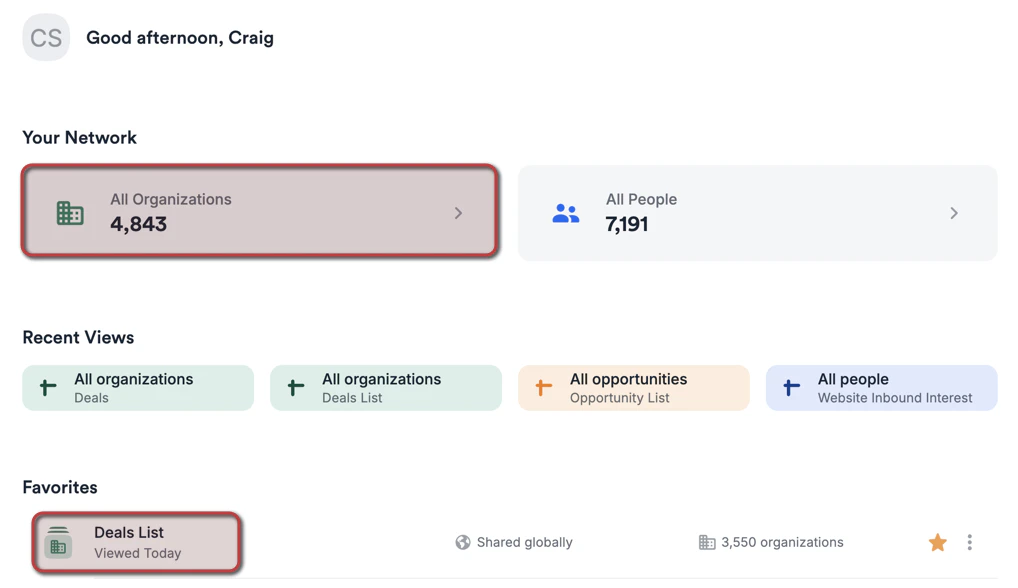 2. Click the checkboxes for all the organizations you'd like to create opportunities for, then click **Convert to Opportunities**. If you **don't have** any opportunity lists created, you can create an opportunity list first before continuing (see [How to create a new list in Affinity](/s/article/How-to-create-a-new-list-in-Affinity)).
**Note**: If you have over 40 list entries, you may see something like **(40/3,550)**. This means that only 40 out of 3,550 list entries will be converted into opportunities. To make sure the other 3,410 entries get converted as well, you must scroll all the way down to the bottom of the list so that they can properly load and get included.
2. Click the checkboxes for all the organizations you'd like to create opportunities for, then click **Convert to Opportunities**. If you **don't have** any opportunity lists created, you can create an opportunity list first before continuing (see [How to create a new list in Affinity](/s/article/How-to-create-a-new-list-in-Affinity)).
**Note**: If you have over 40 list entries, you may see something like **(40/3,550)**. This means that only 40 out of 3,550 list entries will be converted into opportunities. To make sure the other 3,410 entries get converted as well, you must scroll all the way down to the bottom of the list so that they can properly load and get included.
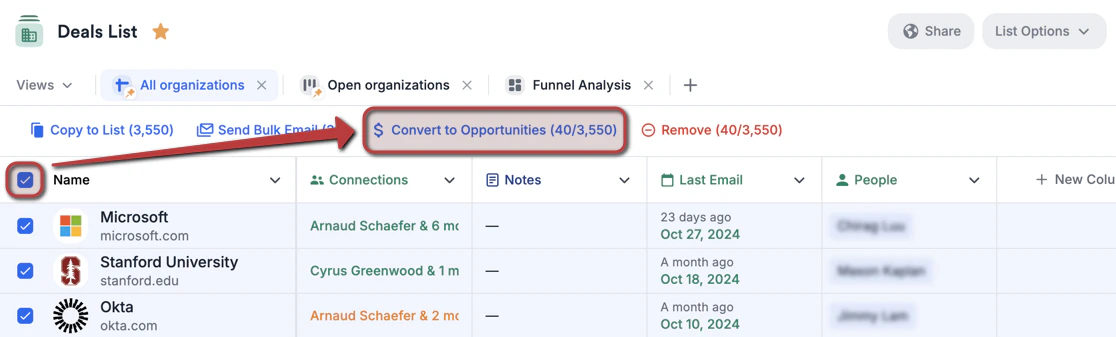 3. By default, each opportunity will be named based on the organization's name. However, you can customize each opportunity name to help differentiate them by project, subject, or anything else.
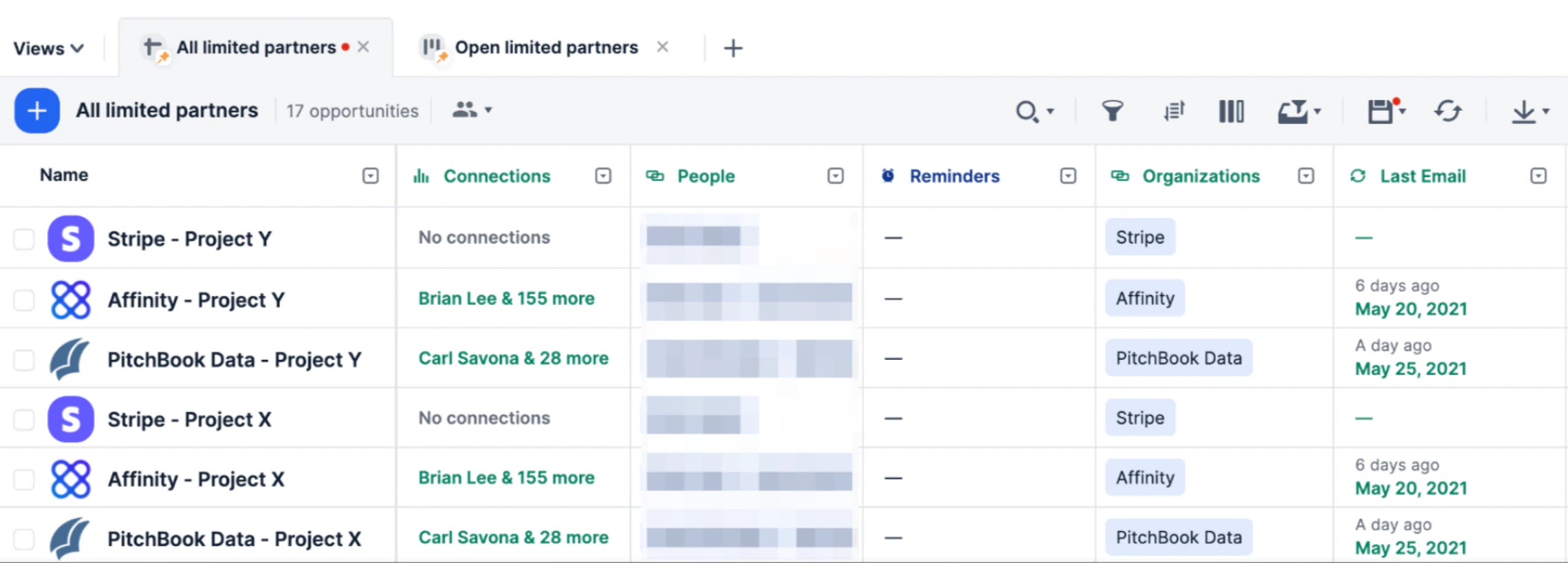
* Example: If you are creating 3 opportunities related to Project X for Affinity, Stripe, and Pitchbook Data, you can append "- Project X" after each organization's name:
* Affinity - Project X
* Stripe - Project X
* Pitchbook Data - Project X
3. By default, each opportunity will be named based on the organization's name. However, you can customize each opportunity name to help differentiate them by project, subject, or anything else.
* Example: If you are creating 3 opportunities related to Project X for Affinity, Stripe, and Pitchbook Data, you can append "- Project X" after each organization's name:
* Affinity - Project X
* Stripe - Project X
* Pitchbook Data - Project X
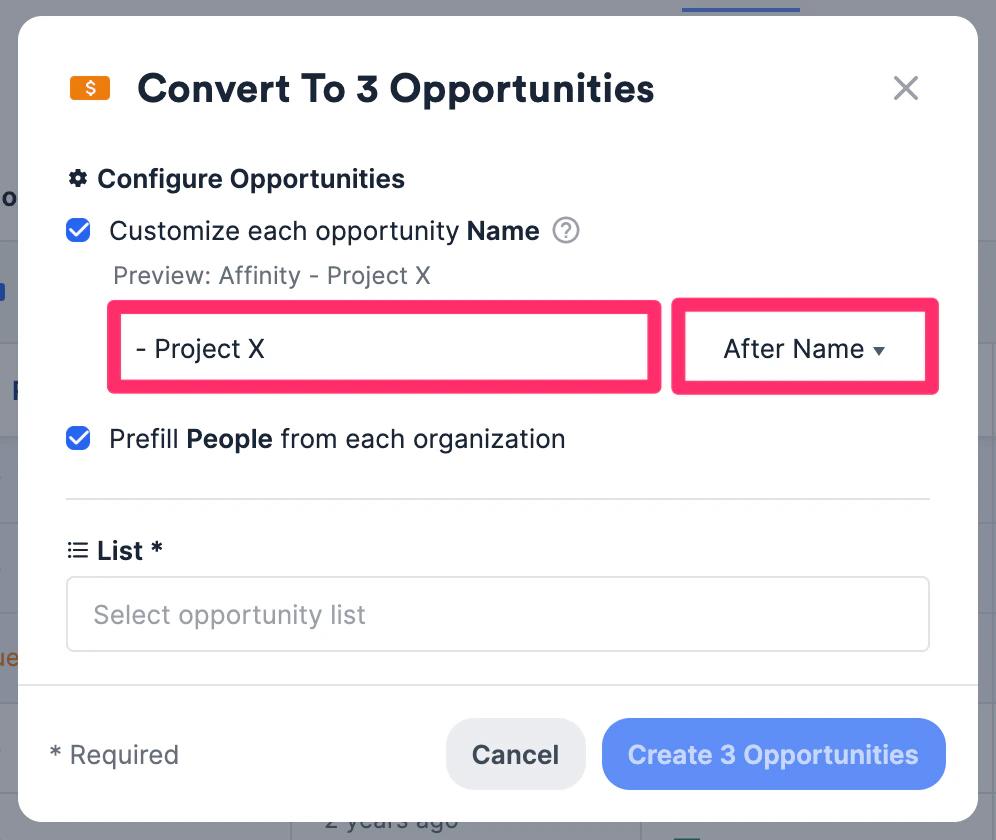 4. If the same 3 organizations are related to Project Y as well, you can repeat the process above and label them this time for Project Y:
* Affinity - Project Y
* Stripe - Project Y
* Pitchbook Data - Project Y
4. If the same 3 organizations are related to Project Y as well, you can repeat the process above and label them this time for Project Y:
* Affinity - Project Y
* Stripe - Project Y
* Pitchbook Data - Project Y
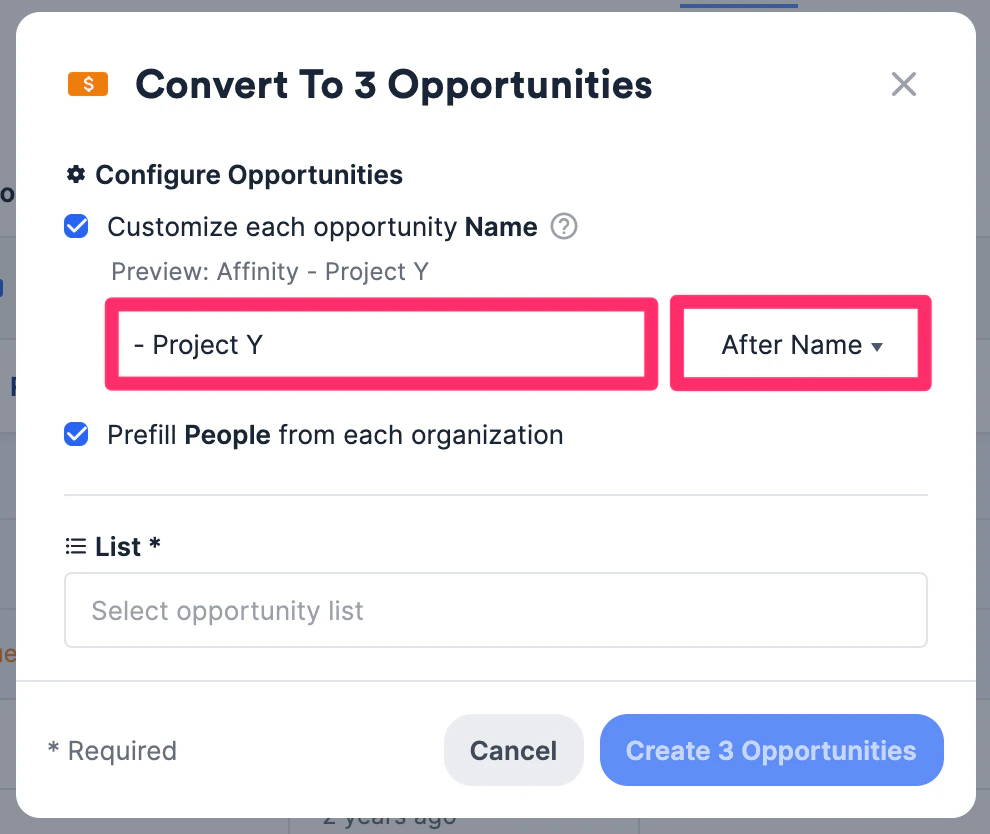 5. Now, you'll have 6 opportunities (3 for Project X and 3 for Project Y) created with just a few clicks.
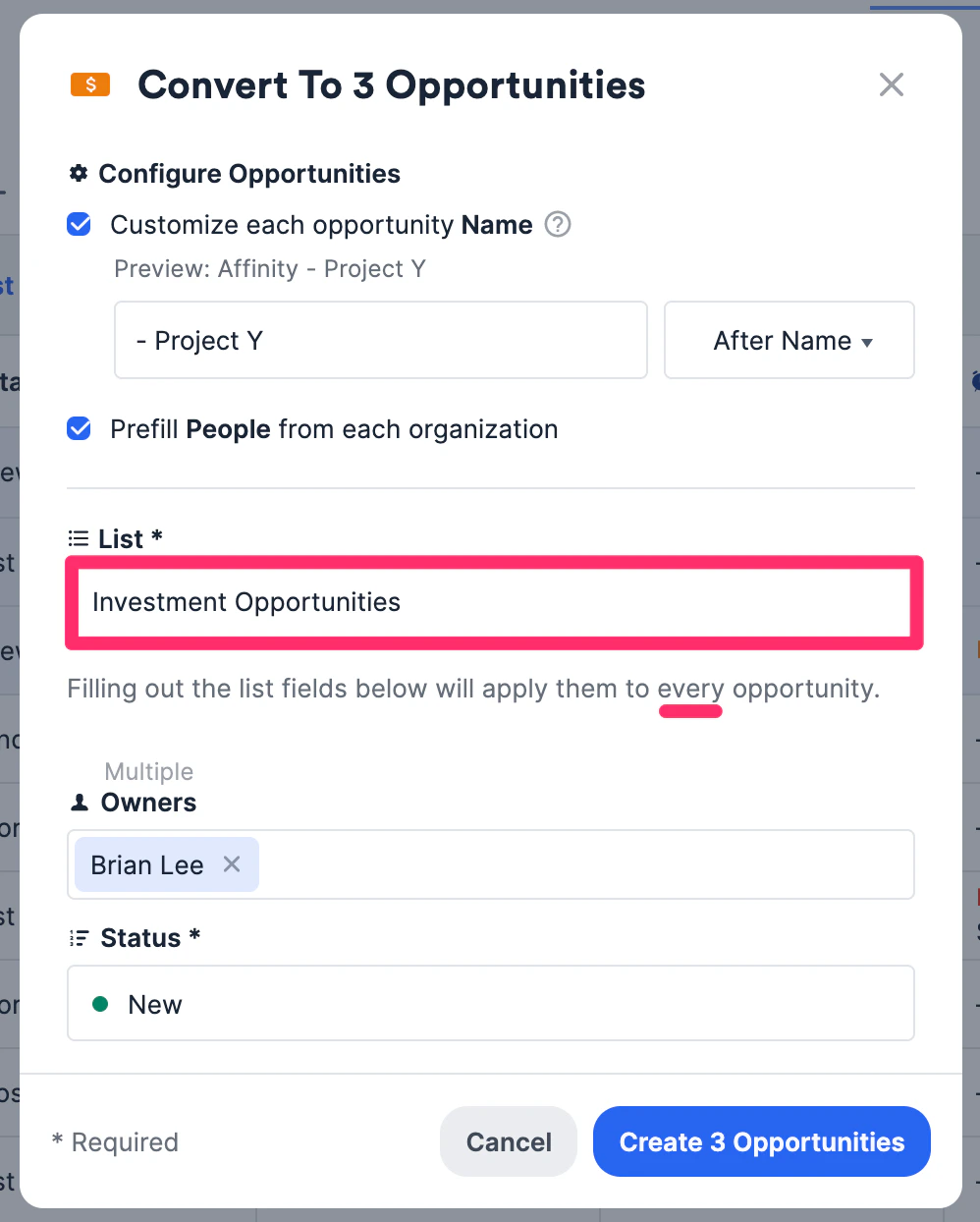
 6. Click the checkbox for "Prefill **People** from each organization" so that each opportunity is filled with all the people associated with each organization. This will be much more efficient by enabling you to remove irrelevant people from these opportunities afterward, rather than having to add specific individuals one-by-one.
7. Last but not least, select the opportunity list you'd like to create these opportunities in. If you do not have an opportunity list yet, you can [create one](/s/article/How-to-create-a-new-list-in-Affinity) before proceeding.
* The values that are inputted into these fields will be applied to **all the opportunities** that are about to be created.
6. Click the checkbox for "Prefill **People** from each organization" so that each opportunity is filled with all the people associated with each organization. This will be much more efficient by enabling you to remove irrelevant people from these opportunities afterward, rather than having to add specific individuals one-by-one.
7. Last but not least, select the opportunity list you'd like to create these opportunities in. If you do not have an opportunity list yet, you can [create one](/s/article/How-to-create-a-new-list-in-Affinity) before proceeding.
* The values that are inputted into these fields will be applied to **all the opportunities** that are about to be created.
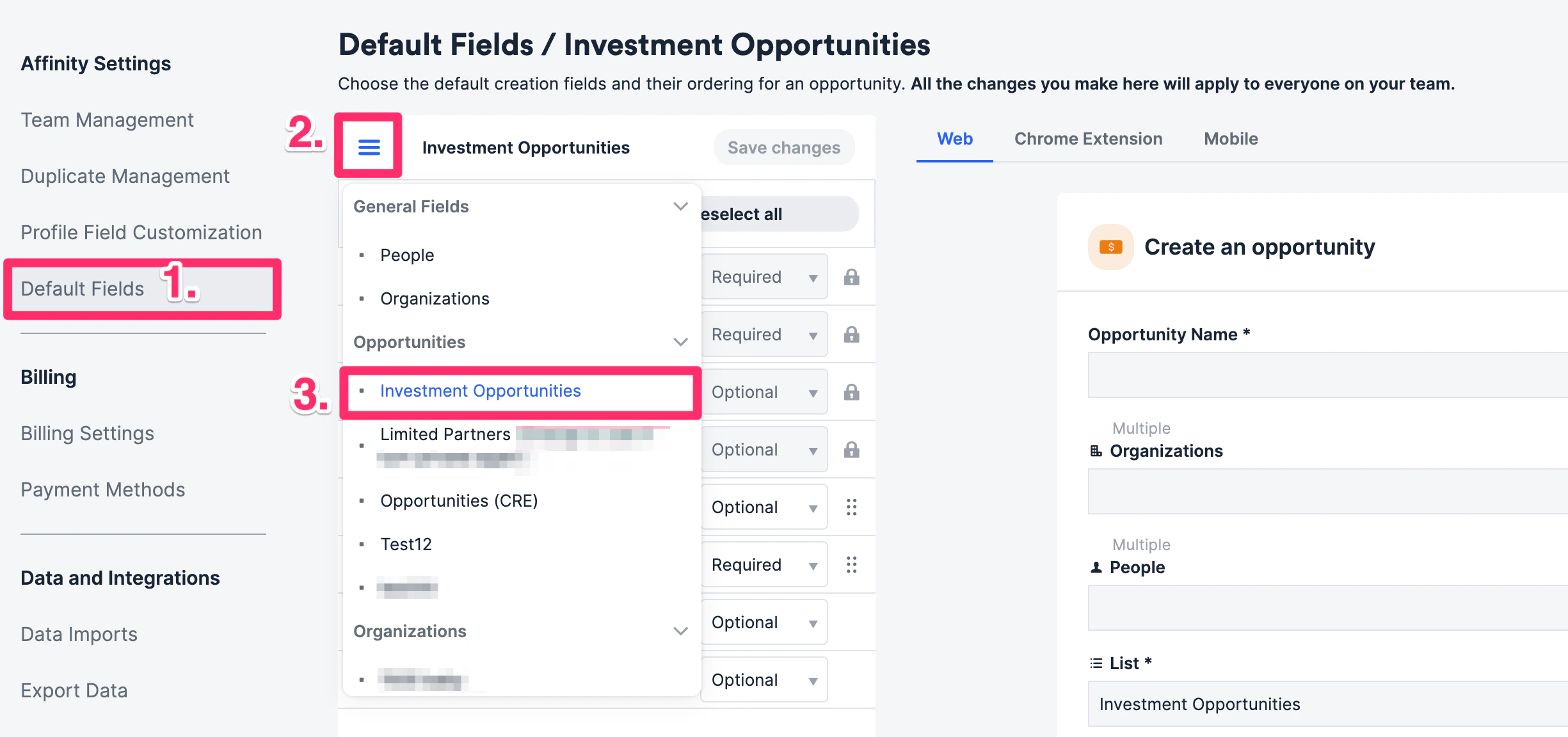
 8. If there are too many required fields for that opportunity list, you can always adjust them afterward via the [Default Fields](/s/article/How-to-customize-Default-Fields) tab found in your Settings.
 9. Click the blue **Create # Opportunities** button and you're all set!
10. Click the checkboxes for all the organizations you'd like to create opportunities for, then click **Convert to Opportunities**. If you **don't have** any opportunity lists created, you can create an opportunity list first before continuing (see [How to create a new list in Affinity](/s/article/How-to-create-a-new-list-in-Affinity)).
* **Note**: If you have over 40 list entries, you may see something like **(40/3,550)**. This means that only 40 out of 3,550 list entries will be converted into opportunities. To make sure the other 3,410 entries get converted as well, you must scroll all the way down to the bottom of the list so that they can properly load and get included.
9. Click the blue **Create # Opportunities** button and you're all set!
10. Click the checkboxes for all the organizations you'd like to create opportunities for, then click **Convert to Opportunities**. If you **don't have** any opportunity lists created, you can create an opportunity list first before continuing (see [How to create a new list in Affinity](/s/article/How-to-create-a-new-list-in-Affinity)).
* **Note**: If you have over 40 list entries, you may see something like **(40/3,550)**. This means that only 40 out of 3,550 list entries will be converted into opportunities. To make sure the other 3,410 entries get converted as well, you must scroll all the way down to the bottom of the list so that they can properly load and get included.