> ## Documentation Index
> Fetch the complete documentation index at: https://support.affinity.co/llms.txt
> Use this file to discover all available pages before exploring further.
# How To Add Third Party Applications To Your Google Workspace
> Help center reference: How To Add Third Party Applications To Your Google Workspace
**How-to** — task-oriented recipe.
If you're setting up [native integrations within Affinity](/s/article/Integrations) but running into issues, your IT/Google Workspace admin may have placed additional security measures across all third-party applications. To approve of certain third-party applications, your IT/Google Workspace admin can follow these steps below. In this example, we are trying to set up [Affinity's native integration with Google Drive](/s/article/Integrations), so we will add the [**tray.io**](http://tray.io/) **- drive connector** option.
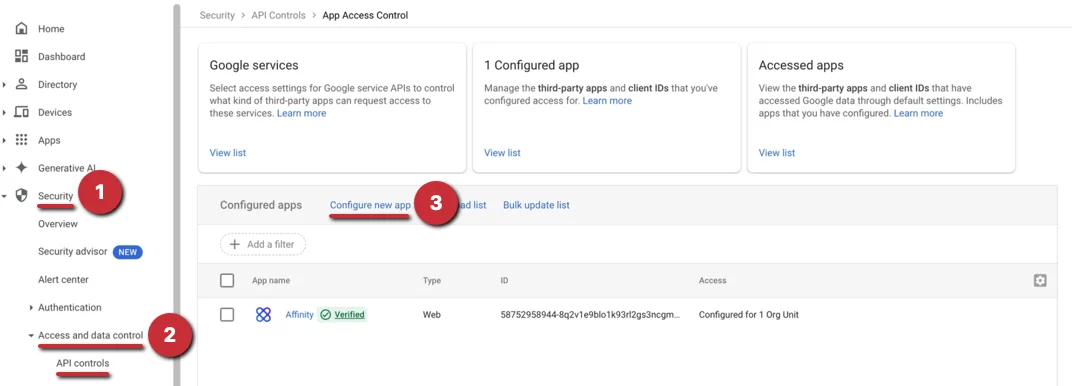
1. As the Google Workspace admin, sign into [https://admin.google.com/](https://admin.google.com/)
2. Click on the **Security** tab, then under **Access and data control**, click on **API Controls**.
3. From here, click on **Configure new app**.
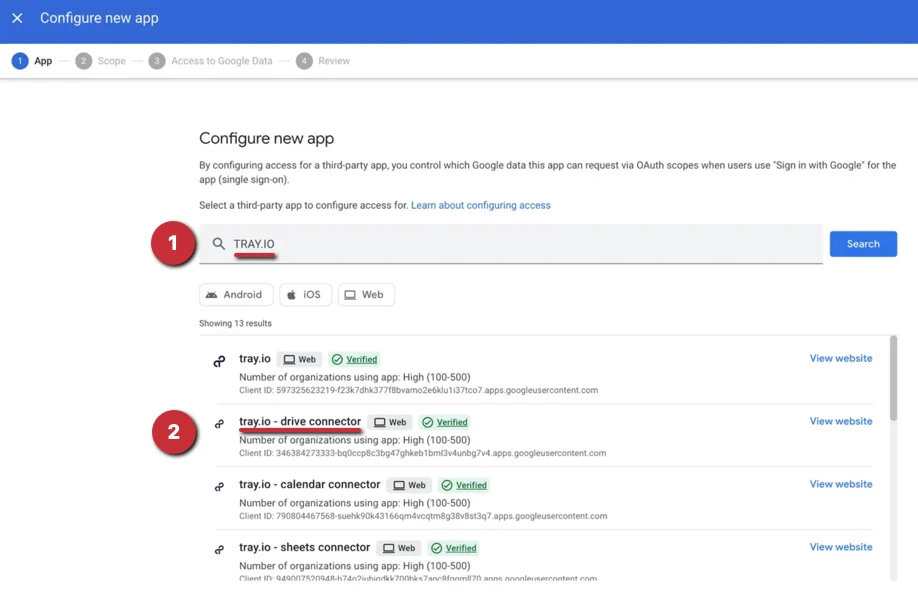
 4. Type in [tray.io](http://tray.io/) in the search bar. Since we are using it for the Google Drive integration, we will select the [**tray.io**](http://tray.io/) **- drive connector** option.
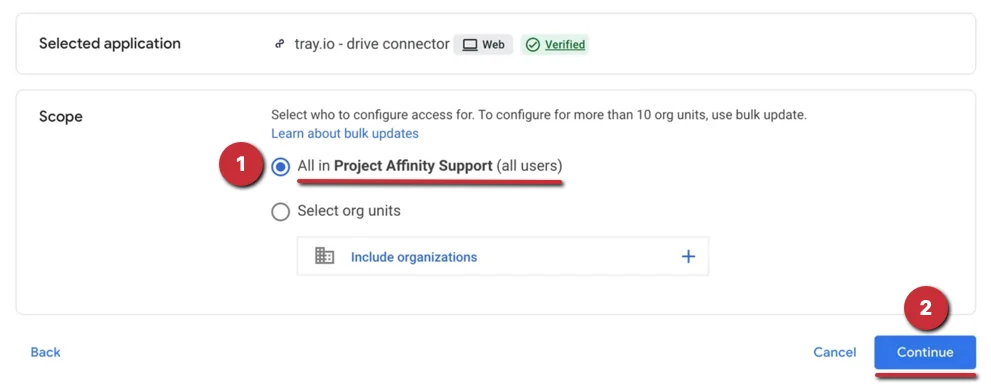
 5. Select the first option for all users, then click **Continue**.
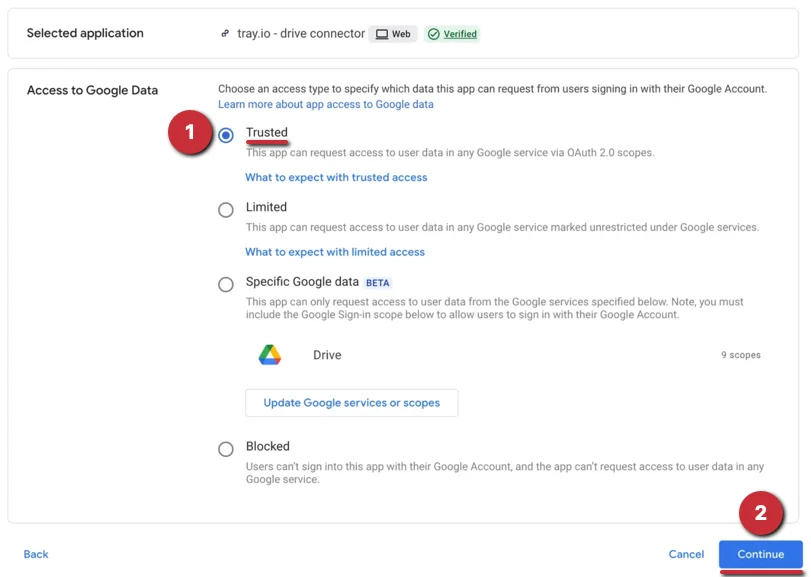
 6. Select **Trusted**, then click **Continue**.
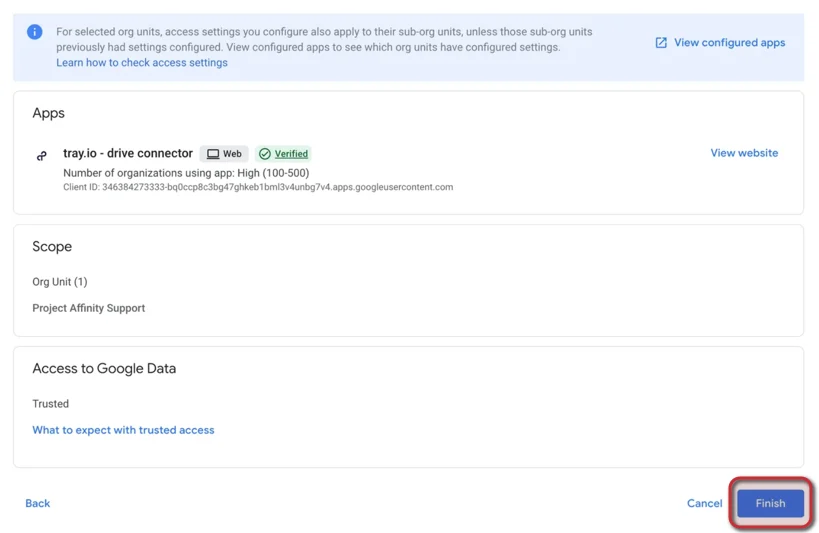
 7. Click **Finish** and you're all set. Now, you can return to your Integrations page in Affinity and complete the set up process for the Google Drive integration.