> ## Documentation Index
> Fetch the complete documentation index at: https://support.affinity.co/llms.txt
> Use this file to discover all available pages before exploring further.
# How to add and view notes in Affinity
> Help center reference
**How-to** — task-oriented recipe.
Create notes in Affinity and tag your team members, include links to relevant websites, [use note templates](/s/article/How-to-create-use-Note-Templates-within-Affinity), and highlight specific information with [rich text formatting](/s/article/Rich-text-formatting-for-notes-within-Affinity).
## Who can add and view notes in Affinity?
* Only internal **Users** with full access to the Affinity CRM can add and view notes from fellow team members.
* External **Collaborators** cannot add and view notes, but can [add comments](/s/article/How-to-add-and-view-comments-in-Affinity) to specific list entries within the saved views they've been given access to.
## When to use comments vs notes in Affinity
* We suggest using **comments** for quick Q\&A regarding a given list entry and for conversations with external Collaborators.
* We suggest using **notes** for adding important information that should be viewed within the context of your team's relationship with the given entity.
## Create notes from the global navigation sidebar
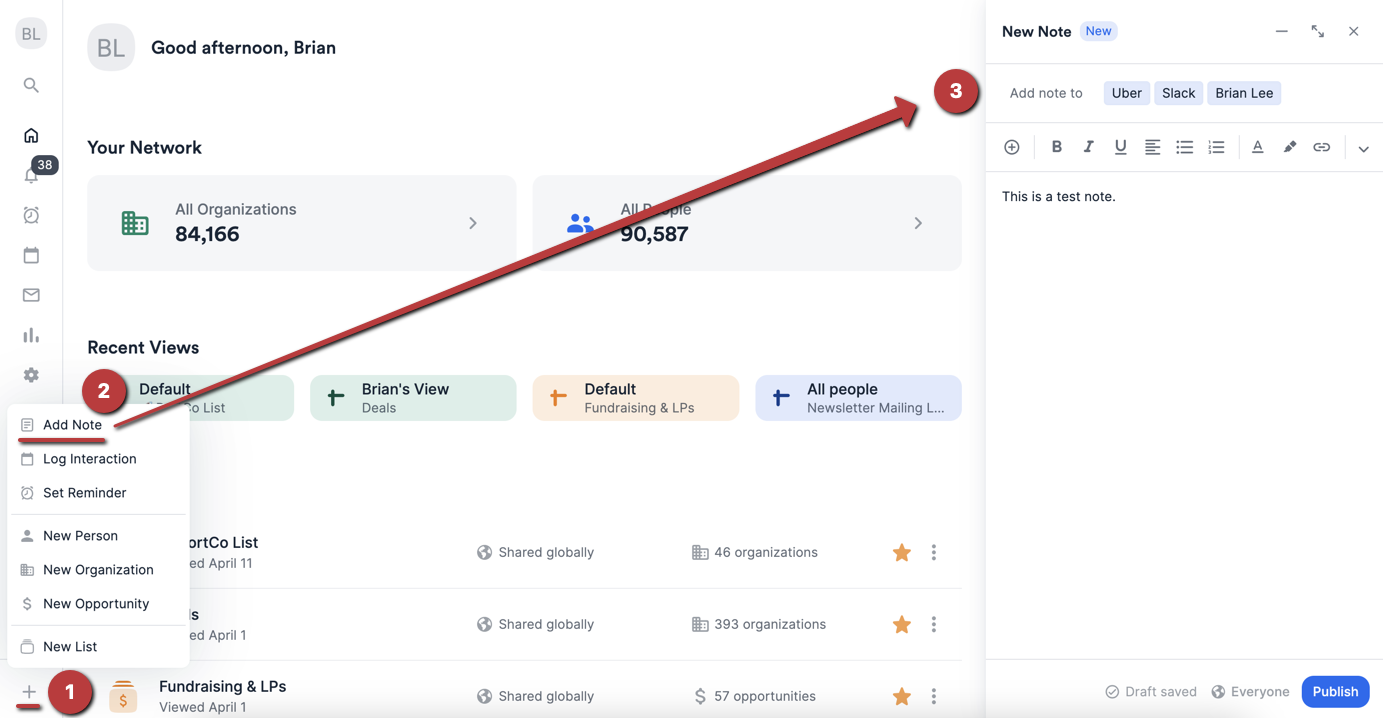
1. Click **+ Add New** on the bottom-left corner to quickly create a note for a person, organization, or opportunity.
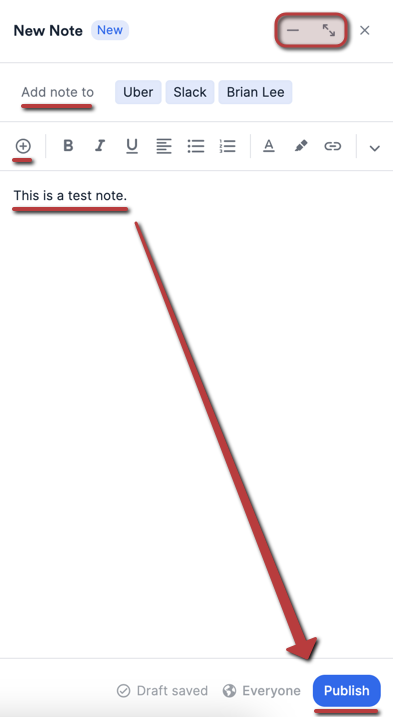
 2. Here are the main actions you can take on the notes sidebar:
* Easily navigate across different pages and product areas without needing to minimize your note, but if you'd like, you can click the **Minimize** icon on the-top-right corner to temporarily store it as a draft.
* You can tag multiple people, organizations, and opportunities to a regular note.
* You can quickly insert a [note template](/s/article/How-to-create-use-Note-Templates-within-Affinity) that you created.
**Important Callout**: You can only have one draft at a time.
2. Here are the main actions you can take on the notes sidebar:
* Easily navigate across different pages and product areas without needing to minimize your note, but if you'd like, you can click the **Minimize** icon on the-top-right corner to temporarily store it as a draft.
* You can tag multiple people, organizations, and opportunities to a regular note.
* You can quickly insert a [note template](/s/article/How-to-create-use-Note-Templates-within-Affinity) that you created.
**Important Callout**: You can only have one draft at a time.
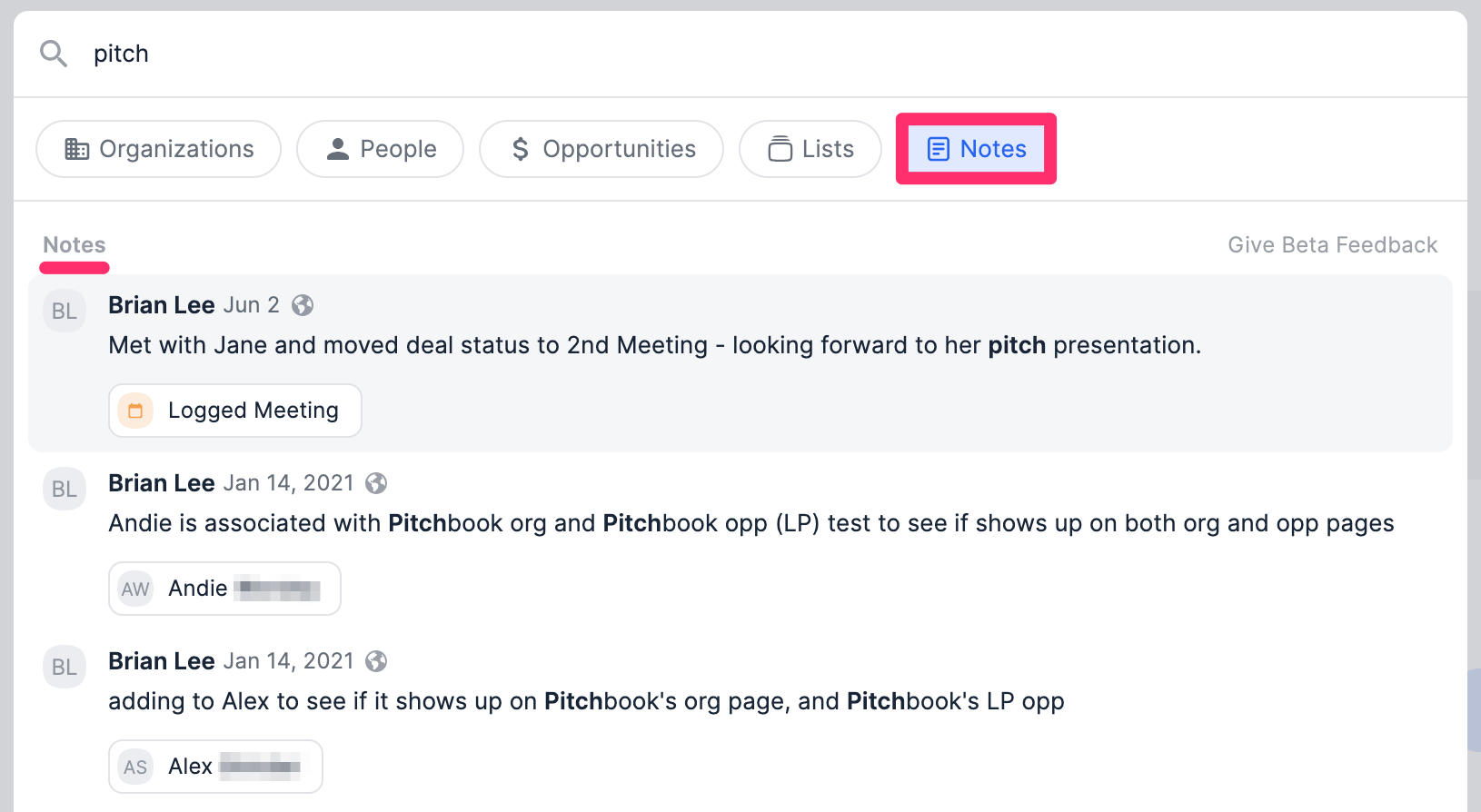
 3. Last but not least, you can click on the **Notes** pill within the search bar to search for notes across your entire account that match your keyword.
 ## Create and view notes on a profile page
Whether it's the profile page of a person, organization, or opportunity, the mechanics are the same.
## Create and view notes on a profile page
Whether it's the profile page of a person, organization, or opportunity, the mechanics are the same.
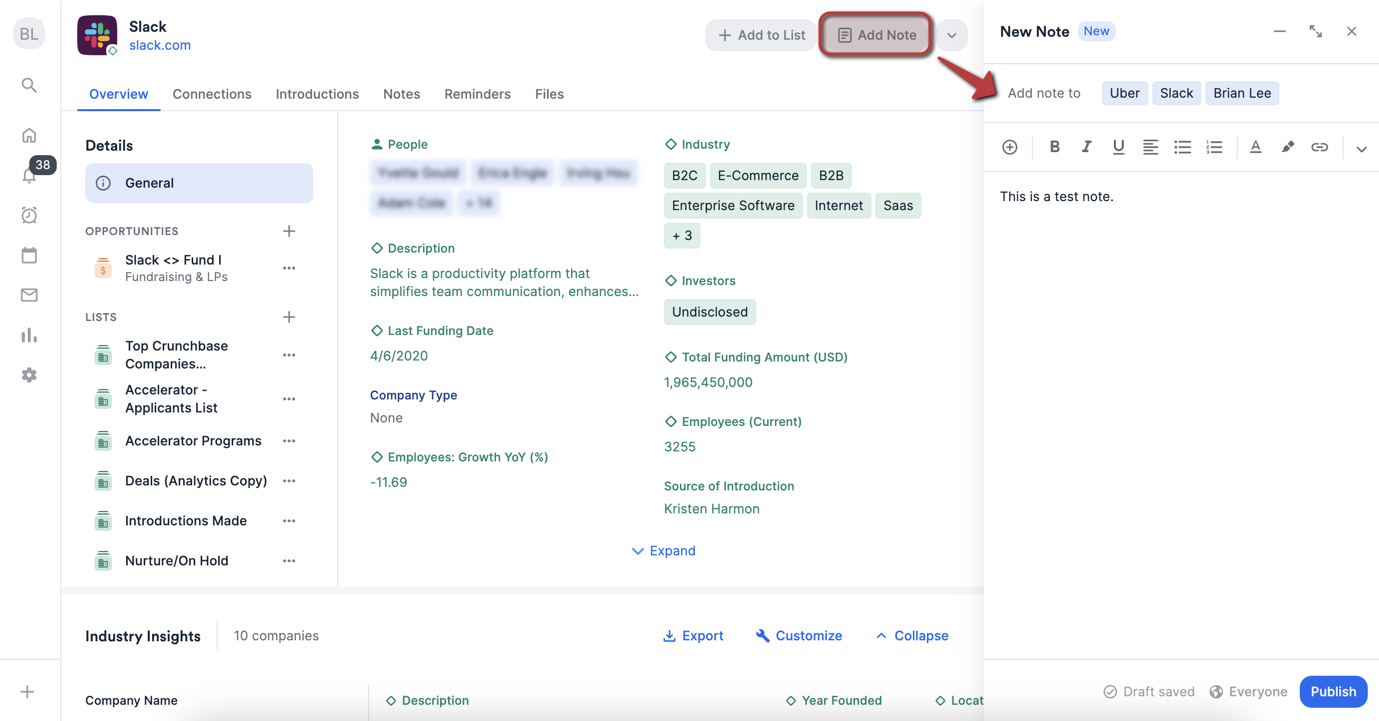 1. Click into any profile page, then click **Add Note**. You can tag multiple people, organizations, and opportunities to a regular note.
2. Type out the note, using @ mentions to notify your team members as well.
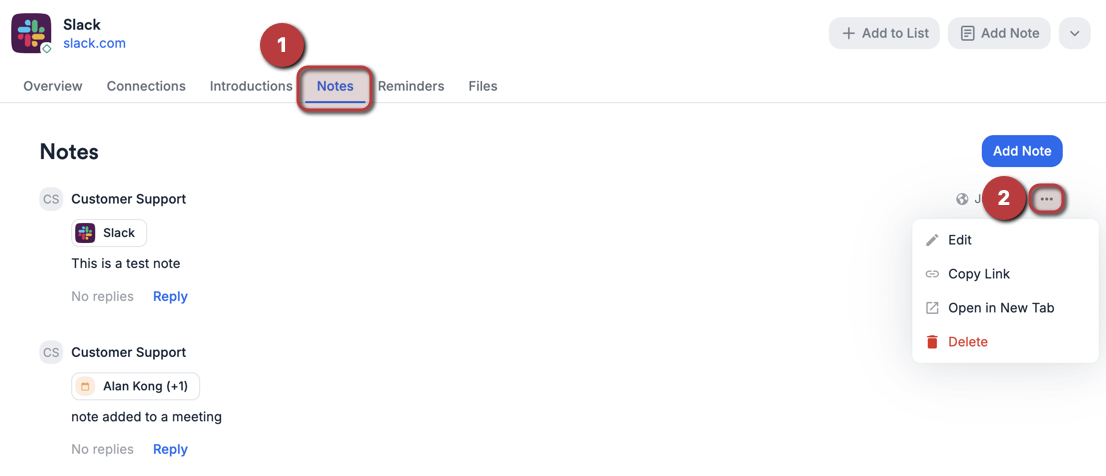
3. Click the **Notes** tab on the left to see the history of all notes that were added to that contact. You can also click the 3-dotted icon next to each note to either **Edit**, **Copy Link**, **Open in New Tab**, or **Delete**.
1. Click into any profile page, then click **Add Note**. You can tag multiple people, organizations, and opportunities to a regular note.
2. Type out the note, using @ mentions to notify your team members as well.
3. Click the **Notes** tab on the left to see the history of all notes that were added to that contact. You can also click the 3-dotted icon next to each note to either **Edit**, **Copy Link**, **Open in New Tab**, or **Delete**.
 ## Create and view notes within a list
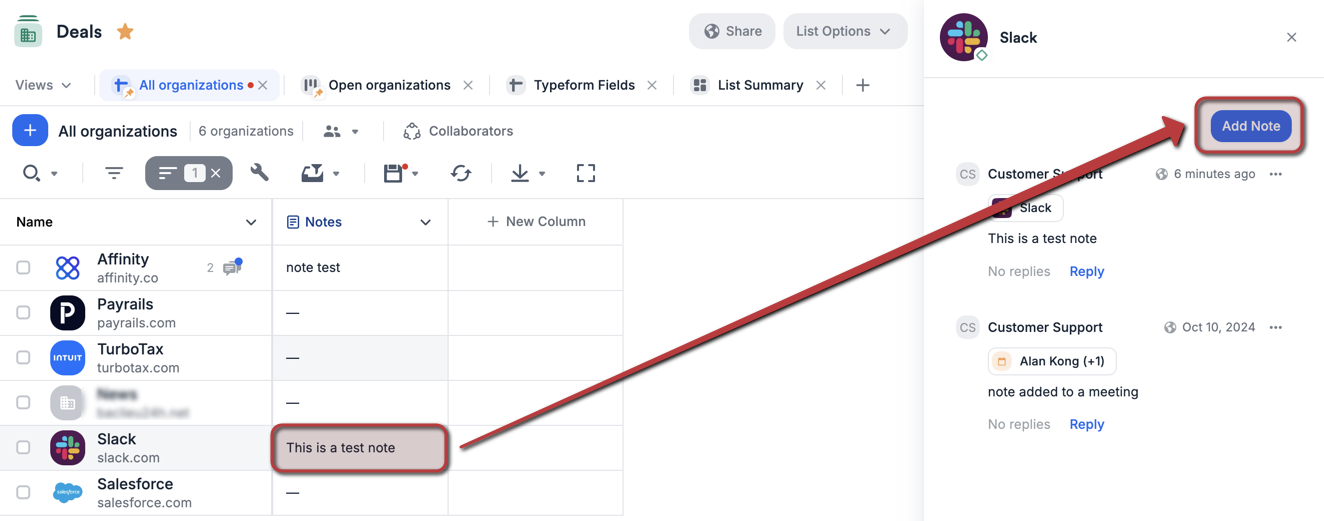
1. Click on a cell within the **Notes** column, then click **Add Note** to see the sidebar appear on the right.
## Create and view notes within a list
1. Click on a cell within the **Notes** column, then click **Add Note** to see the sidebar appear on the right.
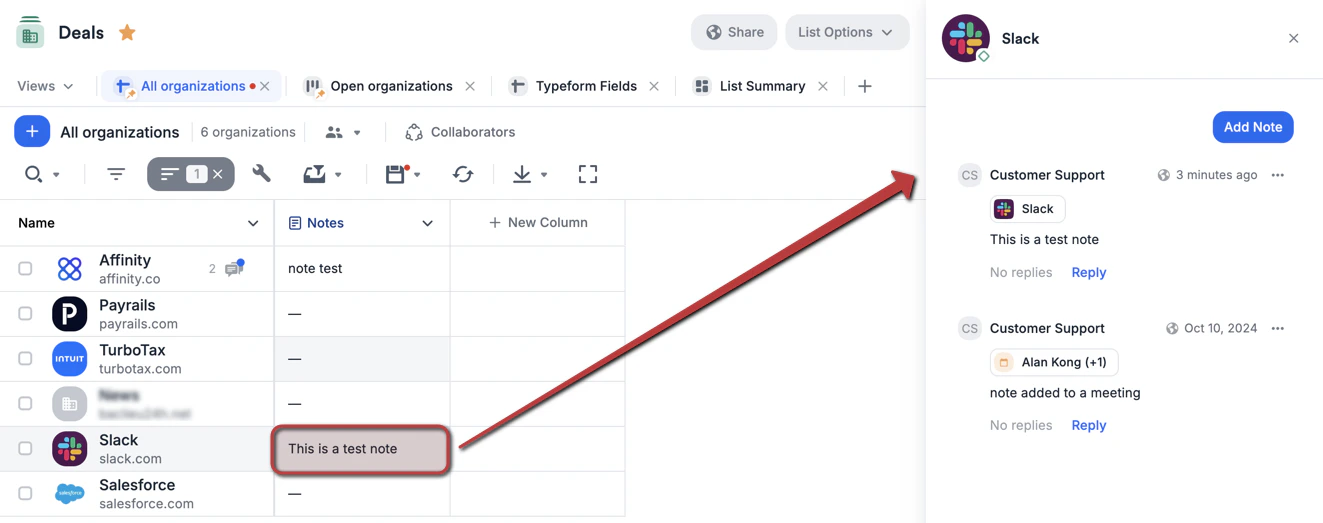
 2. You can also see all the notes that you and your team members have added to that specific entity. This includes [logged interactions](/s/article/How-to-log-interactions-into-Affinity) and notes attached to synced meetings.
 ## Create private and/or team-specific notes (Enterprise only)
If your team is on the **Enterprise** tier, only the **Enterprise Admin** will be able to set your note sharing options. This includes the ability to now create private notes or team-specific notes.
1. After adding your note in the text box, click **Share with...** to view your sharing options. This button will also appear when adding a note on a profile page.
2. Then, choose a specific sharing option. Not all options may appear based on what the **Enterprise Admin** has turned on/off in **Settings**.
## Create private and/or team-specific notes (Enterprise only)
If your team is on the **Enterprise** tier, only the **Enterprise Admin** will be able to set your note sharing options. This includes the ability to now create private notes or team-specific notes.
1. After adding your note in the text box, click **Share with...** to view your sharing options. This button will also appear when adding a note on a profile page.
2. Then, choose a specific sharing option. Not all options may appear based on what the **Enterprise Admin** has turned on/off in **Settings**.
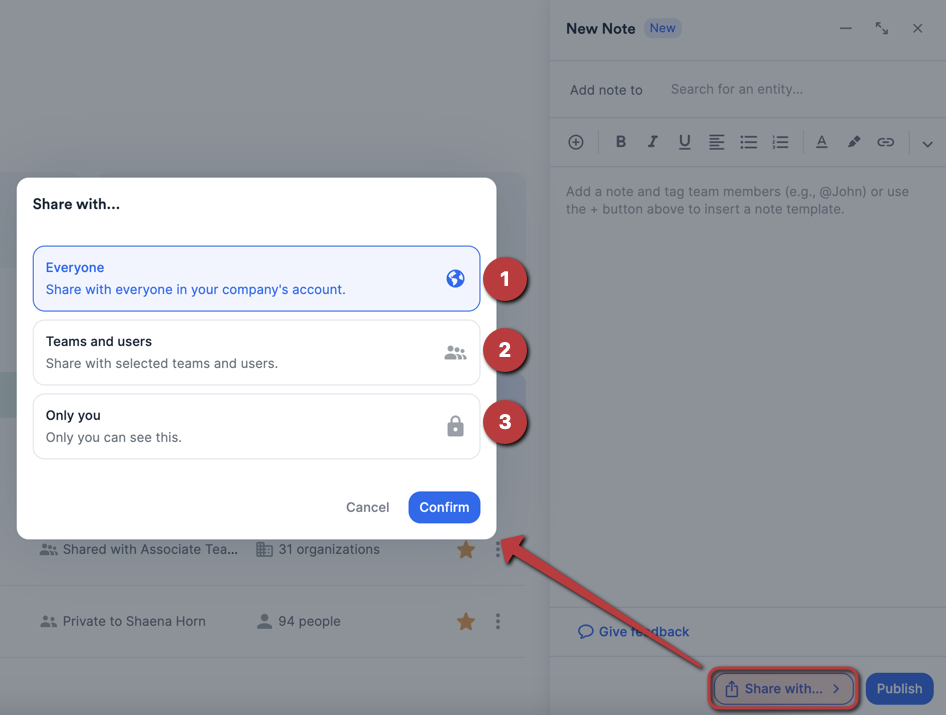 3. If any of the three options are not visible to you, please speak to your Enterprise Admin to add the option.
* **Everyone** - this option shares your note with everyone in your account, regardless of what team they're on.
* **Teams and Users** - this option allows you to select which team(s) can view your note.
* **Only You** - this option allows you to make a private note that only you can view.
## What happens to the notes attached to synced meetings if the synced meetings get deleted?
* Synced meetings can be deleted when a user is deactivated/removed, but if there is a note attached, it will be detached and converted to a regular note.
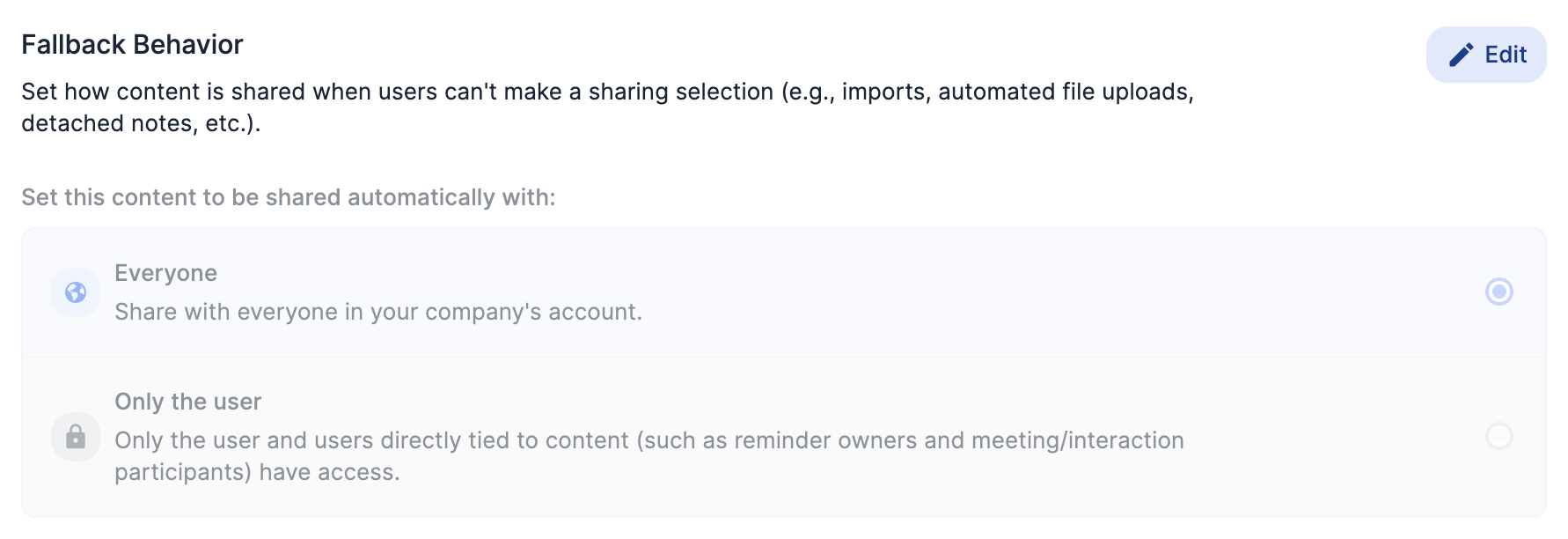
* If you're on the **Enterprise** tier, then the sharing permission that was previously set for the note attached to the synced meeting will default to what is currently set in the **Fallback Behavior**.
3. If any of the three options are not visible to you, please speak to your Enterprise Admin to add the option.
* **Everyone** - this option shares your note with everyone in your account, regardless of what team they're on.
* **Teams and Users** - this option allows you to select which team(s) can view your note.
* **Only You** - this option allows you to make a private note that only you can view.
## What happens to the notes attached to synced meetings if the synced meetings get deleted?
* Synced meetings can be deleted when a user is deactivated/removed, but if there is a note attached, it will be detached and converted to a regular note.
* If you're on the **Enterprise** tier, then the sharing permission that was previously set for the note attached to the synced meeting will default to what is currently set in the **Fallback Behavior**.
 ## Important Callouts
* Users can only have **1 draft** at a time for notes created from the global navigation sidebar.
* Notes added to a person's profile page will also show up on the profile pages of the organizations and opportunities the person is associated with.
* Notes added to an organization's profile page will **NOT** show up on the profile pages of the people or the opportunities the organization is associated with.
* Notes added to an opportunity's profile page will **NOT** show up on the profile pages of the people or the opportunities the opportunity is associated with.
* You can only edit/delete the notes you have created. You **cannot** edit/delete notes that your team members have created.
## Important Callouts
* Users can only have **1 draft** at a time for notes created from the global navigation sidebar.
* Notes added to a person's profile page will also show up on the profile pages of the organizations and opportunities the person is associated with.
* Notes added to an organization's profile page will **NOT** show up on the profile pages of the people or the opportunities the organization is associated with.
* Notes added to an opportunity's profile page will **NOT** show up on the profile pages of the people or the opportunities the opportunity is associated with.
* You can only edit/delete the notes you have created. You **cannot** edit/delete notes that your team members have created.