> ## Documentation Index
> Fetch the complete documentation index at: https://support.affinity.co/llms.txt
> Use this file to discover all available pages before exploring further.
# How to add and view comments in Affinity
> Help center reference
**How-to** — task-oriented recipe.
We're excited to announce the ability to comment on list entries for increased collaboration amongst team members and external partners.
## Who can add and view comments in Affinity?
* Commenting is available for all internal **Users** and external **Collaborators** across all Affinity subscription tiers.
## When to use comments vs notes in Affinity
* We suggest using **comments** for quick Q\&A regarding a given list entry and for conversations with external Collaborators.
* Commenting is available for all internal **Users** and external **Collaborators**.
* We suggest using **notes** for adding important information that should be viewed within the context of your team's relationship with the given entity.
* Adding notes is available for all internal **Users** only.
## Create and view comments within saved views
1. Click into the sheet view that contains the relevant list entries that you'd like to discuss with your team members and/or external Collaborators.
2. Given that comments added to this sheet view will be visible to all external Collaborators who have access to this specific view, we highly recommend removing certain Collaborators from this view and only keep the Collaborators that are comfortable with seeing each other's comments.
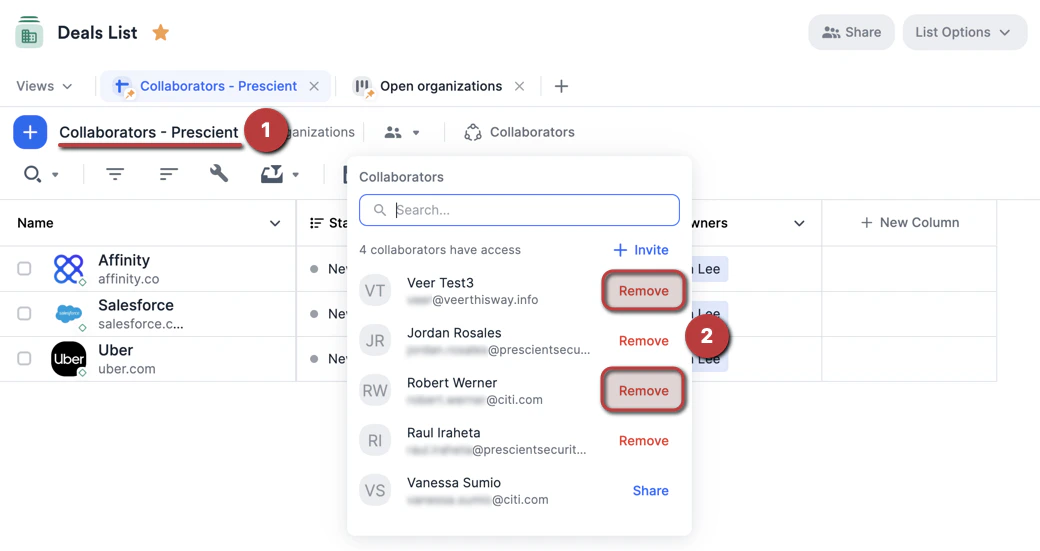 3. Example: I have changed the saved view name from "All organizations" to "Collaborators - Prescient" and removed two other Collaborators so that only the Collaborators from Prescient will be able to access and see comments added to this view.
4. Then, you can click the **Save** icon and click **Duplicate this view** in order to add back the Collaborators you removed from the previous view.
5. Once you've made sure that all Collaborators in this view are comfortable with seeing each other's comments, click on the **Comment** icon that appears when hovering over the list entry. Once you're done typing out your comment, click the **Submit** icon.
6. You can start a thread within any comment by replying. You can also click the **3-dotted** icon to **Edit** or **Delete** the comment itself.
7. You will receive notifications in the **Notifications** section on your global navigation bar whenever a comment is added to a comment thread that you're involved in. You will receive notifications in the **Notifications** section on your global navigation bar whenever a comment is added to a comment thread that you're involved in. **Note**: Email notifications are not supported for commenting at this time, only in-app web notifications. **Note**: Email notifications are not supported for commenting at this time, only in-app web notifications.
3. Example: I have changed the saved view name from "All organizations" to "Collaborators - Prescient" and removed two other Collaborators so that only the Collaborators from Prescient will be able to access and see comments added to this view.
4. Then, you can click the **Save** icon and click **Duplicate this view** in order to add back the Collaborators you removed from the previous view.
5. Once you've made sure that all Collaborators in this view are comfortable with seeing each other's comments, click on the **Comment** icon that appears when hovering over the list entry. Once you're done typing out your comment, click the **Submit** icon.
6. You can start a thread within any comment by replying. You can also click the **3-dotted** icon to **Edit** or **Delete** the comment itself.
7. You will receive notifications in the **Notifications** section on your global navigation bar whenever a comment is added to a comment thread that you're involved in. You will receive notifications in the **Notifications** section on your global navigation bar whenever a comment is added to a comment thread that you're involved in. **Note**: Email notifications are not supported for commenting at this time, only in-app web notifications. **Note**: Email notifications are not supported for commenting at this time, only in-app web notifications.
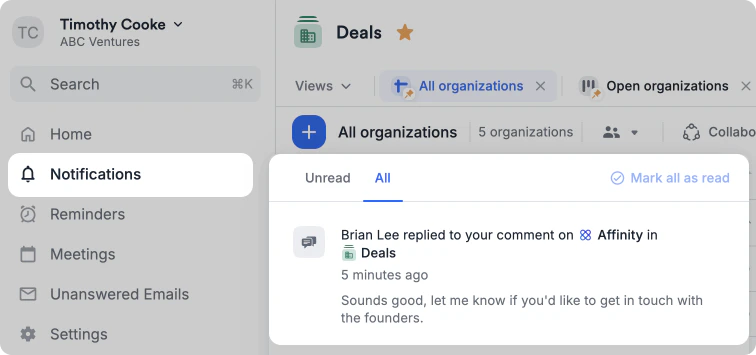 8. Now that a comment has been added, the **Comment** icon will remain visible (even without hovering) so you can easily tell which list entries have existing conversations.
 9. If there is a reply or a new comment added to a given list entry, you will see the **blue dot** to indicate that there are unread comments. Click on the **Comment** icon, then click on the new comments to mark them as read.
 ## Who can view these comments?
* Internal team members and external Collaborators alike will be able to see any and all comments that have been added to the sheet view, as long as they have been given access to that sheet view.
* If you have previously set up saved views to share with multiple external Collaborators, but would like to prevent Collaborators from different organizations from seeing each other's comments, we'd highly suggest the following:
* Click the **Save** icon, then click **Duplicate this view**.
* Dedicate each saved view for the group of collaborators who are comfortable with viewing each other's comments. This should result in you adding some Collaborators to the new saved view you just duplicated, while removing them from the previous saved view.
## What happens to comments attached to list entries that get deleted?
* Comments attached to list entries that get deleted will also get deleted.
## Important Callouts
* You can only add comments in **sheet** view, **not** in **board** view or **dashboard** view ([Affinity Analytics](/s/article/Getting-started-with-Affinity-Analytics)).
* Comments added to list entries on a specific sheet view will only be available on that view - these comments will **not** appear on other sheet views within that same list.
{/* */}
## Who can view these comments?
* Internal team members and external Collaborators alike will be able to see any and all comments that have been added to the sheet view, as long as they have been given access to that sheet view.
* If you have previously set up saved views to share with multiple external Collaborators, but would like to prevent Collaborators from different organizations from seeing each other's comments, we'd highly suggest the following:
* Click the **Save** icon, then click **Duplicate this view**.
* Dedicate each saved view for the group of collaborators who are comfortable with viewing each other's comments. This should result in you adding some Collaborators to the new saved view you just duplicated, while removing them from the previous saved view.
## What happens to comments attached to list entries that get deleted?
* Comments attached to list entries that get deleted will also get deleted.
## Important Callouts
* You can only add comments in **sheet** view, **not** in **board** view or **dashboard** view ([Affinity Analytics](/s/article/Getting-started-with-Affinity-Analytics)).
* Comments added to list entries on a specific sheet view will only be available on that view - these comments will **not** appear on other sheet views within that same list.
{/* */}