> ## Documentation Index
> Fetch the complete documentation index at: https://support.affinity.co/llms.txt
> Use this file to discover all available pages before exploring further.
# Getting started with Basic Reporting
> Help center reference
**Concept** — background and overview.
Leverage Affinity's Basic Reporting to visualize the data in your Affinity lists in the following ways:
* [Summary Reports](https://support.affinity.co/hc/en-us/articles/360012351272)
* [Funnel Analysis Reports](https://support.affinity.co/hc/en-us/articles/360012576811)
* [Team Activity Reports](https://support.affinity.co/hc/en-us/articles/360012353132)
* [Forecast Reports](https://support.affinity.co/hc/en-us/articles/360012578051)
* [Performance Reports](https://support.affinity.co/hc/en-us/articles/360012577911)
* [Opportunities Reports](https://support.affinity.co/hc/en-us/articles/360012578111)
If you'd like to learn more about our advanced reporting capabilities, feel free to check out [**Affinity Analytics**](https://support.affinity.co/hc/en-us/articles/360050127092).
### Who can access Basic Reporting?
Please note that Basic Reporting is a legacy feature that is no longer available for new customers. If you don't see the **Reports** tab on the global navigation bar on the left side of your screen, it is most likely that you are on one of the new tiers below:
1. For those on the **Scale**, **Advanced**, and **Enterprise** tiers, you can leverage advanced reporting features with [Affinity Analytics](https://affinity2ndorg.lightning.force.com/articles/Knowledge/Getting-started-with-Affinity-Analytics).
2. For those on the **Essential** tier, we highly suggest upgrading to the **Scale**, **Advanced**, or **Enterprise** tiers to leverage Affinity Analytics.
Not sure which tier you're on? See [How do I know which Affinity subscription tier I am on?](https://affinity2ndorg.lightning.force.com/articles/Knowledge/How-do-I-know-which-Affinity-subscription-tier-I-am-on)
### How to leverage Affinity's Basic Reporting
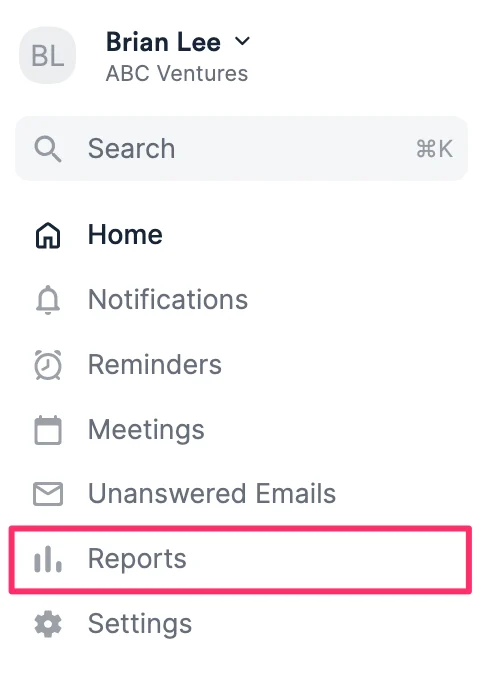
1. Click **Reports** on the left side of your global navigation bar.
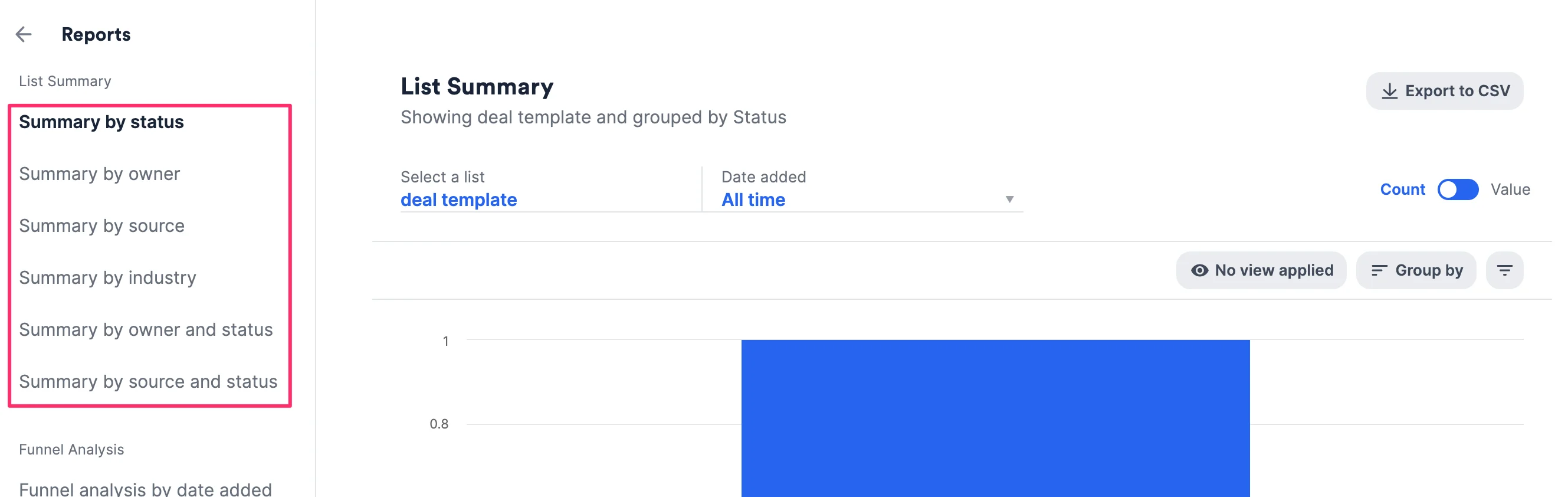
 2. Choose one of the predetermined report options.
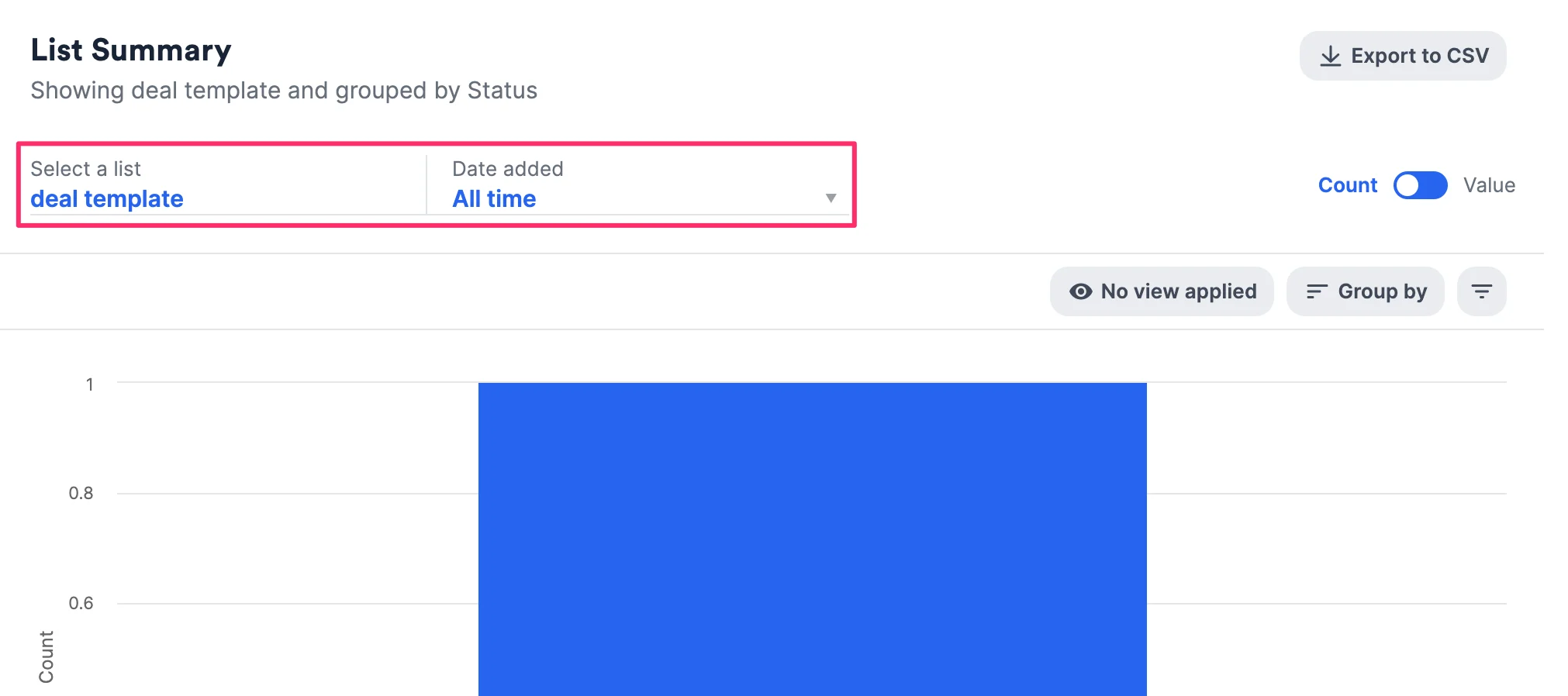
 3. Then, select a list and a date range.
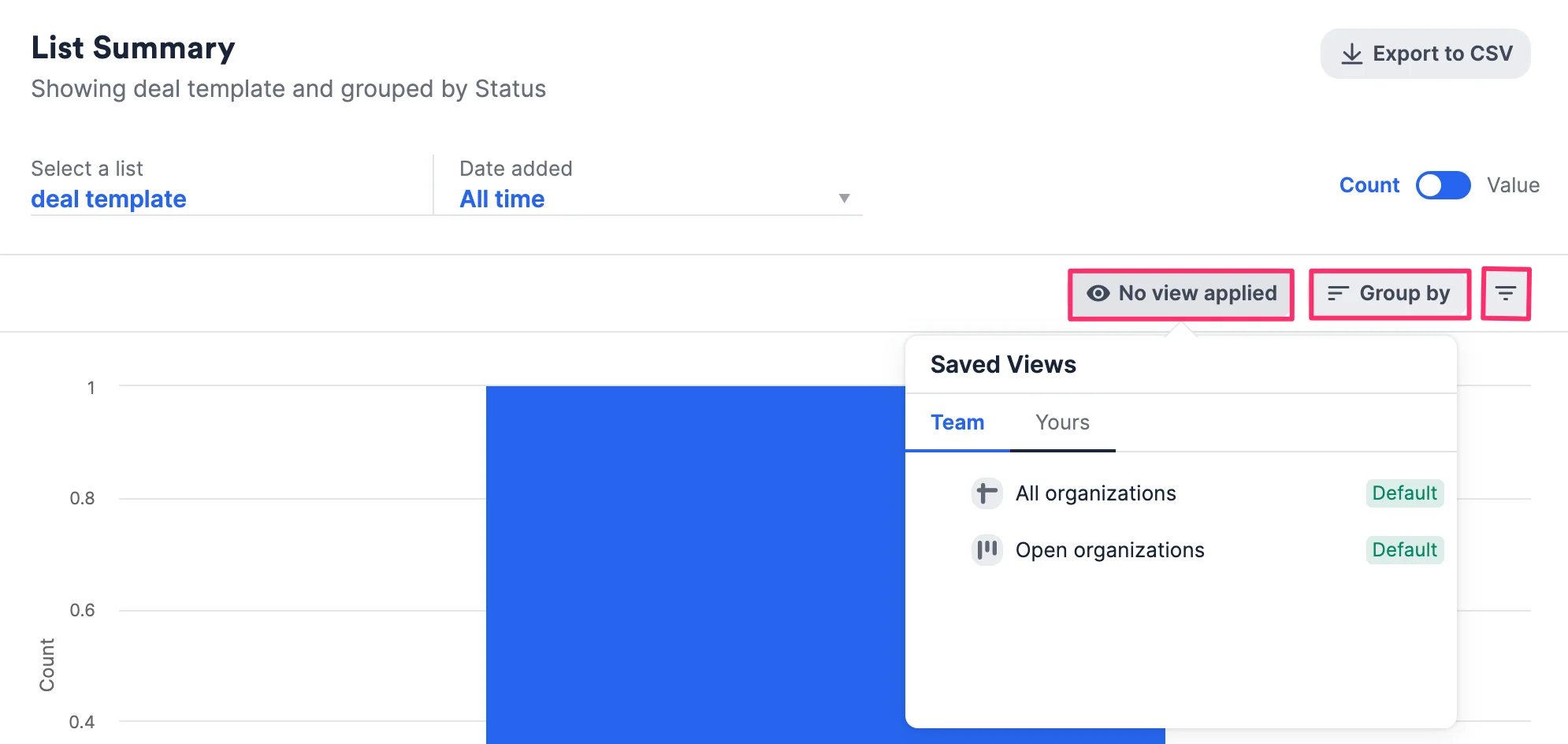
 4. Narrow down relevant information by choosing a saved view with preset filters, grouping by a certain field, or by filtering from scratch.
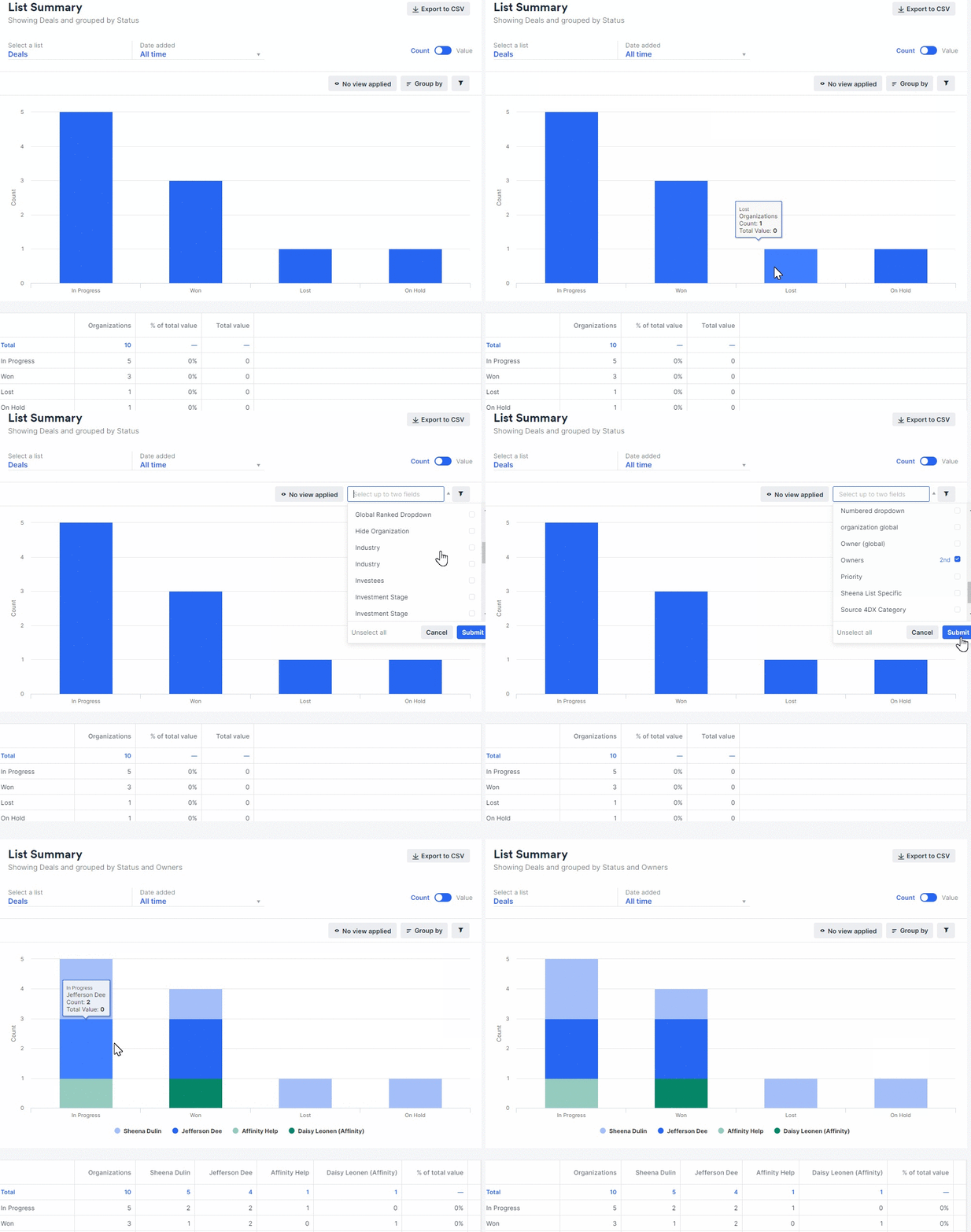
 5. You can group by a maximum of two fields to perform further analysis.
* The first grouping will indicate the groups on the x-axis.
* The second grouping will indicate the groups **within each group** on the x-axis.\
**Note**: If you're grouping by any Crunchbase fields, the **Export to CSV** button will be disabled (see [Limitations on Affinity's Basic Reporting](https://affinity2ndorg.lightning.force.com/lightning/r/Knowledge__kav/ka0Rp0000002jfNIAQ/view?ws=%2Flightning%2Fr%2FKnowledge__kav%2Fka0PQ0000007XP3YAM%2Fview#h_01F09MYXM54Q51M4272BRM8TQ7)).
5. You can group by a maximum of two fields to perform further analysis.
* The first grouping will indicate the groups on the x-axis.
* The second grouping will indicate the groups **within each group** on the x-axis.\
**Note**: If you're grouping by any Crunchbase fields, the **Export to CSV** button will be disabled (see [Limitations on Affinity's Basic Reporting](https://affinity2ndorg.lightning.force.com/lightning/r/Knowledge__kav/ka0Rp0000002jfNIAQ/view?ws=%2Flightning%2Fr%2FKnowledge__kav%2Fka0PQ0000007XP3YAM%2Fview#h_01F09MYXM54Q51M4272BRM8TQ7)).
 6. To learn more about the different templates, click one of the following articles below:
1. [List Summary Reports](https://affinity2ndorg.lightning.force.com/articles/Knowledge/Basic-Reporting-List-Summary-Reports)
2. [Funnel Analysis Reports](https://affinity2ndorg.lightning.force.com/articles/Knowledge/Basic-Reporting-Funnel-Analysis-Reports)
3. [Team Activity Reports](https://affinity2ndorg.lightning.force.com/articles/Knowledge/Basic-Reporting-Team-Activity-Reports)
4. [Forecast Reports](https://affinity2ndorg.lightning.force.com/articles/Knowledge/Basic-Reporting-Forecast-Reports)
5. [Performance Reports](https://affinity2ndorg.lightning.force.com/articles/Knowledge/Basic-Reporting-Performance-Reports)
6. [Opportunities Reports](https://affinity2ndorg.lightning.force.com/articles/Knowledge/Basic-Reporting-Opportunities-Reports)
### Limitations on Affinity's Basic Reporting
* Per our contract with Crunchbase, the **Export to CSV** button will be disabled if your report is **grouping by** any Crunchbase fields (see [Crunchbase data in Affinity](https://affinity2ndorg.lightning.force.com/articles/Knowledge/Crunchbase-data-in-Affinity)).
* Some reports support a maximum of 12 filters that are chosen based on which tags contain the most data - if the intended tags don't show, you can always edit the tags you'd like to see. (i.e. **Summary by owner** chooses 12 owners ranked from highest to lowest based on the number of entries they own).
* Reports that support a maximum of 12 filters are:
* Summary by owner
* Summary by source
* Summary by industry
6. To learn more about the different templates, click one of the following articles below:
1. [List Summary Reports](https://affinity2ndorg.lightning.force.com/articles/Knowledge/Basic-Reporting-List-Summary-Reports)
2. [Funnel Analysis Reports](https://affinity2ndorg.lightning.force.com/articles/Knowledge/Basic-Reporting-Funnel-Analysis-Reports)
3. [Team Activity Reports](https://affinity2ndorg.lightning.force.com/articles/Knowledge/Basic-Reporting-Team-Activity-Reports)
4. [Forecast Reports](https://affinity2ndorg.lightning.force.com/articles/Knowledge/Basic-Reporting-Forecast-Reports)
5. [Performance Reports](https://affinity2ndorg.lightning.force.com/articles/Knowledge/Basic-Reporting-Performance-Reports)
6. [Opportunities Reports](https://affinity2ndorg.lightning.force.com/articles/Knowledge/Basic-Reporting-Opportunities-Reports)
### Limitations on Affinity's Basic Reporting
* Per our contract with Crunchbase, the **Export to CSV** button will be disabled if your report is **grouping by** any Crunchbase fields (see [Crunchbase data in Affinity](https://affinity2ndorg.lightning.force.com/articles/Knowledge/Crunchbase-data-in-Affinity)).
* Some reports support a maximum of 12 filters that are chosen based on which tags contain the most data - if the intended tags don't show, you can always edit the tags you'd like to see. (i.e. **Summary by owner** chooses 12 owners ranked from highest to lowest based on the number of entries they own).
* Reports that support a maximum of 12 filters are:
* Summary by owner
* Summary by source
* Summary by industry