> ## Documentation Index
> Fetch the complete documentation index at: https://support.affinity.co/llms.txt
> Use this file to discover all available pages before exploring further.
# Enterprise Permissions (Enterprise Only)
> Help center reference: Enterprise Permissions Enterprise Only
**Reference** — lookup information.
Whether teams prefer to share data freely across the account or just within their own teams, the **Enterprise Admin** now has the ability to set up more granular visibility controls with **Enterprise Permissions**.
**Note**: This video contains the old navigation bar on the top, whereas the current navigation bar now lies on the left side of your screen. While the remaining content is still the same, rest assured that we will be updating our videos accordingly.
## Who can access Enterprise Permissions?
| **Essentials** | **Scale** | **Advanced** | **Enterprise** |
| -------------- | --------- | ------------ | -------------- |
| No | No | No | Yes |
Interested in upgrading to **Enterprise**? Please reach out to your Affinity point of contact or [support@affinity.co](mailto:support@affinity.co).
## What is the difference for accounts with Enterprise Permissions?
Enterprise Permissions introduces an entirely new account role: the **Enterprise Admin**. In addition to taking over certain permissions [at the account level](/s/article/Account-level-permissions) normally given to Admins, the Enterprise Admin has the ability to:
* Create and manage users, teams, and permissions.
* Customize the level of sharing permissions for **7 different content types**.
* More granular syncing options by disabling email bodies and/or private calendar meetings from syncing into Affinity - please reach out to your Affinity representative to learn more.
* [Filtering interactions](/s/article/Filtering-interactions-by-specific-team-members) by specific team members will be limited to just the users within the team(s) you're in, not across all users on your Affinity account.
* Access all lists created by all users, even private lists not created by the Enterprise Admin.
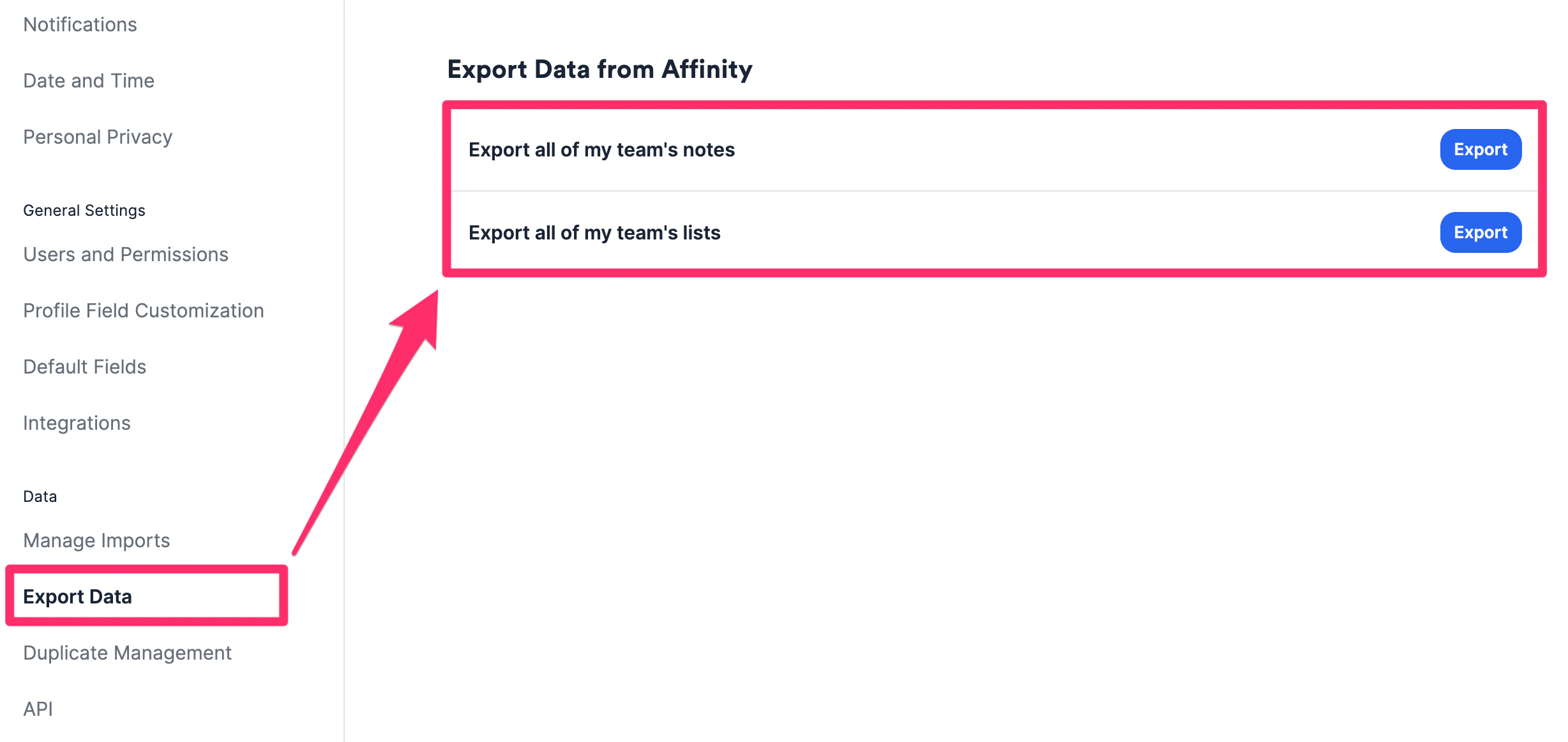
* Export all notes and all lists across the account by having exclusive access to the **Export Data** tab in **Settings**.
 ## What remains the same regardless of Enterprise Permissions?
* Relationship Strengths & Highlights are still shared across all users on the account.
* [Connections](/s/article/Leveraging-your-Connections-and-Relationship-Strengths) and [Alliances](/s/article/Getting-started-with-Affinity-Alliances) (as shown on lists and profiles)
* Strongest Relationship (as shown on lists and profiles)
* Source of Introduction (as shown on lists and profiles)
* Introductions Made (as shown on profiles)
* First Email and First Meeting (as shown on lists)
* Last Email, Last Meeting, and Last Contact (as shown on lists and profiles)
* [Enriched fields and global fields](/s/article/Enriched-Global-and-List-specific-Fields) are still shared across all users on the account.
## What can my immediate team see? What can all users see?
| **Product Area** | **Only You** | **Team Only** | **All users** |
| ---------------------------------------- | ------------ | ------------- | ------------- |
| Connections | | | Yes |
| Introductions Made | | | Yes |
| Strongest Relationship | | | Yes |
| Relationship Strengths | | | Yes |
| All People/All Organizations Directories | | | Yes |
| Enriched fields | | | Yes |
| Global fields | | | Yes |
| Synced Emails & Meetings | | Depends\* | Depends\* |
| List-specific fields | Depends\*\* | Depends\*\* | Depends\*\* |
| Lists | Depends\* | Depends\* | Depends\* |
| Logged Interactions | Depends\* | Depends\* | Depends\* |
| Notes | Depends\* | Depends\* | Depends\* |
| Files | Depends\* | Depends\* | Depends\* |
| Reminders | Depends\* | Depends\* | Depends\* |
* Depending on how collaborative or sensitive you and your team members are with sharing lists, synced emails/meetings, manually logged interactions, notes, files, and reminders, the Enterprise Admin can toggle on-and-off different levels of sharing for these content types.
* \*List-specific fields on a given list will only be available to you and the Enterprise Admin if the list is private to yourself. List-specific fields will be available to your specific team members if the list is only shared with your specific team. However, list-specific fields on a given list can be available to all users if the list is shared with everyone.
## How can the Enterprise Admin manage users and teams?
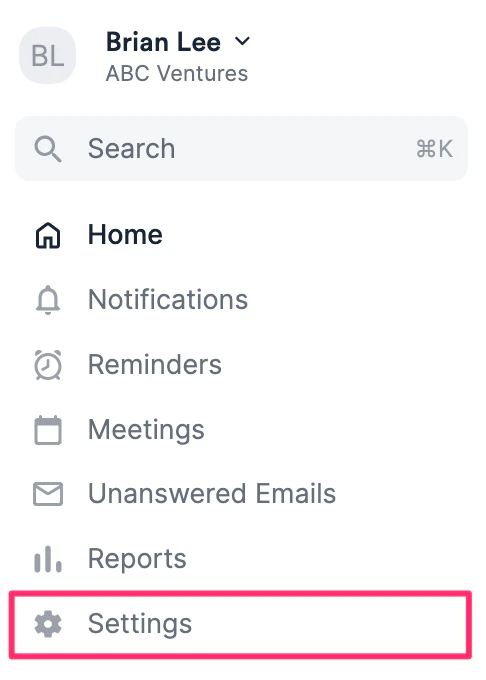
1. As the Enterprise Admin, click on **Settings** on the left-side of your screen.
## What remains the same regardless of Enterprise Permissions?
* Relationship Strengths & Highlights are still shared across all users on the account.
* [Connections](/s/article/Leveraging-your-Connections-and-Relationship-Strengths) and [Alliances](/s/article/Getting-started-with-Affinity-Alliances) (as shown on lists and profiles)
* Strongest Relationship (as shown on lists and profiles)
* Source of Introduction (as shown on lists and profiles)
* Introductions Made (as shown on profiles)
* First Email and First Meeting (as shown on lists)
* Last Email, Last Meeting, and Last Contact (as shown on lists and profiles)
* [Enriched fields and global fields](/s/article/Enriched-Global-and-List-specific-Fields) are still shared across all users on the account.
## What can my immediate team see? What can all users see?
| **Product Area** | **Only You** | **Team Only** | **All users** |
| ---------------------------------------- | ------------ | ------------- | ------------- |
| Connections | | | Yes |
| Introductions Made | | | Yes |
| Strongest Relationship | | | Yes |
| Relationship Strengths | | | Yes |
| All People/All Organizations Directories | | | Yes |
| Enriched fields | | | Yes |
| Global fields | | | Yes |
| Synced Emails & Meetings | | Depends\* | Depends\* |
| List-specific fields | Depends\*\* | Depends\*\* | Depends\*\* |
| Lists | Depends\* | Depends\* | Depends\* |
| Logged Interactions | Depends\* | Depends\* | Depends\* |
| Notes | Depends\* | Depends\* | Depends\* |
| Files | Depends\* | Depends\* | Depends\* |
| Reminders | Depends\* | Depends\* | Depends\* |
* Depending on how collaborative or sensitive you and your team members are with sharing lists, synced emails/meetings, manually logged interactions, notes, files, and reminders, the Enterprise Admin can toggle on-and-off different levels of sharing for these content types.
* \*List-specific fields on a given list will only be available to you and the Enterprise Admin if the list is private to yourself. List-specific fields will be available to your specific team members if the list is only shared with your specific team. However, list-specific fields on a given list can be available to all users if the list is shared with everyone.
## How can the Enterprise Admin manage users and teams?
1. As the Enterprise Admin, click on **Settings** on the left-side of your screen.
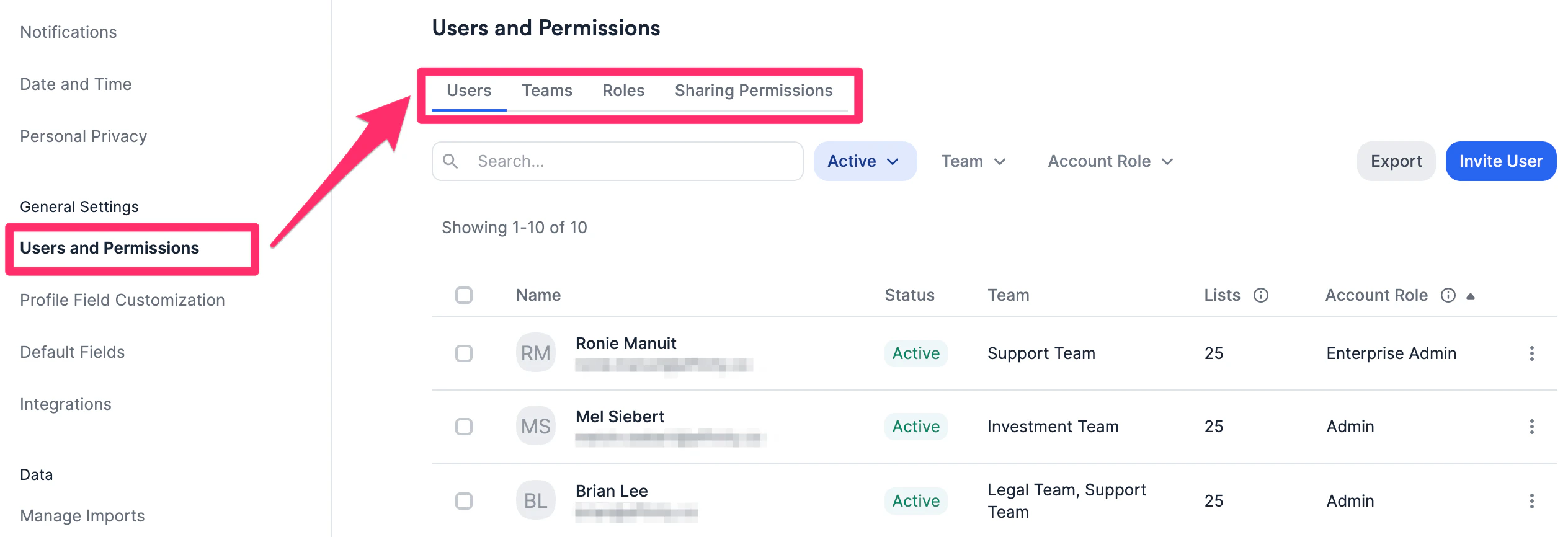
 2. Click on **Users & Permissions** on the left side to see all **Users**, **Teams**, **Roles**, and **Sharing Permissions**.
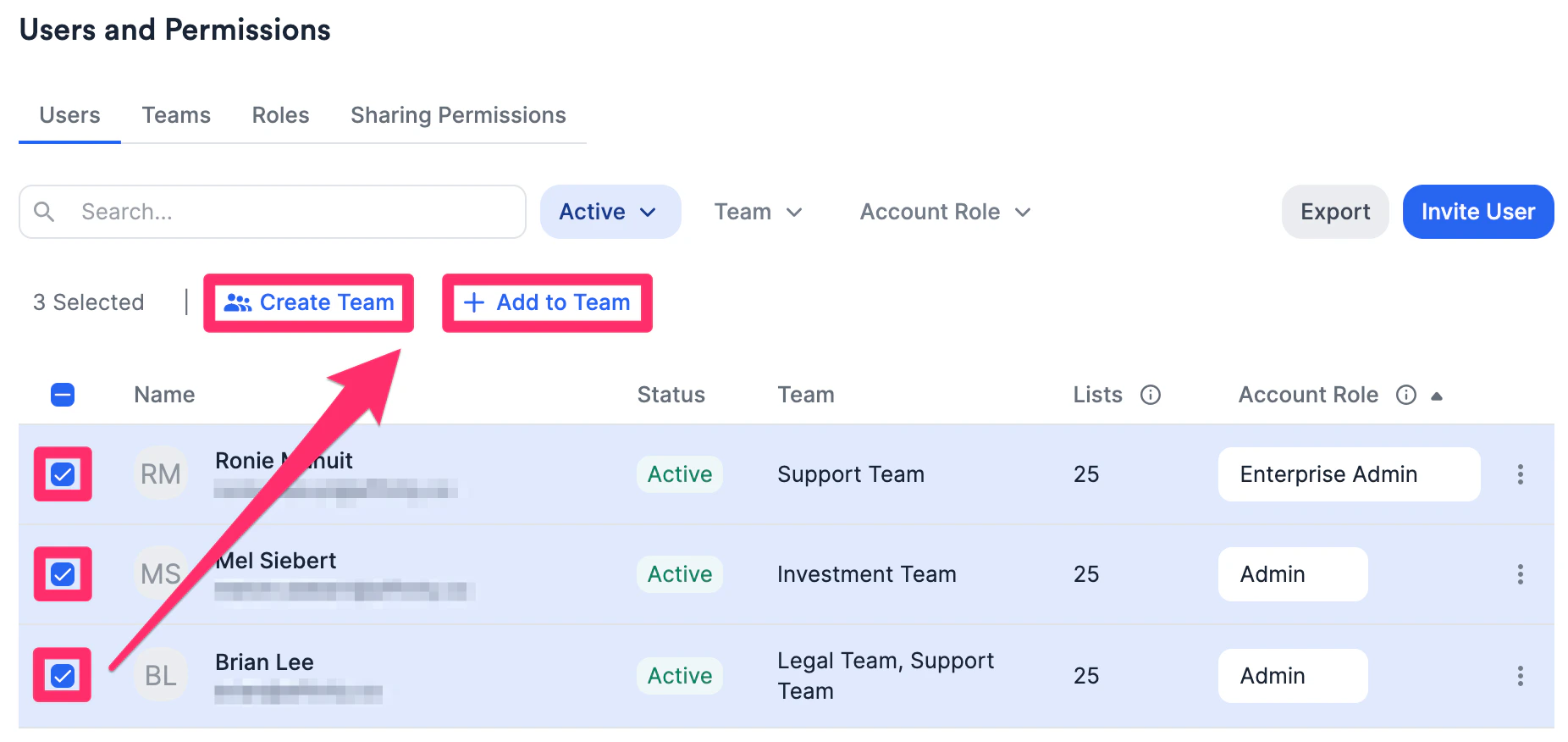
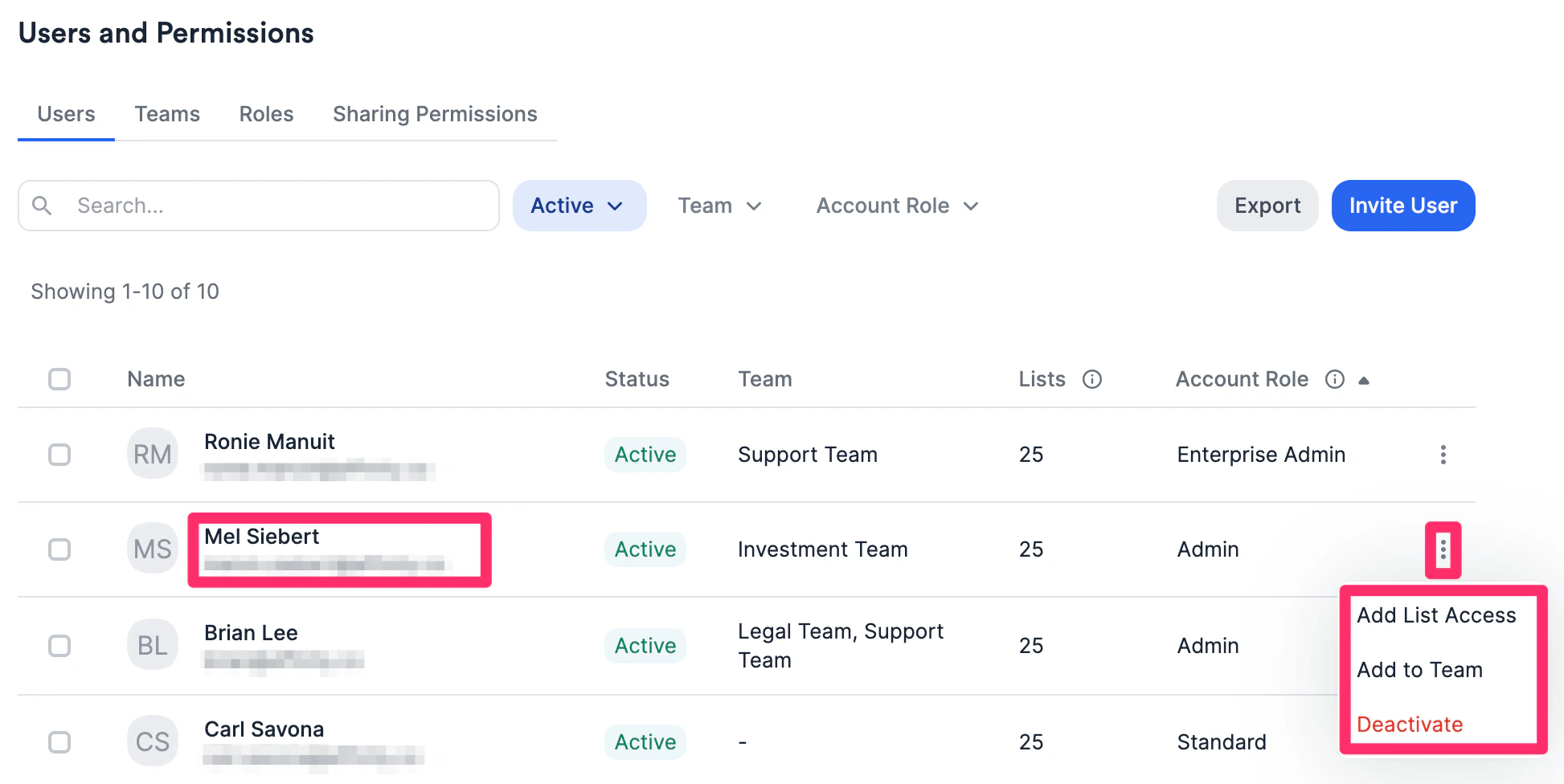
 3. On the **Users** tab, you can click the checkbox for multiple users to bulk-add them to **create a new team** or **add to an existing team**.
 * Click on each user's name to see which lists they have access to and [what roles they have on each list](/s/article/List-Level-Permissions). You can also give them access to other lists, add them to teams, or deactivate them if they're no longer using Affinity.
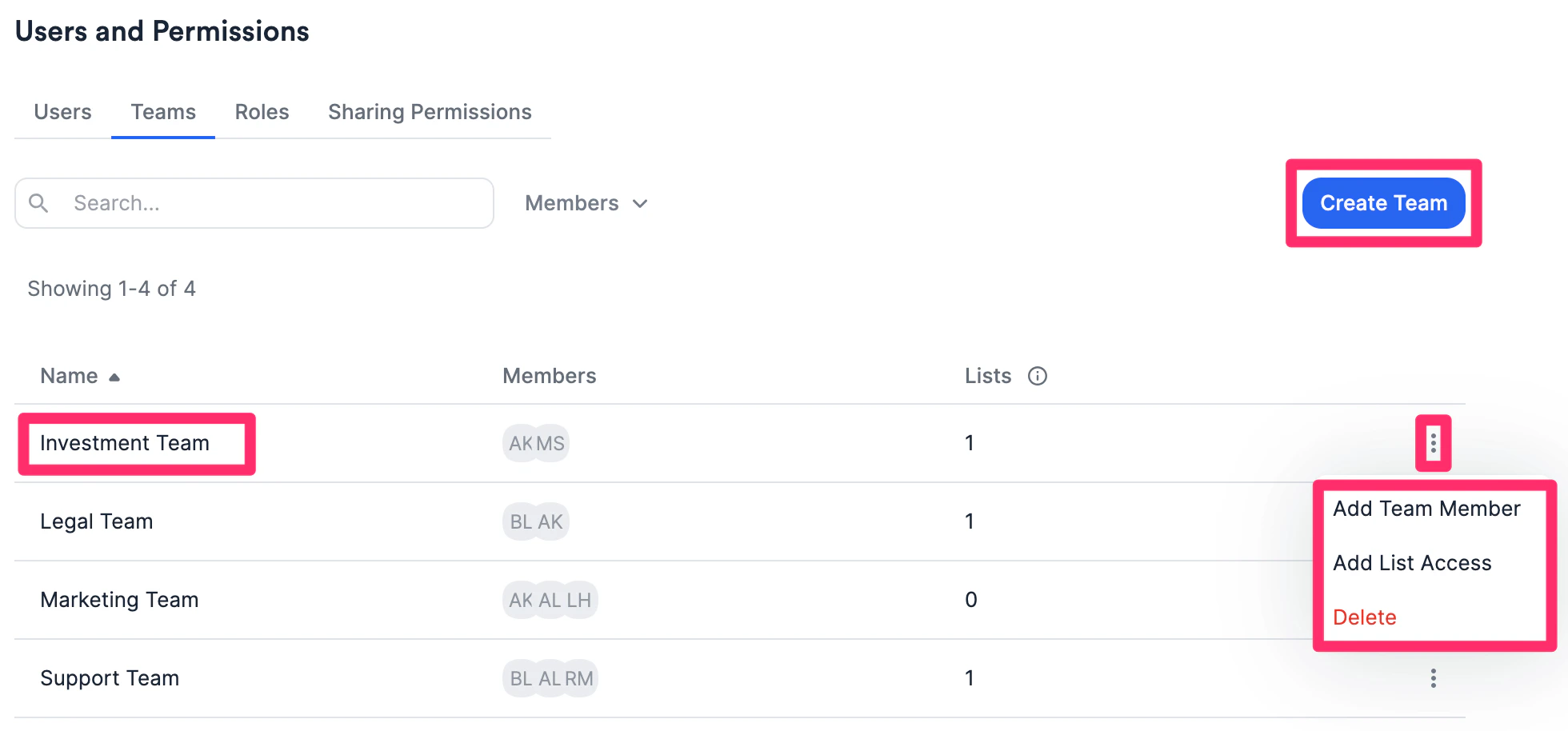
 4. On the **Teams** tab, you can **create a new team** or **click on an existing team** to see all users on that team and add new team members. You can also give teams access to specific lists.
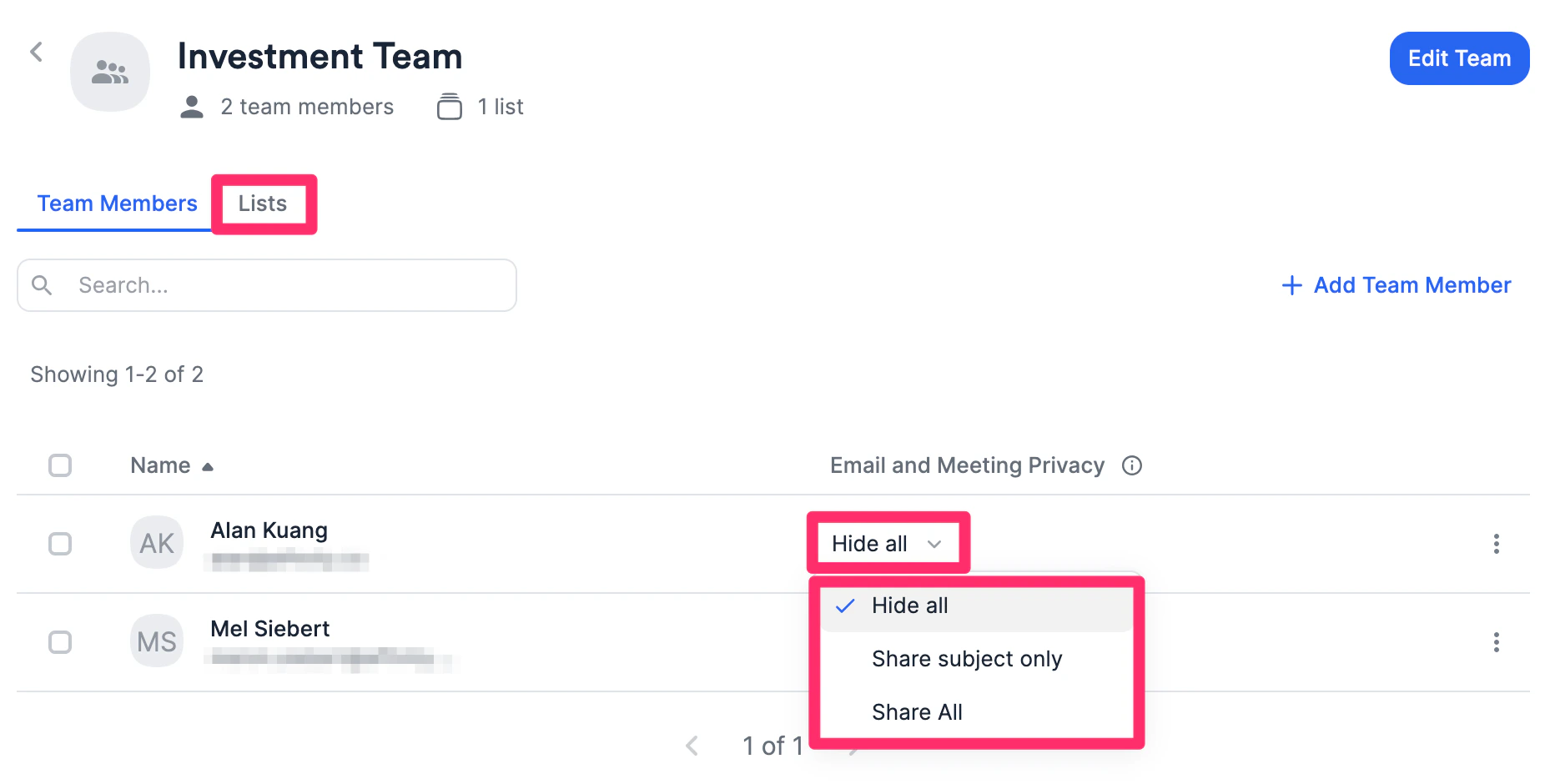
 * If you set **Synced Emails and Meetings** to be shared with **Teams only**, you can also change the privacy preferences for each user. You can also click on the **Lists** tab to see all the lists that this team has access to.
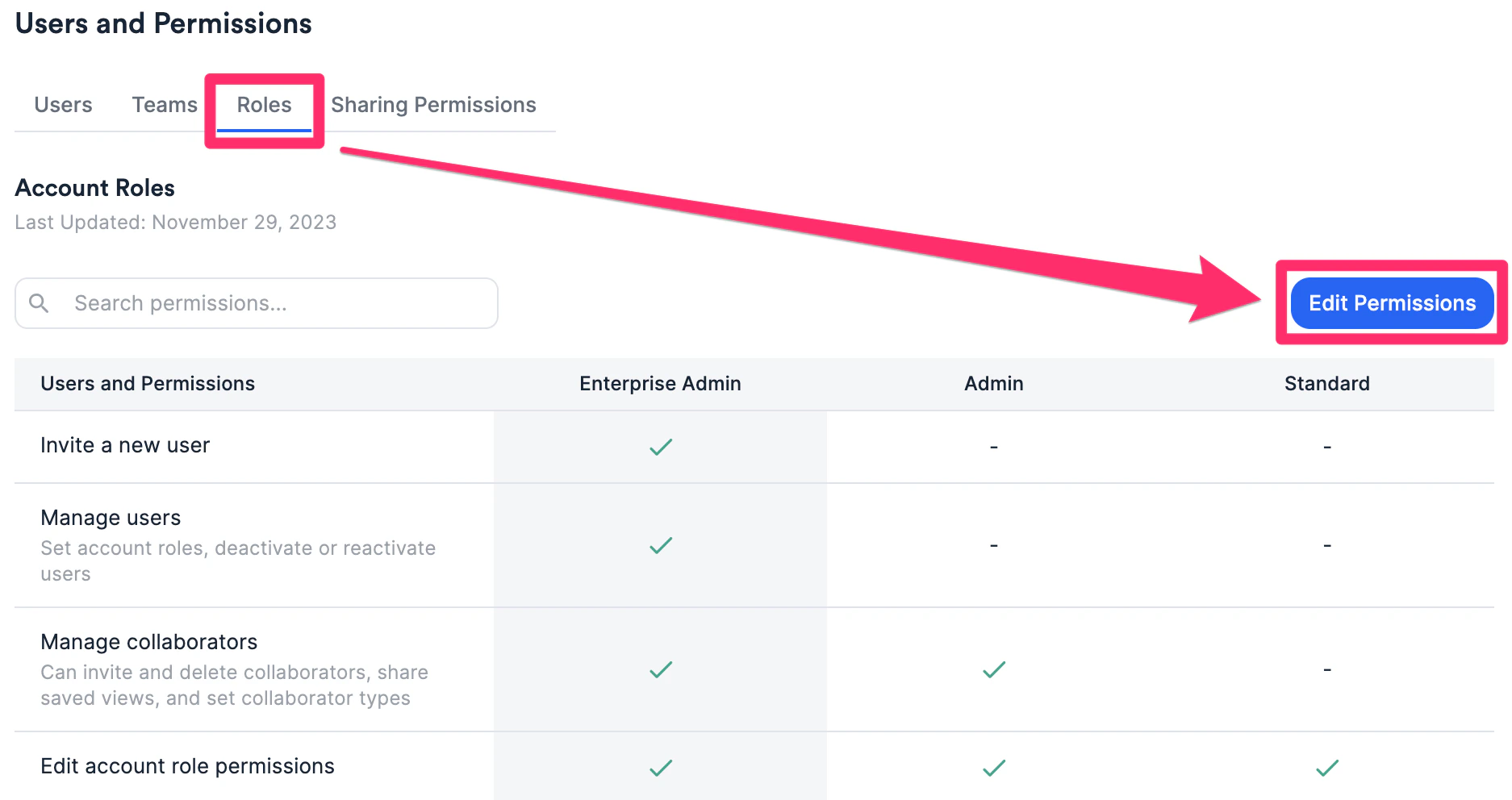
 5. On the **Roles** tab, you'll be able to see which account roles have access to which permissions and click **Edit Permissions** to enable/disable access to certain permissions based on account role.
* **Important Callout**: If you are removing the permission for **Admin** and/or **Standard** users to generate an API key, please note that the following will occur.
* They can no longer generate an API key (the **API** tab in Settings will be hidden from them).
* All existing API keys attached to each user will be disabled.
* If you later decide to reenable the permission for **Admin** and/or **Standard** users to generate an API key, their previous API keys will not be reenabled and they will need to [generate a new API key](https://affinity2ndorg.lightning.force.com/articles/Knowledge/How-to-obtain-your-Affinity-API-key).
5. On the **Roles** tab, you'll be able to see which account roles have access to which permissions and click **Edit Permissions** to enable/disable access to certain permissions based on account role.
* **Important Callout**: If you are removing the permission for **Admin** and/or **Standard** users to generate an API key, please note that the following will occur.
* They can no longer generate an API key (the **API** tab in Settings will be hidden from them).
* All existing API keys attached to each user will be disabled.
* If you later decide to reenable the permission for **Admin** and/or **Standard** users to generate an API key, their previous API keys will not be reenabled and they will need to [generate a new API key](https://affinity2ndorg.lightning.force.com/articles/Knowledge/How-to-obtain-your-Affinity-API-key).
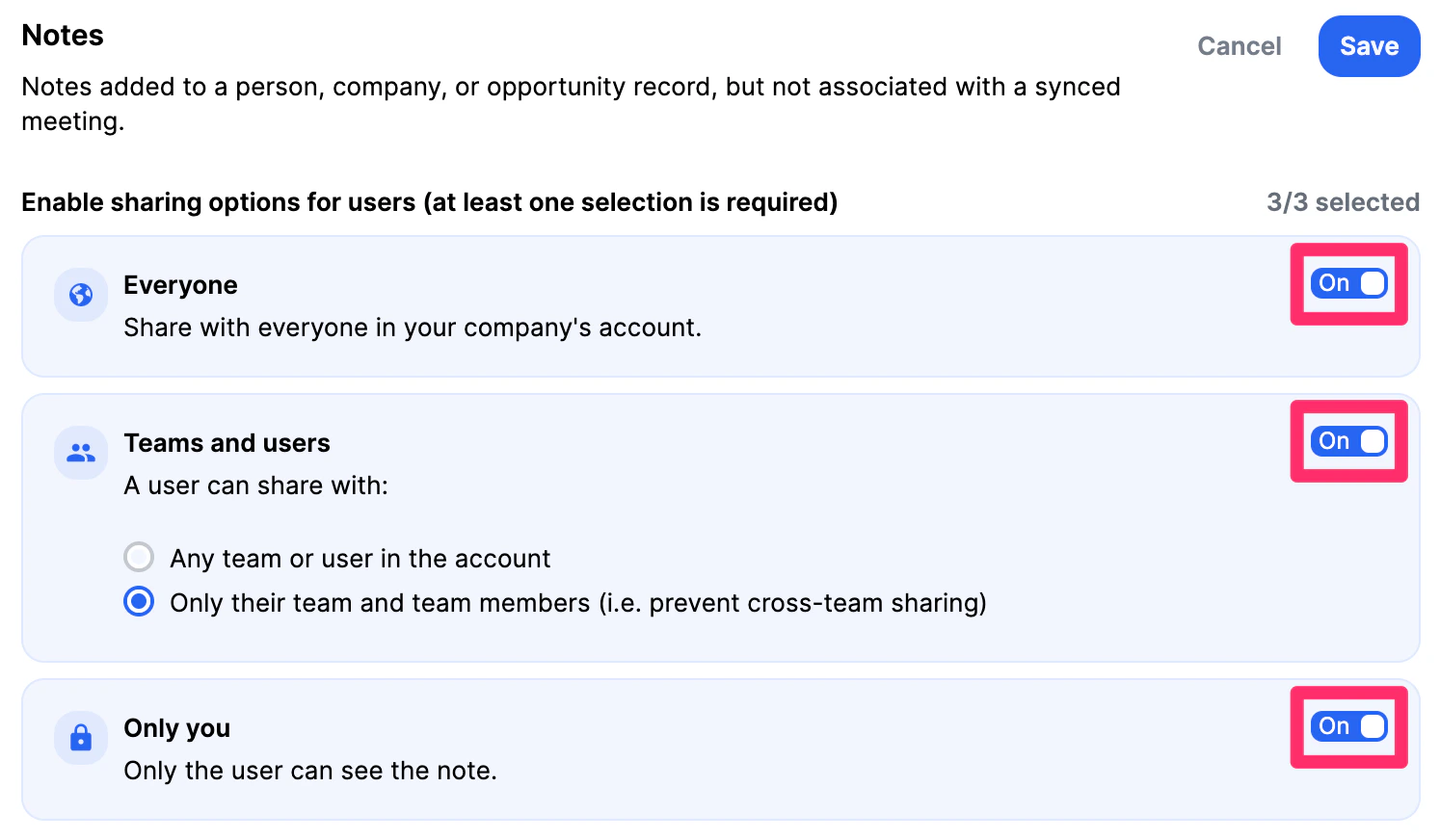
 6. On the **Sharing Permissions** tab, there are three different sharing options the Enterprise Admin can toggle on/off for each content type, depending on the team's preferences: **Everyone**, **Teams and users**, and **Only you**. At least one of these must be toggled on.
* The Enterprise Admin can toggle on/off these sharing options for different content types (see [What content types can the Enterprise Admin adjust sharing options for?](https://affinity2ndorg.lightning.force.com/lightning/r/Knowledge__kav/ka0Rp0000002qybIAA/view?ws=%2Flightning%2Fr%2FKnowledge__kav%2Fka0PQ000000KiRVYA0%2Fview#h_01GGQJ2WSJ6ZCTKV9ATSNYBZG3)). Those that are toggled on will be available as options for users to choose from when they create any of these content types.
6. On the **Sharing Permissions** tab, there are three different sharing options the Enterprise Admin can toggle on/off for each content type, depending on the team's preferences: **Everyone**, **Teams and users**, and **Only you**. At least one of these must be toggled on.
* The Enterprise Admin can toggle on/off these sharing options for different content types (see [What content types can the Enterprise Admin adjust sharing options for?](https://affinity2ndorg.lightning.force.com/lightning/r/Knowledge__kav/ka0Rp0000002qybIAA/view?ws=%2Flightning%2Fr%2FKnowledge__kav%2Fka0PQ000000KiRVYA0%2Fview#h_01GGQJ2WSJ6ZCTKV9ATSNYBZG3)). Those that are toggled on will be available as options for users to choose from when they create any of these content types.
 7. The Enterprise Admin will be able to share and change list access to all lists, even for private lists created by other users.
## What content types can the Enterprise Admin adjust sharing options for?
There are **seven out of eight** different content types that the Enterprise Admin can adjust the sharing options for - only the **API** calls cannot be modified and are set to be shared with everyone by default:
1. **Synced Emails & Meetings**
* If the Enterprise Admin sets it to\*\* Everyone\*\*, then the users themselves will be able to set their own privacy settings (see [Setting up your privacy preferences in Affinity](/s/article/Setting-up-your-privacy-preferences-in-Affinity)).
* However, if the Enterprise Admin sets it to **Teams only**, then only the Enterprise Admin can set the privacy preferences for each user on each team by choosing one of the three options:
* Showing email subject lines/meeting titles and email bodies
* Showing email subject lines/meeting titles only
* Hiding email subject lines/meeting titles and email bodies (the default for all users added to a team on Enterprise Permissions)
* ***Note***\*: In a team setting, if you are not on a team with any user on the interaction, you will not see the interaction at all\*
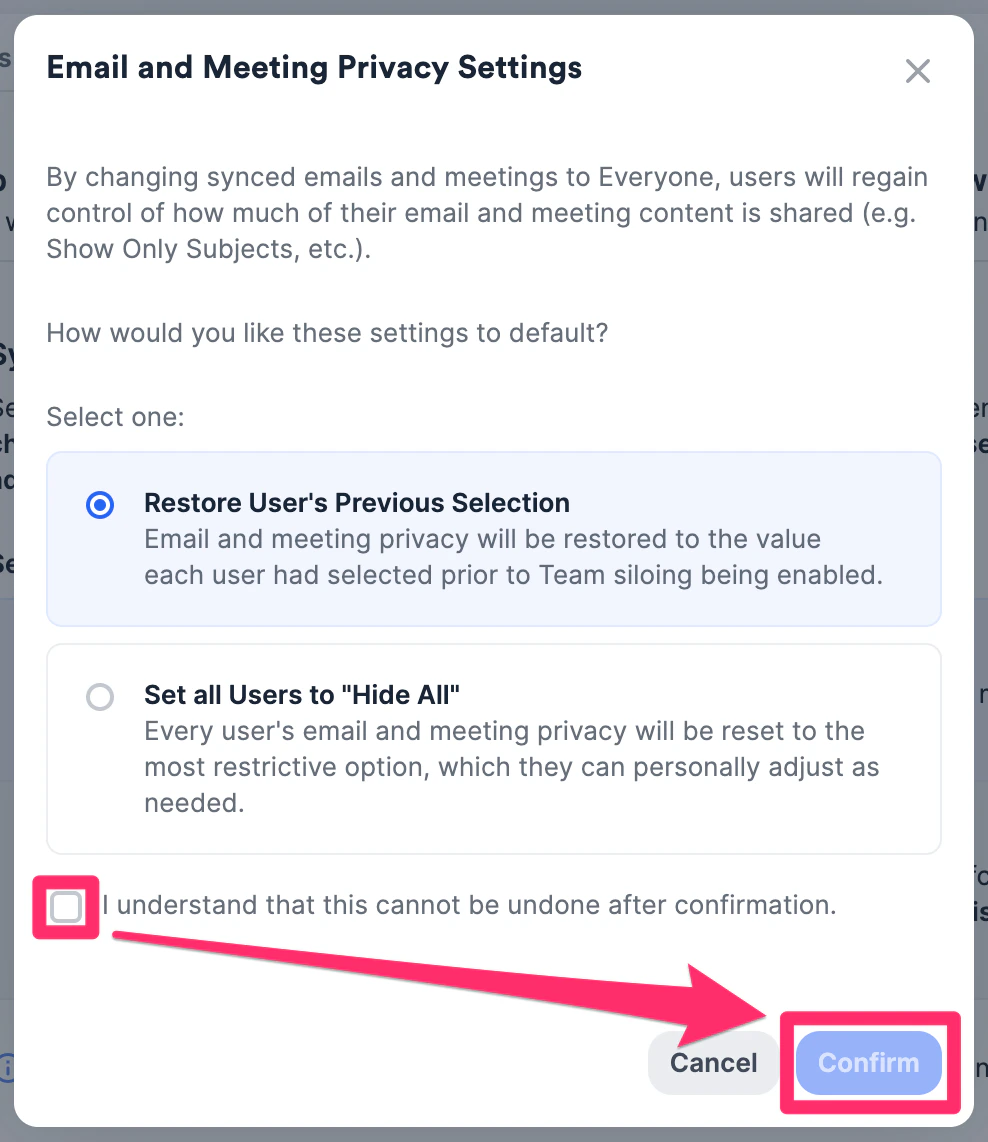
* If the Enterprise Admin changes it back from **Teams** to **Everyone**, the Enterprise Admin will have the option to either **Restore User's Previous Selection** back when it was set to **Everyone** or **Set all users to "Hide All"** and ask users to update their privacy settings themselves.
7. The Enterprise Admin will be able to share and change list access to all lists, even for private lists created by other users.
## What content types can the Enterprise Admin adjust sharing options for?
There are **seven out of eight** different content types that the Enterprise Admin can adjust the sharing options for - only the **API** calls cannot be modified and are set to be shared with everyone by default:
1. **Synced Emails & Meetings**
* If the Enterprise Admin sets it to\*\* Everyone\*\*, then the users themselves will be able to set their own privacy settings (see [Setting up your privacy preferences in Affinity](/s/article/Setting-up-your-privacy-preferences-in-Affinity)).
* However, if the Enterprise Admin sets it to **Teams only**, then only the Enterprise Admin can set the privacy preferences for each user on each team by choosing one of the three options:
* Showing email subject lines/meeting titles and email bodies
* Showing email subject lines/meeting titles only
* Hiding email subject lines/meeting titles and email bodies (the default for all users added to a team on Enterprise Permissions)
* ***Note***\*: In a team setting, if you are not on a team with any user on the interaction, you will not see the interaction at all\*
* If the Enterprise Admin changes it back from **Teams** to **Everyone**, the Enterprise Admin will have the option to either **Restore User's Previous Selection** back when it was set to **Everyone** or **Set all users to "Hide All"** and ask users to update their privacy settings themselves.
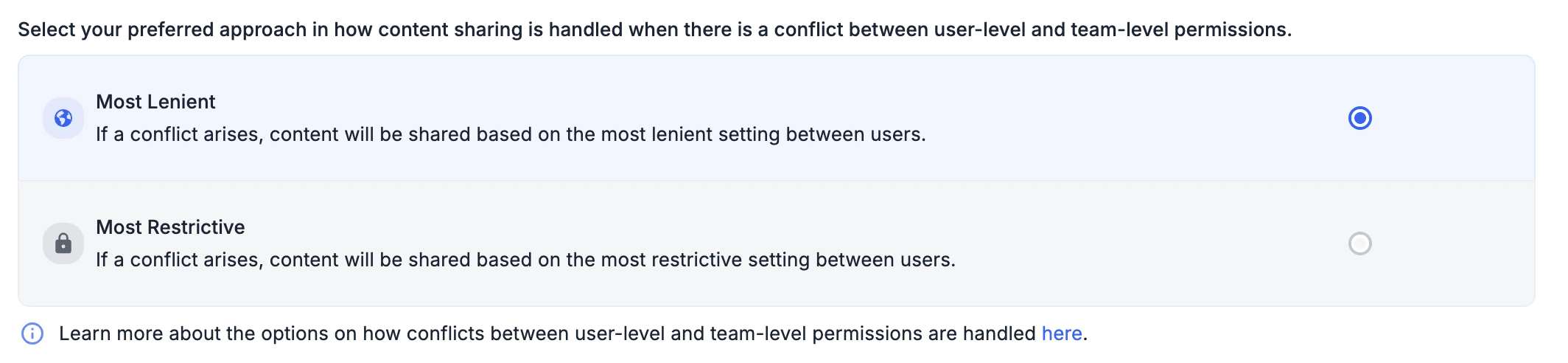
 * The Enterprise Admin can choose how conflicts in a user or team's privacy settings should be resolved:
* **Most Lenient (Default):** In the case of a conflict, the more lenient setting will be chosen. For example, if one user's setting is set to Show All, and another is set to Hide All, then any other users viewing the interaction would see Show All.
* **Most Restrictive**: In the case of a conflict, the more restrictive setting will be chosen. For example, if one user's setting is set to Show All, and another is set to Hide All, then any other users viewing the interaction would see Hide All
* ***Note***\*: In a team setting, when viewing interactions that includes team members and non-team members, the non-team members privacy setting will be considered "Hide All" for the purpose of conflict resolution.\*
* ***Note***\*: In a team setting, only the privacy settings of team-mates on teams you are both part of will be considered. For example, if you are on a team with Person A where their setting is Show All, but Person A belongs to two other team's without you where their setting is Hide All, only their Show All setting will be considered.\*
* The Enterprise Admin can choose how conflicts in a user or team's privacy settings should be resolved:
* **Most Lenient (Default):** In the case of a conflict, the more lenient setting will be chosen. For example, if one user's setting is set to Show All, and another is set to Hide All, then any other users viewing the interaction would see Show All.
* **Most Restrictive**: In the case of a conflict, the more restrictive setting will be chosen. For example, if one user's setting is set to Show All, and another is set to Hide All, then any other users viewing the interaction would see Hide All
* ***Note***\*: In a team setting, when viewing interactions that includes team members and non-team members, the non-team members privacy setting will be considered "Hide All" for the purpose of conflict resolution.\*
* ***Note***\*: In a team setting, only the privacy settings of team-mates on teams you are both part of will be considered. For example, if you are on a team with Person A where their setting is Show All, but Person A belongs to two other team's without you where their setting is Hide All, only their Show All setting will be considered.\*
 2. **API**
* API creates will always default to be shared with everyone on the account.
* API Reads will be subject to the privacy settings for the content in question. For example, when fetching interactions or notes over the API, you will not be able to access content you would not be able to see in Affinity
3. **Synced Meeting Notes**
* If you add a note to a synced meeting, all team members that are participants in that synced meeting will be able to see the note if you choose **Only you and meeting participants** as the sharing preference.
* If you add a note to a synced meeting but are not a participant in that synced meeting, you could lose access to that note if you end up moving to a different team that the meeting participants are not in.
4. **Notes**
* Different from synced meeting notes, these are attached to People, Organizations, and Opportunities.
5. [**Logged interactions**](/s/article/How-to-log-interactions-into-Affinity) (Meetings, Calls, and Messages)
* If you add another team member as a participant to the logged interaction, that team member will be able to view that interaction if you choose **Only you and interaction participants** as the sharing preference.
6. **Files**
7. **Reminders**
* You can create a reminder and assign another team member as the owner of that reminder. This means that this team member will be able to view that reminder if you chose **Only you and the reminder owner** as the sharing preference.
8. **Default Sharing Permission**
* Help minimize the number of clicks that your team members need to make whenever adding content to Affinity by setting a default sharing permission for the entire organization. The three options are: **No Default**, **Only the user**, or **Everyone**
9. **Fallback Behavior**
* This final section covers the following scenarios where users will not be able to make an explicit sharing selection: notes created by the [Affinity Notetaker](/s/article/How-to-set-up-and-use-Affinity-Notetaker), notes sent from [Slack to Affinity](https://support.affinity.co/s/article/Affinity-automation-updates-to-Slack-and-Send-note-to-Affinity#h_25249547112821724170374871), [notes from note imports](/s/article/How-to-import-notes-into-Affinity), detached notes from meetings,[automated file uploads](/s/article/How-to-upload-download-and-remove-files-in-Affinity), reminders created from [reminder triggers](/s/article/How-to-set-up-Reminder-Triggers), and the [Email Bot](/s/article/How-to-use-Affinity-s-Email-Bot). The Enterprise Admin can either set the default to be shared with **Everyone** or **Only the user**.
## **What happens to the notes attached to synced meetings if the synced meetings get deleted?**
* Synced meetings can be deleted when a user is deactivated/removed, but if there is a note attached, it will be detached and converted to a regular note.
* Any meeting participants previously associated with the synced meeting will remain associated as it gets converted to a regular note.
* Any people, organizations, or opportunities previously associated with the synced meeting will remain associated as it gets converted to a regular note.
* For those on the **Enterprise** tier, the sharing permission that was previously set for the note attached to the synced meeting will default to what is currently set in the **Fallback Behavior**.
2. **API**
* API creates will always default to be shared with everyone on the account.
* API Reads will be subject to the privacy settings for the content in question. For example, when fetching interactions or notes over the API, you will not be able to access content you would not be able to see in Affinity
3. **Synced Meeting Notes**
* If you add a note to a synced meeting, all team members that are participants in that synced meeting will be able to see the note if you choose **Only you and meeting participants** as the sharing preference.
* If you add a note to a synced meeting but are not a participant in that synced meeting, you could lose access to that note if you end up moving to a different team that the meeting participants are not in.
4. **Notes**
* Different from synced meeting notes, these are attached to People, Organizations, and Opportunities.
5. [**Logged interactions**](/s/article/How-to-log-interactions-into-Affinity) (Meetings, Calls, and Messages)
* If you add another team member as a participant to the logged interaction, that team member will be able to view that interaction if you choose **Only you and interaction participants** as the sharing preference.
6. **Files**
7. **Reminders**
* You can create a reminder and assign another team member as the owner of that reminder. This means that this team member will be able to view that reminder if you chose **Only you and the reminder owner** as the sharing preference.
8. **Default Sharing Permission**
* Help minimize the number of clicks that your team members need to make whenever adding content to Affinity by setting a default sharing permission for the entire organization. The three options are: **No Default**, **Only the user**, or **Everyone**
9. **Fallback Behavior**
* This final section covers the following scenarios where users will not be able to make an explicit sharing selection: notes created by the [Affinity Notetaker](/s/article/How-to-set-up-and-use-Affinity-Notetaker), notes sent from [Slack to Affinity](https://support.affinity.co/s/article/Affinity-automation-updates-to-Slack-and-Send-note-to-Affinity#h_25249547112821724170374871), [notes from note imports](/s/article/How-to-import-notes-into-Affinity), detached notes from meetings,[automated file uploads](/s/article/How-to-upload-download-and-remove-files-in-Affinity), reminders created from [reminder triggers](/s/article/How-to-set-up-Reminder-Triggers), and the [Email Bot](/s/article/How-to-use-Affinity-s-Email-Bot). The Enterprise Admin can either set the default to be shared with **Everyone** or **Only the user**.
## **What happens to the notes attached to synced meetings if the synced meetings get deleted?**
* Synced meetings can be deleted when a user is deactivated/removed, but if there is a note attached, it will be detached and converted to a regular note.
* Any meeting participants previously associated with the synced meeting will remain associated as it gets converted to a regular note.
* Any people, organizations, or opportunities previously associated with the synced meeting will remain associated as it gets converted to a regular note.
* For those on the **Enterprise** tier, the sharing permission that was previously set for the note attached to the synced meeting will default to what is currently set in the **Fallback Behavior**.
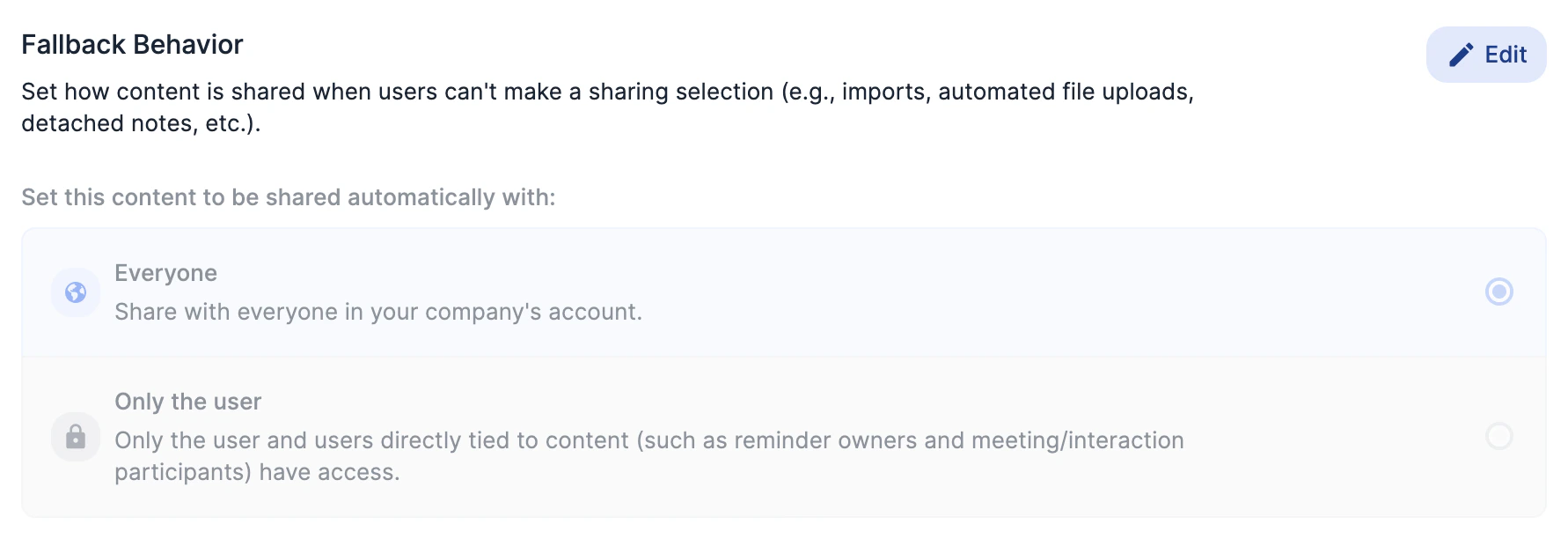 * If the **Fallback Behavior** is set to **Only the user**, then only the user who added the note will be able to view the note. So if the user gets deactivated/removed from their Affinity account, then the note will not be accessible to any other user on the account. To change the sharing permission, please reach out to [support@affinity.co ](mailto:support@affinity.co)with the following:
* The **Name** of the deactivated/removed user you'd like to change sharing permissions for.
* Which content type(s) you'd like to change sharing permissions for: **Notes**, **Reminders**, **Files**, **Logged Interactions**, **Meeting Notes**
* The sharing permission you'd like to change to: **Everyone**, **Only Teams/Users**, **Only the user**
## **What levels of sharing options can the Enterprise Admin toggle on/off for these content types?**
The Enterprise Admin can determine whether users can share their notes, logged interactions, files, and reminders with others based on the three levels of sharing preferences: **Everyone**, **Teams and users**, or **Only you**.
* If the **Fallback Behavior** is set to **Only the user**, then only the user who added the note will be able to view the note. So if the user gets deactivated/removed from their Affinity account, then the note will not be accessible to any other user on the account. To change the sharing permission, please reach out to [support@affinity.co ](mailto:support@affinity.co)with the following:
* The **Name** of the deactivated/removed user you'd like to change sharing permissions for.
* Which content type(s) you'd like to change sharing permissions for: **Notes**, **Reminders**, **Files**, **Logged Interactions**, **Meeting Notes**
* The sharing permission you'd like to change to: **Everyone**, **Only Teams/Users**, **Only the user**
## **What levels of sharing options can the Enterprise Admin toggle on/off for these content types?**
The Enterprise Admin can determine whether users can share their notes, logged interactions, files, and reminders with others based on the three levels of sharing preferences: **Everyone**, **Teams and users**, or **Only you**.
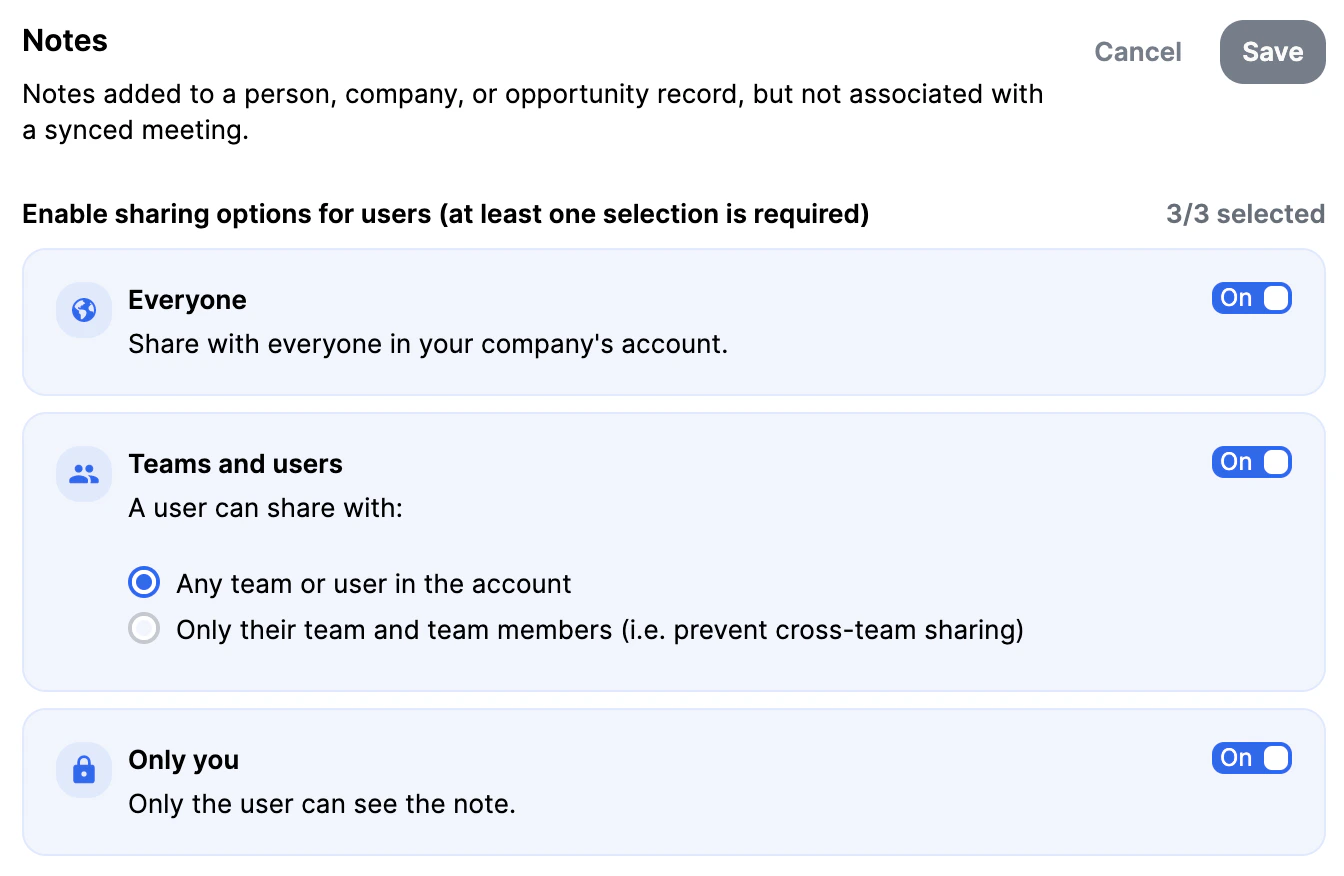 1. If the teams are highly collaborative and prefer **Open Content Sharing**, the Enterprise Admin can toggle on **Everyone** and/or **Teams and users (Any team or user)**.
2. If the teams are sensitive and prefer **Siloed Content Sharing**, the Enterprise Admin can toggle on **Teams and users (Only their team and team members)** and/or **Only you** while toggling off **Everyone**.
3. If the teams would like flexibility and prefer **Selective Content Sharing**, the Enterprise Admin can toggle on all three: **Everyone**, **Teams and Users (Any team or user)**, and **Only you**.
## **What if the Enterprise Admin changes the sharing options after users have already shared content?**
1. This will only impact the users' sharing options **moving forward**. This will not override past selections made on this change.
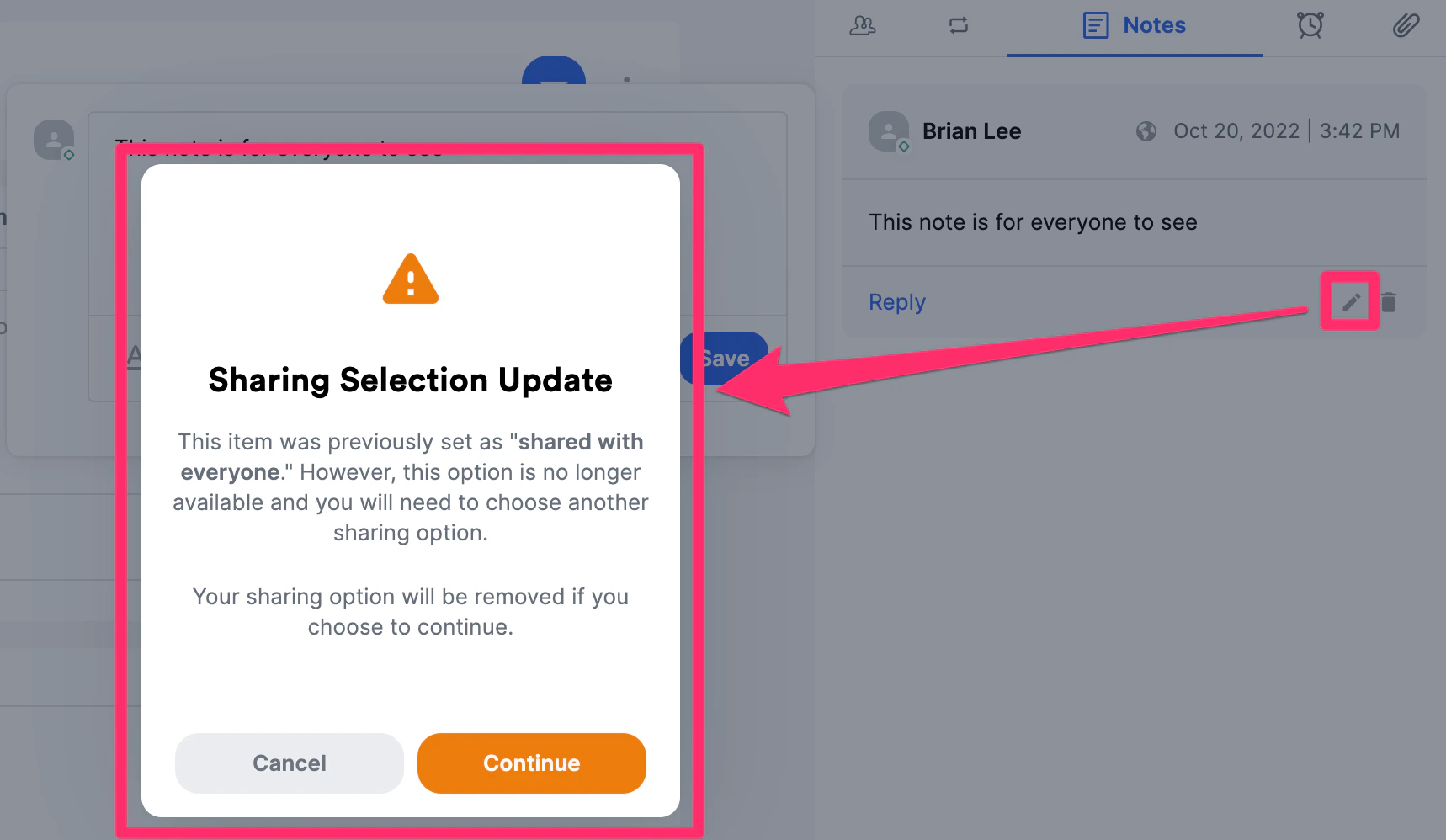
* Example: If you added a note when **Share with everyone** was an option, but want to change the sharing preference when \*\*Share with everyone \*\*is no longer an option, you will come across this warning modal asking for confirmation.
2. You can either click **Continue** to edit your sharing preference and lose the **Share with everyone** option for this particular note moving forward, or click **Cancel** to keep the previous preference.
1. If the teams are highly collaborative and prefer **Open Content Sharing**, the Enterprise Admin can toggle on **Everyone** and/or **Teams and users (Any team or user)**.
2. If the teams are sensitive and prefer **Siloed Content Sharing**, the Enterprise Admin can toggle on **Teams and users (Only their team and team members)** and/or **Only you** while toggling off **Everyone**.
3. If the teams would like flexibility and prefer **Selective Content Sharing**, the Enterprise Admin can toggle on all three: **Everyone**, **Teams and Users (Any team or user)**, and **Only you**.
## **What if the Enterprise Admin changes the sharing options after users have already shared content?**
1. This will only impact the users' sharing options **moving forward**. This will not override past selections made on this change.
* Example: If you added a note when **Share with everyone** was an option, but want to change the sharing preference when \*\*Share with everyone \*\*is no longer an option, you will come across this warning modal asking for confirmation.
2. You can either click **Continue** to edit your sharing preference and lose the **Share with everyone** option for this particular note moving forward, or click **Cancel** to keep the previous preference.
 ## How will Enterprise Permissions affect the Affinity API and my integrations?
 * Users will only be able to read content from Affinity via API according to their permissions. If you or the Affinity Solutions Engineering team have built an integration that pulls notes, files, or reminders from Affinity via API, the user whose API key is being used will need to have access to all the notes, files, or reminders that you would like the integration to access. For that reason, sharing with **Everyone** is the only available sharing option.
* If you're using Affinity's [native integrations](/s/article/Getting-started-with-native-integrations-in-Affinity) that push files (e.g. Box, Dropbox, Google Drive, or SharePoint) or push notes to Slack or Microsoft Teams, you will want to make sure that the user who configures the integration has access to all the files or notes that you'd want pushed to those platforms outside of Affinity. This is why sharing with\*\* Everyone\*\* is the only available sharing option.
* Content that is created in Affinity via API will default to being shared with\*\* Everyone\*\* so that integrations continue to work as they did previously.
* **Important Callout**: If you are removing the permission for **Admin** and/or **Standard** users to generate an API key, please note that the following will occur:
* They can no longer generate an API key (the **API** tab in Settings will be hidden from them).
* All existing API keys attached to each user will be disabled.
* If you later decide to reenable the permission for **Admin** and/or **Standard** users to generate an API key, their previous API keys will not be reenabled and they will need to [generate a new API key](/s/article/How-to-create-and-manage-API-keys).
## FAQ and Edge Cases
* **If a user (Team A) sent an email to an external, but also has another user (Team B) on the CC line, can team members from Team B also see that email?**
* Yes, the email will appear to all team members in both Team A and Team B.
* **How much content is shown when two or more users with different privacy settings on the same team are included on the same email thread?**
* The user with the **most revealing** privacy settings will have their privacy setting applied for that email thread.
* **Example**: If Jamie (Hide all content on Team 1) and Jason (Show all content on Team 1) are on the same email thread, team members from Team 1 will be able to see the Email Subject and Email Body of that email based on Jason's privacy setting.
* **What happens when a user is not on any teams at all? Can they see their team members' interactions?**
* The user cannot see any of their team members' synced emails/meetings and team members cannot see the user's emails/meetings - being added to a team is what gives a user access to their team members' synced emails/meetings.
* **If a team gets deleted, what happens to content that's been shared with that team?**
* The content that's been shared with that team will change to **Private**.
* **What happens when a user is on two different teams, but has different privacy settings on each team?**
* We will adhere to the unique privacy settings for each team.
* Team 1: For all team members in Team 1, they will only see metadata (participants, date, and time) if the user has "**Hide all email and meeting content**" as their privacy setting.
* Team 2: For all team members in Team 2, they will see email subject lines, meeting titles, **and** email bodies if the user has "**Show all email and meeting content**" as their privacy setting.
* **What sharing option gets chosen by default when users cannot explicitly choose a sharing option?**
* When users cannot explicitly choose a sharing option, the Enterprise Admin can set the \*\*Fallback Behavior \*\*sharing option to one of two options: **Only the user** (also known as Private) or **Everyone**.
* Users will only be able to read content from Affinity via API according to their permissions. If you or the Affinity Solutions Engineering team have built an integration that pulls notes, files, or reminders from Affinity via API, the user whose API key is being used will need to have access to all the notes, files, or reminders that you would like the integration to access. For that reason, sharing with **Everyone** is the only available sharing option.
* If you're using Affinity's [native integrations](/s/article/Getting-started-with-native-integrations-in-Affinity) that push files (e.g. Box, Dropbox, Google Drive, or SharePoint) or push notes to Slack or Microsoft Teams, you will want to make sure that the user who configures the integration has access to all the files or notes that you'd want pushed to those platforms outside of Affinity. This is why sharing with\*\* Everyone\*\* is the only available sharing option.
* Content that is created in Affinity via API will default to being shared with\*\* Everyone\*\* so that integrations continue to work as they did previously.
* **Important Callout**: If you are removing the permission for **Admin** and/or **Standard** users to generate an API key, please note that the following will occur:
* They can no longer generate an API key (the **API** tab in Settings will be hidden from them).
* All existing API keys attached to each user will be disabled.
* If you later decide to reenable the permission for **Admin** and/or **Standard** users to generate an API key, their previous API keys will not be reenabled and they will need to [generate a new API key](/s/article/How-to-create-and-manage-API-keys).
## FAQ and Edge Cases
* **If a user (Team A) sent an email to an external, but also has another user (Team B) on the CC line, can team members from Team B also see that email?**
* Yes, the email will appear to all team members in both Team A and Team B.
* **How much content is shown when two or more users with different privacy settings on the same team are included on the same email thread?**
* The user with the **most revealing** privacy settings will have their privacy setting applied for that email thread.
* **Example**: If Jamie (Hide all content on Team 1) and Jason (Show all content on Team 1) are on the same email thread, team members from Team 1 will be able to see the Email Subject and Email Body of that email based on Jason's privacy setting.
* **What happens when a user is not on any teams at all? Can they see their team members' interactions?**
* The user cannot see any of their team members' synced emails/meetings and team members cannot see the user's emails/meetings - being added to a team is what gives a user access to their team members' synced emails/meetings.
* **If a team gets deleted, what happens to content that's been shared with that team?**
* The content that's been shared with that team will change to **Private**.
* **What happens when a user is on two different teams, but has different privacy settings on each team?**
* We will adhere to the unique privacy settings for each team.
* Team 1: For all team members in Team 1, they will only see metadata (participants, date, and time) if the user has "**Hide all email and meeting content**" as their privacy setting.
* Team 2: For all team members in Team 2, they will see email subject lines, meeting titles, **and** email bodies if the user has "**Show all email and meeting content**" as their privacy setting.
* **What sharing option gets chosen by default when users cannot explicitly choose a sharing option?**
* When users cannot explicitly choose a sharing option, the Enterprise Admin can set the \*\*Fallback Behavior \*\*sharing option to one of two options: **Only the user** (also known as Private) or **Everyone**.
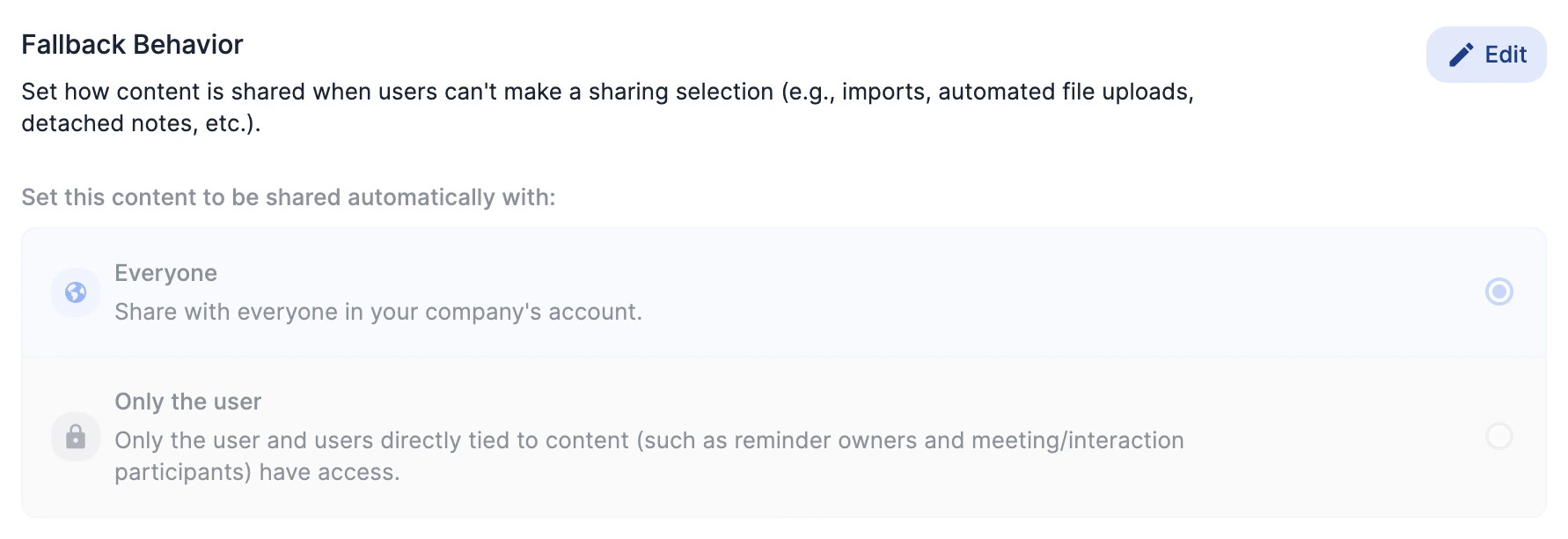 * The **Fallback Behavior** sharing option will apply to the following product areas:
* Notes added from [Note Imports](https://affinity2ndorg.lightning.force.com/articles/Knowledge/How-to-import-notes-into-Affinity)
* Detached Notes (these are notes that were originally associated with meetings, but now disassociated)
* Auto-File Uploads (see the section titled "How to auto-upload files" in [How to upload, download, and remove files in Affinity](https://affinity2ndorg.lightning.force.com/articles/Knowledge/How-to-upload-download-and-remove-files-in-Affinity))
* Content creation via [Affinity's Mobile App](https://affinity2ndorg.lightning.force.com/articles/Knowledge/Android-users-How-to-use-the-Affinity-Mobile-App)
* [Email Bot](https://affinity2ndorg.lightning.force.com/articles/Knowledge/How-to-use-Affinity-s-Email-Bot)
* **Can Enterprise Admins view private saved views?**
* No, they cannot.
* **Can I use Enterprise Permissions to block exports from Affinity Analytics?**
* No, this is not possible today.
* The **Fallback Behavior** sharing option will apply to the following product areas:
* Notes added from [Note Imports](https://affinity2ndorg.lightning.force.com/articles/Knowledge/How-to-import-notes-into-Affinity)
* Detached Notes (these are notes that were originally associated with meetings, but now disassociated)
* Auto-File Uploads (see the section titled "How to auto-upload files" in [How to upload, download, and remove files in Affinity](https://affinity2ndorg.lightning.force.com/articles/Knowledge/How-to-upload-download-and-remove-files-in-Affinity))
* Content creation via [Affinity's Mobile App](https://affinity2ndorg.lightning.force.com/articles/Knowledge/Android-users-How-to-use-the-Affinity-Mobile-App)
* [Email Bot](https://affinity2ndorg.lightning.force.com/articles/Knowledge/How-to-use-Affinity-s-Email-Bot)
* **Can Enterprise Admins view private saved views?**
* No, they cannot.
* **Can I use Enterprise Permissions to block exports from Affinity Analytics?**
* No, this is not possible today.