> ## Documentation Index
> Fetch the complete documentation index at: https://support.affinity.co/llms.txt
> Use this file to discover all available pages before exploring further.
# Custom Google SSO SAML For Affinity Access
> Help center reference: Custom Google SSO SAML For Affinity Access
**Reference** — lookup information.
While there are two options for logging in with Google workspace (**SAML** and **OAuth 2.0**), this article will cover how the Google Workspace Admin for your team can set up access to Affinity using Google's **SAML** app. This will allow users to log in and connect a different application such as Microsoft to sync data.
## How to set up Google's SAML app for Affinity
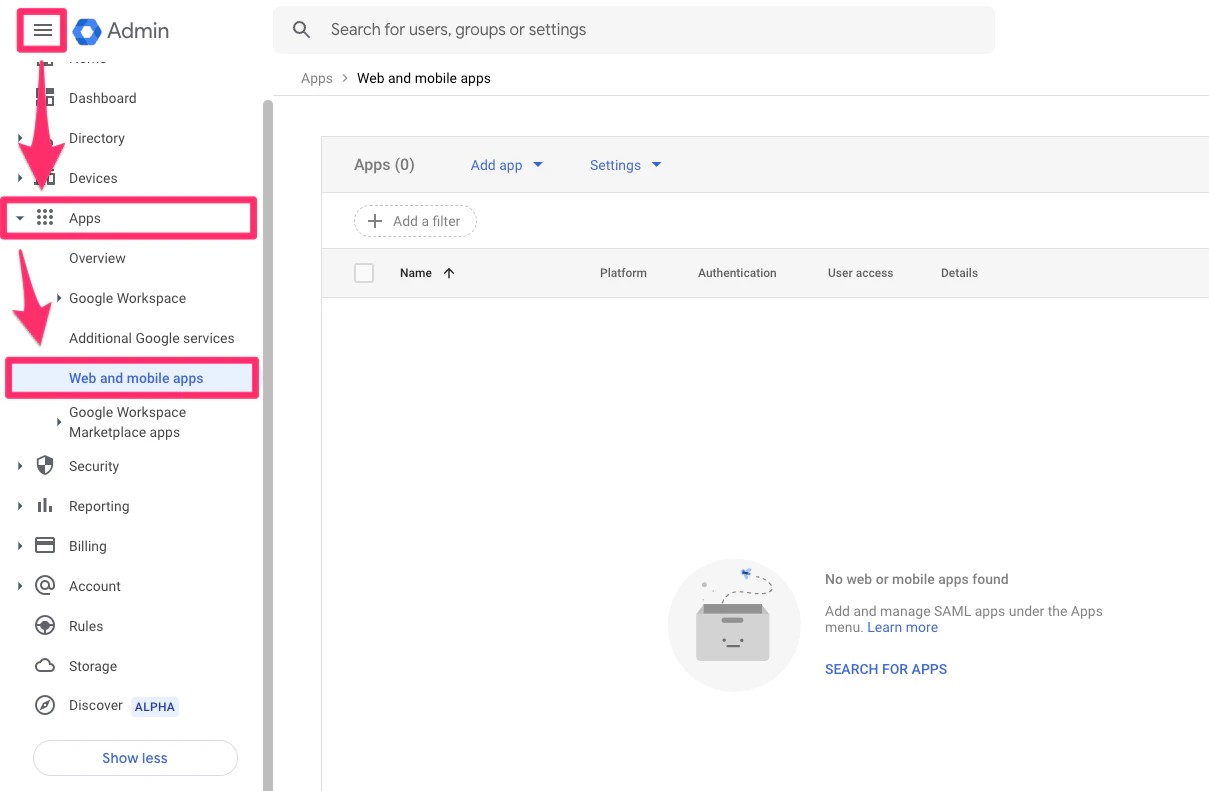
1. As the Google Workspace Admin, please sign into [admin.google.com](https://admin.google.com/). Then, click the **Menu** icon > **Apps** > **Web and mobile apps**.
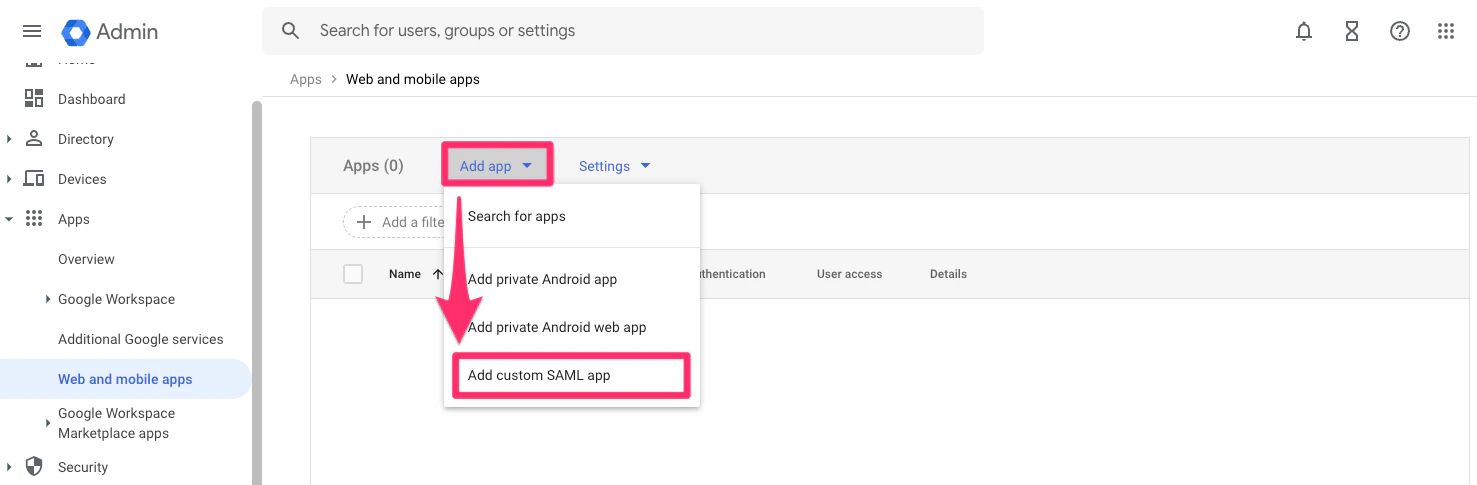
 2. Then, click on **Add app** > **Add custom SAML app**.
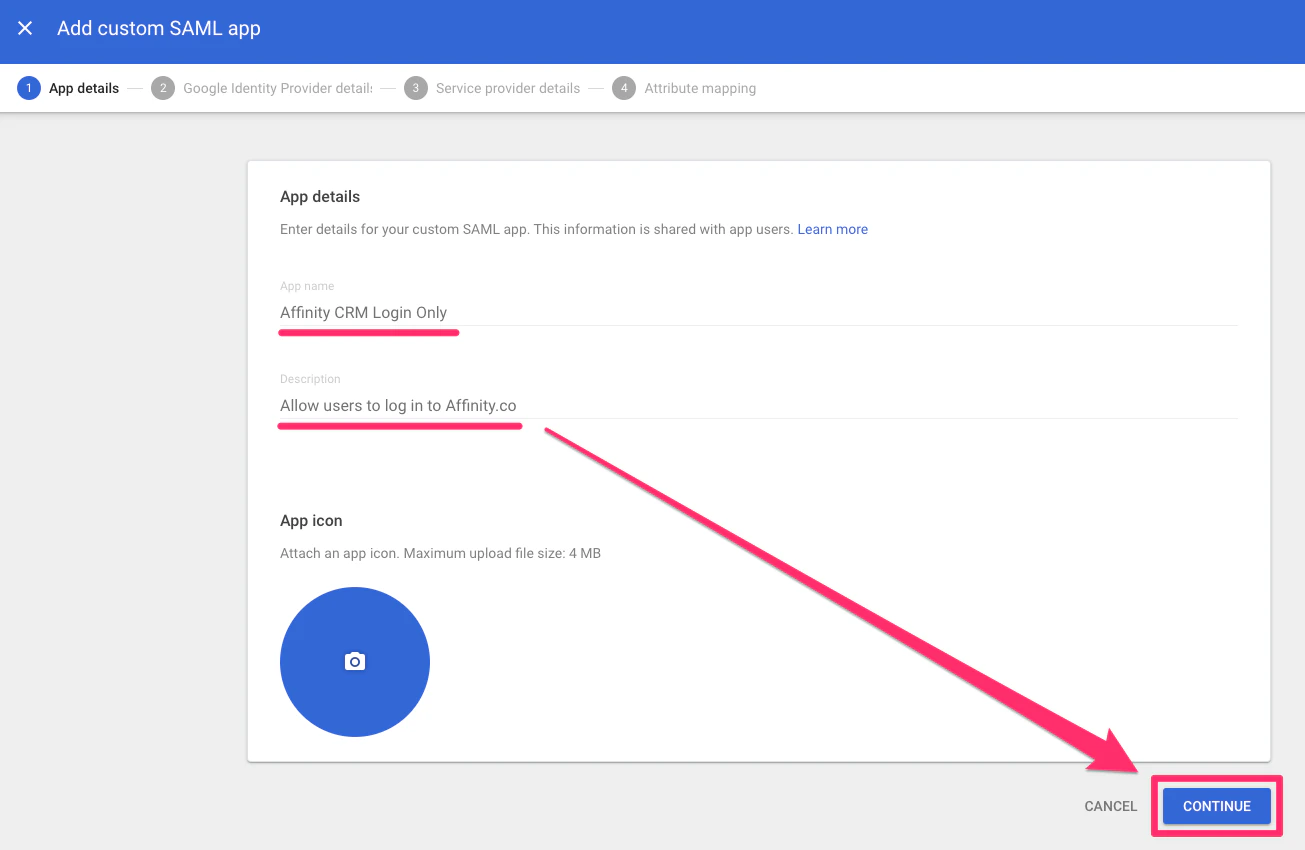
 3. Fill out the **App name** and **Description** fields, then click **Continue**.
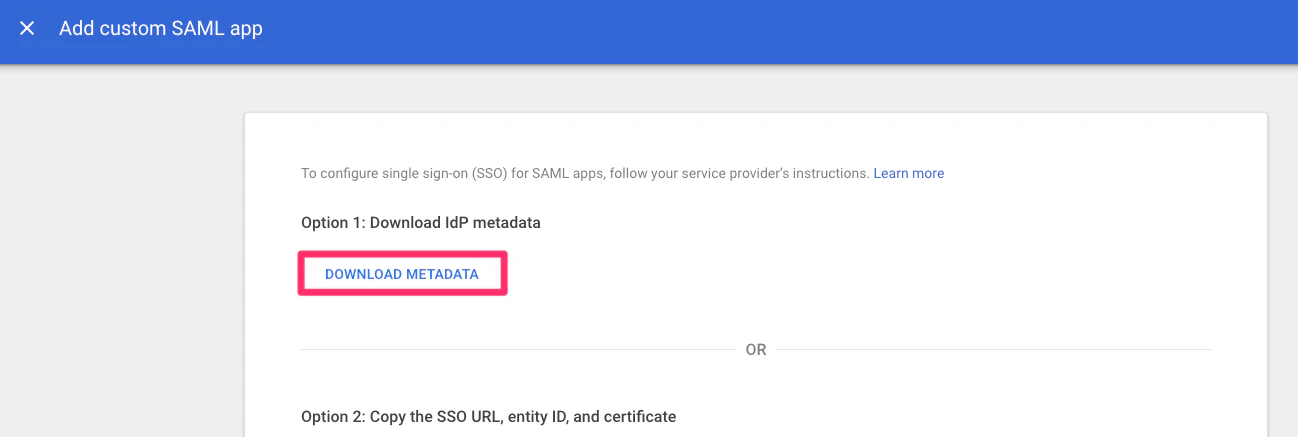
 4. Click the **Download Metadata** button, then send the file to your Affinity contact.
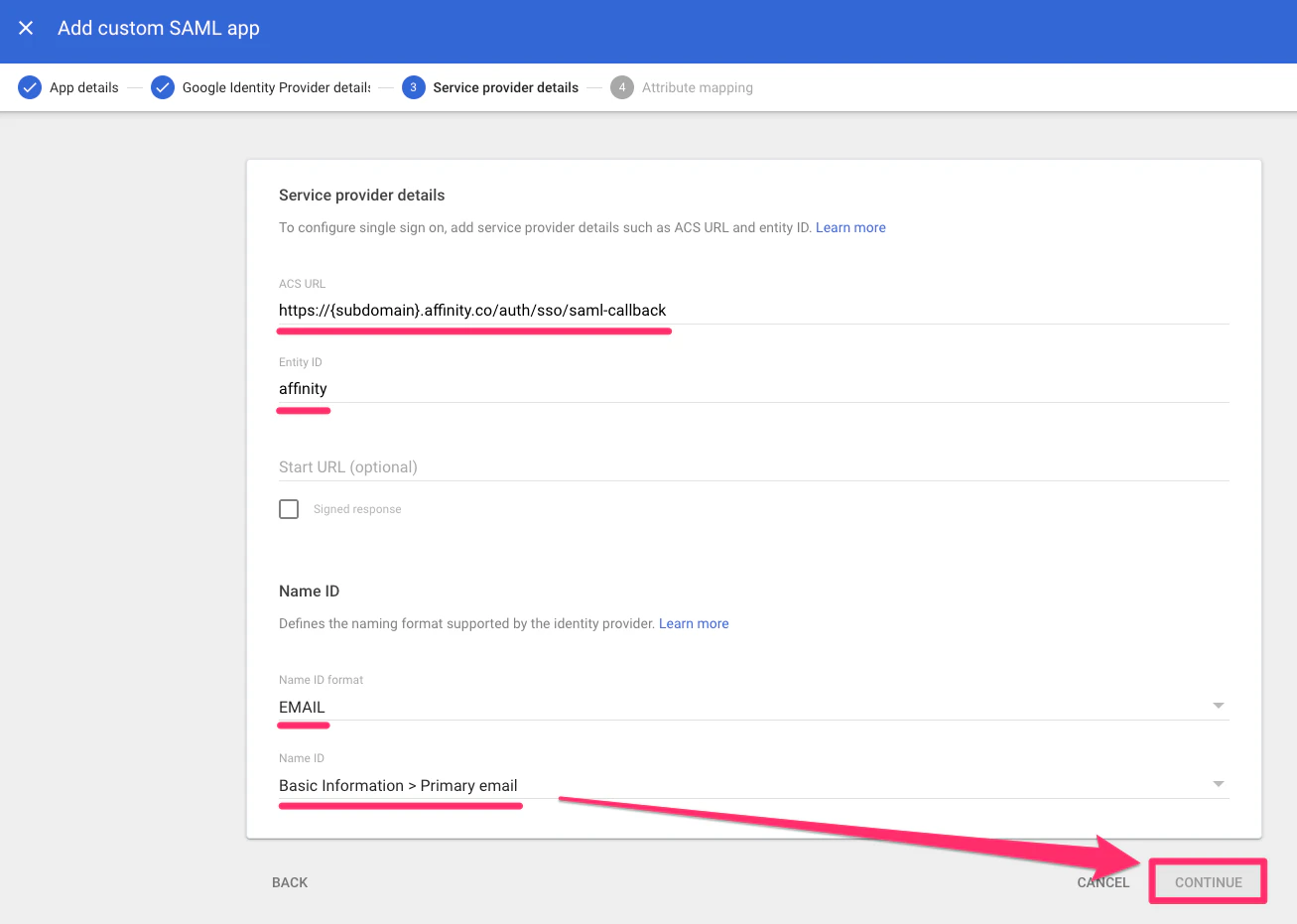
 5. Fill out the service provider details with the following, then click **Continue**:
1\.
**ACS URL (also known as Reply URL)**: `https://{subdomain}.affinity.co/auth/sso/saml-callback`
2\.
**Entity ID**: affinity
3\.
**Start URL (also known as Relay State)**: IDP-INITIATED-FLOW. If you wish to enable this, please let us know if you have this enabled.
4\.
**Name ID format**: EMAIL
5\.
**Name ID**: Basic Information > Primary email
**Note**: Not sure what your Affinity subdomain is? Check out [How to find your Affinity subdomain](/s/article/How-to-find-your-Affinity-subdomain)
5. Fill out the service provider details with the following, then click **Continue**:
1\.
**ACS URL (also known as Reply URL)**: `https://{subdomain}.affinity.co/auth/sso/saml-callback`
2\.
**Entity ID**: affinity
3\.
**Start URL (also known as Relay State)**: IDP-INITIATED-FLOW. If you wish to enable this, please let us know if you have this enabled.
4\.
**Name ID format**: EMAIL
5\.
**Name ID**: Basic Information > Primary email
**Note**: Not sure what your Affinity subdomain is? Check out [How to find your Affinity subdomain](/s/article/How-to-find-your-Affinity-subdomain)
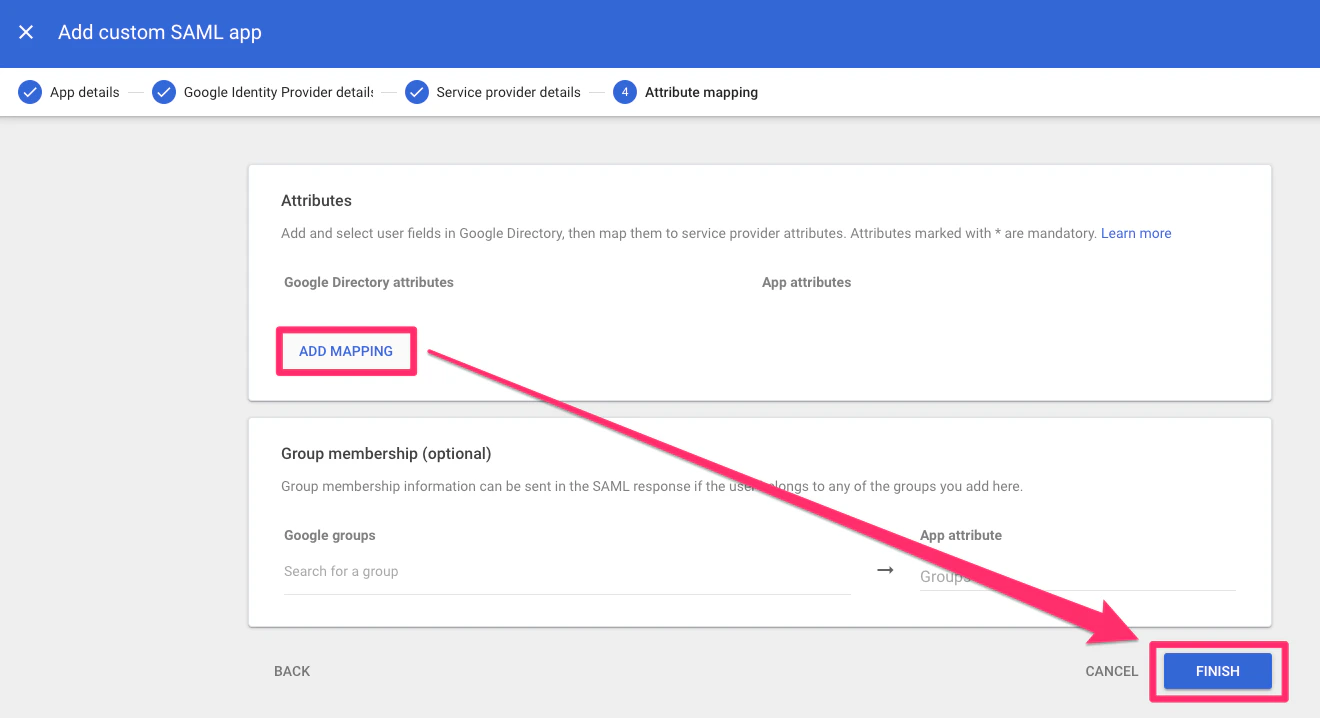
 6. Now, click **Add Mapping** to map user fields to service provider attributes. Then, click **Finish**.
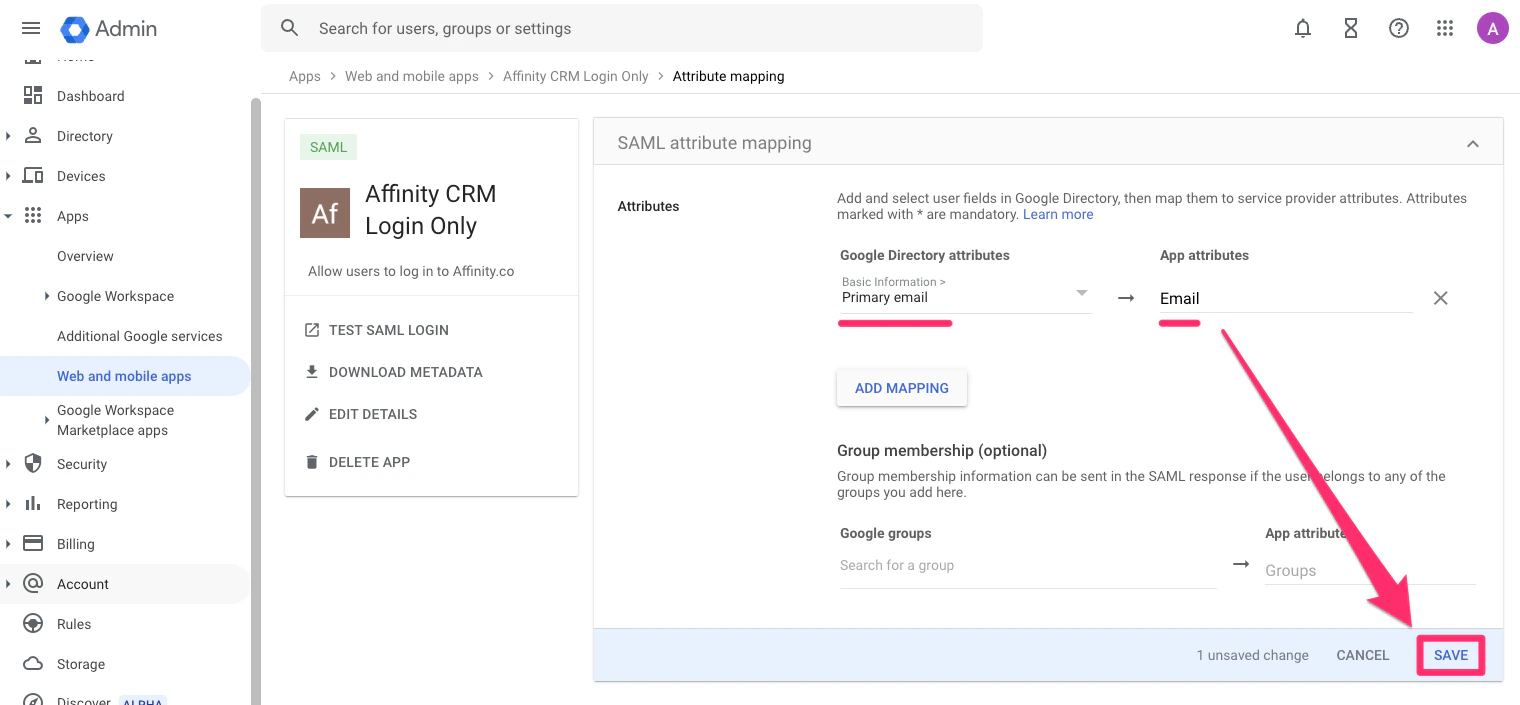
 7. Then, select **Primary email** under **Basic Information**, type in **Email** under **App attributes**, and click **Save**.
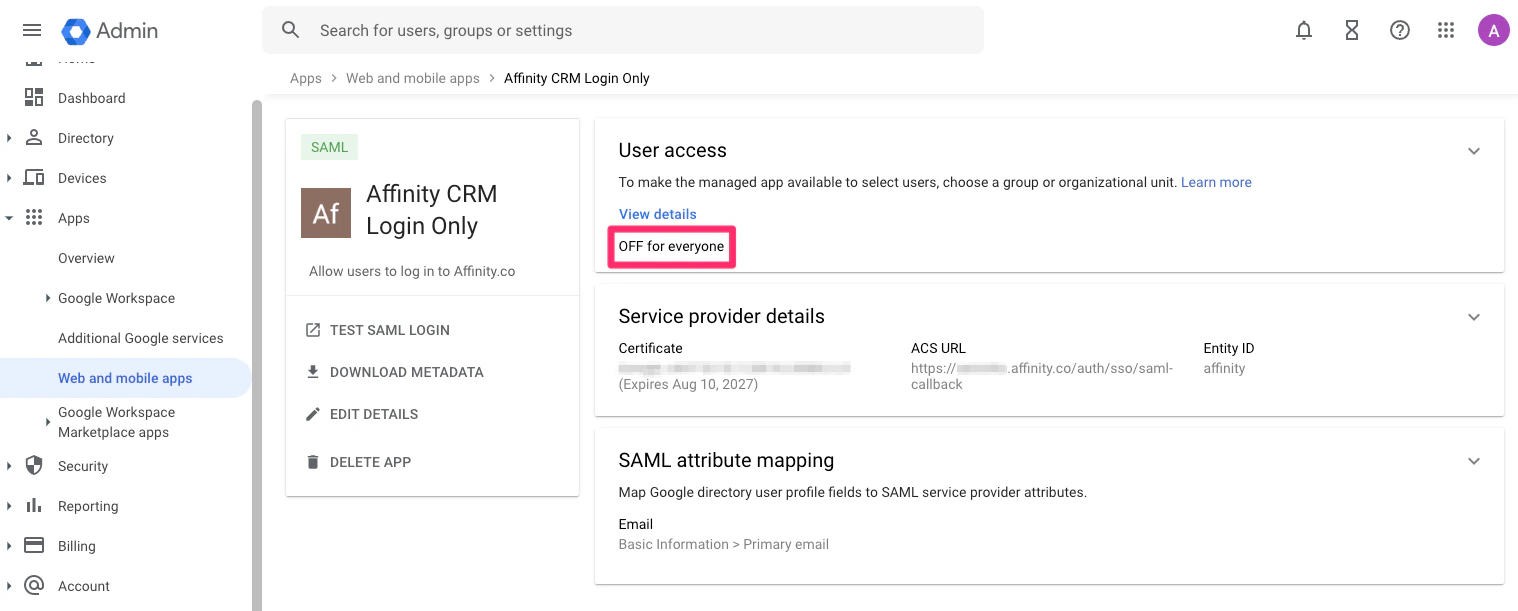
 8. Last but not least, set up user access for the specific users and/or teams that should have access to Affinity.