> ## Documentation Index
> Fetch the complete documentation index at: https://support.affinity.co/llms.txt
> Use this file to discover all available pages before exploring further.
# Android Users How To Use The Affinity Mobile App
> Help center reference
**How-to** — task-oriented recipe.
Use Affinity's mobile app (Android) to access relevant information and show up smarter while on-the-go.
## Overview
* Who can access the Affinity Mobile App?
* What actions can you take on the mobile app?
* Frequently Asked Questions
* Current Limitations
## Who can access the Affinity Mobile App?
| Essentials | Scale | Advanced | Enterprise |
| ---------- | ----- | -------- | ---------- |
| No | Yes | Yes | Yes |
Interested in upgrading to **Scale**, **Advanced**, or **Enterprise**? Please reach out to your Affinity point of contact or [support@affinity.co](mailto:support@affinity.co).
## What actions can you take on the mobile app?
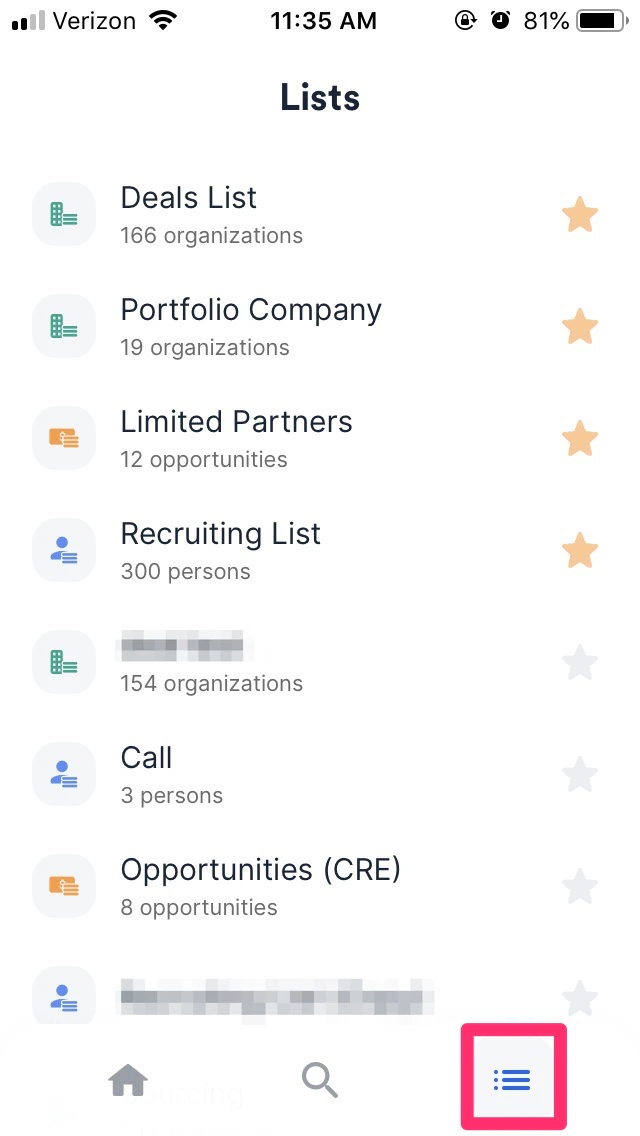
1. Access your lists by tapping on the **List** icon on the bottom-right corner.
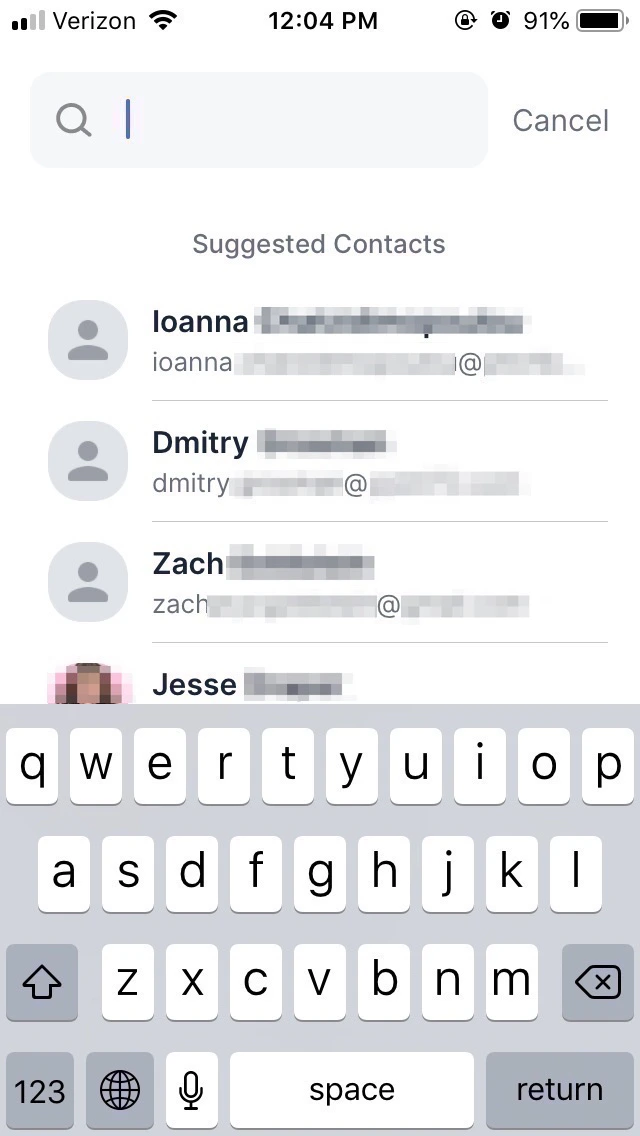
 2. Search for **contacts** by tapping on the **Search** icon at the bottom-center of the screen.
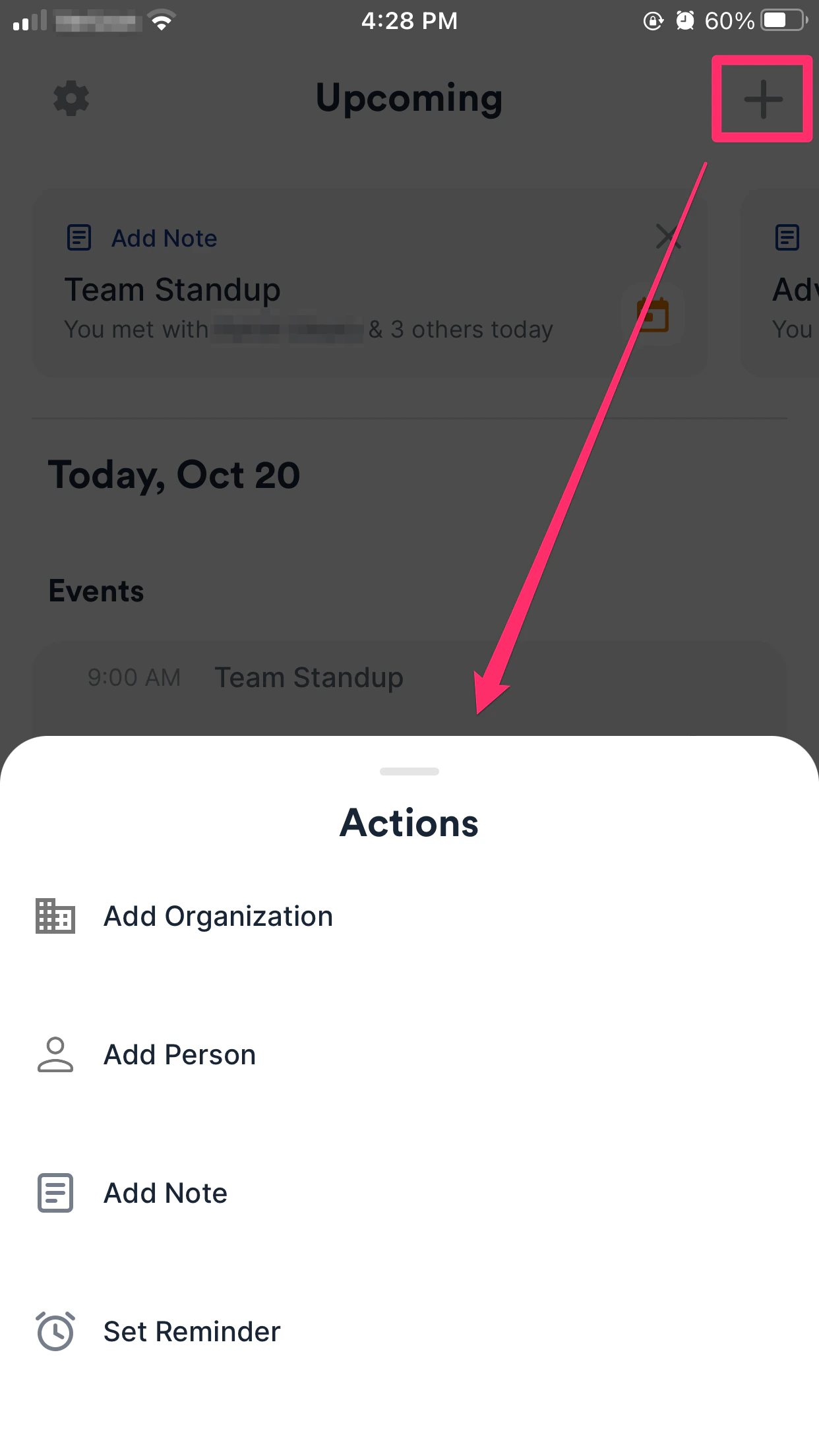
 3. Quickly **add an organization**, **add a person**, **add a note,** or **set a reminder** by tapping on the **+** icon on the top-right corner.
 4. **Take notes** for today's meetings and view all meetings and their participants below.
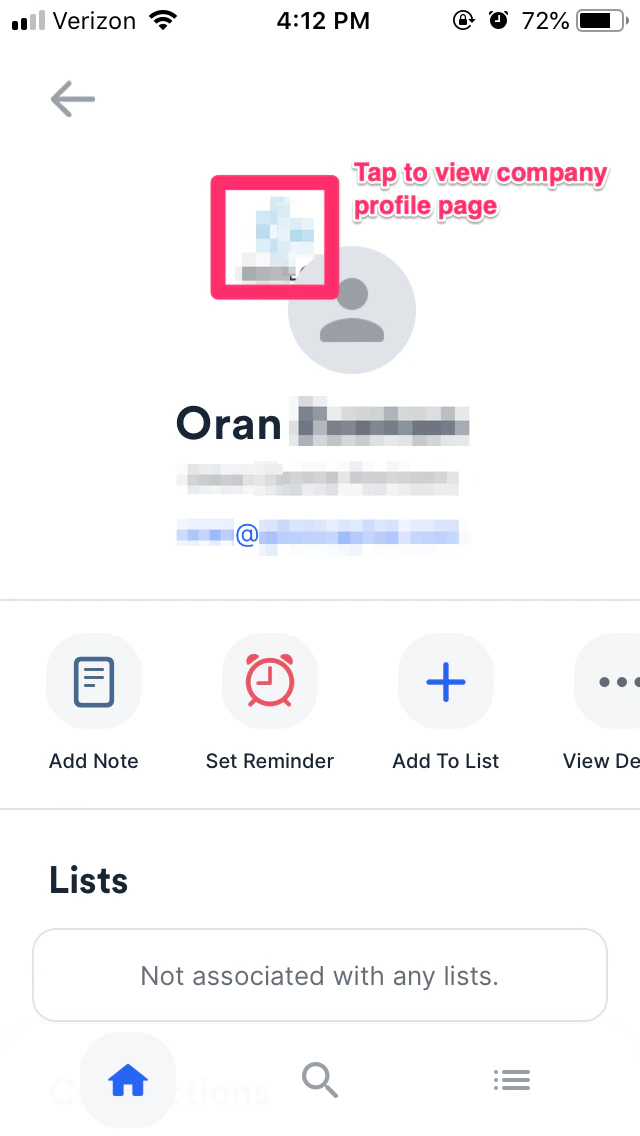
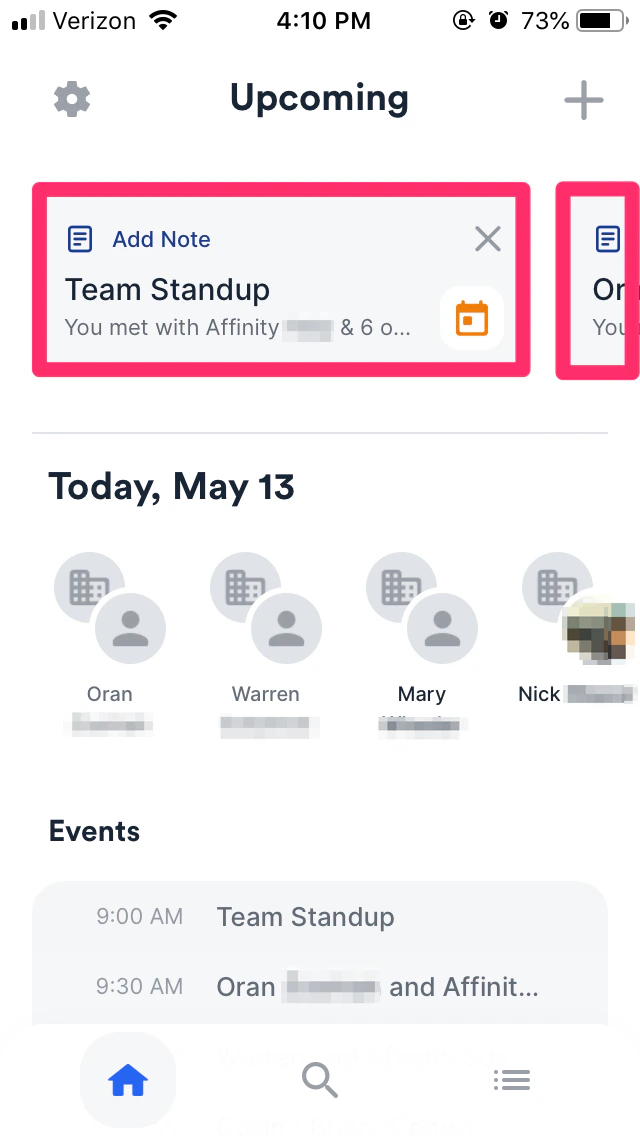 5. **View a person's profile** by tapping on their profile picture. You can also **tap the organization's logo** behind the person's profile picture to quickly access the organization's profile.
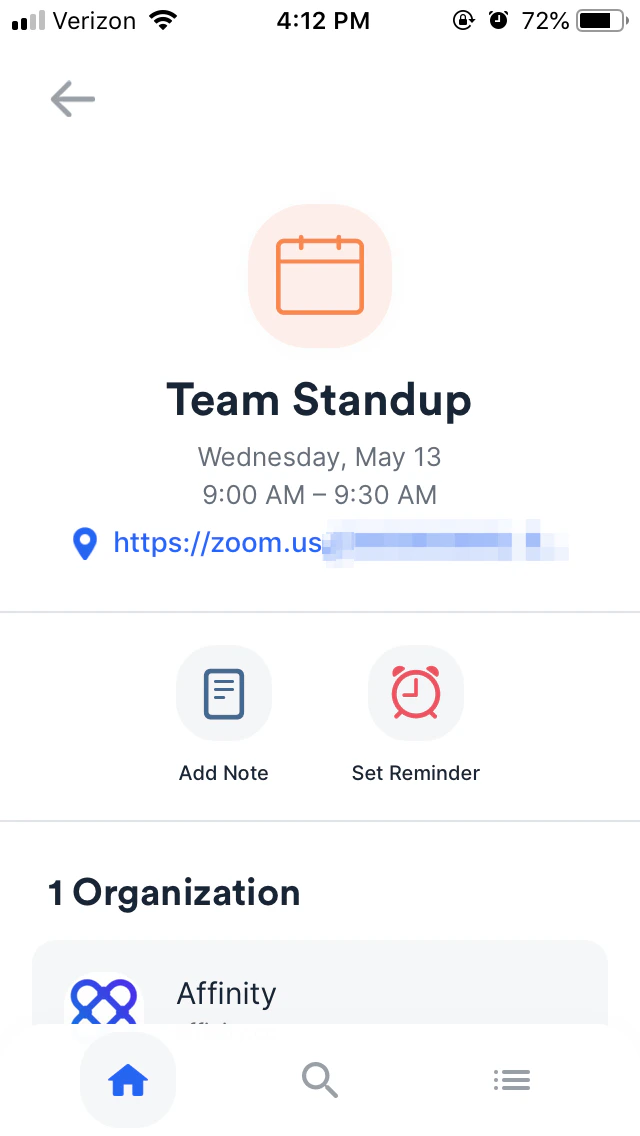
 6. View event details by tapping into an event.
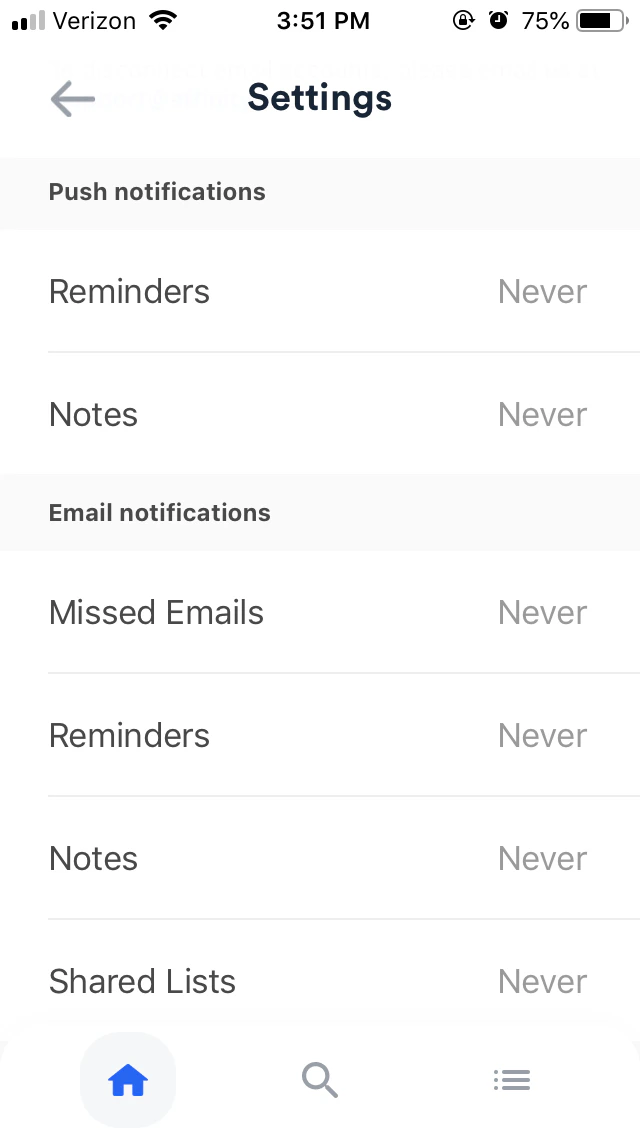
 7. Set **push notifications** and **email notifications** by tapping on the **Settings** icon on the top-left corner.
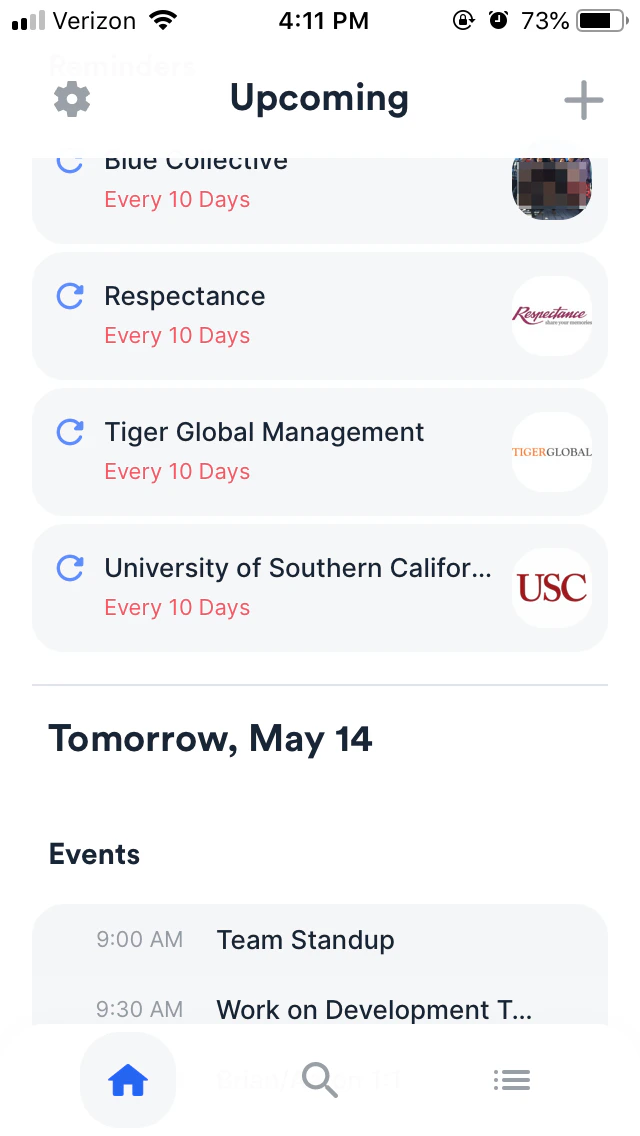
 8. View upcoming **reminders** as well as upcoming **meetings for tomorrow**.
 ## Frequently Asked Questions
**Why don't I see all calendar events showing up on the mobile app?**
* The Affinity mobile app will only surface meetings that include participants outside of your organization. If a meeting only includes team members (those with the same email domain as your organization's email domain), they will not surface on the mobile app or the web app. **Are default fields supported on the mobile app?**
* [Default fields](/s/article/How-to-customize-Default-Fields), also known as fields that are shown and/or required for users to fill out when creating a new entity, are currently not supported on the mobile app. Rest assured that this feature will be made available in future updates to the mobile app.
## Current Limitations
* You can only see sheet views when accessing lists on the mobile app. [Board views](/s/article/Lists) and [dashboard views](/s/article/Getting-started-with-Affinity-Analytics) are not supported at this time.
* You cannot create opportunities within an opportunity list using the mobile app.
* You cannot associate organizations with existing opportunities using the mobile app.
* You cannot convert organizations into opportunities within an organization list using the mobile app. If you have any feedback/questions, let us know at [support@affinity.co](mailto:support@affinity.co) - your thoughts and insights are highly valued.
## Frequently Asked Questions
**Why don't I see all calendar events showing up on the mobile app?**
* The Affinity mobile app will only surface meetings that include participants outside of your organization. If a meeting only includes team members (those with the same email domain as your organization's email domain), they will not surface on the mobile app or the web app. **Are default fields supported on the mobile app?**
* [Default fields](/s/article/How-to-customize-Default-Fields), also known as fields that are shown and/or required for users to fill out when creating a new entity, are currently not supported on the mobile app. Rest assured that this feature will be made available in future updates to the mobile app.
## Current Limitations
* You can only see sheet views when accessing lists on the mobile app. [Board views](/s/article/Lists) and [dashboard views](/s/article/Getting-started-with-Affinity-Analytics) are not supported at this time.
* You cannot create opportunities within an opportunity list using the mobile app.
* You cannot associate organizations with existing opportunities using the mobile app.
* You cannot convert organizations into opportunities within an organization list using the mobile app. If you have any feedback/questions, let us know at [support@affinity.co](mailto:support@affinity.co) - your thoughts and insights are highly valued.