> ## Documentation Index
> Fetch the complete documentation index at: https://support.affinity.co/llms.txt
> Use this file to discover all available pages before exploring further.
# Affinity For Salesforce How To Reauthenticate Your Salesforce Credentials
> Help center reference
**Reference** — lookup information.
If you are the admin who has set up Affinity for Salesforce for your team, you may receive an email from Affinity asking you to reauthenticate your credentials.
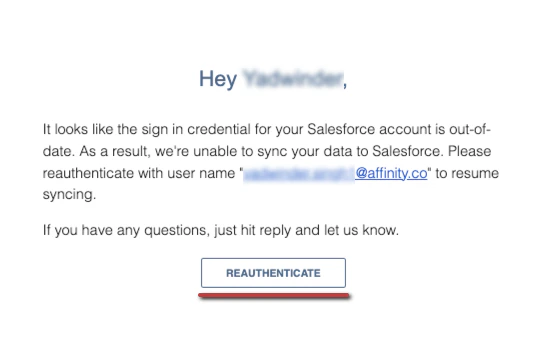
1. Click on the email sent by Affinity, then click **Reauthenticate**. This will take you to your **Settings** within your Affinity for Salesforce instance.
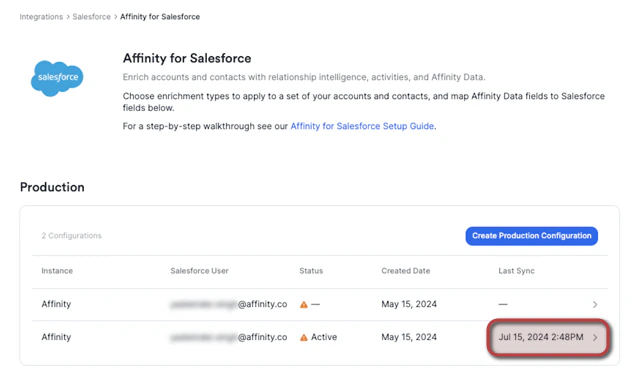
 2. From here, click on the credential that has been disabled. You'll notice under the **Status** column that there is a warning sign indicating that it has been disabled.
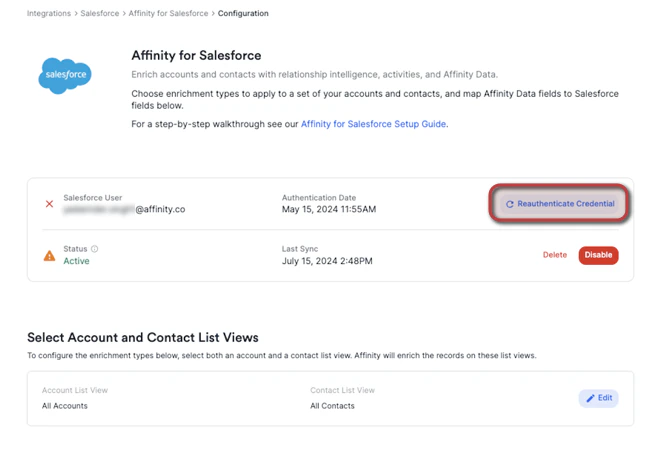
 3. Then, click **Reauthenticate Credential**. This will take you to a Salesforce sign in page to verify your credentials.
**Note**: You can reauthenticate your credential at any time, you will only receive the email in Step 1 if your credential has been disabled.
3. Then, click **Reauthenticate Credential**. This will take you to a Salesforce sign in page to verify your credentials.
**Note**: You can reauthenticate your credential at any time, you will only receive the email in Step 1 if your credential has been disabled.
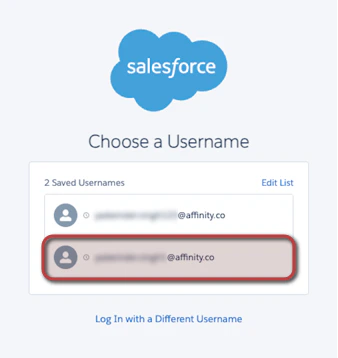
 4. Click on the correct username that is tied to your Affinity for Salesforce instance as the dedicated integration user, then sign in to authenticate.
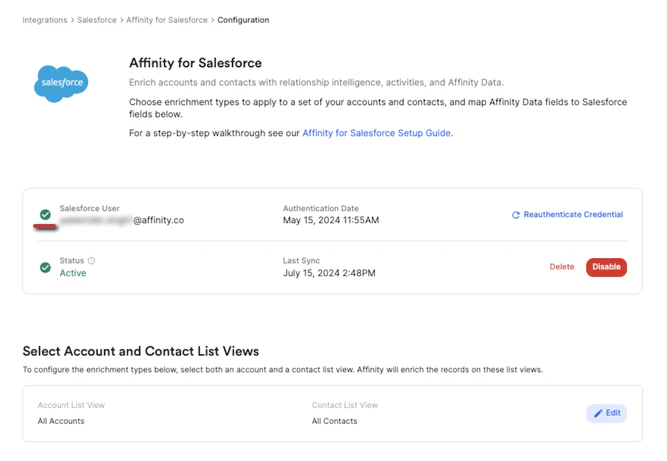
 5. Once you have signed in, you will be redirected to your **Settings** within your Affinity for Salesforce instance. You should now see the green verification symbol confirming that you have reauthenticated successfully.