> ## Documentation Index
> Fetch the complete documentation index at: https://support.affinity.co/llms.txt
> Use this file to discover all available pages before exploring further.
# Affinity Automation Updates To Slack And Send Note To Affinity
> Help center reference
**Reference** — lookup information.
**Note**: This functionality is not related to that found in the [Affinity Notes to Slack Channel](/s/article/Affinity-Notes-to-Slack-Channel) integration Use Affinity's new Automation Builder to set up automations between Affinity and Slack and expedite your workflow.
## Overview
* Prerequisites
* Automation 1 - Trigger Slack notifications based on field updates in Affinity
* Automation 2 - Send notes from Slack to people, organizations, and opportunities in Affinity
* Option 1 - On an existing Slack message
* Option 2 - Global shortcut on a new Slack message
* Important Callouts
## Prerequisites
* You must be on the **Advanced** or **Enterprise** tier in order to access the Automations Builder.
* You must also have the right account role in order to create and manage automations (see the section titled "How to create an automation" in [Getting started with automations in Affinity](/s/article/Admin)).
* Your IT team may need to approve the Affinity app for Slack by clicking on [this link](https://affinity.co/slack/auth/install) (see [Welcome to Affinity for Slack](/s/article/Welcome-to-Affinity)).
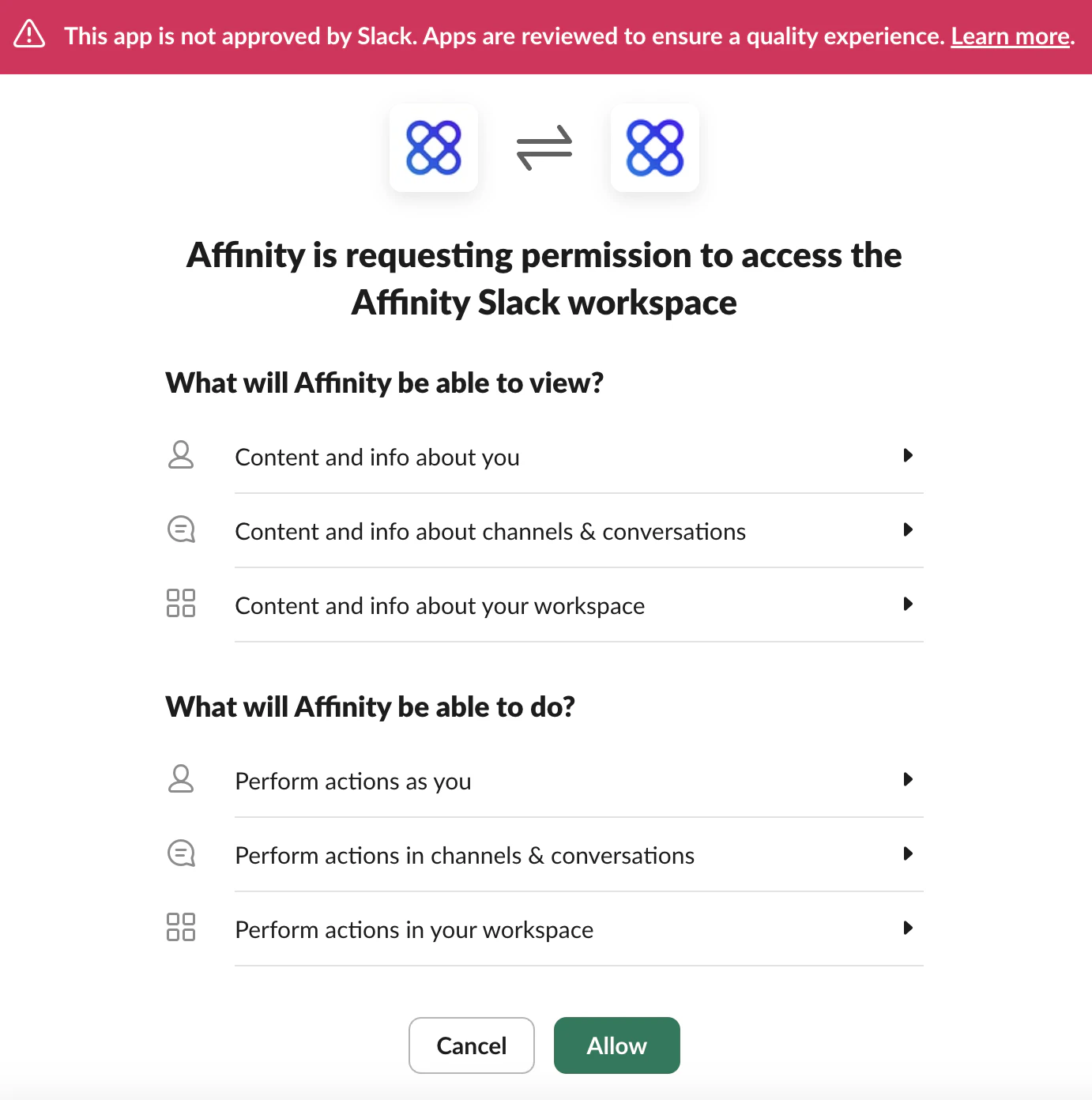
* If this is your first time [installing the Affinity app](https://affinity.co/slack/auth/install) for Slack, a window will pop up and ask you to click **Allow**.
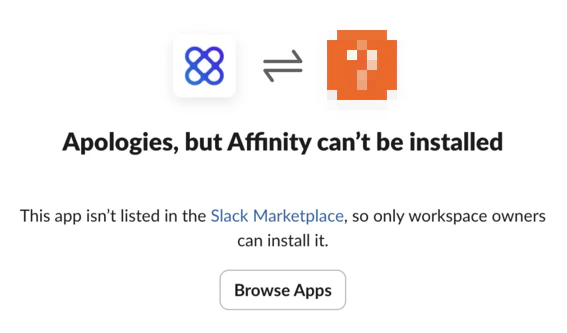
 * If you run into the message about Slack workspace owners, you can either ask your IT team to temporarily make you a Slack workspace owner or wait until the Affinity app gets approved for general use in the Slack Marketplace.
 * If your Slack workspace requires admin approval for new Slack apps, send your Slack workspace admin (often an IT person) these three links:
1. [Welcome to Affinity for Slack](/s/article/Welcome-to-Affinity)
2. [List of requested Slack scopes and reasons](/s/article/List-of-requested-Slack-scopes-and-reasons)
3. [Affinity for Slack direct install link](https://affinity.co/slack/auth/install)
## Automation 1 - Trigger Slack notifications based on field updates in Affinity
This action will send a customized notification to the Slack channel/DM of your choice based on field updates made in Affinity.
1. First, click on **Settings** on the left side of your screen.
* If your Slack workspace requires admin approval for new Slack apps, send your Slack workspace admin (often an IT person) these three links:
1. [Welcome to Affinity for Slack](/s/article/Welcome-to-Affinity)
2. [List of requested Slack scopes and reasons](/s/article/List-of-requested-Slack-scopes-and-reasons)
3. [Affinity for Slack direct install link](https://affinity.co/slack/auth/install)
## Automation 1 - Trigger Slack notifications based on field updates in Affinity
This action will send a customized notification to the Slack channel/DM of your choice based on field updates made in Affinity.
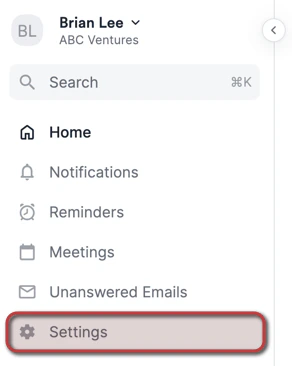
1. First, click on **Settings** on the left side of your screen.
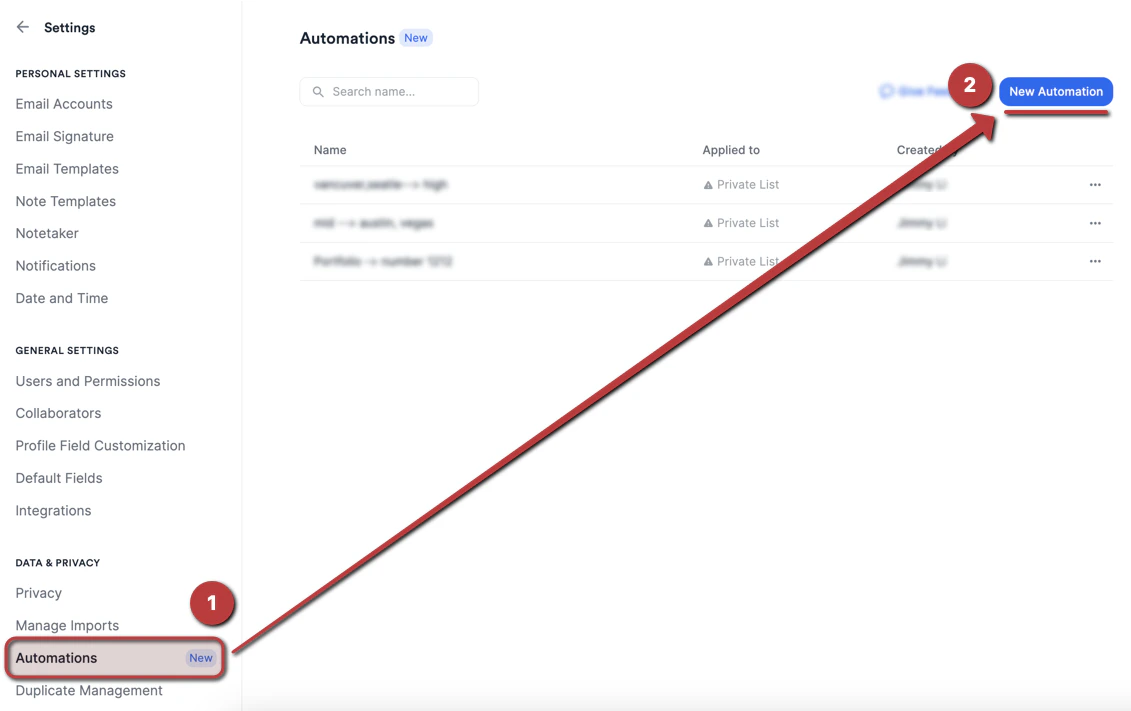
 2. Click on **Automations**, then click **New Automation** on the top-right corner.
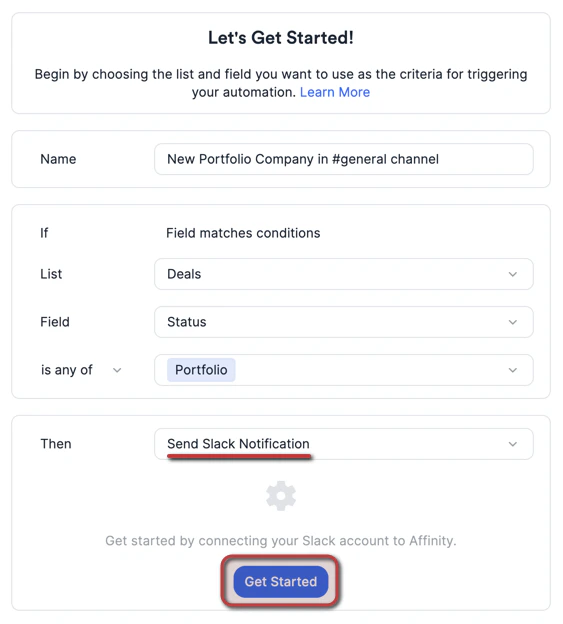
 3. Once you set up the trigger in the "If" section, select the **Send Slack Notification** option in the "Then" section. If this is your first time, click **Get Started** to authenticate your Slack account.
 4. A window will pop up and ask you to click **Allow** so that Affinity can send messages to your Slack workspace.
5. If your Slack workspace requires admin approval for new Slack apps, send your Slack workspace admin (often an IT person) the three links above.
6. Once you've finished authenticating your Slack account, continue with the steps below:
4. A window will pop up and ask you to click **Allow** so that Affinity can send messages to your Slack workspace.
5. If your Slack workspace requires admin approval for new Slack apps, send your Slack workspace admin (often an IT person) the three links above.
6. Once you've finished authenticating your Slack account, continue with the steps below:
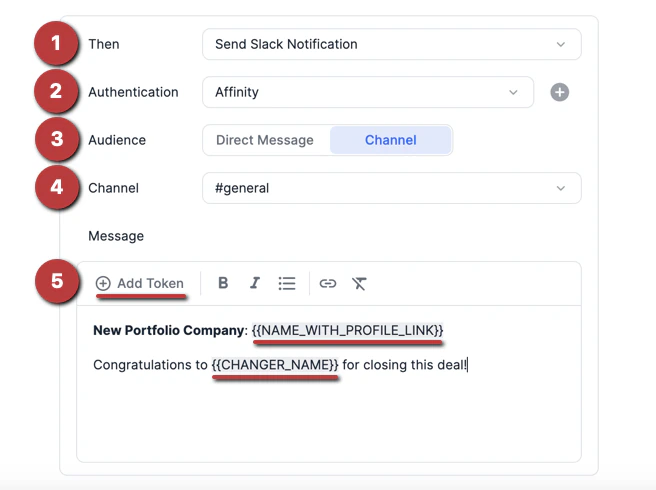 1. **Then - Send Slack Notification** will enable you to automatically send field update notifications to a channel or user of your choice.
2. **Authentication** - Select the Slack workspace you just signed into.
3. **Audience** - Select between sending this automated message to an individual person or to a Slack channel.
4. **Member/Channel** - Select the specific Slack user or channel that you'd like to send this automated message to.
5. **Message** - Click the **+ Add Token** button to customize your message with details regarding the trigger and action that took place. Examples of tokens include:
1. **Changer Name** - The person who initiated the trigger.
2. **Current Value** - The current value of the triggering field.
3. **Domain/Email Address** - The domain or email address of the entity whose field value was changed to trigger the automation.
4. **Name** - The name of the entity whose field value was changed to trigger the automation. You can choose to hyperlink this text with the relevant Affinity profile, list, or website.
5. **Previous Value** - The previous field value of the triggering field.
6. Other list-specific, global, or enriched field data on the triggering entity.
6. Once you save your automation, you can click on the automation's title to **view** its details or click the 3-dotted icon to **edit** the automation.
1. **Then - Send Slack Notification** will enable you to automatically send field update notifications to a channel or user of your choice.
2. **Authentication** - Select the Slack workspace you just signed into.
3. **Audience** - Select between sending this automated message to an individual person or to a Slack channel.
4. **Member/Channel** - Select the specific Slack user or channel that you'd like to send this automated message to.
5. **Message** - Click the **+ Add Token** button to customize your message with details regarding the trigger and action that took place. Examples of tokens include:
1. **Changer Name** - The person who initiated the trigger.
2. **Current Value** - The current value of the triggering field.
3. **Domain/Email Address** - The domain or email address of the entity whose field value was changed to trigger the automation.
4. **Name** - The name of the entity whose field value was changed to trigger the automation. You can choose to hyperlink this text with the relevant Affinity profile, list, or website.
5. **Previous Value** - The previous field value of the triggering field.
6. Other list-specific, global, or enriched field data on the triggering entity.
6. Once you save your automation, you can click on the automation's title to **view** its details or click the 3-dotted icon to **edit** the automation.
 ## Automation 2 - Send notes from Slack to people, organizations, and opportunities in Affinity
Once you've successfully [installed the Affinity app](https://affinity.co/slack/auth/install) on Slack, you will be able to directly attach notes to an entity of your choice via Slack. This can be done in two different ways:
### Option 1 - On an existing Slack message
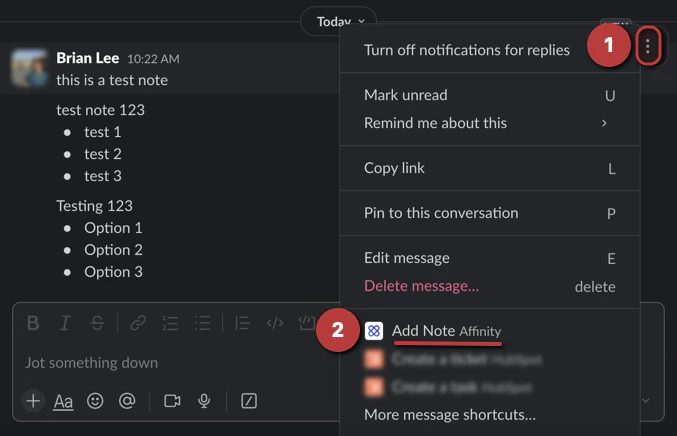
1. Click the 3 dots next to an existing message, then click the **Add note** option containing the Affinity logo.
## Automation 2 - Send notes from Slack to people, organizations, and opportunities in Affinity
Once you've successfully [installed the Affinity app](https://affinity.co/slack/auth/install) on Slack, you will be able to directly attach notes to an entity of your choice via Slack. This can be done in two different ways:
### Option 1 - On an existing Slack message
1. Click the 3 dots next to an existing message, then click the **Add note** option containing the Affinity logo.
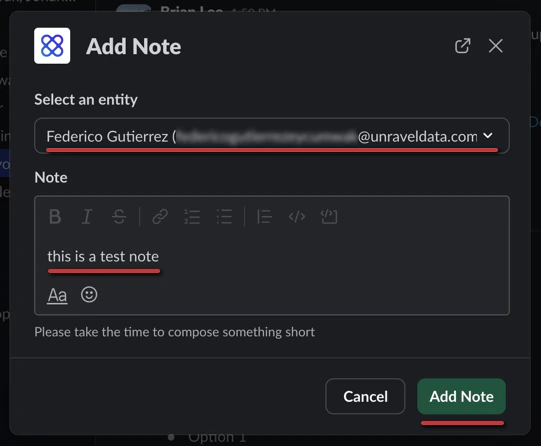
 2. From here, select an entity, add the contents of the note, then click **Add Note** to finish.
 ### Option 2 - Global shortcut on a new Slack message
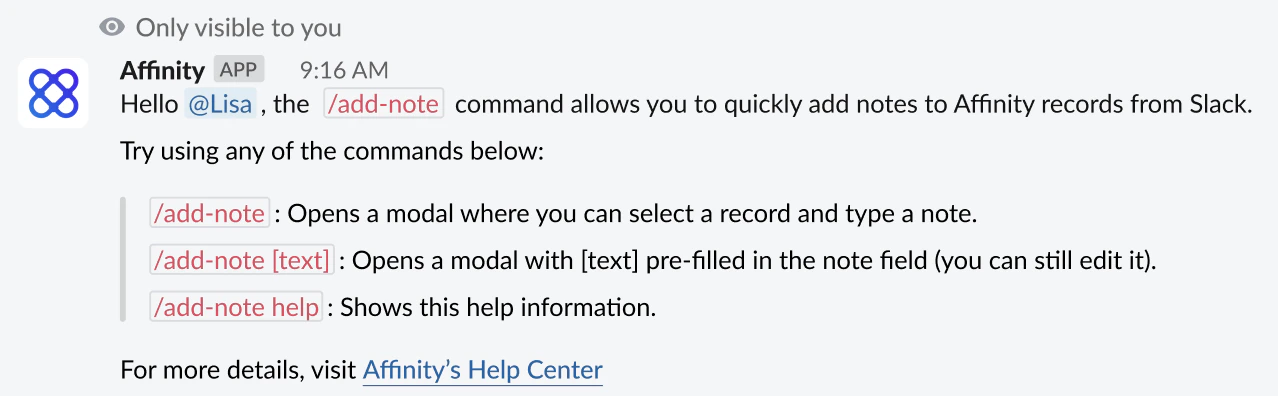
1. Type `/add-note help`, and you will see this internal message appear, showing you the two shortcuts available for adding notes to Affinity:
1. `/add-note` - Opens a modal where you can select a record and type a note.
2. `/add-note [text]` - Opens a modal with \[text] pre-filled in the **Note** field (you can still edit it).
### Option 2 - Global shortcut on a new Slack message
1. Type `/add-note help`, and you will see this internal message appear, showing you the two shortcuts available for adding notes to Affinity:
1. `/add-note` - Opens a modal where you can select a record and type a note.
2. `/add-note [text]` - Opens a modal with \[text] pre-filled in the **Note** field (you can still edit it).
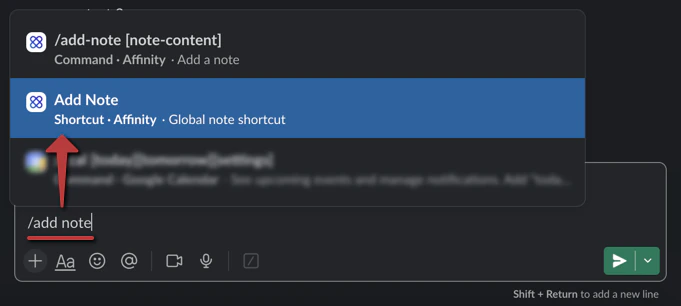
 2. To keep things simple, type `/add note`, then select the **Add Note** option containing the Affinity logo.
 3. From here, select an entity, add the contents of the note, and click **Add Note** to finish.
## Important Callouts
* The Automation Builder as a whole does not yet support:
* Complex triggers or actions (e.g. If *Status = In Progress* AND *Team = Fintech*, Then Update *Owner to Jane Smith* AND *Send a Slack Notification to #general*).
* Triggering off of enriched fields (e.g. Affinity Data fields).
* The "Send Slack Notification" action does not yet support:
* @ mentions in Slack
* Sending to group DMs in Slack.
* Automation 2 - Send notes from Slack to people, organizations, and opportunities in Affinity
* This is only available for those who are fully active and syncing users of Affinity.
* This is **not** available for team members on your Slack workspace who do **not** have access to Affinity.
* Though you will see that the Affinity app is not yet approved by Slack, the authentication will still work as intended.
3. From here, select an entity, add the contents of the note, and click **Add Note** to finish.
## Important Callouts
* The Automation Builder as a whole does not yet support:
* Complex triggers or actions (e.g. If *Status = In Progress* AND *Team = Fintech*, Then Update *Owner to Jane Smith* AND *Send a Slack Notification to #general*).
* Triggering off of enriched fields (e.g. Affinity Data fields).
* The "Send Slack Notification" action does not yet support:
* @ mentions in Slack
* Sending to group DMs in Slack.
* Automation 2 - Send notes from Slack to people, organizations, and opportunities in Affinity
* This is only available for those who are fully active and syncing users of Affinity.
* This is **not** available for team members on your Slack workspace who do **not** have access to Affinity.
* Though you will see that the Affinity app is not yet approved by Slack, the authentication will still work as intended.