> ## Documentation Index
> Fetch the complete documentation index at: https://support.affinity.co/llms.txt
> Use this file to discover all available pages before exploring further.
# Affinity CRM - How to use Affinity's Outlook Add-in
> Help center reference
**How-to** — task-oriented recipe.
Once you've [downloaded the Affinity for Outlook Add-in](/s/article/How-to-download-Affinity-s-Outlook-Add-in), scroll down below to learn more about taking Affinity-related actions directly in your inbox.
**Note:** If you are having trouble installing or using the Outlook Add-in, please make sure to check the following:
* Latest version of Outlook
* Latest version of your current Operating System.
* Using a version of Outlook downloaded from Microsoft.
## Who can access Affinity's Outlook add-in?
| Essential | Scale | Advanced | Enterprise |
| --------- | ----- | -------- | ---------- |
| No | Yes | Yes | Yes |
Interested in upgrading to **Scale**, **Advanced**, or **Enterprise**? Please reach out to your Affinity point of contact or [support@affinity.co](mailto:support@affinity.co).
## How to sign in for access
* You will need to enter your subdomain when logging in from Outlook to authenticate your account (see [How to find your Affinity subdomain](/s/article/How-to-find-your-Affinity-subdomain)).
* If your team's security protocols are more strict and need to know what the URL is when loading the sign in pop-up modal that appears, please have them approve of the URL: `*.affinity.co`
* Using the asterisk (`*`) will ensure that all `affinity.co` URLs are approved.
* **Note**: Outlook users with SSO can also use the Affinity for Outlook add-in.
## Actions you can take on Affinity for Outlook
1. Click open any email thread, then click **Affinity for Outlook** on the top navigation bar. The **Affinity for Outlook** sidebar will appear to the right of the email.
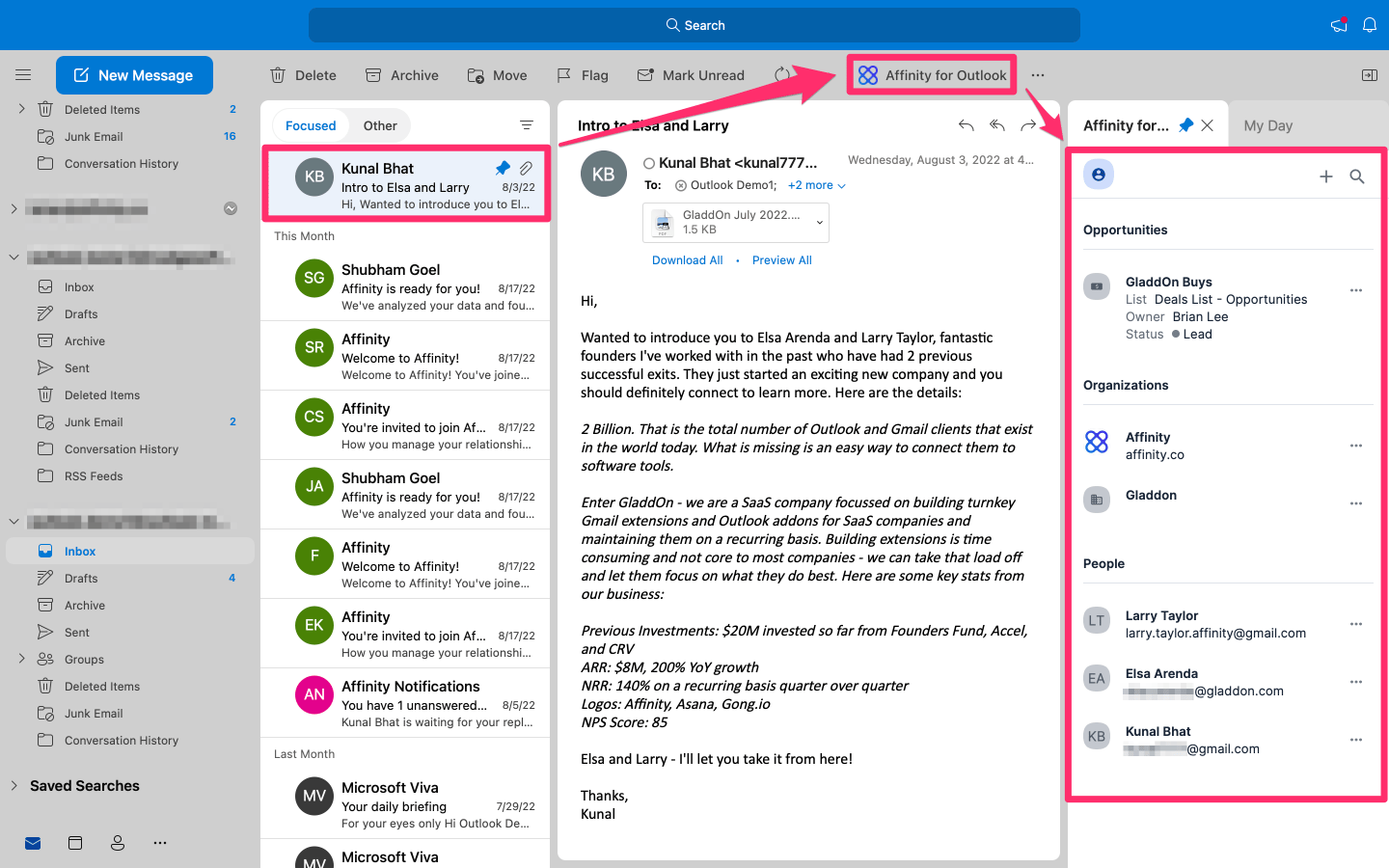 * **Note**: Placement of the **Affinity for Outlook** button/icon may differ if you're on the web app vs. desktop app (see [Microsoft's article on Outlook add-ins](https://support.microsoft.com/en-us/office/use-add-ins-in-outlook-1ee261f9-49bf-4ba6-b3e2-2ba7bcab64c8)).
2) Based on the participants in the email thread, you will see all the opportunities and organizations associated with these participants. Click on any of the people, organizations, or opporunities to get more details (see Step 4 below).
* **Note**: Placement of the **Affinity for Outlook** button/icon may differ if you're on the web app vs. desktop app (see [Microsoft's article on Outlook add-ins](https://support.microsoft.com/en-us/office/use-add-ins-in-outlook-1ee261f9-49bf-4ba6-b3e2-2ba7bcab64c8)).
2) Based on the participants in the email thread, you will see all the opportunities and organizations associated with these participants. Click on any of the people, organizations, or opporunities to get more details (see Step 4 below).
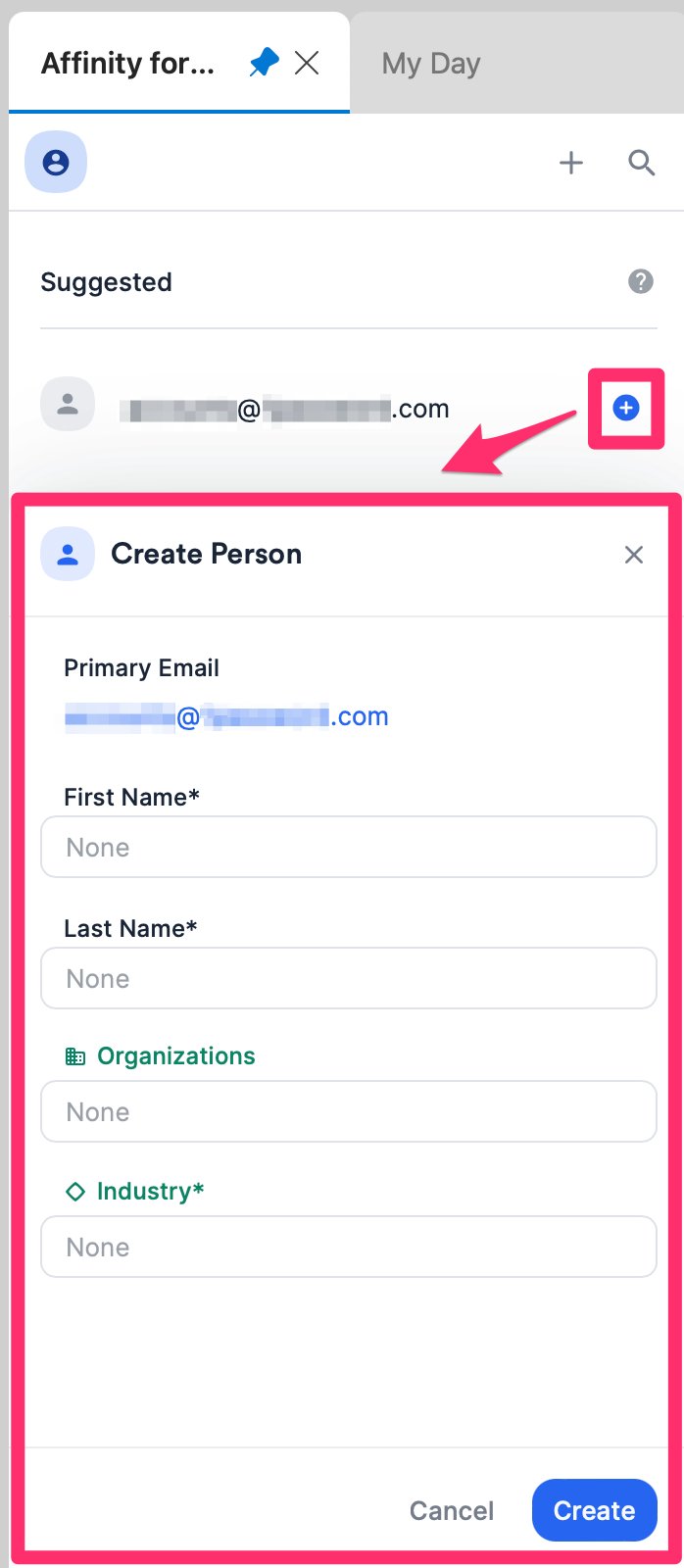
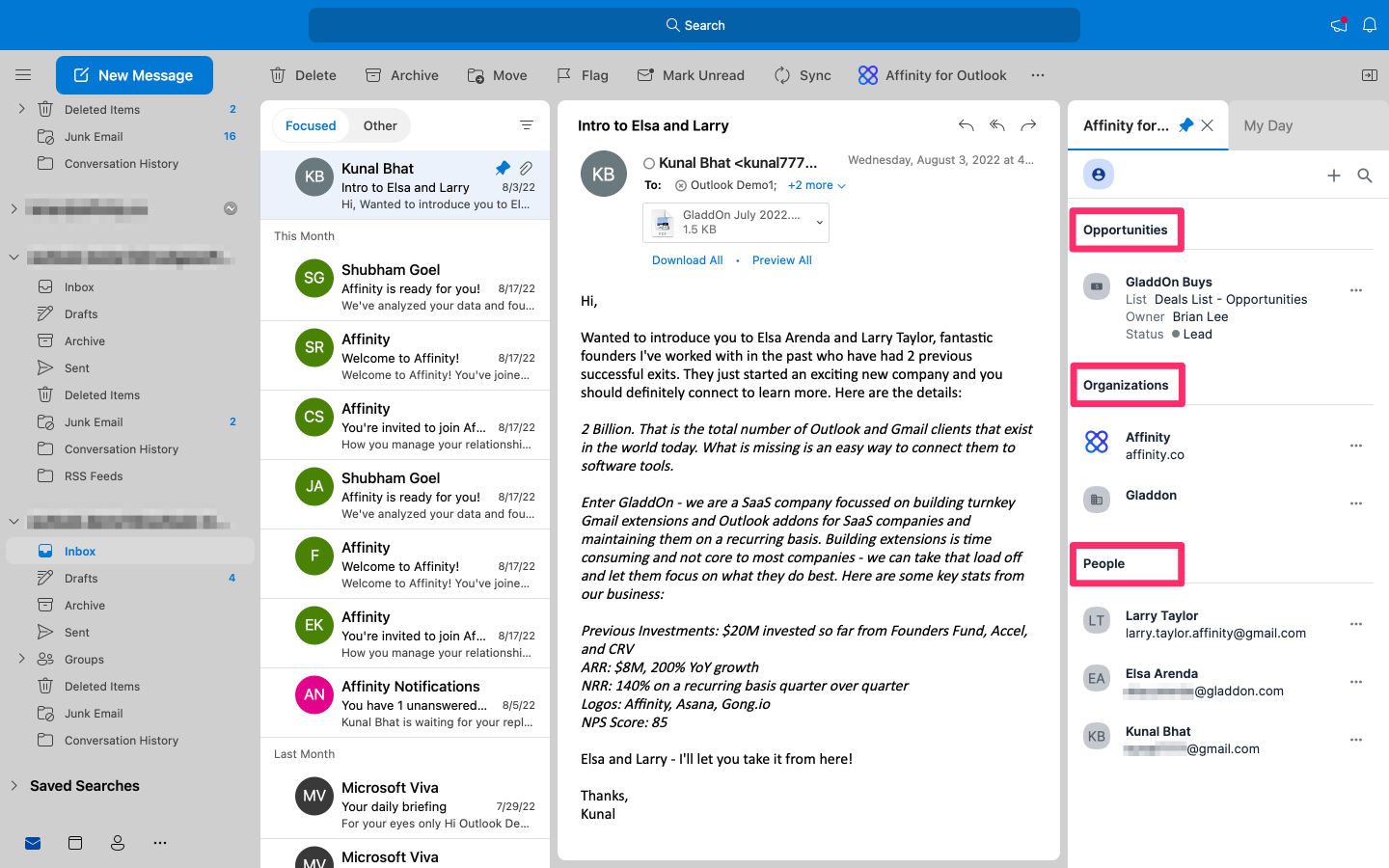 * If they don't already exist as an entity in your account, you may also click the blue **plus (+)** button next to the suggested entities in the **Suggested** section. Please note that only the required default fields will show up, not the optional default fields (see [How to customize Default Fields](/s/article/How-to-customize-Default-Fields)).
 {/* SCREENSHOT 3 */}
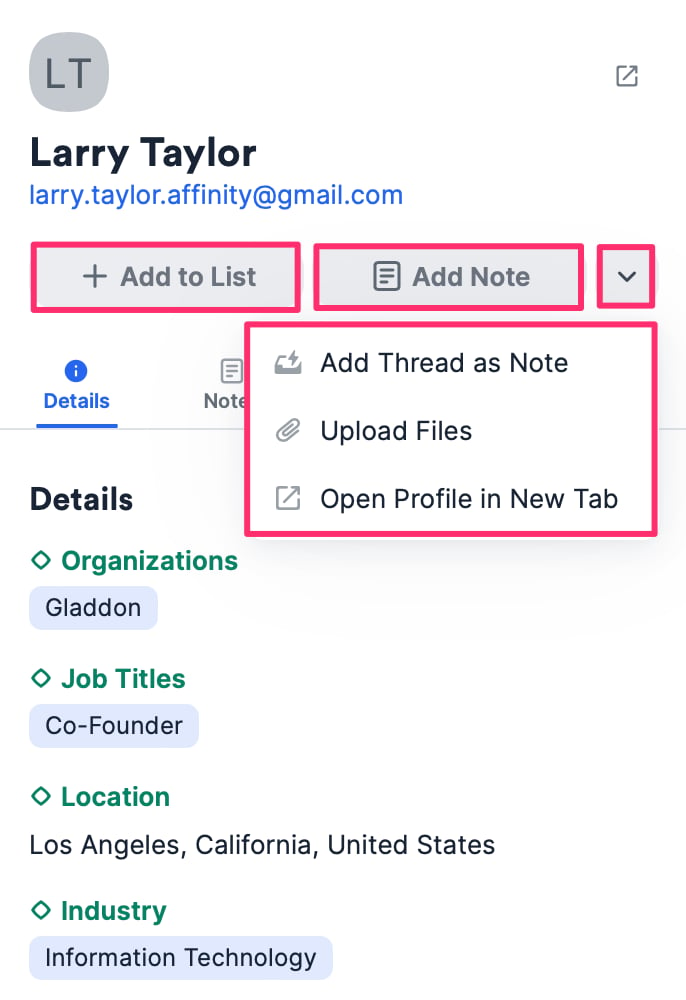
3. From the profile page, you can add the person or organization **to a list** or **add a note**. You can also click the **Down** arrow to take additional actions below:
* Click **Add to Thread as Note** to add the email thread as a note to the profile page.
* **Important Callout**: This option will only appear if the email is synced to Affinity and you're signed into the email account that has access to Affinity.
* Click **Upload Files** to attach a file to the profile page.
* Click **Open Profile in New Tab** to open the profile page within your Affinity CRM.
{/* SCREENSHOT 3 */}
3. From the profile page, you can add the person or organization **to a list** or **add a note**. You can also click the **Down** arrow to take additional actions below:
* Click **Add to Thread as Note** to add the email thread as a note to the profile page.
* **Important Callout**: This option will only appear if the email is synced to Affinity and you're signed into the email account that has access to Affinity.
* Click **Upload Files** to attach a file to the profile page.
* Click **Open Profile in New Tab** to open the profile page within your Affinity CRM.
 4) Click on the different tabs to see the **Details, Lists/Opps, Notes, Connections,** and **Activities** related to that person, organization, or opportunity.
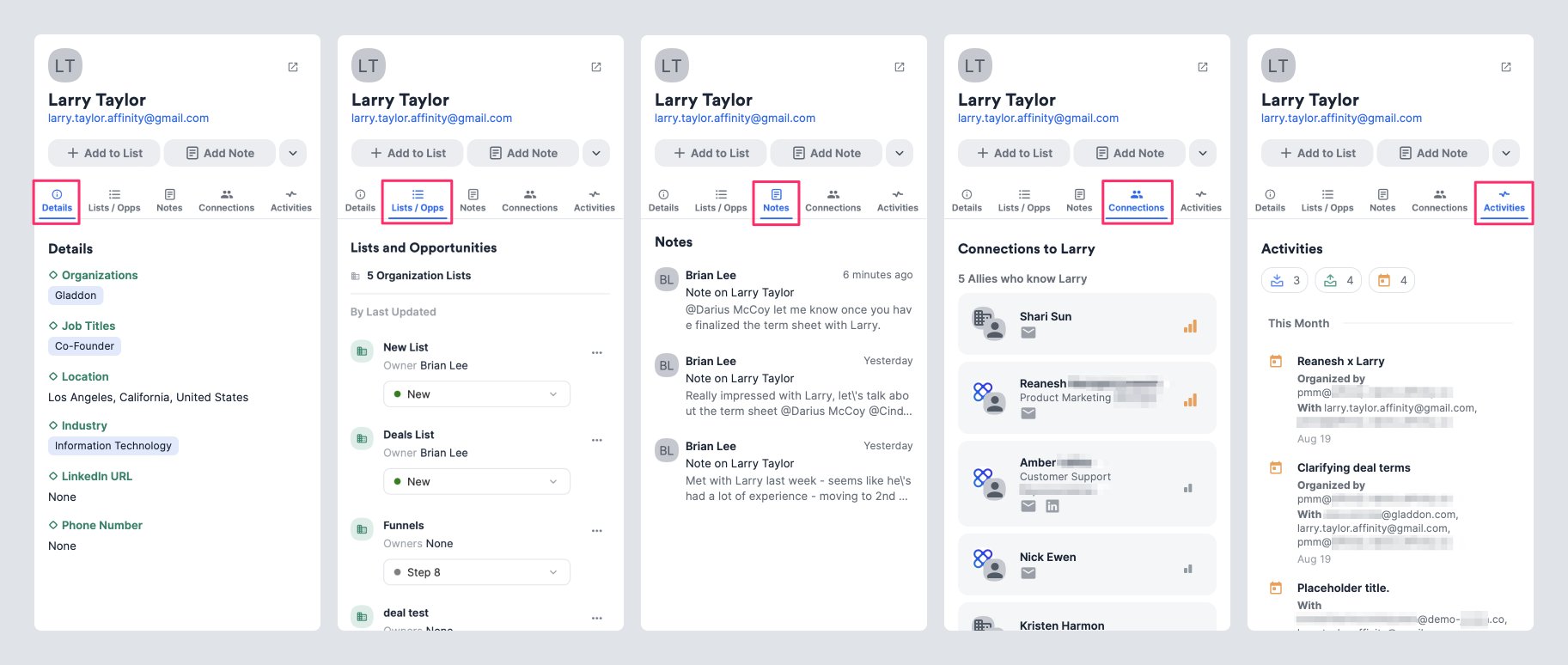 * **Details** — Displays enriched and global fields based on your account's [profile field customization](/s/article/How-to-customize-profile-fields) settings for people and organizations. For opportunities, you will be able to edit their statuses and list-specific fields.
* **Lists/Opps** — Displays both lists and opportunities that the people and organizations associated with. The list-specific field values can be edited here as well.
* **Notes** — Displays the notes associated with that contact.
* **Connections** — Displays all the Affinity connections and allies who know that contact.
* **Activities** — Displays a historical timeline of synced emails and meetings from you and your team members as it relates to that contact.
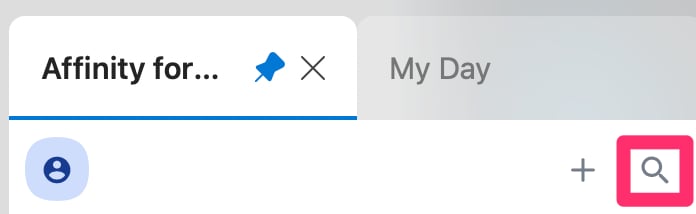
5) You can also click on the **Search** icon to search for a person, organization, or opportunity.
* **Details** — Displays enriched and global fields based on your account's [profile field customization](/s/article/How-to-customize-profile-fields) settings for people and organizations. For opportunities, you will be able to edit their statuses and list-specific fields.
* **Lists/Opps** — Displays both lists and opportunities that the people and organizations associated with. The list-specific field values can be edited here as well.
* **Notes** — Displays the notes associated with that contact.
* **Connections** — Displays all the Affinity connections and allies who know that contact.
* **Activities** — Displays a historical timeline of synced emails and meetings from you and your team members as it relates to that contact.
5) You can also click on the **Search** icon to search for a person, organization, or opportunity.
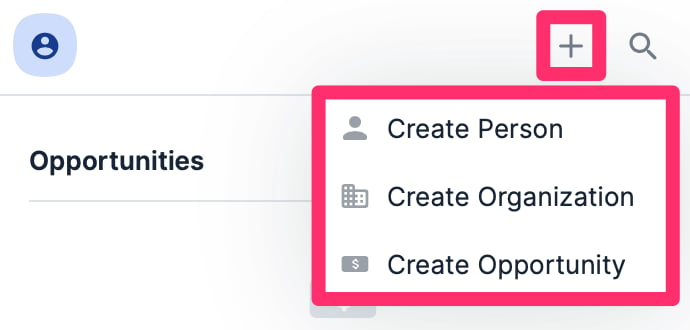
 6. Can't find an entity? Click the **+** icon to create a new person, organization, or opportunity. Please note that only the required default fields will show up, not the optional default fields (see [How to customize Default Fields](/s/article/How-to-customize-Default-Fields)).
 ## Profile Tab Counts — Lists & Opportunities, Notes, Connections, and Activities
Quickly evaluate your/your team's involvement with a given person, organization, or opportunity based on the profile tab counts for the following:
## Profile Tab Counts — Lists & Opportunities, Notes, Connections, and Activities
Quickly evaluate your/your team's involvement with a given person, organization, or opportunity based on the profile tab counts for the following:
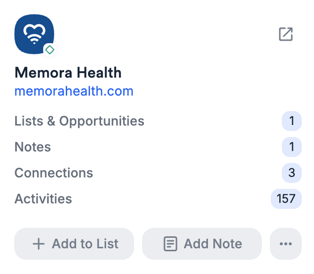 * **Lists & Opportunities** — Count of all lists and all associated opportunities for the given person or organization.
* **Notes** — Count of all visible notes and logged interactions.
* If you're on the Enterprise tier, the count will vary from user to user based on [Enterprise Permissions](/s/article/Enterprise-permissions-enterprise-only).
* **Connections** — Count of total connections, including manually added and inferred connections.
* **Activities** — Count of total activities (synced emails and meetings).
* If you're on the Enterprise tier, the count will vary from user to user based on [Enterprise Permissions](/s/article/Enterprise-permissions-enterprise-only).
* **Lists & Opportunities** — Count of all lists and all associated opportunities for the given person or organization.
* **Notes** — Count of all visible notes and logged interactions.
* If you're on the Enterprise tier, the count will vary from user to user based on [Enterprise Permissions](/s/article/Enterprise-permissions-enterprise-only).
* **Connections** — Count of total connections, including manually added and inferred connections.
* **Activities** — Count of total activities (synced emails and meetings).
* If you're on the Enterprise tier, the count will vary from user to user based on [Enterprise Permissions](/s/article/Enterprise-permissions-enterprise-only).