> ## Documentation Index
> Fetch the complete documentation index at: https://support.affinity.co/llms.txt
> Use this file to discover all available pages before exploring further.
# Affinity Analytics Team Activity Reports
> Help center reference
**Reference** — lookup information.
With Team Activity Reports, you can quickly understand how many emails and meetings have taken place with certain individuals or organizations. Break it down further based on investment stage, industry, or pipeline status to determine areas where you and your team can improve on time spent.
## Getting started with the Team Activity template
To get started, you can use the **Team Activity** template provided by Affinity:
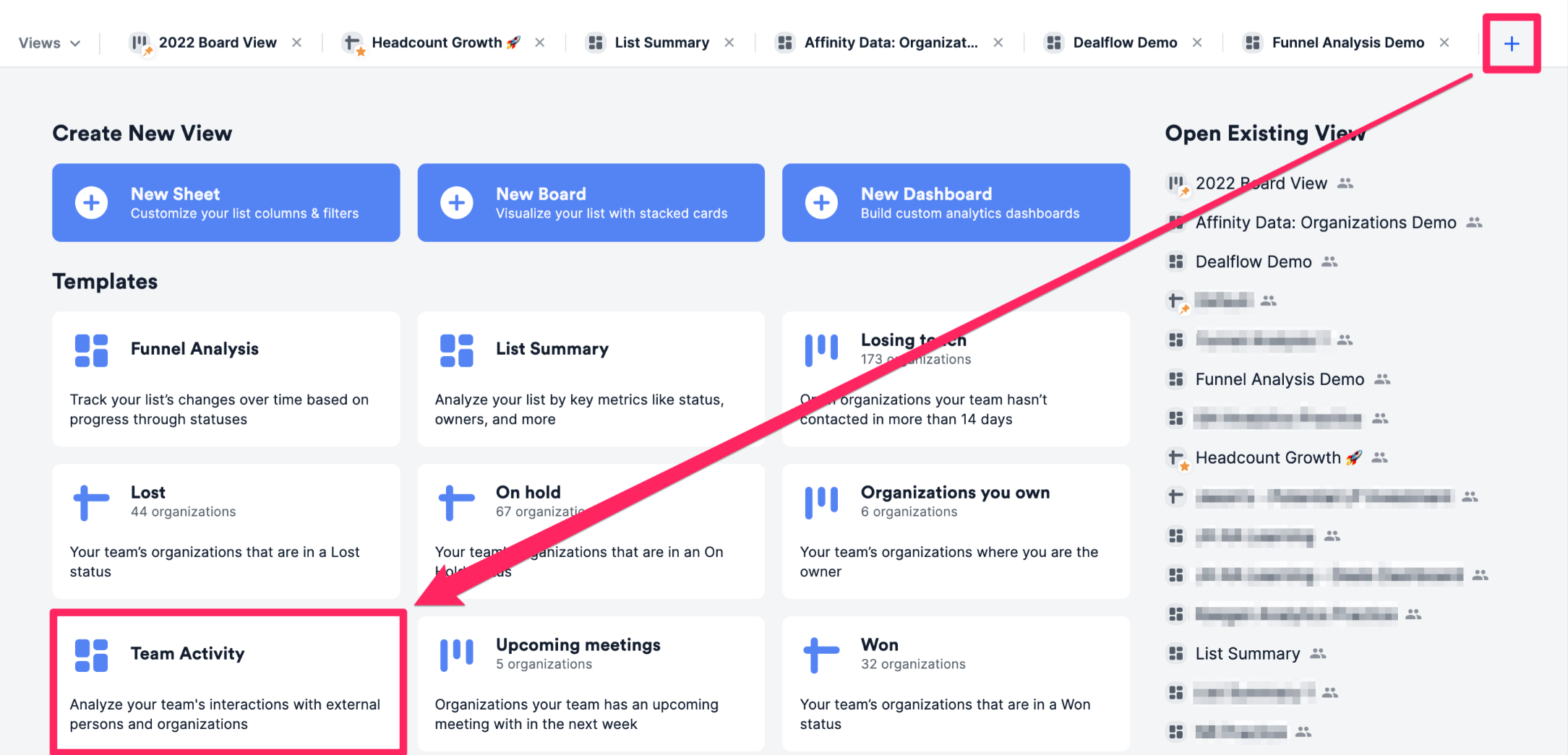
1. First, click into the list you'd like to report on, then click the **+** icon as shown below. Then, click the **Team Activity** template option to create a new dashboard view.
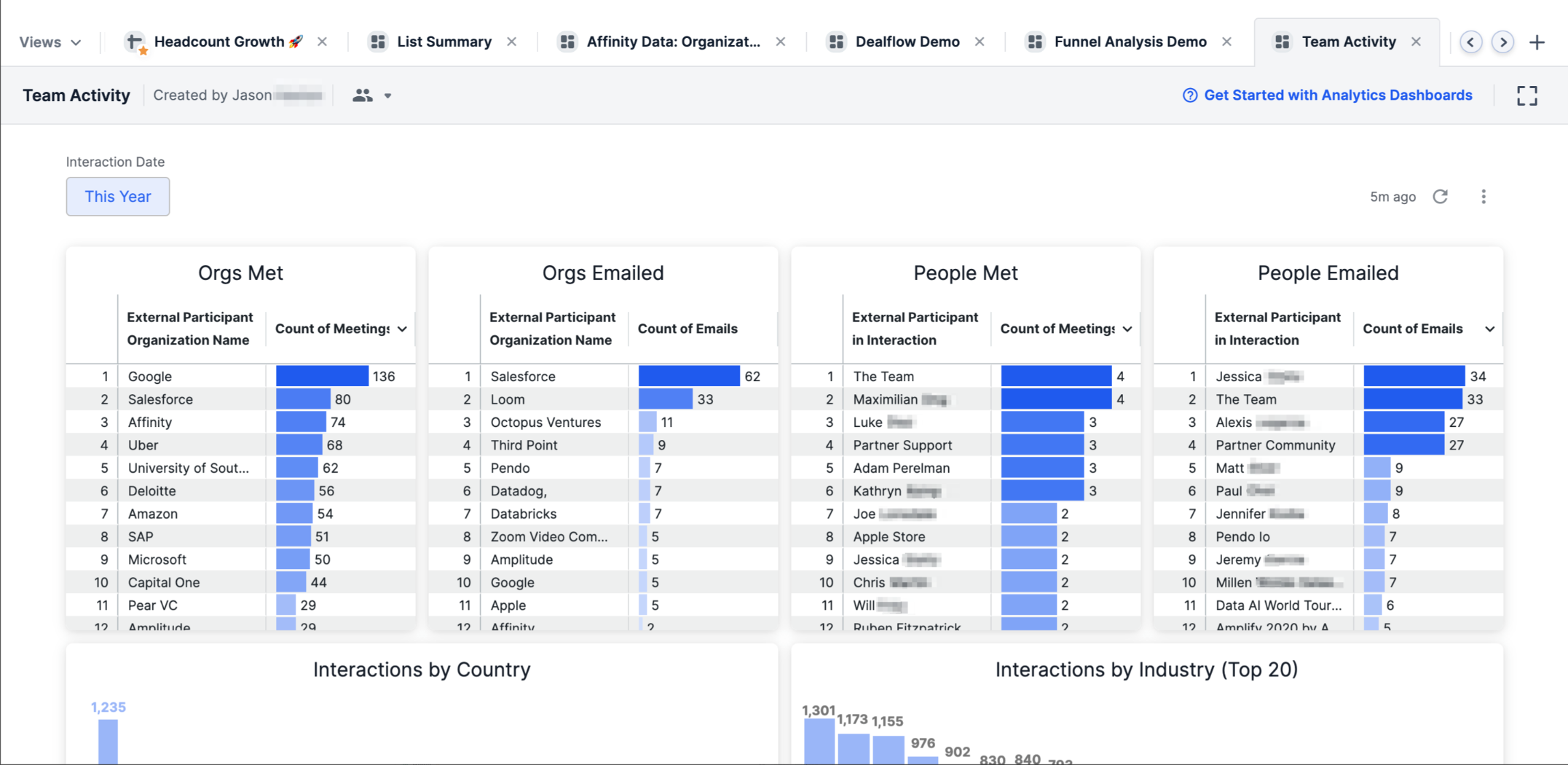
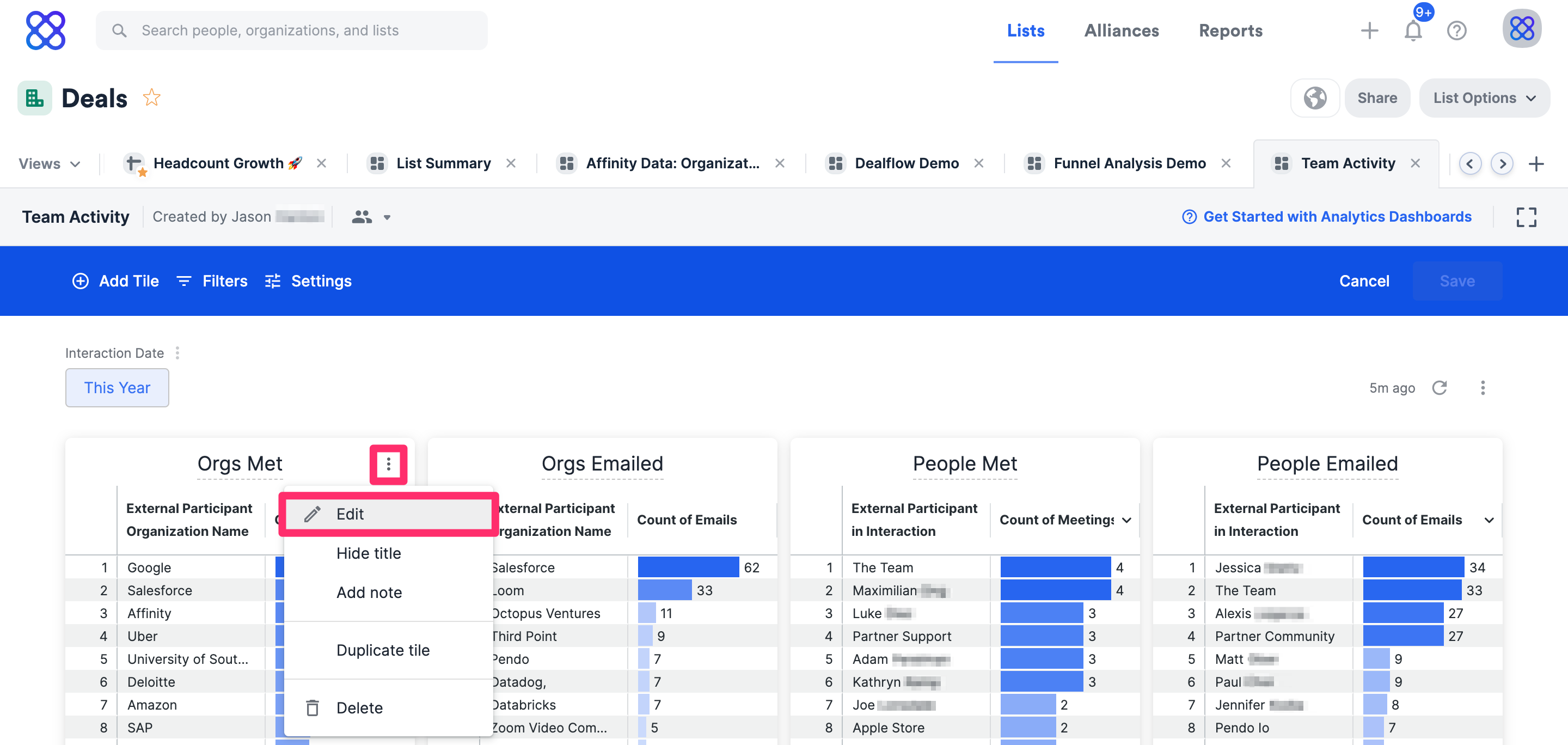
 2. Once the **Team Activity** report is generated, you will immediately see different visualization tiles and metrics based on the data within this list - these include synced emails, synced meetings, and logged interactions.
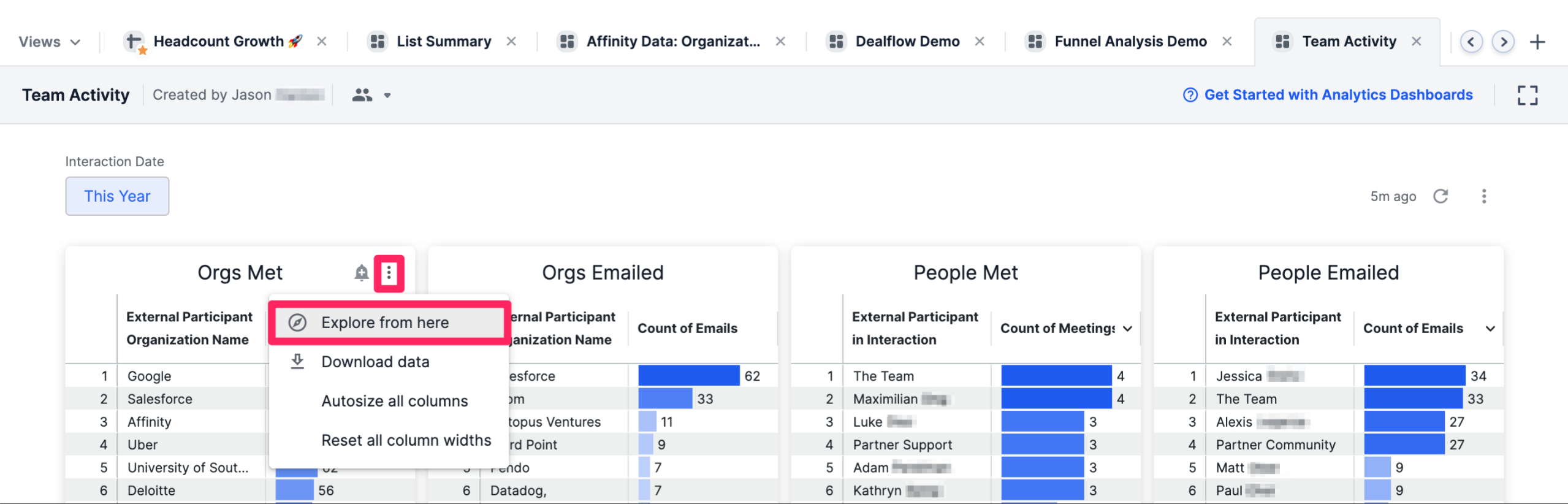
 3. Want to understand how certain visualization tiles were generated? Click the ellipsis (3-dotted icon) on the top-right corner of the visualization tile you want to dig deeper into, then click **Explore from here**.
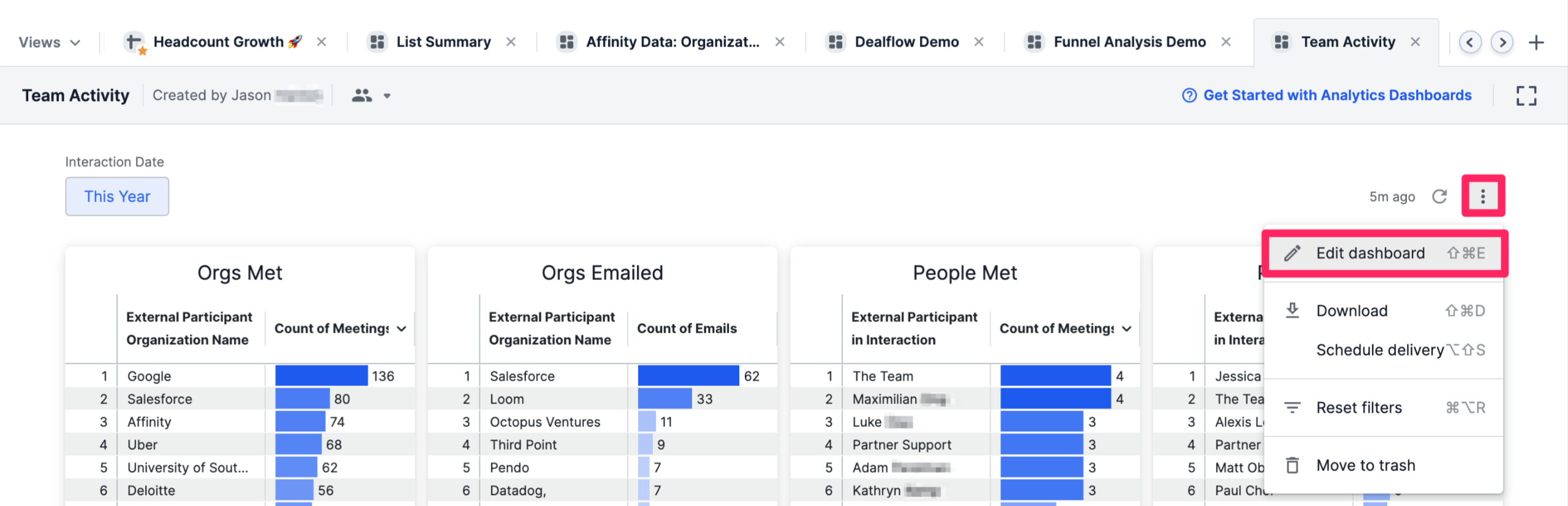
 4. If you'd like to change the data fields being used for certain visualization tiles, click the ellipsis (3-dotted icon) on the top-right corner, then click **Edit dashboard**.
 5. Then, click the ellipsis (3-dotted icon) on the top-right corner of the visualization tile you want to dig deeper into, then click **Edit**.
 ## Important Callouts
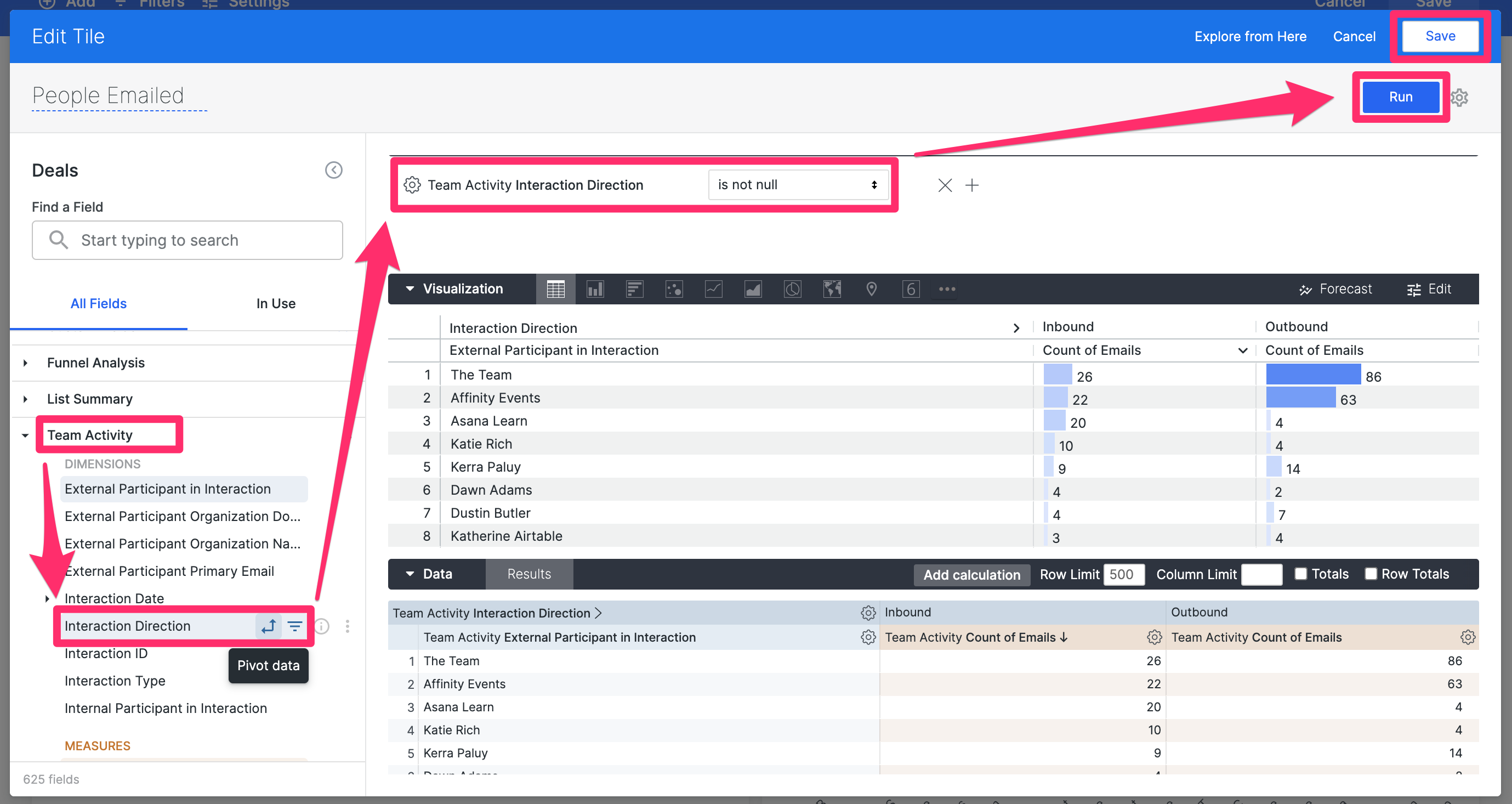
1. **Reporting on Interaction Direction** - You can distinguish between **Inbound** and **Outbound** emails in their Team Activity Reports when using the **Interaction Direction** dimension.
1. Emails sent by internal contacts (your team members using Affinity) will be labeled "**Outbound**" while emails sent by external contacts (non-team members) will be labeled "**Inbound**" (see [Internal vs. External Contacts](/s/article/Internal-vs-External-Contacts)).
2. In this example below, you can [pivot](/s/article/How-to-pivot-data-on-your-dashboard-views) by the **Interaction Direction** dimension to separate **Inbound** emails from **Outbound** emails, then filter out the null values.
## Important Callouts
1. **Reporting on Interaction Direction** - You can distinguish between **Inbound** and **Outbound** emails in their Team Activity Reports when using the **Interaction Direction** dimension.
1. Emails sent by internal contacts (your team members using Affinity) will be labeled "**Outbound**" while emails sent by external contacts (non-team members) will be labeled "**Inbound**" (see [Internal vs. External Contacts](/s/article/Internal-vs-External-Contacts)).
2. In this example below, you can [pivot](/s/article/How-to-pivot-data-on-your-dashboard-views) by the **Interaction Direction** dimension to separate **Inbound** emails from **Outbound** emails, then filter out the null values.
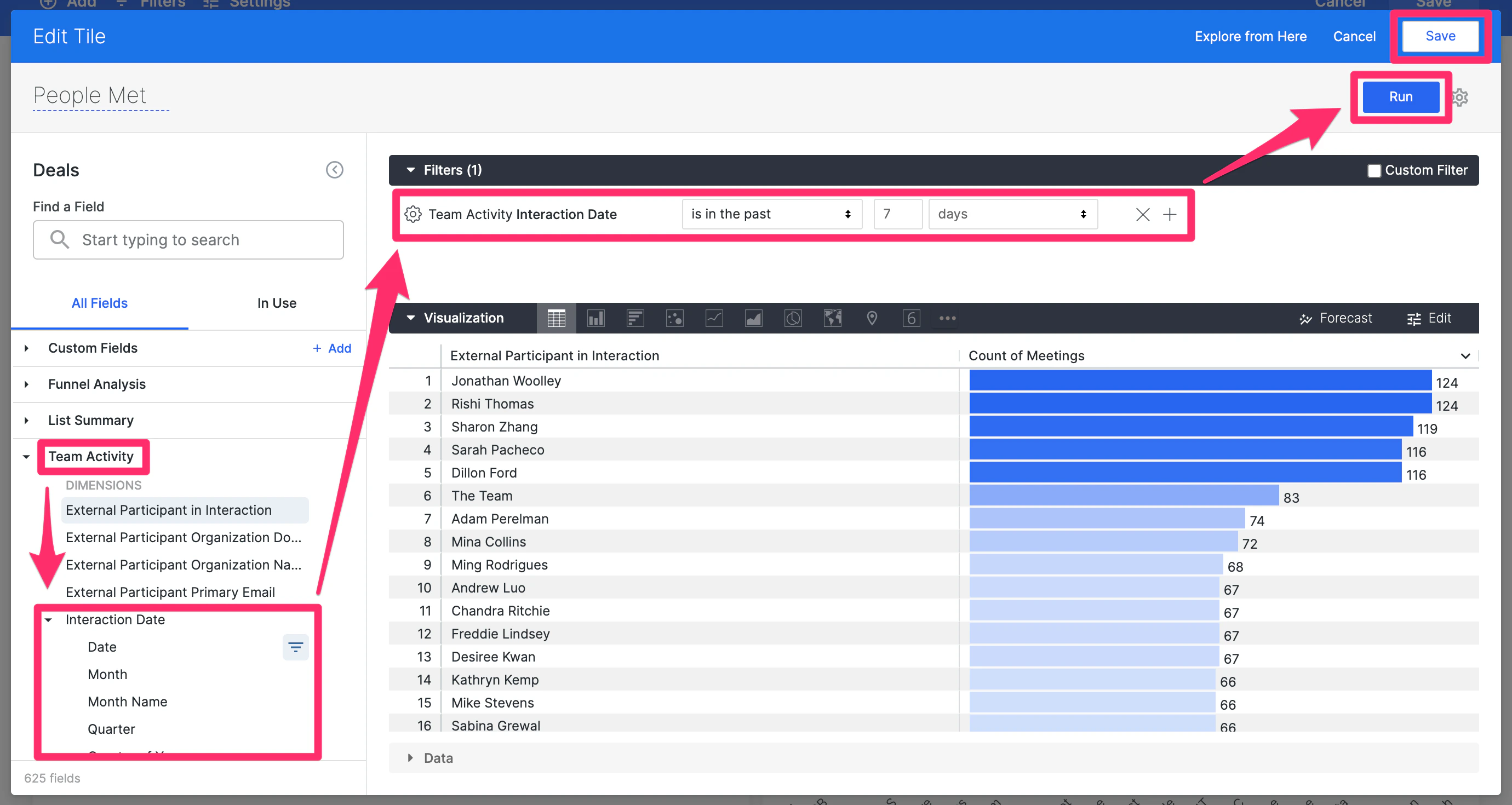
 2. **Future meetings in Team Activity Reports** - Team Activity Reports include future meetings (up to one month from the present day) so you can take into account upcoming meetings as well.
1. Since this retroactively impacts existing Team Activity Reports, you can exclude future meetings from previous and/or new Team Activity Reports by filtering them out using the **Interaction Date** dimension (see [How to apply filters in dashboard views](/s/article/How-to-apply-filters-in-dashboard-views)).
2. **Future meetings in Team Activity Reports** - Team Activity Reports include future meetings (up to one month from the present day) so you can take into account upcoming meetings as well.
1. Since this retroactively impacts existing Team Activity Reports, you can exclude future meetings from previous and/or new Team Activity Reports by filtering them out using the **Interaction Date** dimension (see [How to apply filters in dashboard views](/s/article/How-to-apply-filters-in-dashboard-views)).
 3. **Manually Logged Interactions (Chat Message)** - You can use the new "**Count of Chat Messages**" measure to filter your interaction counts to just the chat messages that you've manually added to Affinity.
1. Chat Messages can be broken down further by the new "**Direction**" dimension, which enables you to filter your chat messages by **Sent** vs. **Received**.
To learn more about customizing, filtering, and pivoting data on your dashboard view, check out the following articles to take your skills to the next level:
* [How to create a dashboard view](/s/article/How-to-create-a-dashboard-view)
* [How to create custom groups in dashboard views](/s/article/How-to-create-custom-groups-in-dashboard-views)
* [How to apply filters in dashboard views](/s/article/How-to-apply-filters-in-dashboard-views)
* [How to pivot data on your dashboard views](/s/article/How-to-pivot-data-on-your-dashboard-views)
3. **Manually Logged Interactions (Chat Message)** - You can use the new "**Count of Chat Messages**" measure to filter your interaction counts to just the chat messages that you've manually added to Affinity.
1. Chat Messages can be broken down further by the new "**Direction**" dimension, which enables you to filter your chat messages by **Sent** vs. **Received**.
To learn more about customizing, filtering, and pivoting data on your dashboard view, check out the following articles to take your skills to the next level:
* [How to create a dashboard view](/s/article/How-to-create-a-dashboard-view)
* [How to create custom groups in dashboard views](/s/article/How-to-create-custom-groups-in-dashboard-views)
* [How to apply filters in dashboard views](/s/article/How-to-apply-filters-in-dashboard-views)
* [How to pivot data on your dashboard views](/s/article/How-to-pivot-data-on-your-dashboard-views)