> ## Documentation Index
> Fetch the complete documentation index at: https://support.affinity.co/llms.txt
> Use this file to discover all available pages before exploring further.
# Activity Timeline on Profiles
> Help center reference
**Concept** — background and overview.
When visiting any entity's profile page, check out their **Activity Timeline** to view a running log of field value changes and team communications over time.
### How the Activity Timeline works
1. Synced email/calendar data and field value changes will be recorded on the entity's Activity Timeline.
2. For example, changing the **Status** field (ranked dropdown) of a particular organization will be tracked on that organization's profile page.
**Note**: If you changed the status to the wrong status option, you can change it to the correct status option within 1 minute to prevent the wrong status option from appearing on the Activity Timeline.
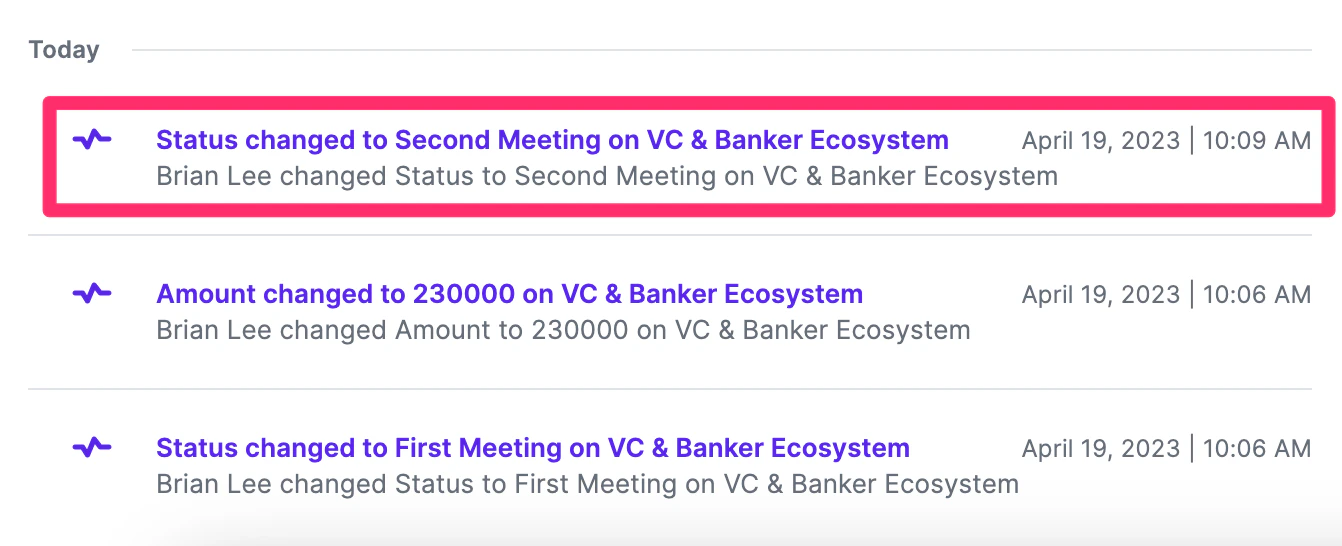
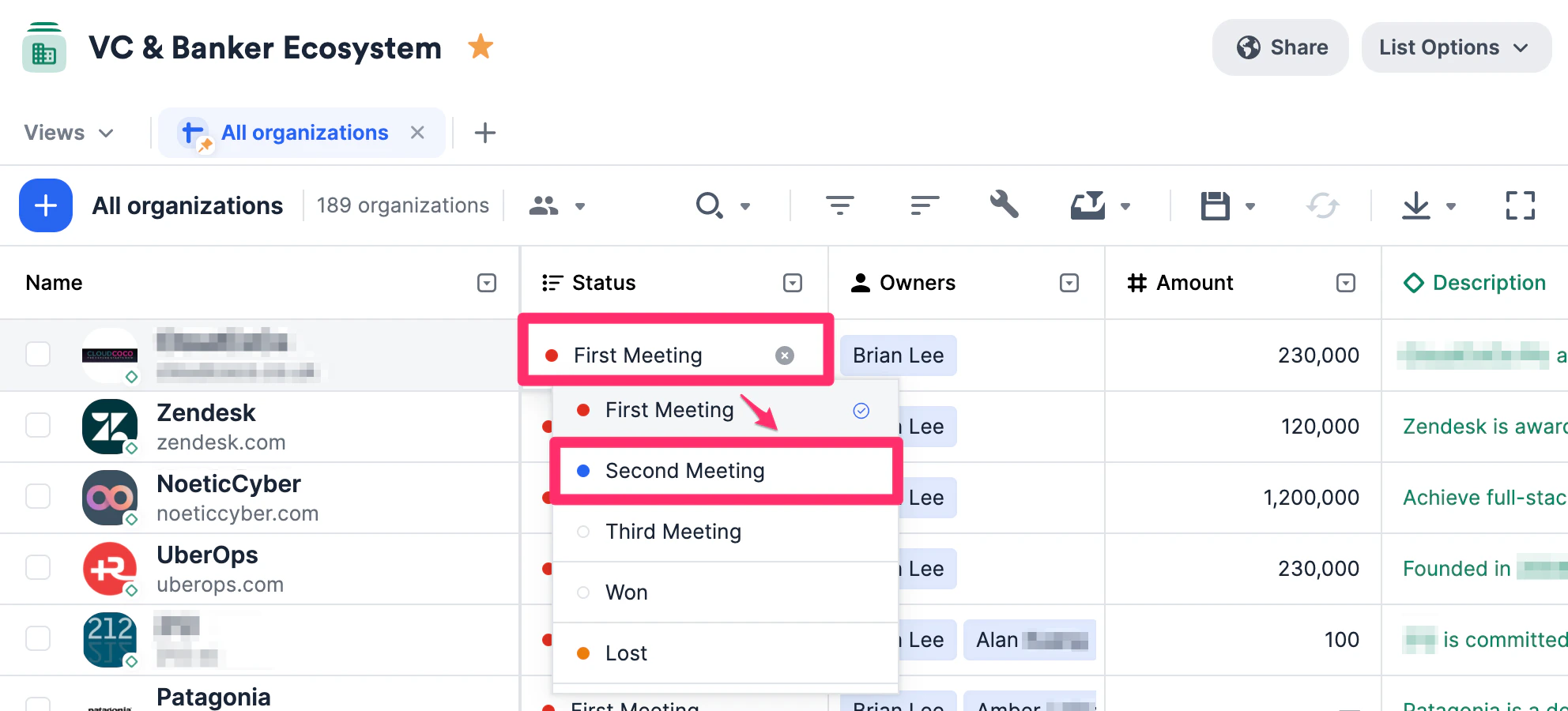 3. Scroll down on the contact's profile page to see the change on the Activity Timeline.
**Note**: If you do not have access to certain lists, field updates for those lists will not surface for you.
3. Scroll down on the contact's profile page to see the change on the Activity Timeline.
**Note**: If you do not have access to certain lists, field updates for those lists will not surface for you.
 ### Filtering the Activity Timeline
You can filter the **Activity Timeline** by the following attributes:
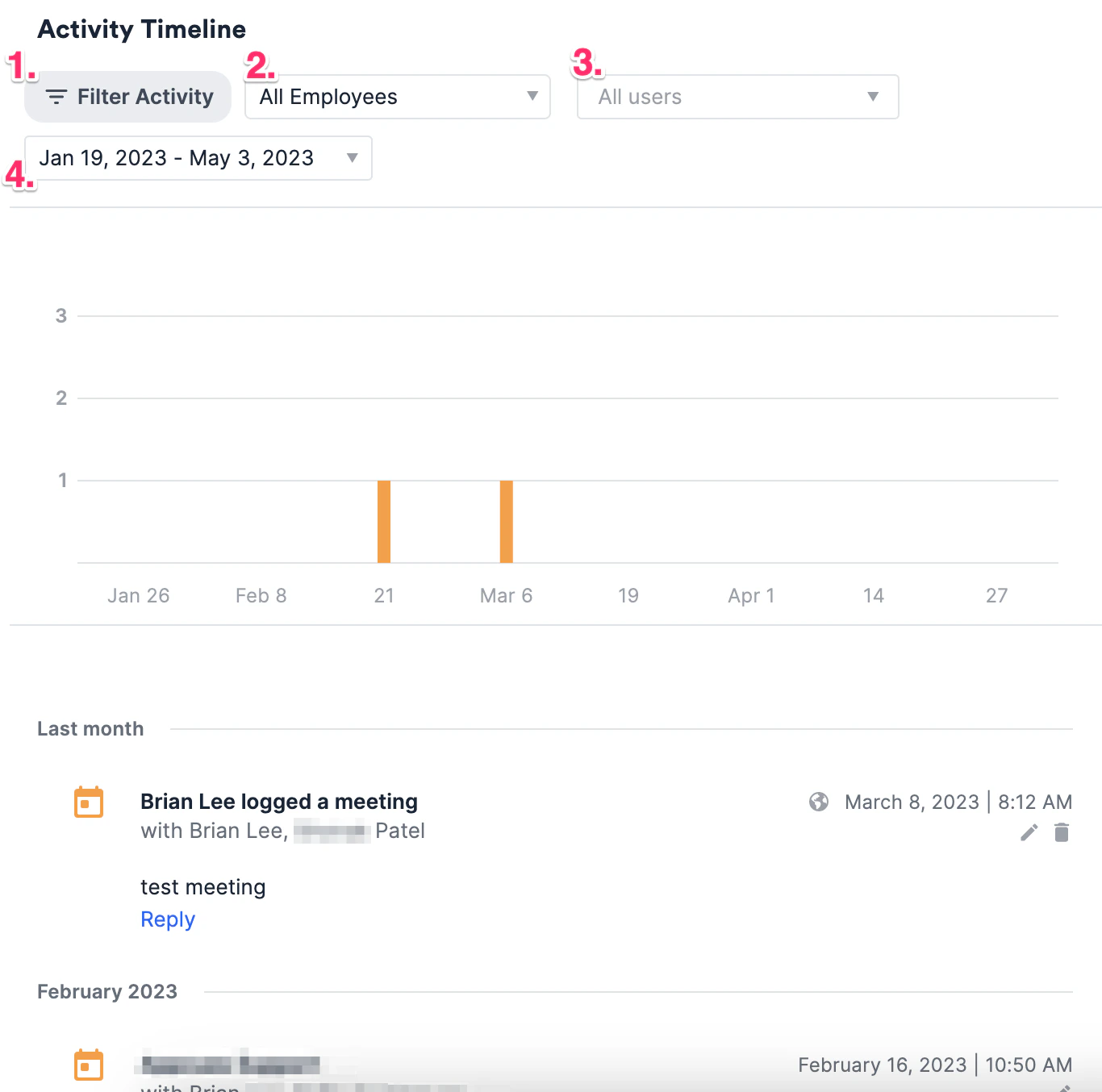
1. **Filter Activity**: Meetings, Phone Calls, Sent/Received Emails, Sent/Received Messages, Notes, List Activity, Reminders, and Files
2. **All Employees/Current Employees**: For organization profile pages, you can filter activities either by **All Employees** and **Current Employees**.
* Please note that **Current Employees** is determined by the **Current Organization** field.
3. **All users**: You can filter activities by specific users on your team. 4.
**Time Period**: Specify the time period.
### Filtering the Activity Timeline
You can filter the **Activity Timeline** by the following attributes:
1. **Filter Activity**: Meetings, Phone Calls, Sent/Received Emails, Sent/Received Messages, Notes, List Activity, Reminders, and Files
2. **All Employees/Current Employees**: For organization profile pages, you can filter activities either by **All Employees** and **Current Employees**.
* Please note that **Current Employees** is determined by the **Current Organization** field.
3. **All users**: You can filter activities by specific users on your team. 4.
**Time Period**: Specify the time period.
 ### Why won't some emails or meetings show up on the Activity Timeline?
Here are three of the most common reasons:
1. You and/or your team member(s) may have your email accounts' syncing disabled (see [How to reenable syncing into Affinity](/s/article/How-to-reenable-syncing-into-Affinity)).
2. To avoid cluttering the Activity Timeline with unnecessary noise, Affinity will not show emails or meetings that contain the following words in their subject lines:
* "**Tentatively Accepted:**" or "**Accepted:** "
* "**Updated invitation:** " or "**Invitation:** "
* "**Updated invitation with note:** " or "**Invitation with note:** "
* "**Rejected:** "
* "**Canceled Event:** "
* "**Declined:** "
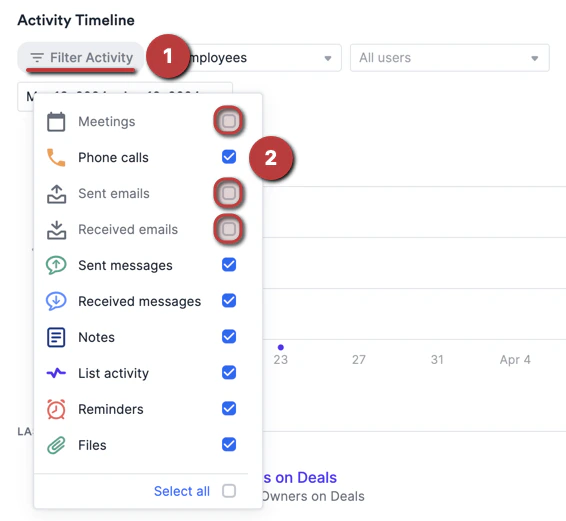
3. If you don't see any emails or meetings at all, you may have unchecked the following activity types: **Sent emails**, **Received emails**, and **Meetings**.
* Click the **Filter Activity** button.
* Then, click the checkboxes to show the emails and meetings.
### Why won't some emails or meetings show up on the Activity Timeline?
Here are three of the most common reasons:
1. You and/or your team member(s) may have your email accounts' syncing disabled (see [How to reenable syncing into Affinity](/s/article/How-to-reenable-syncing-into-Affinity)).
2. To avoid cluttering the Activity Timeline with unnecessary noise, Affinity will not show emails or meetings that contain the following words in their subject lines:
* "**Tentatively Accepted:**" or "**Accepted:** "
* "**Updated invitation:** " or "**Invitation:** "
* "**Updated invitation with note:** " or "**Invitation with note:** "
* "**Rejected:** "
* "**Canceled Event:** "
* "**Declined:** "
3. If you don't see any emails or meetings at all, you may have unchecked the following activity types: **Sent emails**, **Received emails**, and **Meetings**.
* Click the **Filter Activity** button.
* Then, click the checkboxes to show the emails and meetings.
 ### Important Callouts
Please note that only 6 out of 9 field types will have their field value changes recorded on the Activity Timeline. The 6 field types are:
1. Number (single & multiple values)
2. Date (single values only)
3. Location (single & multiple values)
4. Ranked dropdown (single values only)
5. Person (single & multiple values)
6. Organization (single & multiple values) These are the other 3 field types that will **not** have their field value changes recorded on the Activity Timeline:
7. Text (single values only)
8. Dropdown (single & multiple values)
9. [Formula](/s/article/How-to-create-list-calculations-using-the-formula-field)
{/* */}
### Important Callouts
Please note that only 6 out of 9 field types will have their field value changes recorded on the Activity Timeline. The 6 field types are:
1. Number (single & multiple values)
2. Date (single values only)
3. Location (single & multiple values)
4. Ranked dropdown (single values only)
5. Person (single & multiple values)
6. Organization (single & multiple values) These are the other 3 field types that will **not** have their field value changes recorded on the Activity Timeline:
7. Text (single values only)
8. Dropdown (single & multiple values)
9. [Formula](/s/article/How-to-create-list-calculations-using-the-formula-field)
{/* */}