> ## Documentation Index
> Fetch the complete documentation index at: https://support.affinity.co/llms.txt
> Use this file to discover all available pages before exploring further.
# Account Level Permissions
> Help center reference: Account Level Permissions
**Reference** — lookup information.
Depending on your Affinity [subscription tier,](/s/article/How-do-I-know-which-Affinity-subscription-tier-I-am-on) you will have different account roles and different permissions for each account role.
## What account roles are available for each subscription tier?
* **Essential**, **Scale**, and **Advanced** tiers have 2 account roles: **Admin** and **Standard**
* The **Enterprise** tier has 3 account roles: **Enterprise Admin**, **Admin**, and **Standard** **Note**: Being an **Admin** at the account level does not automatically make you a **List Admin** for the lists that you have access to. To have full list privileges for certain lists, you must ask the List Owner to make you a List Admin as well (see [How to share lists in Affinity](/s/article/How-to-share-lists-in-Affinity)).
## How to find your account role and view permissions for each role
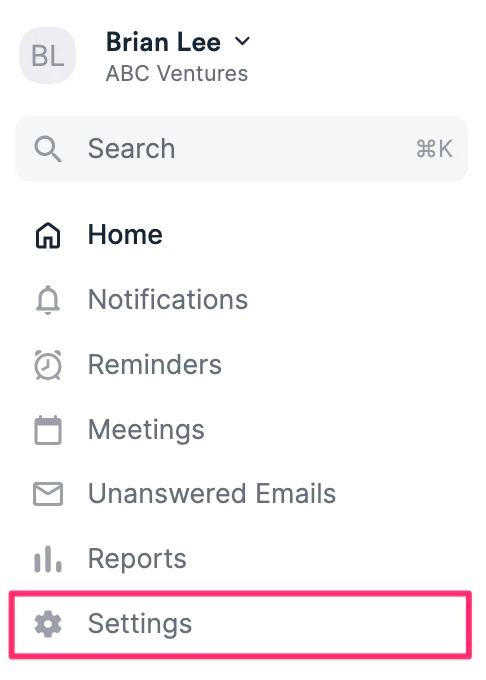
1. To find out your account role, click on **Settings**.
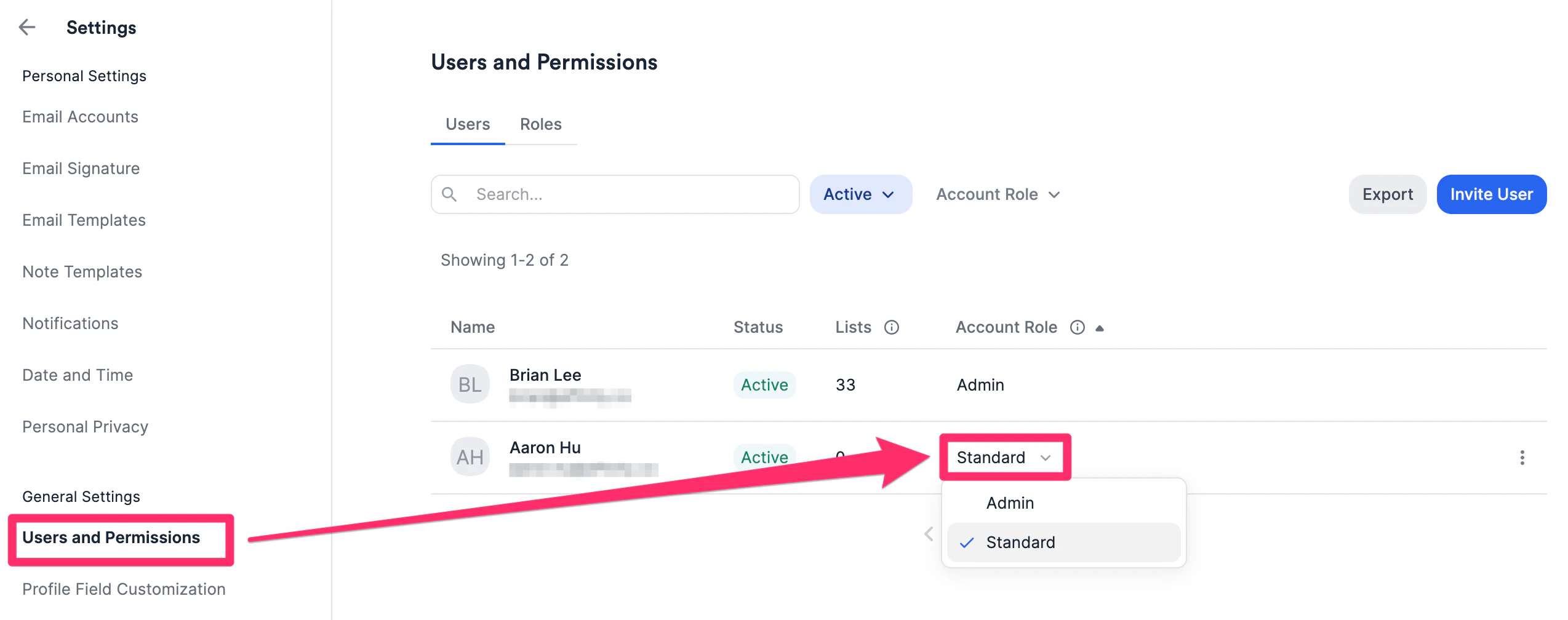
 2. Click **Users and Permissions** to see your role under the **Account Role** column. If you have permission, you can change the account role for each team member accordingly.
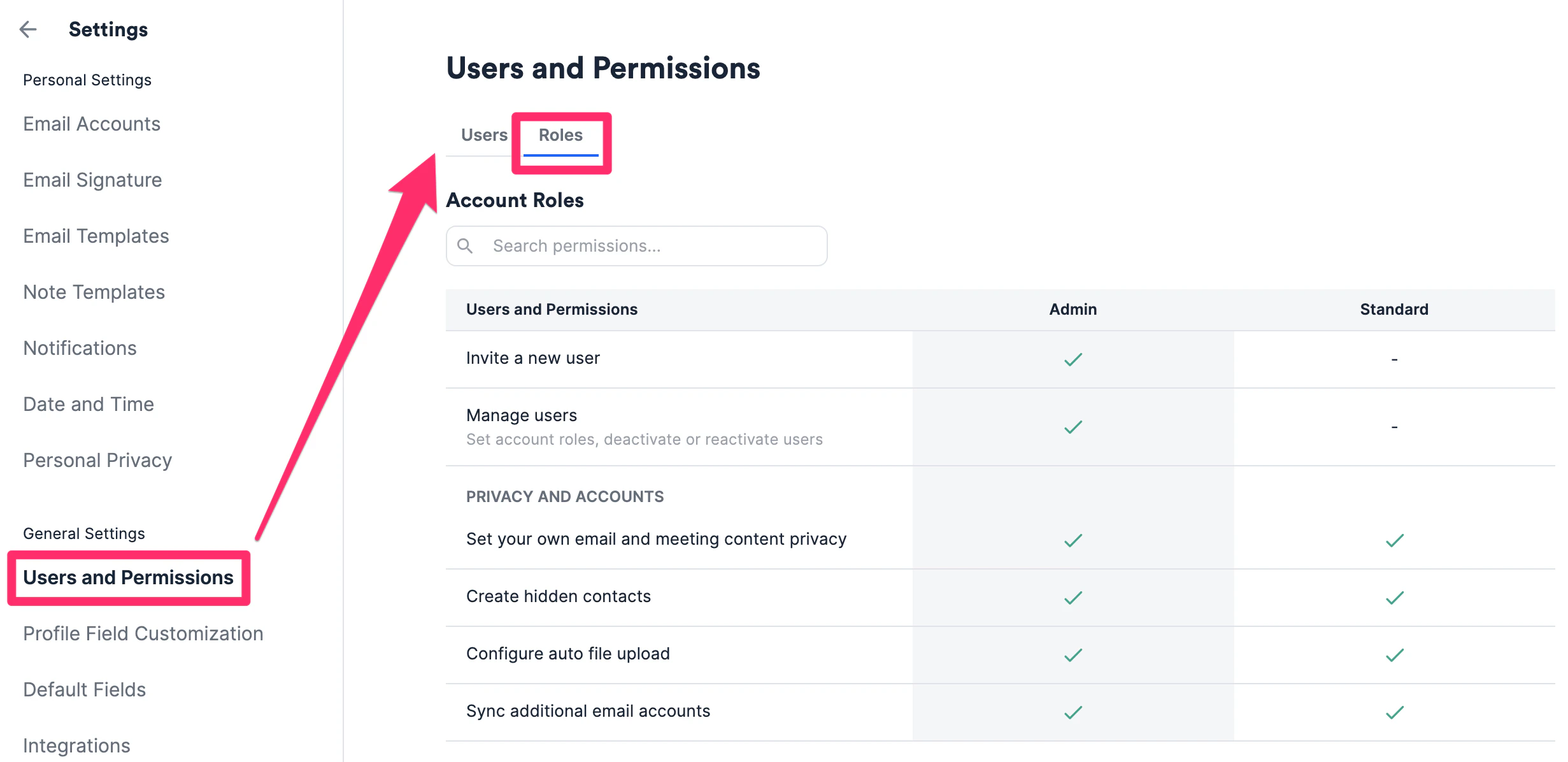
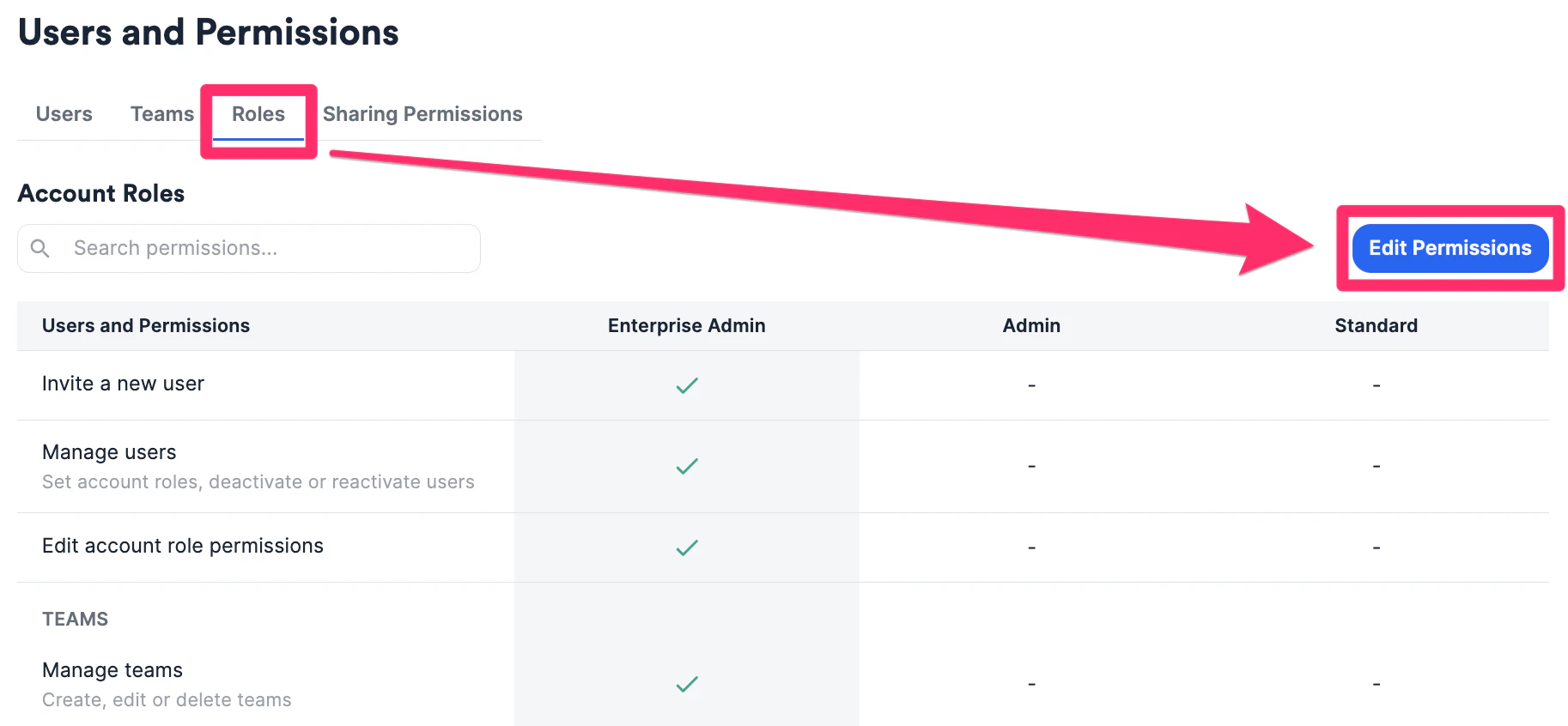
 3. To learn more about the different permissions given to each account role, click on the **Roles** tab.
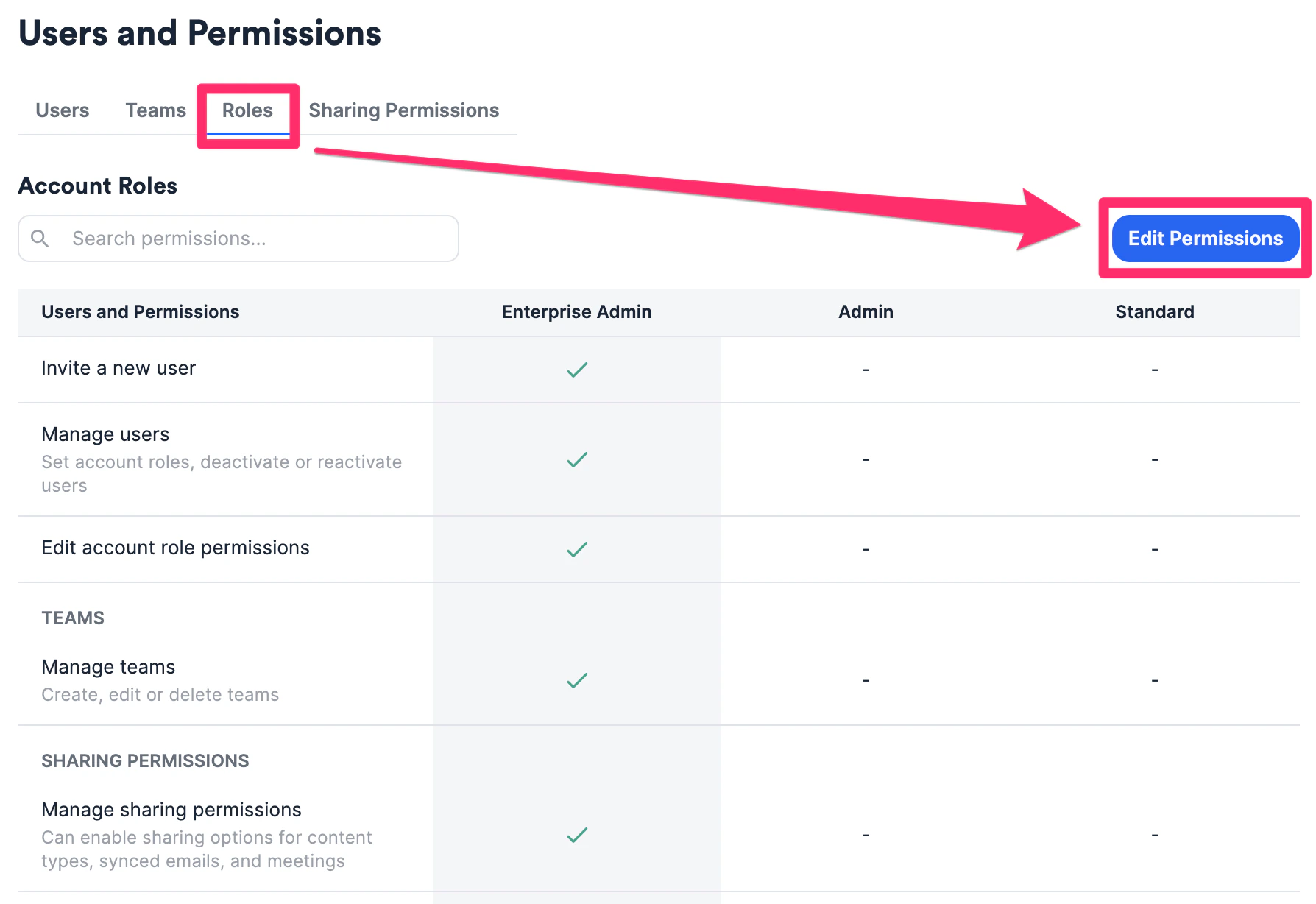
 4. If you're an Enterprise Admin on the **Enterprise** tier, you can also edit certain permissions by clicking **Edit Permissions**.
 ## What permissions can the Enterprise Admin change? (Enterprise only)
1. If you're an Enterprise Admin on your account, click **Edit Permissions** to see what permissions can be changed.
## What permissions can the Enterprise Admin change? (Enterprise only)
1. If you're an Enterprise Admin on your account, click **Edit Permissions** to see what permissions can be changed.
 2. These are all the permissions that can be enabled/disabled for **Admin** and **Standard** users. Once you're done making changes, click **Save**.
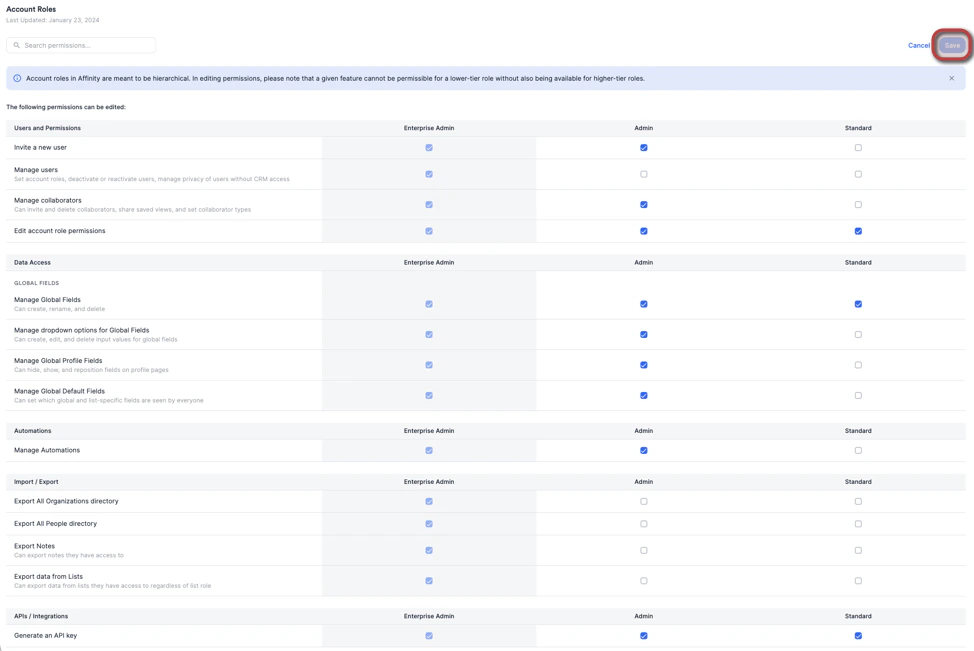 **Note**: Account roles are hierarchical (any permissions given to **Standard** users will also be given to **Admin** users by default).
If you have feedback on other permissions you'd like to change that aren't currently editable, please let us know at [support@affinity.co](mailto:support@affinity.co).
## Important Callouts
* **Essential**, **Scale**, and **Advanced** tiers: Only the **Admin(s)** can set the account role of their team members to **Standard** or **Admin**.
* **Enterprise** tier: Only the **Enterprise Admin(s)** can change users' account roles by default, but they can delegate these permissions to **Standard** or **Admin** roles by clicking **Edit Permissions**.
* The **Enterprise Admin** role cannot be assigned to a user in-product. Please contact [support@affinity.co](mailto:support@affinity.co) or your Affinity representative to do so. For **Enterprise Admins** on the **Enterprise** tier:
* If you remove the permission for **Admin** and/or **Standard** users to generate an API key, the following will occur:
* They can no longer generate an API key (the API tab in Settings will be hidden).
* All existing API keys attached to each user will be disabled.
* If you decide to reenable the permission for **Admin** and/or **Standard** users to generate an API key, the following will occur:
* Their previous API keys will not be reenabled and they will need to [generate a new API key](/s/article/How-to-create-and-manage-API-keys).
**Note**: Account roles are hierarchical (any permissions given to **Standard** users will also be given to **Admin** users by default).
If you have feedback on other permissions you'd like to change that aren't currently editable, please let us know at [support@affinity.co](mailto:support@affinity.co).
## Important Callouts
* **Essential**, **Scale**, and **Advanced** tiers: Only the **Admin(s)** can set the account role of their team members to **Standard** or **Admin**.
* **Enterprise** tier: Only the **Enterprise Admin(s)** can change users' account roles by default, but they can delegate these permissions to **Standard** or **Admin** roles by clicking **Edit Permissions**.
* The **Enterprise Admin** role cannot be assigned to a user in-product. Please contact [support@affinity.co](mailto:support@affinity.co) or your Affinity representative to do so. For **Enterprise Admins** on the **Enterprise** tier:
* If you remove the permission for **Admin** and/or **Standard** users to generate an API key, the following will occur:
* They can no longer generate an API key (the API tab in Settings will be hidden).
* All existing API keys attached to each user will be disabled.
* If you decide to reenable the permission for **Admin** and/or **Standard** users to generate an API key, the following will occur:
* Their previous API keys will not be reenabled and they will need to [generate a new API key](/s/article/How-to-create-and-manage-API-keys).